

Permission Groups
Permission Groups
Section titled “Permission Groups”Permission Groups give you fine-grained, role-based access control beyond the two built-in roles (Owner and User). A group bundles a set of granular permissions — view billing, manage extensions, read recordings, and so on — and you assign that group to users.
Navigate to Account → Permission Groups. This page is owner-only — non-owner users see an “Owner access required” notice.
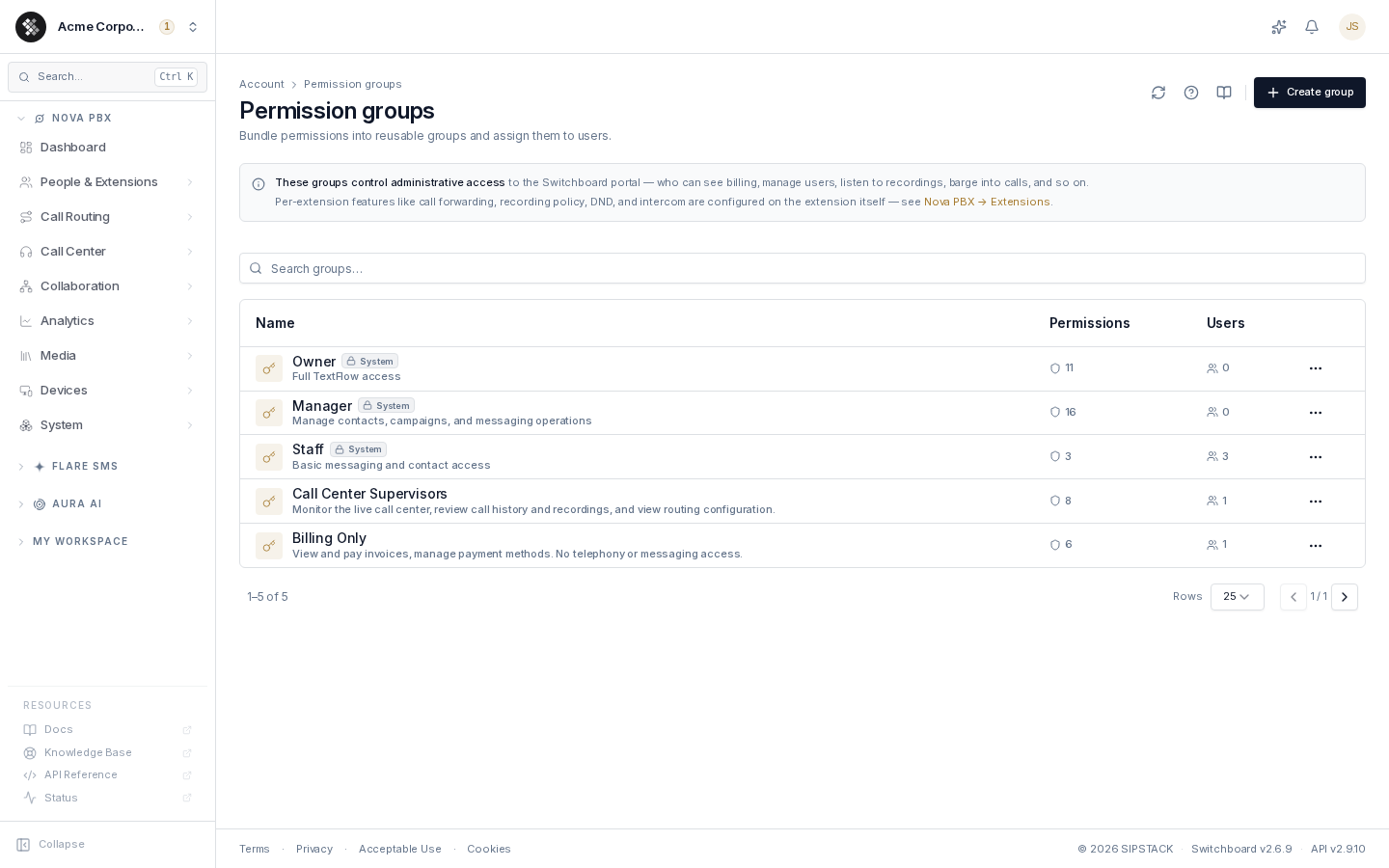
System vs. custom groups
Section titled “System vs. custom groups”| Type | Behavior |
|---|---|
| System (marked with a lock badge) | Ship with every account, managed by SIPSTACK. You can assign them to users but cannot edit or delete them. |
| Custom | Created by you. Fully editable: rename, change permissions, delete. |
If you need a variation of a system group, create a custom group that extends it as a base template — your group then inherits future permission additions to the template automatically.
The groups table
Section titled “The groups table”| Column | Meaning |
|---|---|
| Name | Group name and description. The lock badge marks system groups. |
| Permissions | How many permissions the group bundles. |
| Users | How many users currently have the group assigned. |
Click a row to open the group for viewing or editing. The ⋯ menu offers Edit (or View for locked system groups) and Delete.
Permission categories
Section titled “Permission categories”Permissions are organized by area:
| Category | Covers |
|---|---|
| Account | Billing operations (invoices, payments, payment methods, subscription changes, Aura credit settings; cancelling stays owner-only), subscriptions, users (view/invite/edit/remove), permission-group assignment, phone numbers, org settings, audit log, organization lifecycle. |
| Nova PBX | Extensions, devices, routing, call-center monitoring, CDRs, recordings (read/delete). |
| Flare SMS | Campaigns, contacts, broadcasts, conversations. |
| Personal | The user’s own profile, notification preferences, and own recordings. |
The authoritative list — with a plain-language name and description for every permission — is the picker on the create/edit page.
Desk-phone permissions
Section titled “Desk-phone permissions”Four permissions decide who can work with desk phones. All four can be added to a custom group:
| Permission | Key | Grants |
|---|---|---|
| View Devices | nova.devices.view | See the Devices list and a device’s detail, lines and keys, and the model catalog on the register page. Read-only. |
| Manage Devices | nova.devices.manage | Everything above plus registering, editing and deleting phones, assigning lines and keys, previewing a config, reprovisioning and rebooting. |
| View PBX settings | nova.settings.read | See the PBX tenant’s provisioning status (including whether a provisioning PIN has been generated). Does not open the PBX Settings editor. |
| Manage PBX settings and devices | nova.settings.manage | The PBX Settings editor, including Provisioning Access — generating and rotating the provisioning PIN, which reveals the PIN once. Also satisfies every device permission above. |
Give a phone technician Manage Devices on its own: they can roll out and fix phones without being able to read or rotate the organization’s provisioning PIN. Someone who must run the DHCP cutover needs Manage PBX settings and devices as well.
Deleting a group
Section titled “Deleting a group”Open the group, then choose Delete group from the ⋯ More menu (or use the row’s ⋯ menu on the list). The confirmation dialog tells you how many users will lose the group’s permissions, and requires typing the group name to confirm.
Groups vs. roles
Section titled “Groups vs. roles”| Roles (Owner / User) | Permission groups | |
|---|---|---|
| Scope | Coarse, organization-wide | Granular, per-feature |
| Owner | Bypasses all permission checks | Informational only for owners |
| Assignment | Required, one per user | Optional — one group per user via the UI |
| Customizable | No | Yes — unlimited custom groups |
Think of the role as the coarse gate (is this person an administrator of the org?) and the permission group as the fine filter (within the portal, what exactly can they see and do?).