

Partner Access (MSP)
Partner Access (MSP)
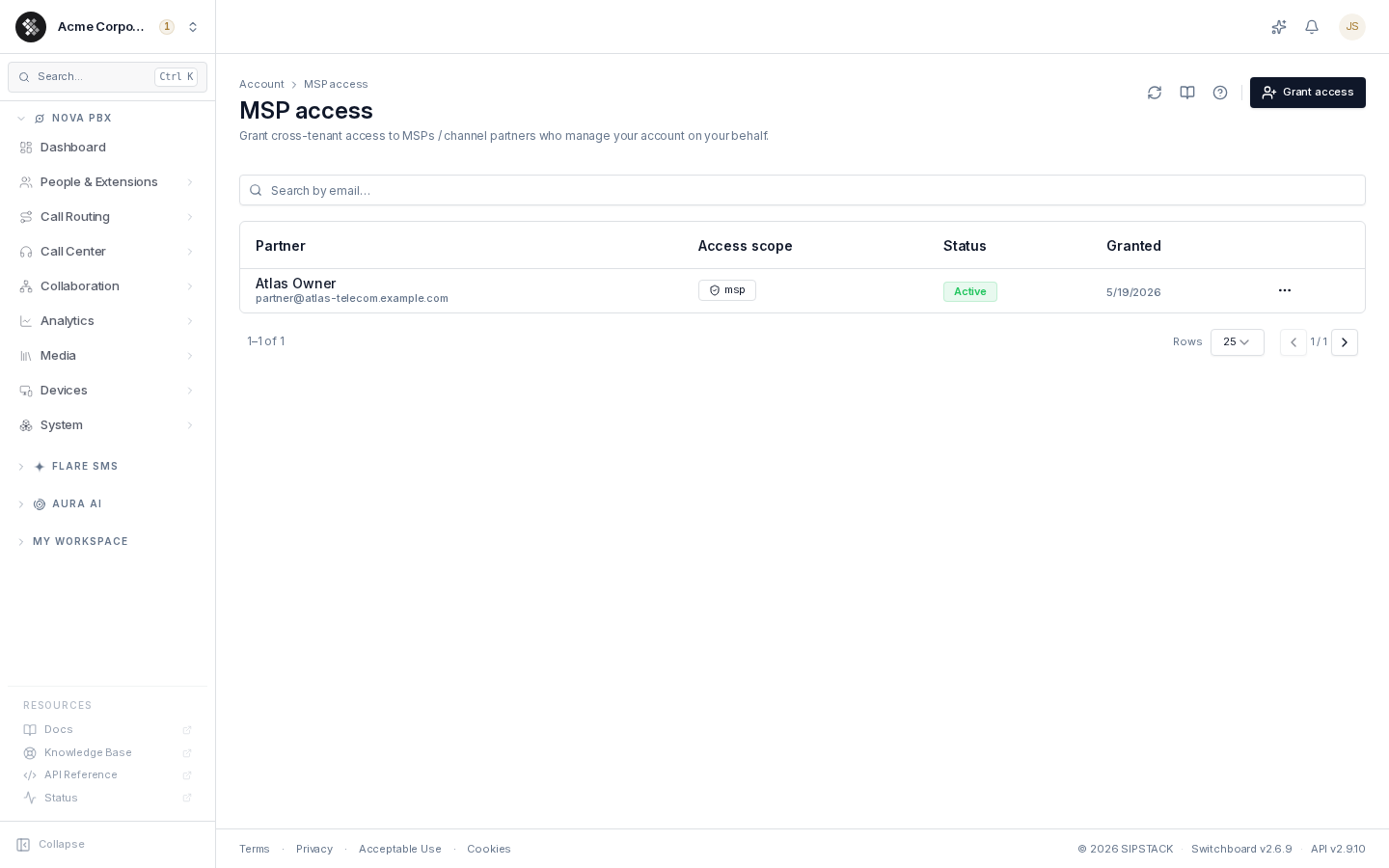
Section titled “Partner Access (MSP)”Partner access lets a partner company manage your SIPSTACK organization for you. This page lists every partner that has that access, and it is where you invite a partner, take access away, or give it back. Open it from the account switcher (your organization name, top-left) → Partner Access. The page itself is titled MSP access.
Two kinds of partner
Section titled “Two kinds of partner”| Managing partner | Invited partner | |
|---|---|---|
| Who | The SIPSTACK partner that manages your account | A partner you invited by email |
| Where it appears | The Managing partner row at the top of the page | The table below it |
| How access starts | Comes with your account’s link to that partner | You grant access, then the partner accepts the invitation |
| How you remove it | Revoke access, undone with Restore access | Revoke access or Cancel invitation, undone by inviting the partner again |
Both kinds of partner get exactly the same permissions. A partner signs in with its own SIPSTACK login and works in your organization as itself. It can reach only the organizations that have given it access, and that access is checked again on every request.
What a partner can do
Section titled “What a partner can do”There are no access levels to choose from. Every partner gets this set:
| Area | What a partner can do |
|---|---|
| Nova, Flare and Aura | Full management, except your Flare contacts and the Nova setup wizard (see below) |
| Users | View your users, add users, update their details, and assign them permission groups |
| Phone numbers | View your numbers, order new ones, port numbers in, and change their settings and who they are assigned to |
| Permission groups | View only |
| Account settings | View only. A partner cannot change your company profile or account settings |
| Audit Log | View only |
A partner can give your users only permissions it holds itself, so it cannot give anyone access to your contacts or your billing. Users a partner adds choose their own password from an emailed invitation.
What a partner can never do
Section titled “What a partner can never do”- See or edit your Flare contacts or contact lists.
- See or change your billing, invoices, payment methods or subscriptions.
- Cancel your subscriptions or your account.
- Port your phone numbers out to another provider, or release them.
- Set a password for one of your users, change a user’s role, or create an owner or admin.
- Run Set up your team, the Nova setup wizard.
- Grant, revoke or restore partner access, including its own.
- See your managing partner’s row on this page.
- See the notes you add when you grant access.
A partner viewing this page sees it read-only: the table of invited partners, without your managing partner’s row and without any controls.
Revoking or restoring your managing partner
Section titled “Revoking or restoring your managing partner”The Managing partner row shows your managing partner’s name and an Active badge.
- Click Revoke access on the row.
- Confirm with Revoke.
The badge changes to Access revoked. Revoking:
- Takes away the partner’s access to your organization from its next request.
- Does not change your partnership with that partner or your billing.
- Stops the partner from seeing your Aura credit status.
- Is recorded in your Audit Log.
To give access back, click Restore access on the same row and confirm with Restore. The partner gets the same permissions as before, and the change is recorded in your Audit Log.
Inviting a partner
Section titled “Inviting a partner”- Click Grant access in the top-right corner.
- Fill in the form:
- Partner email: must belong to an existing SIPSTACK account.
- Access scope: select msp. The scope does not set a level; every partner gets the permissions described above.
- Notes (optional): for your own records. Only your team and SIPSTACK staff can see them; the partner never does.
- Click Send invitation.
The row shows Invitation pending until the partner accepts the invitation while signed in to its own SIPSTACK account, and Active after that. An invitation expires after 7 days. To send a new one, cancel the pending invitation and grant access again.
Revoking an invited partner
Section titled “Revoking an invited partner”- Open the row menu (⋯) on the partner’s row.
- Select Revoke access, or Cancel invitation while the invitation is still pending.
- Confirm in the dialog.
The partner loses access from its next request, and the row leaves the table. To give access back, grant access again; the partner has to accept the new invitation.
Auditing partner activity
Section titled “Auditing partner activity”Granting, revoking and restoring partner access are recorded in your Audit Log. Entries for actions a partner performs in your organization carry a Partner chip, and the Partner actions only filter narrows the log to them. See Audit Log for details.