

Voicemail
Voicemail
Section titled “Voicemail”The Voicemail tab in Calls is visual voicemail — your messages as a list you can play in any order, with automatic transcriptions you can read instead of listening.
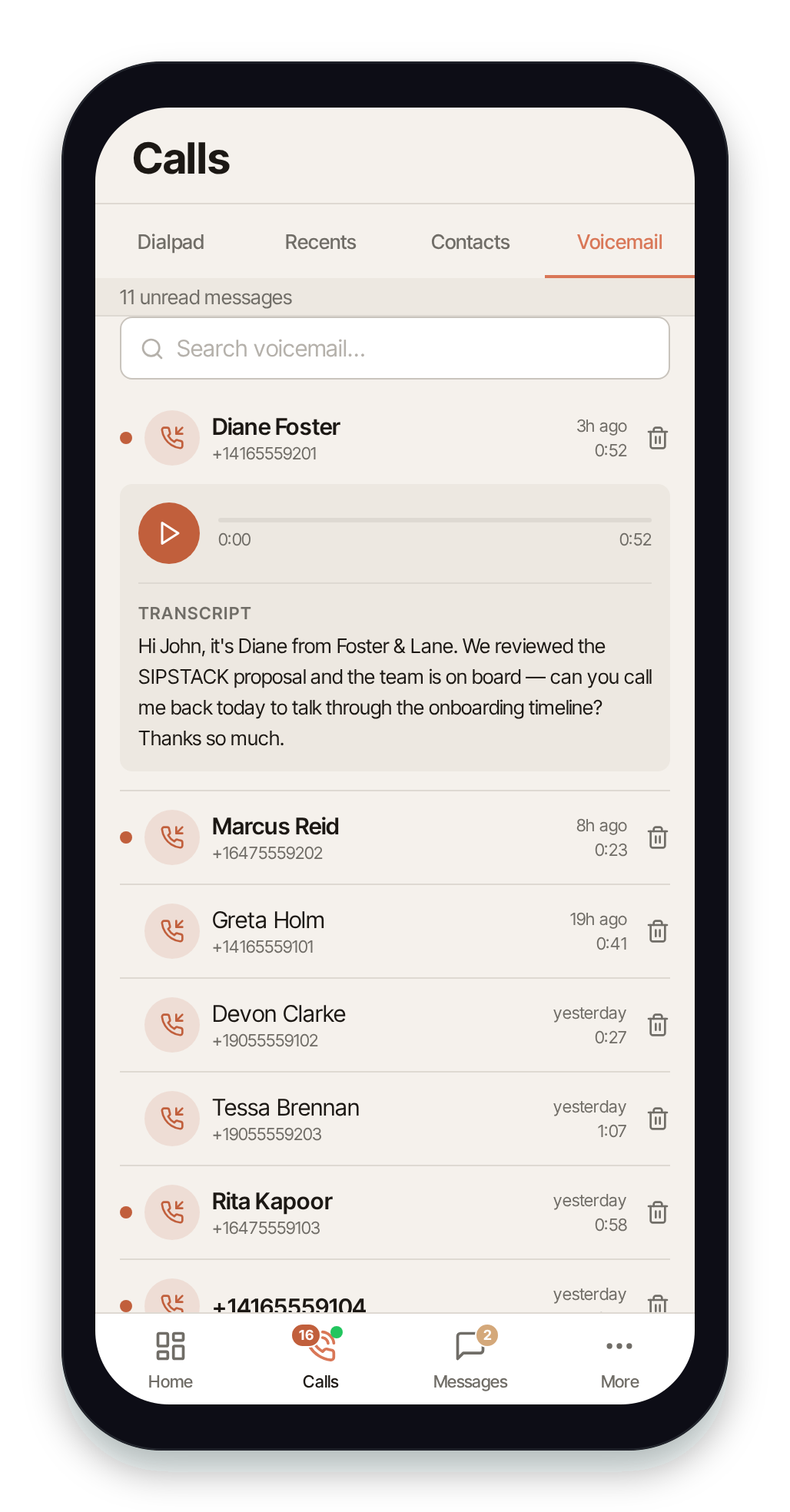
The voicemail list
Section titled “The voicemail list”Each row shows the caller (a name if known, otherwise the number), when the message was left, and its length. A count of unread messages appears in a banner at the top of the list.
- A dot next to a message marks it unread. Unread callers’ names are shown in bold.
- Unread voicemails raise a badge on the Calls tab.
- Pull the list down to refresh it.
- Use the search bar to filter by caller name or number.
Play a message
Section titled “Play a message”Tap a message to expand it and reveal the audio player. Tap the play button to listen; tap again to pause. A progress bar shows your position and the message length so you can scrub through.
Transcriptions
Section titled “Transcriptions”Pulse automatically transcribes your voicemails, so you can read a message instead of playing it. The transcript appears in the TRANSCRIPT section of the expanded message:
- While transcription is in progress, you’ll see Transcribing….
- Once ready, the full text appears beneath the player.
- If a message couldn’t be transcribed, Pulse shows Transcription unavailable.
Transcription is included on all plans. Older messages left before transcription was enabled simply won’t show a transcript.
Delete a message
Section titled “Delete a message”Tap the trash icon on a message and confirm to delete it. Deletion is permanent.
Related
Section titled “Related”- Call History — the calls behind your voicemails.
- Incoming Calls — declining a call can send the caller to voicemail.
- Voicemail Settings — set up your greeting, PIN, and voicemail-to-email in Switchboard.