

Audio Devices
Audio Devices
Section titled “Audio Devices”On desktop and the web, Pulse lets you choose exactly which microphone and speaker your calls use. This is useful when you have a headset, an external mic, or multiple output devices connected.
Opening the picker
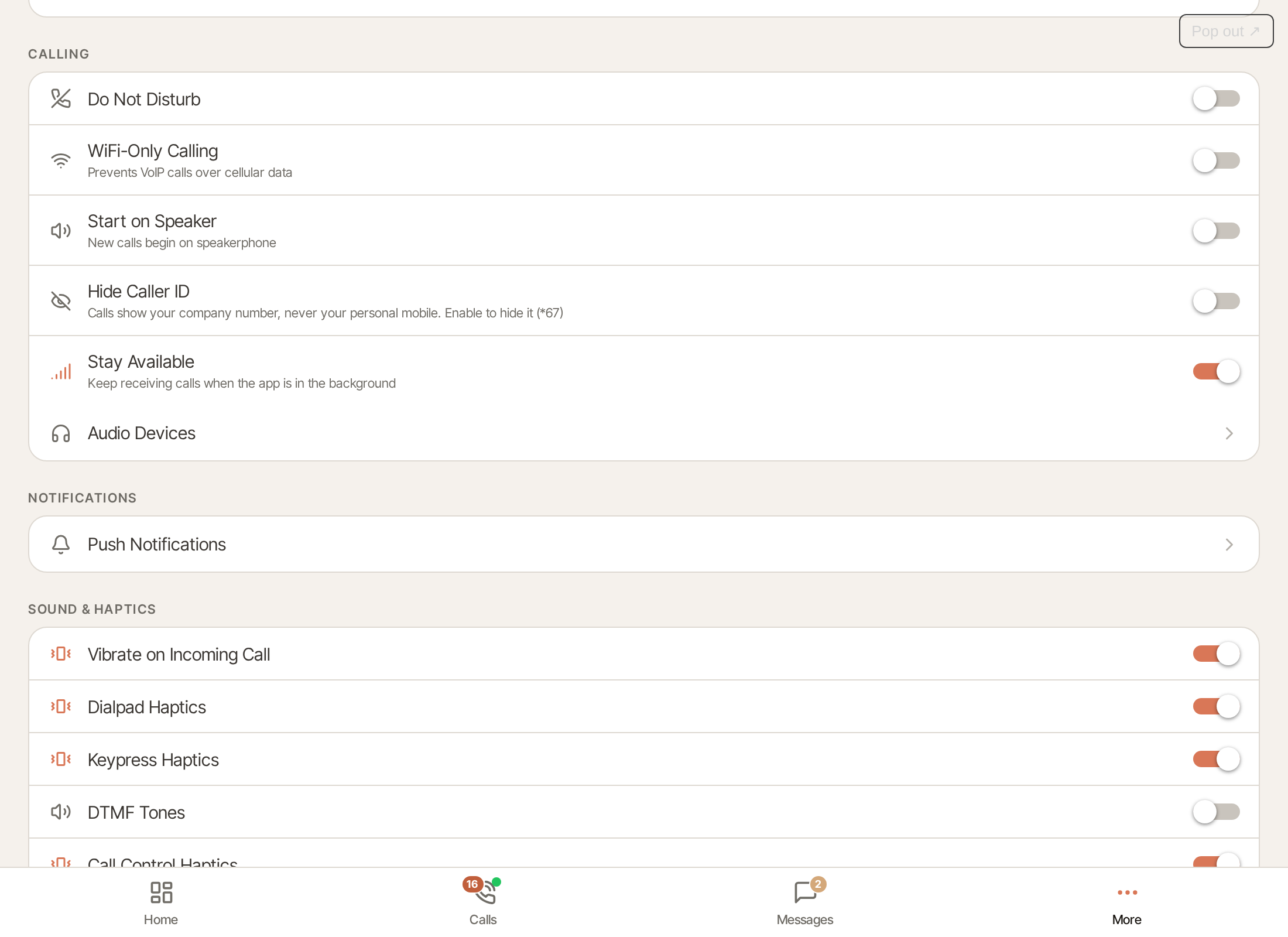
Section titled “Opening the picker”From the More tab, find the Calling section and tap Audio Devices. (The row is hidden on mobile.)
Choosing a microphone and speaker
Section titled “Choosing a microphone and speaker”The screen lists your available Microphone inputs and, where the browser supports it, your Speaker outputs. Tap any device to select it; the active choice is marked with a check. System Default follows whatever your operating system is using.
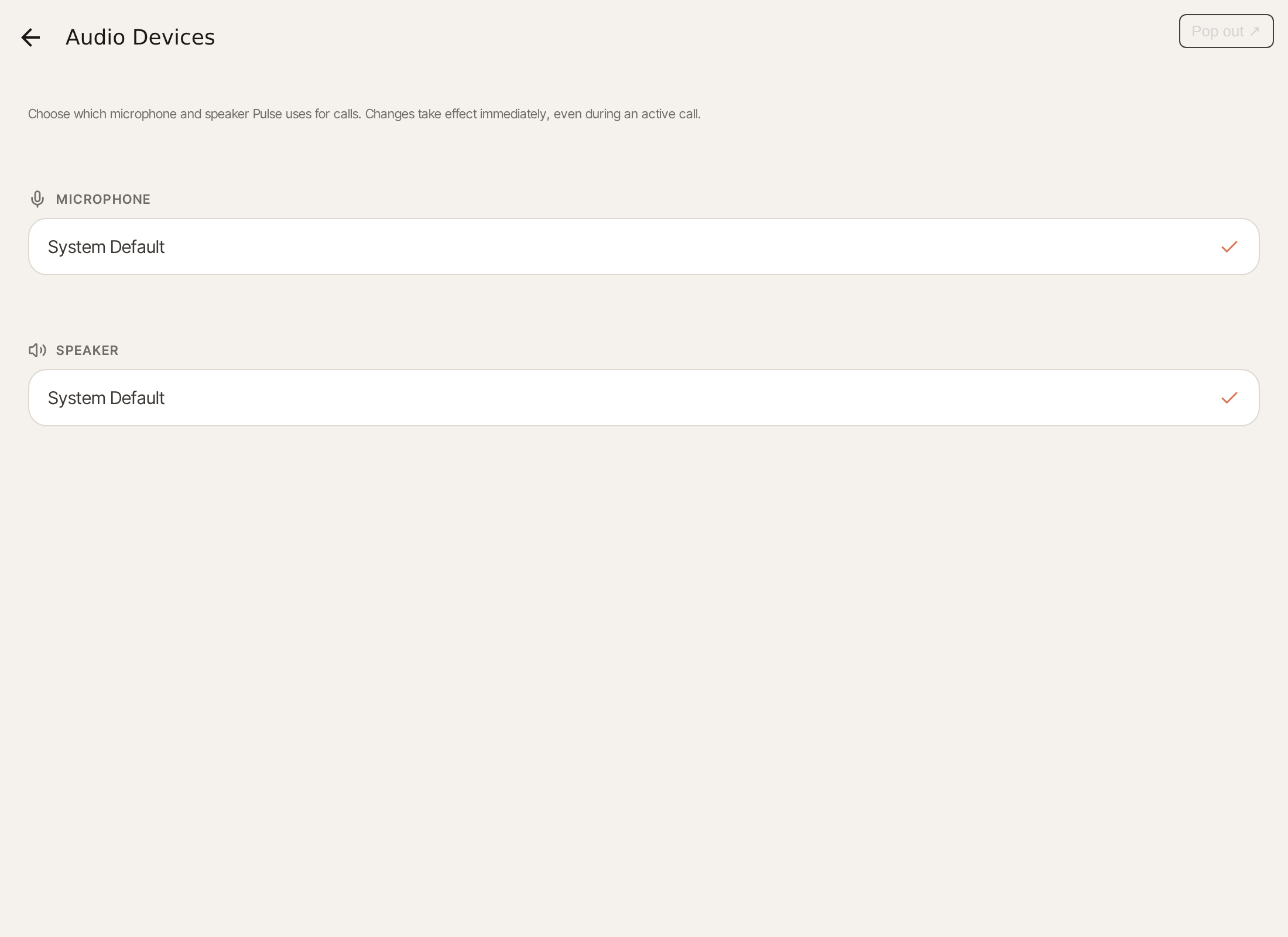
Changes take effect immediately — even during an active call. Switching your microphone mid-call hot-swaps it without dropping the call.
Enabling device names
Section titled “Enabling device names”Until you grant microphone access, your devices may appear without names. If you see an Enable Microphone Access prompt, tap it and allow access so Pulse can show each device’s label.
Speaker selection availability
Section titled “Speaker selection availability”Choosing a specific speaker requires a browser that supports output selection (such as Chrome and Edge). In browsers without it, Pulse routes call audio to your system’s default speaker, and only the microphone list is shown.
Bluetooth headsets on Android
Section titled “Bluetooth headsets on Android”On Android, Pulse sends call audio to a connected Bluetooth headset or car kit automatically — you don’t need to pick it from the route picker.
Allowing Nearby devices
Section titled “Allowing Nearby devices”On Android 12 and later, Pulse needs the Nearby devices permission to use a Bluetooth headset. The first time you place a call after opening Pulse, you see a Bluetooth Headsets prompt: “Allow SIPSTACK Pulse to connect to your Bluetooth headset so call audio can play through it.” Tap Allow.
- If you tap Not now, the call still goes through — audio plays on the Earpiece, Speaker, or wired Headphones, and Bluetooth doesn’t appear in the route picker. Pulse asks again the next time you open the app and place a call.
- Answering an incoming call never shows this prompt, so the caller isn’t kept waiting.
- Older Android versions don’t need this permission.
To turn it on later, see Bluetooth headset isn’t used (Android).
During a call
Section titled “During a call”- A connected headset takes priority over Start on Speaker.
- If the headset disconnects, audio falls back to a wired headset or the earpiece. When it reconnects mid-call, Pulse switches back to it.
- If you choose another route (for example Speaker) from the in-call route picker, Pulse keeps your choice for the rest of that call and doesn’t switch back to the headset.
On iOS, Bluetooth routing is handled by the system as before.
If you have audio problems on desktop or mobile, see Audio & Microphone troubleshooting.