

AI Skills
AI Skills
Section titled “AI Skills”AI Skills are the individual capabilities behind SARA’s ability to do things, not just answer. Each skill is a pre-built action wired to a specific platform operation — create an extension, look up an invoice, send an SMS. When you ask SARA for something actionable, it matches your request to a skill, gathers any missing inputs, and (for anything that changes your account) asks you to confirm before executing.
Organization owners manage which skills are available at Account → Settings → AI Skills:
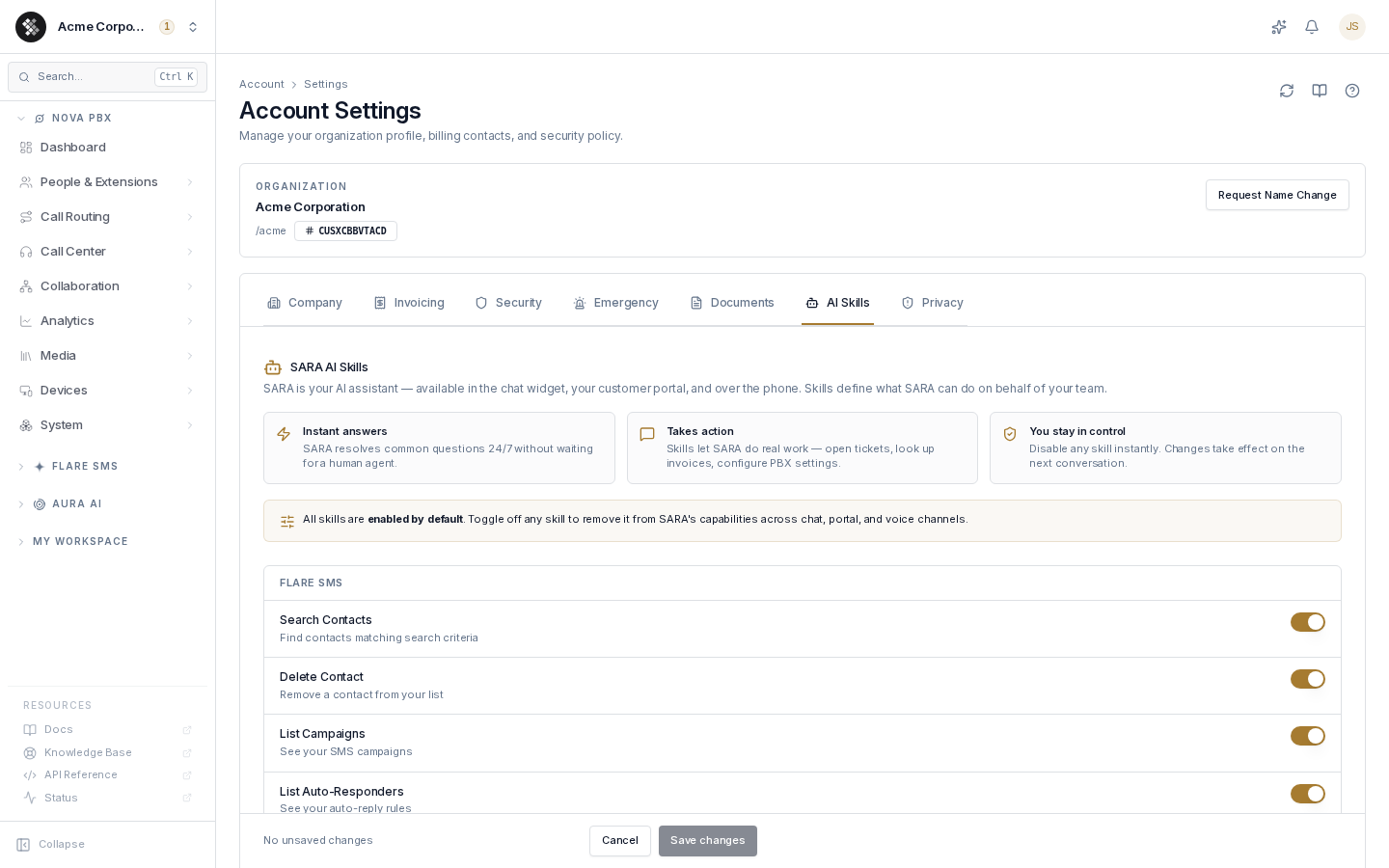
How skills work
Section titled “How skills work”- You send SARA a request: “Add extension 112 for Marcus Lee.”
- SARA matches it to a skill — here, Create Extension — and collects any missing inputs (it will ask rather than guess).
- For write operations, SARA shows a confirmation card: the skill name, what it will do, and the exact parameters. Nothing runs until you click Confirm.
- The skill executes and SARA reports the result. The result stays in the conversation, so follow-ups (“now add her to the Support queue”) have context.
Read-only skills (lookups, reports) run without a confirmation step.
The skill catalog
Section titled “The skill catalog”Skills are grouped by product area. This is the current built-in set:
Nova PBX
Section titled “Nova PBX”| Skill | What it does |
|---|---|
| List / Get Extension(s) | List all extensions or fetch one extension’s details |
| Create / Update / Delete Extension | Manage SIP extensions (delete is irreversible) |
| Update Voicemail Settings | Configure an extension’s voicemail |
| Update Call Forwarding | Configure forwarding on an extension |
| List / Create / Delete Ring Group · Add Ring Group Member | Manage ring groups and membership |
| List / Create / Delete Call Queue · Add Queue Member | Manage call queues and agents |
| List Inbound Routes / Update Inbound Route | View and change inbound call routing |
| List IVR Menus | List auto-attendant menus |
| List Devices | List provisioned PBX devices |
| Check PBX Commit Status / Commit PBX Changes | See pending changes and push them live |
Flare SMS
Section titled “Flare SMS”| Skill | What it does |
|---|---|
| Create / Search / Delete Contact | Manage SMS contacts |
| Send SMS Message | Send a text message |
| List / Create Campaign | View and start SMS campaigns |
| List / Create Auto-Responder | View and set up automatic replies |
Billing
Section titled “Billing”| Skill | What it does |
|---|---|
| View Invoices | Look up your invoices |
| View Subscription | See your plan details |
| View Usage | Check usage against your plan |
Support & Ticketing
Section titled “Support & Ticketing”| Skill | What it does |
|---|---|
| Create Support Ticket | Open a support ticket (SARA pre-fills the conversation context) |
| Reset Ticket Requester Password | Send a password reset to a ticket requester |
Administrative
Section titled “Administrative”| Skill | What it does |
|---|---|
| Who Am I | Show your own account info |
| List Users | List your organization’s users |
| Check Port Eligibility / Check Porting Status / Get Porting Details | Number-porting lookups |
| Initiate Port-Out Request | Start a port-out request |
| Portal Password Reset | Send a portal password reset link |
General
Section titled “General”| Skill | What it does |
|---|---|
| Search Knowledge Base | Natural-language search across SIPSTACK documentation |
| Carrier Lookup | Look up a phone number’s carrier |
| Get Help | Explain what SARA can do |
Skills marked BETA in the settings list are newer additions still being refined — they work, but their behavior may evolve.
Enabling and disabling skills
Section titled “Enabling and disabling skills”All skills ship enabled by default. To change what SARA is allowed to do for your organization:
- Go to Account → Settings → AI Skills (organization owner required — other roles see an “Owner access required” notice).
- Toggle any skill off (or back on). Toggles are grouped by product area.
- Click Save changes. The new configuration applies from the next conversation turn, across every channel SARA operates on.
When a skill is disabled, SARA tells the user it can’t perform that action and points them at the equivalent portal page instead — it never silently fails.
Why disable a skill?
Section titled “Why disable a skill?”- Change control — your org may require extension or routing changes to go through a formal provisioning process, not chat.
- Blast-radius reduction — if SARA is used mostly for lookups, switching off write skills (especially the irreversible deletes) removes any chance of an accidental change.
- Scope hygiene — teams that don’t use Flare SMS or porting can switch those groups off to keep SARA’s capabilities matched to reality.
Confirmation & role safeguards
Section titled “Confirmation & role safeguards”Skill toggles are the org-wide switch; two more safeguards apply at run time:
- Explicit confirmation — any skill that creates, changes, or deletes something renders a confirmation card with the exact parameters and Confirm / Cancel buttons. SARA never executes a write without your click.
- Role gating — skills run as you. Actions that need owner authority aren’t offered a Confirm button to non-owner users; SARA explains that an owner needs to approve it instead.
Availability
Section titled “Availability”SARA and its AI Skills are part of the SIPSTACK platform — included with every plan, not a separately billed product. Skills that operate on a product you don’t subscribe to (e.g. Flare SMS skills without a Flare subscription) simply have nothing to act on.