

Phone Profiles
Phone Profiles
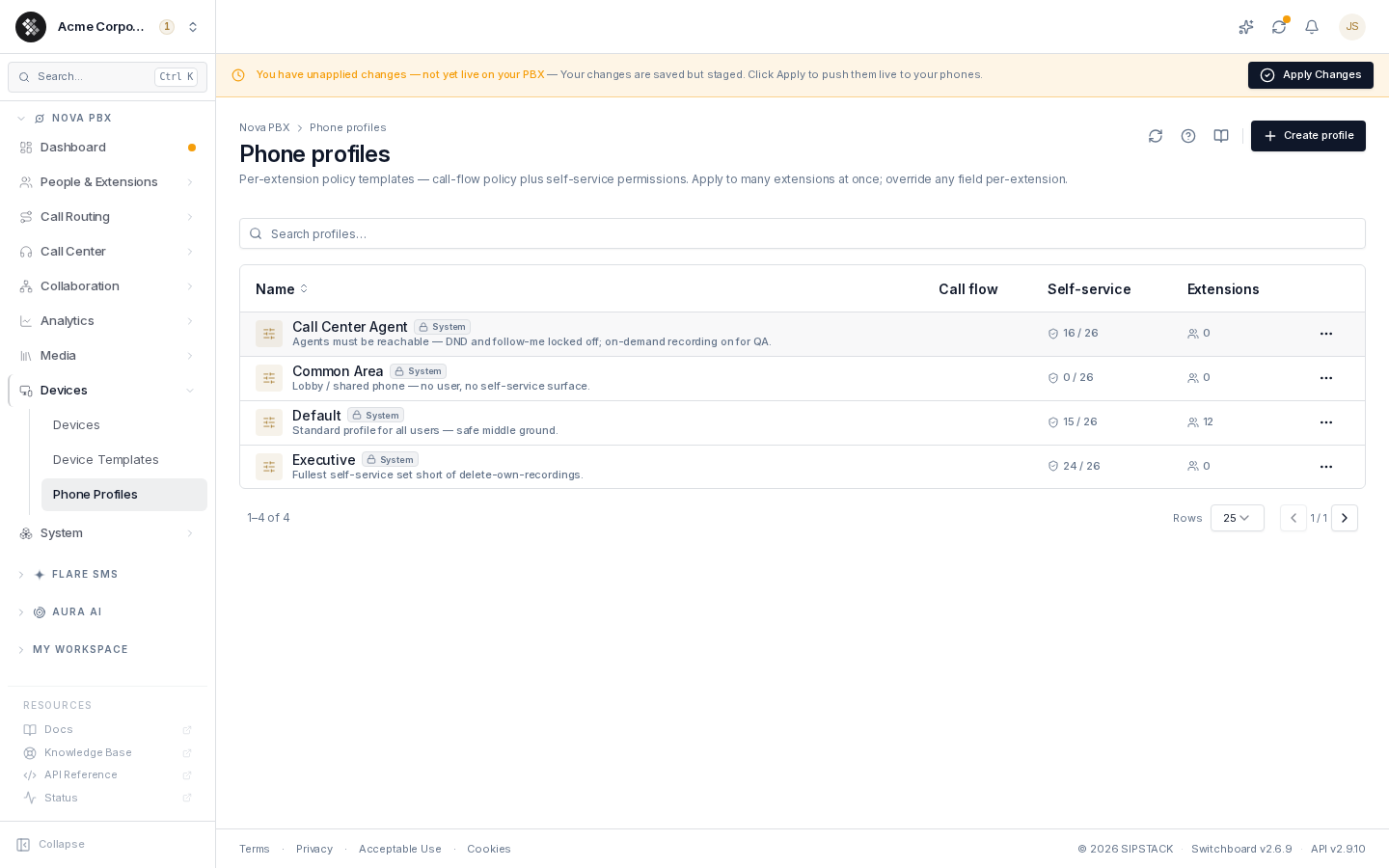
Section titled “Phone Profiles”A phone profile bundles call-flow policy (recording, DND, voicemail, call waiting…) and self-service permissions (what extension owners may manage themselves) into a single named policy you apply to many extensions at once. Instead of configuring two dozen toggles per extension, set them once on a profile.
Navigate to Nova PBX → Devices → Phone Profiles.
What a profile controls
Section titled “What a profile controls”Call-flow policy
Section titled “Call-flow policy”| Setting | What it does |
|---|---|
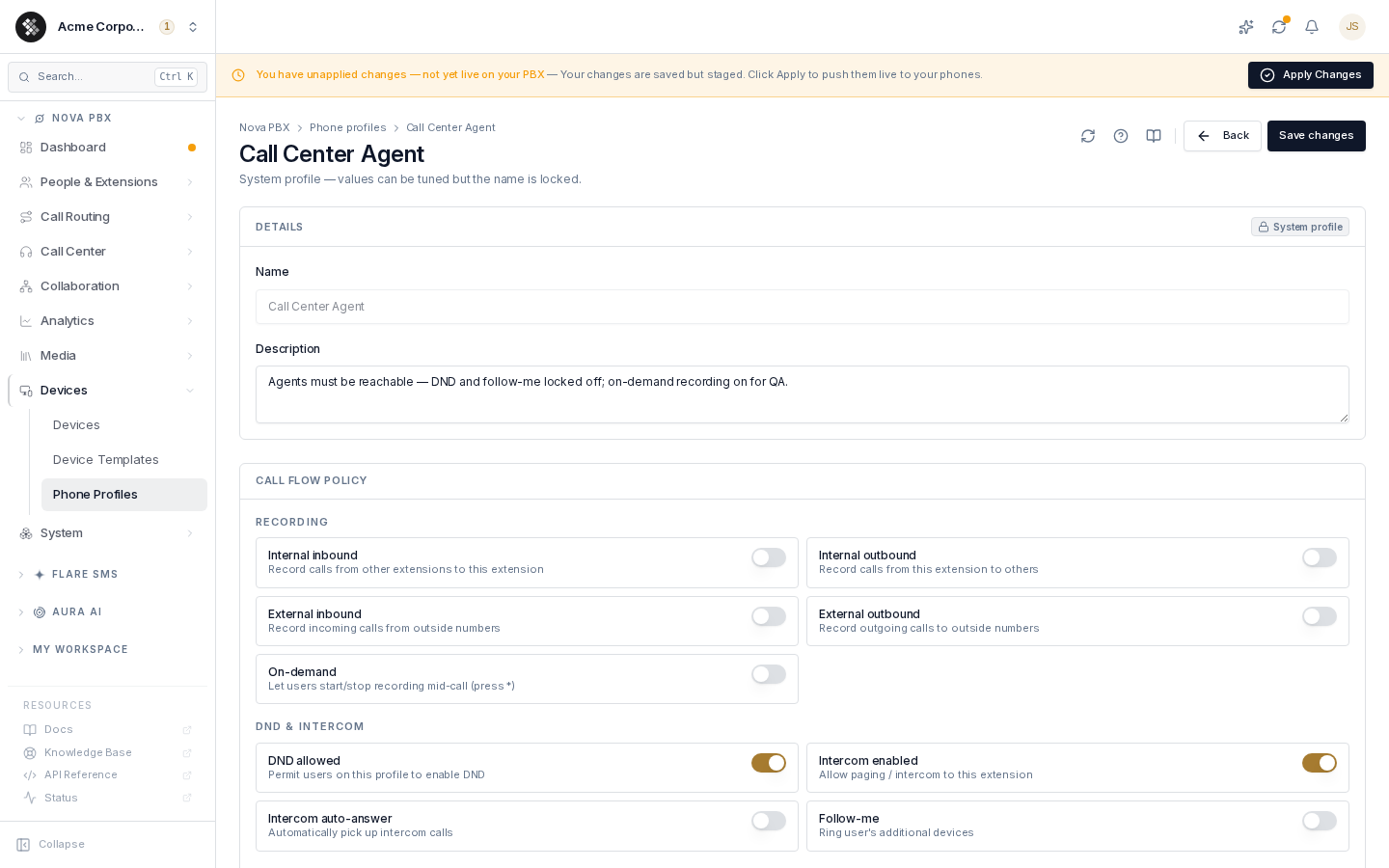
| Recording (4 toggles) | Record internal-in / internal-out / external-in / external-out calls — e.g. record only customer-facing calls |
| On-demand recording | Allow starting/stopping recording mid-call |
| DND allowed | Whether users on this profile may enable Do-Not-Disturb (compliance teams often lock this off) |
| Intercom + auto-answer | Allow paging/intercom to the extension, optionally auto-answered |
| Follow-me | Allow ring-through to the user’s additional devices |
| Call waiting / call screening | Second-call tone; ask-who-is-calling before connecting |
| Voicemail / Transcript in voicemail email | Voicemail box on no-answer; whether the voicemail email includes the transcript (on by default; voicemails are always transcribed in the inbox) |
| No-answer timeout | Seconds before a call rolls to voicemail/forward (5–120). Takes effect once your phone system receives the latest update; until then, forward on no-answer triggers after the extension’s Ring timeout. |
Self-service permissions (26 toggles)
Section titled “Self-service permissions (26 toggles)”What the extension’s owner can do from Pulse, the mobile app, or the self-service portal — grouped into voicemail, call flow, recordings, messaging (SMS/fax), call history, contacts, device credentials/diagnostics, presence, AI features, and day/night mode. Each toggle is off by default on a new profile.
Phone profiles vs device templates
Section titled “Phone profiles vs device templates”Easy to confuse — you typically use both:
| Phone profile | Device template | |
|---|---|---|
| Applies to | An extension (a user/line) | A physical phone (a MAC) |
| Controls | Behavior + permissions for the person | Button layout for the handset |
| Scope | One profile → many extensions | One template → many devices |
| Where | This page | Device Templates |
Creating and applying a profile
Section titled “Creating and applying a profile”- Click Create profile, name it, set the call-flow toggles and self-service permissions, and save.
- Assign it to extensions from the extension’s settings (or in bulk). The profile page lists every extension currently using it.
- Profiles are live: editing a profile updates every extension on it immediately — except fields that have a per-extension override.
Per-extension overrides win. Any field set explicitly on an extension overrides the profile’s value for that extension; the profile page flags extensions that carry overrides. Clear the override to inherit from the profile again.
System profiles
Section titled “System profiles”A few profiles ship with the platform (marked with a System badge) — a permissive default plus locked-down examples like a call-center agent policy. You can apply them and tune their values, but you cannot rename or delete them. To experiment without affecting everyone, copy the values into a new profile instead.
Common questions
Section titled “Common questions”An extension’s toggles don’t match its profile. It has per-extension overrides — open the extension and check; overrides beat the profile.
Why can’t I delete a profile? It’s either a system profile or still assigned to extensions. Reassign those extensions first.
I changed a profile — did all extensions update? Yes, immediately (except overridden fields). That’s the point of profiles: change once, apply to many.