

Notifications
Notifications
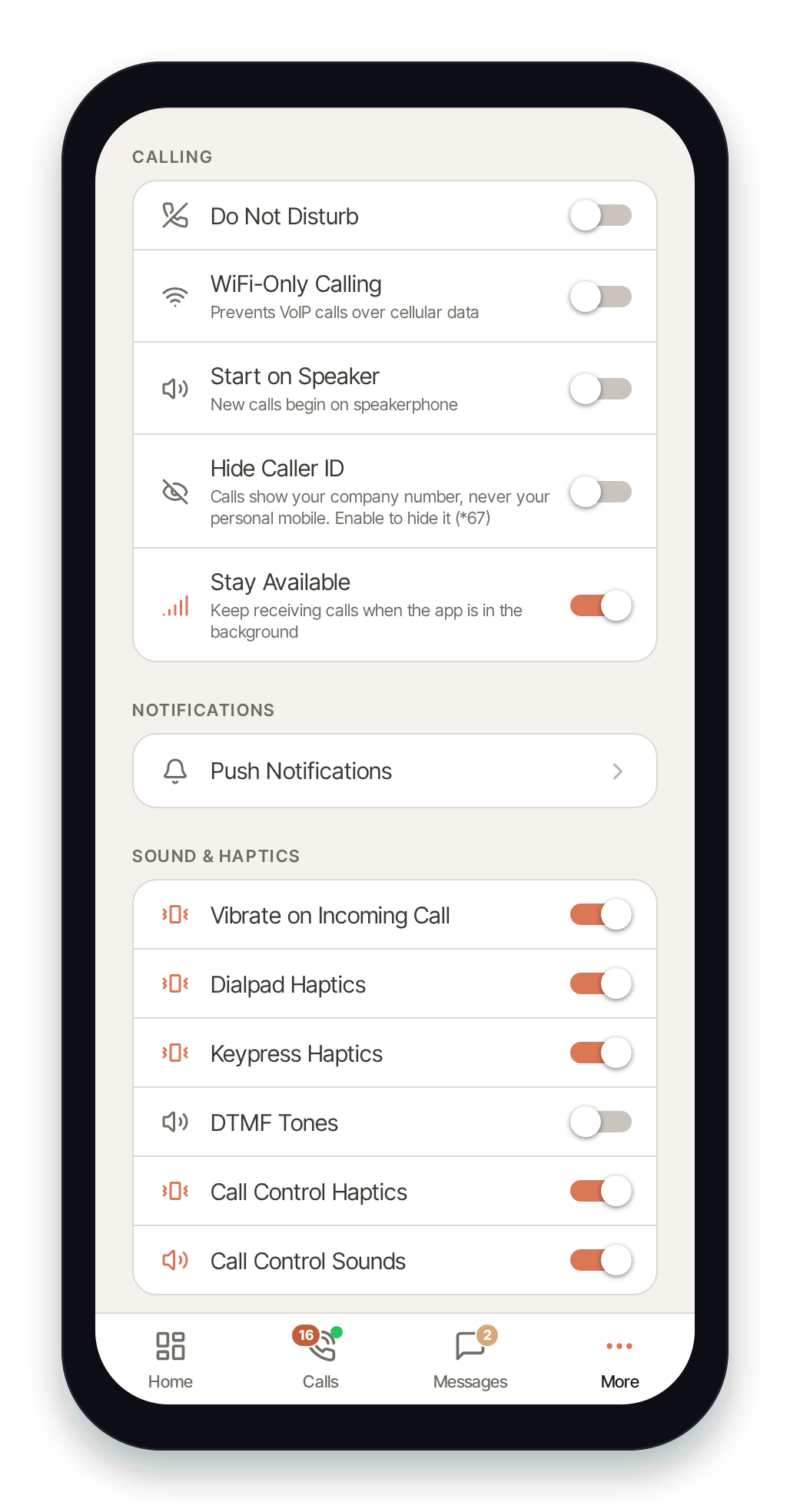
Section titled “Notifications”Push notifications decide which alerts buzz your phone. From the More tab, tap More in the bottom navigation, find the Notifications section, then tap Push Notifications.
Per-channel toggles
Section titled “Per-channel toggles”The Notifications screen lists every alert type you’re eligible to receive, grouped by product area. Toggle each one on or off:
- Flare (SMS) — incoming text messages and message alerts.
- Nova (Voice) — call-related alerts.
- Aura (AI) — AI assistant notifications.
- Tickets — support-ticket updates.
- Billing — billing alerts (shown only if you have billing access).
- Account — account and security notices.
- System — platform and service messages.
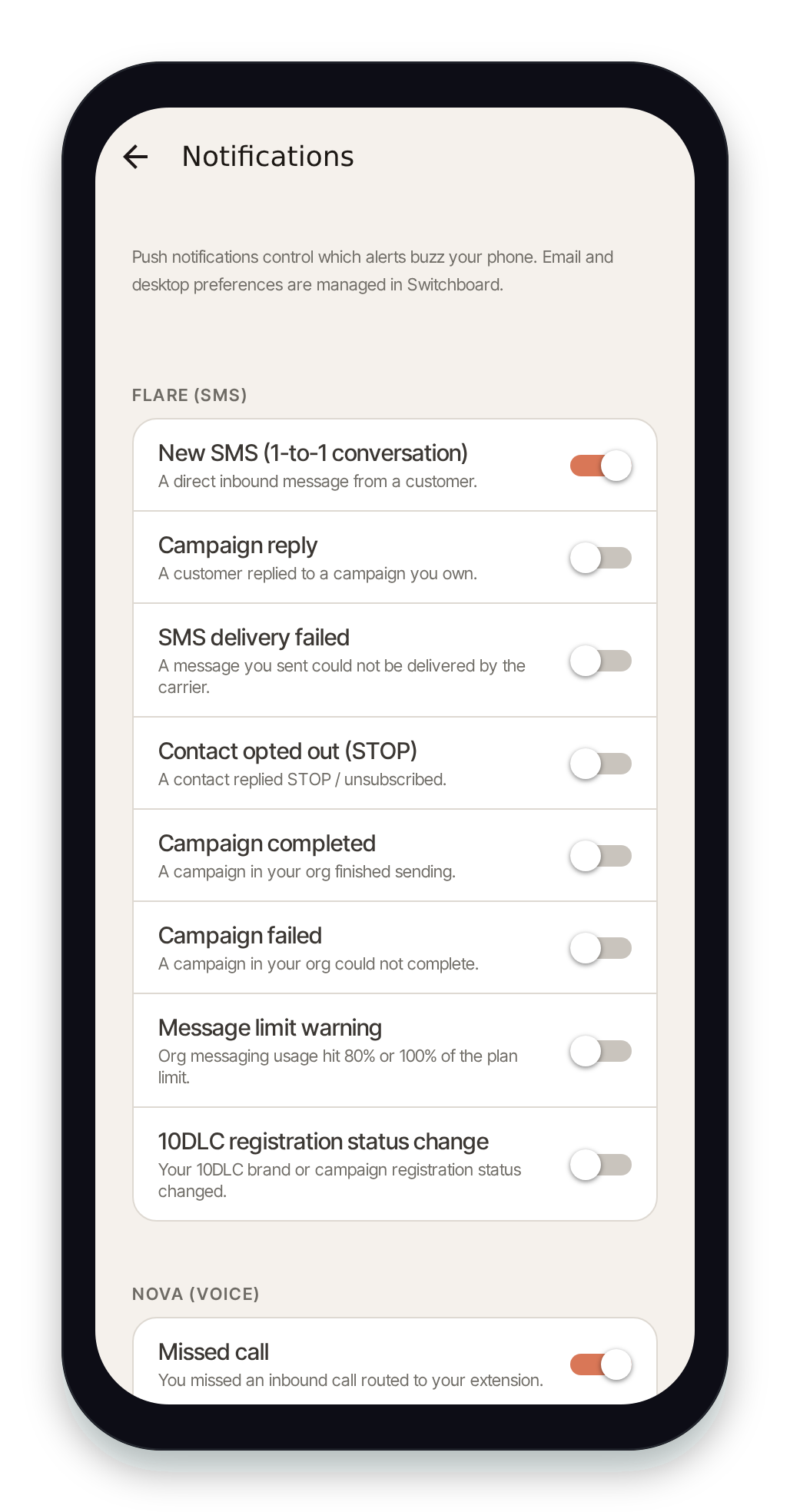
The exact list you see depends on your role and the products enabled on your account, so some sections may not appear for every user.
Why notifications matter for inbound calls
Section titled “Why notifications matter for inbound calls”Push notifications aren’t only about alerts you can dismiss — on mobile they are how Pulse wakes your device to ring for an incoming call when the app isn’t in the foreground. If call notifications are turned off here, or blocked at the operating-system level, inbound calls may not ring.
If you’re missing calls while Pulse is in the background, check these toggles and your phone’s OS notification permission for Pulse. See Missed Calls & Background Wake for the full checklist.
Email and desktop preferences
Section titled “Email and desktop preferences”These toggles control push notifications on this device only. To manage email and desktop notification preferences, sign in to Switchboard on the web and open Profile → Notifications.