

Billing & Invoices
Billing & Invoices
Section titled “Billing & Invoices”Account → Billing is the home for everything money-related on your account: your current balance, your invoice history, and the cards we keep on file. The account owner sees all of it, and so do teammates in the Billing or Admin permission group: they can view invoices, pay them, manage the cards on file, and change subscriptions. Cancelling a subscription stays with the account owner. You can also grant single billing permissions, such as viewing invoices or managing payment methods, in a custom group under Permission Groups.
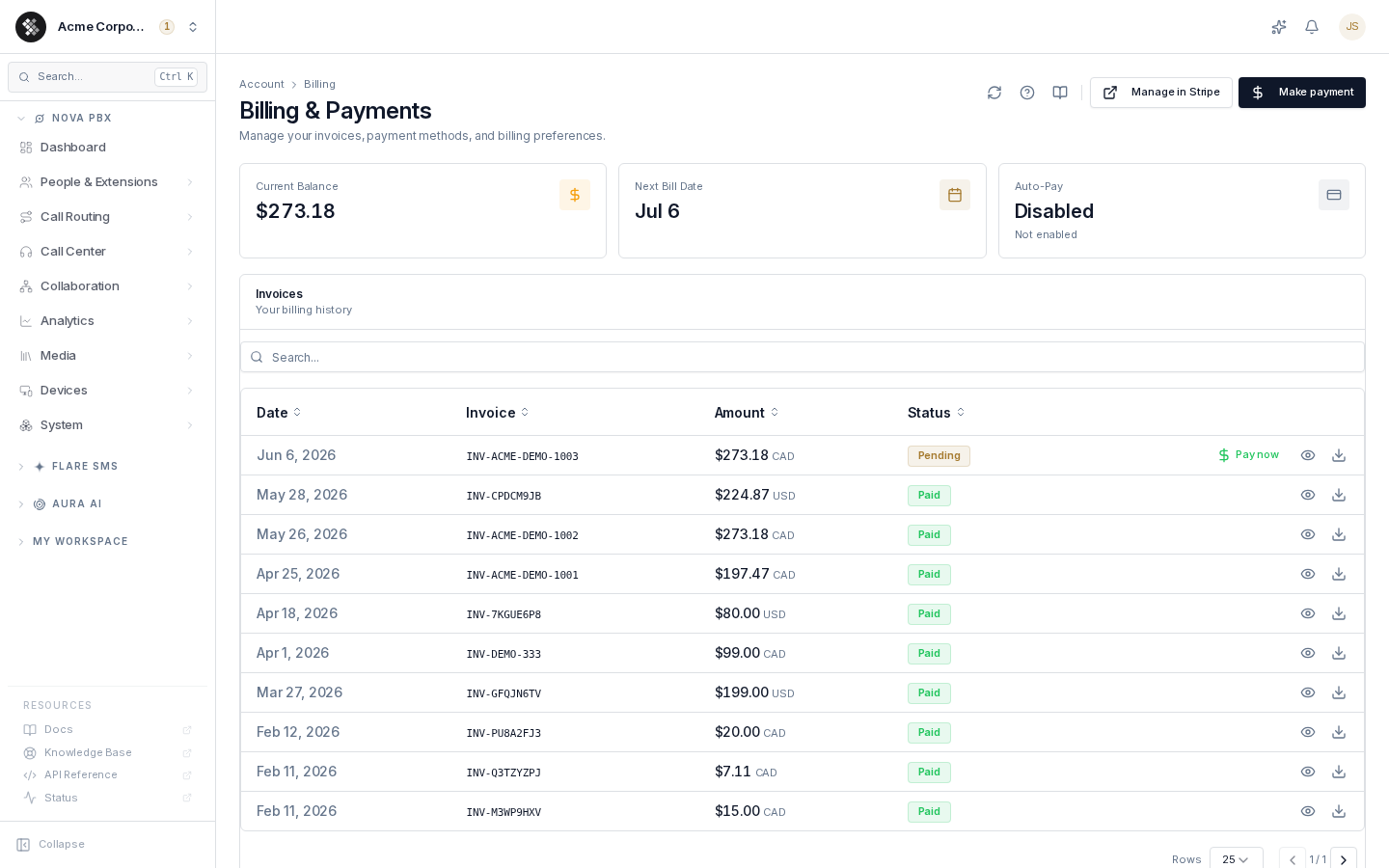
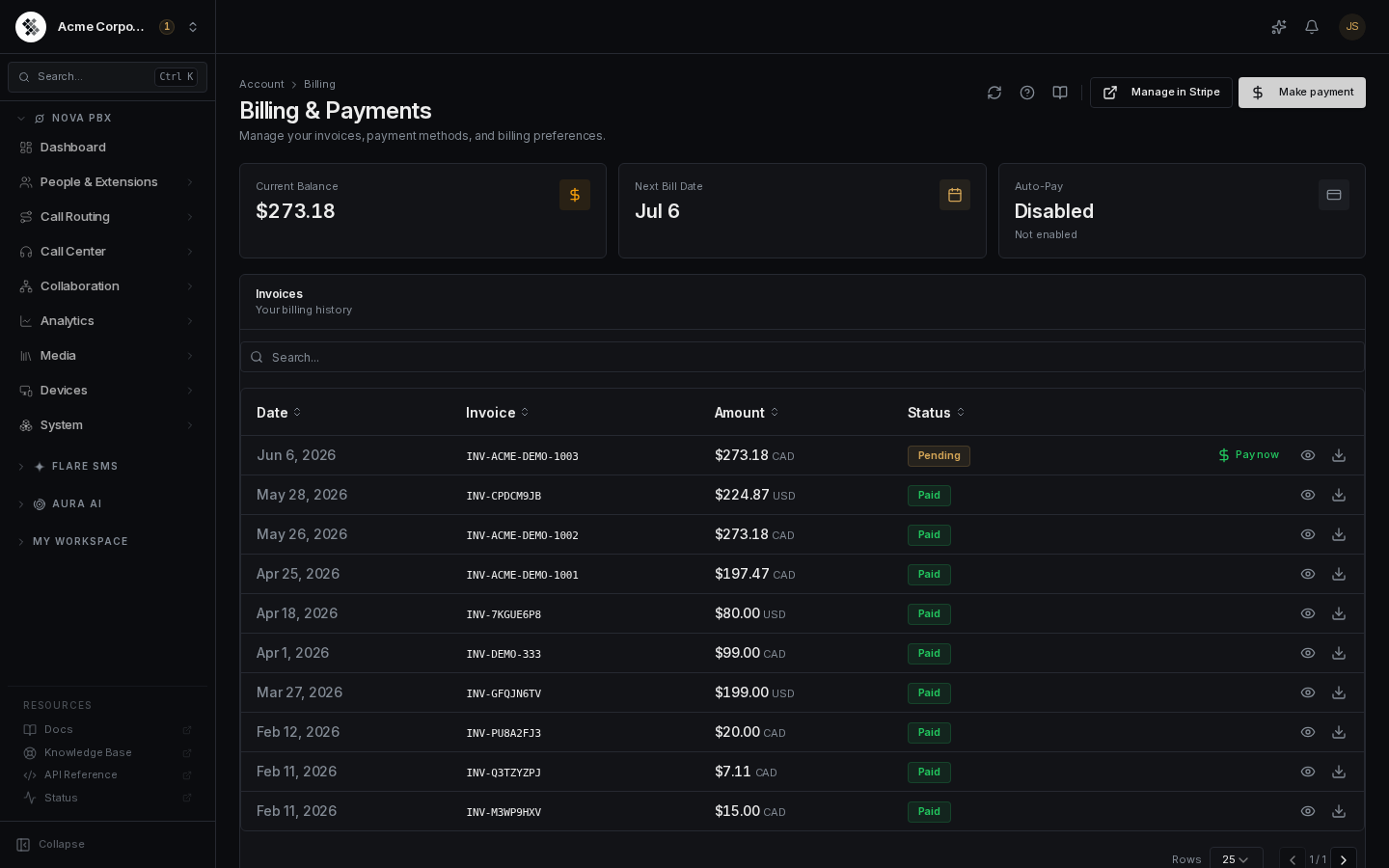
The Summary Cards
Section titled “The Summary Cards”Four tiles at the top give you the state of the account at a glance:
| Card | What it shows |
|---|---|
| Current Balance | What you owe right now, across all open invoices. Shown in amber when positive (you owe money) and green when you’re paid up. |
| Next Bill Date | When your next recurring invoice will be generated, with the projected amount when it can be computed (for example Nov 1 · $412.50). Shows — if there’s no active recurring subscription. |
| Avg. monthly spend | What you’ve actually been invoiced per month, averaged over your invoices from the past three calendar months — or over fewer months if your account is newer, so a new account isn’t diluted. Includes tax, one-time charges such as proration, and credits; an annual invoice counts in the month it was issued. Each currency is averaged separately. Shows — until your first invoice, or when you haven’t been invoiced since last month. |
| Auto-Pay | Whether automatic payments are enabled, and which card will be charged. |
If any invoices are past due, a red past-due panel appears below the cards listing each overdue invoice, its due date, and how many days overdue it is — with a single Pay all past due button that settles everything in one charge (the payment is applied oldest-invoice-first; any remainder becomes account credit).
Starting November 13, 2026, balances unpaid 10 days after the due date, including card payments that decline, accrue simple interest of 1.5% per month (18% per year), calculated daily from the due date, or the maximum rate permitted by applicable law, whichever is lower, added to your next invoice. The interest appears as a “Late fee” line on that next invoice, labelled with the overdue invoice number and the days it covers. Interest is never charged for days before November 13, 2026, and an invoice whose 10-day grace period ended before that date does not accrue it.
Upcoming Invoices
Section titled “Upcoming Invoices”Below the cards, an Upcoming invoices section (badged projected) lists the recurring invoices SIPSTACK expects to generate over the next three months: one row per bill, per subscription and add-on, on each one’s normal billing date. It’s a projection of what the billing system will actually invoice — computed from your current plans, seats, add-ons, discounts, and any scheduled plan or seat changes — not a promise: amounts are pre-tax (tax is computed when the invoice is issued), and one-time charges such as proration or setup fees are billed at the moment of change and are not projected.
A few things to know:
- Scheduled changes are reflected. If a plan or seat change is scheduled, rows on and after its effective date show the new plan and amount, with a note on the first affected row (for example
plan change eff. Dec 1) and a summary line above the table when your total drops or rises. - Cancelled subscriptions show a single final row with
no further billing— nothing after the service-end date. - Paused subscriptions show a note row (
paused — resumes …with no amount) plus the bills that resume. - Trials show the first bill after the trial ends.
- Annual plans project one renewal per year; they also raise small monthly usage-based invoices that are usage-dependent and can’t be forecast, so they’re footnoted rather than listed.
When there’s nothing to project (for example, no active recurring subscription in the window), the section is hidden.
Reading the Invoice List
Section titled “Reading the Invoice List”The Invoices table is your complete billing history, newest first:
- Date — the day the invoice was issued.
- Invoice — the invoice number (for example
INV-X3Y7Z2W5). Every invoice number isINV-followed by eight random characters — it carries no date and no sequence, so two invoices issued minutes apart look unrelated. Quote this number when contacting support about a charge. - Amount — the invoice total, labelled with its billing currency (for example
$276.57 CAD). Accounts migrated from legacy systems can have a mix of CAD- and USD-denominated invoices in their history. - Status — a colour-coded badge:
| Status | Meaning |
|---|---|
| Pending | Issued and awaiting payment. A Pay now action appears on the row. |
| Paid | Settled in full — nothing to do. |
| Overdue | Past its due date. Pay as soon as possible to avoid service interruption. |
Per-Row Actions
Section titled “Per-Row Actions”- Pay now — only on pending/overdue invoices; opens the payment dialog with the amount pre-filled.
- View (eye icon) — opens an in-app preview of the invoice with full line items and the tax breakdown (GST/HST/PST as applicable).
- Download (download icon) — saves the official PDF copy.
How to Read an Invoice
Section titled “How to Read an Invoice”Open any invoice with the eye icon. The preview shows:
- Header — invoice number, issue date, and due date.
- Line items — each service billed, with quantity, unit price, and line total (for example
Nova PBX Pro — monthly service (5 seats)). - Subtotal, taxes, and total — taxes are itemized by type and rate (for example 13% HST for Ontario accounts).
- Amount due / Paid in full — what remains outstanding after payments and credits are applied.
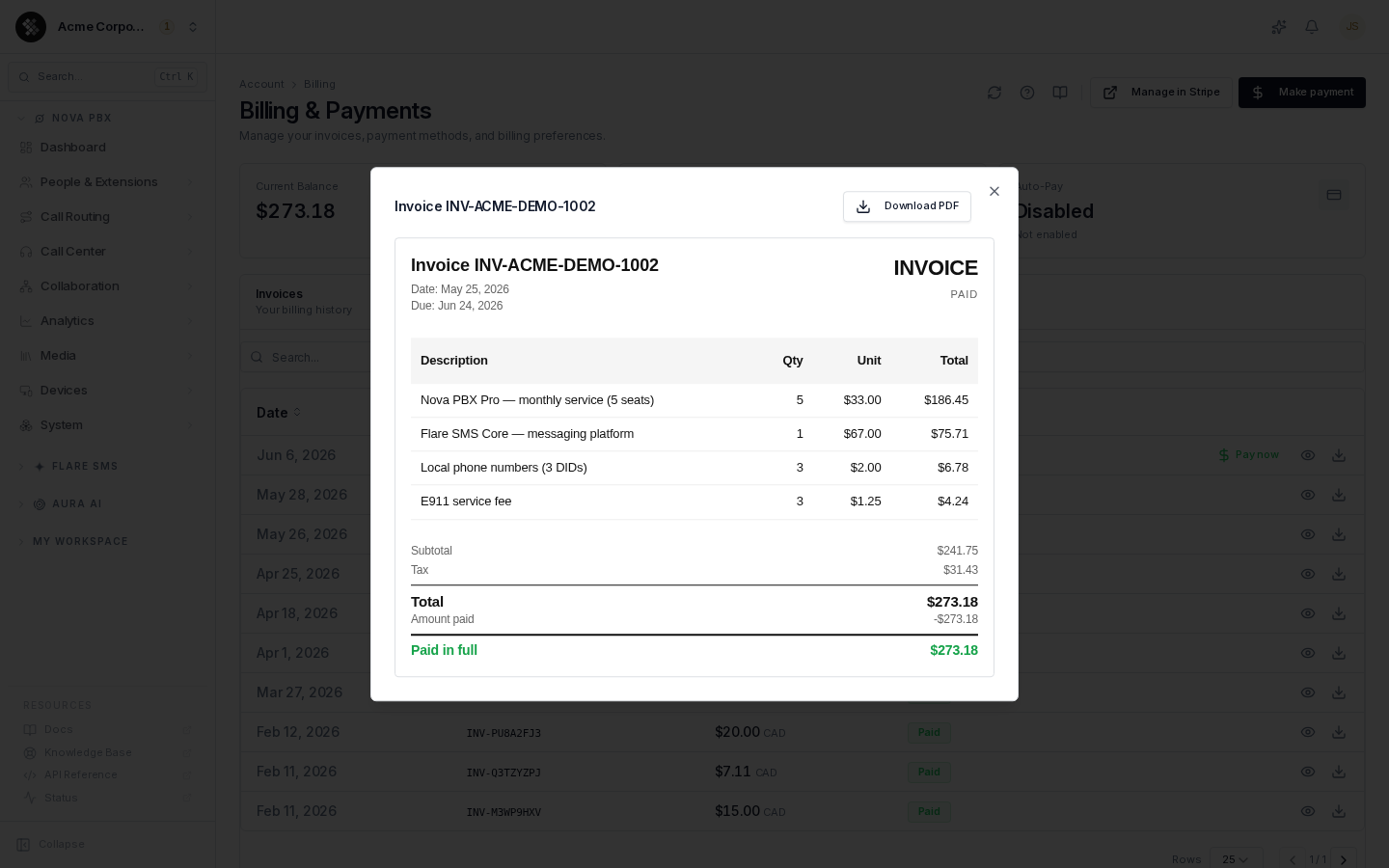
The downloadable PDF carries the same information and is suitable for expense reports and bookkeeping.
Payment Methods
Section titled “Payment Methods”The Payment Methods section lists the cards saved to your account. SIPSTACK never stores full card numbers — only the brand, the last four digits, and the expiry (for example Visa •••• 4242).
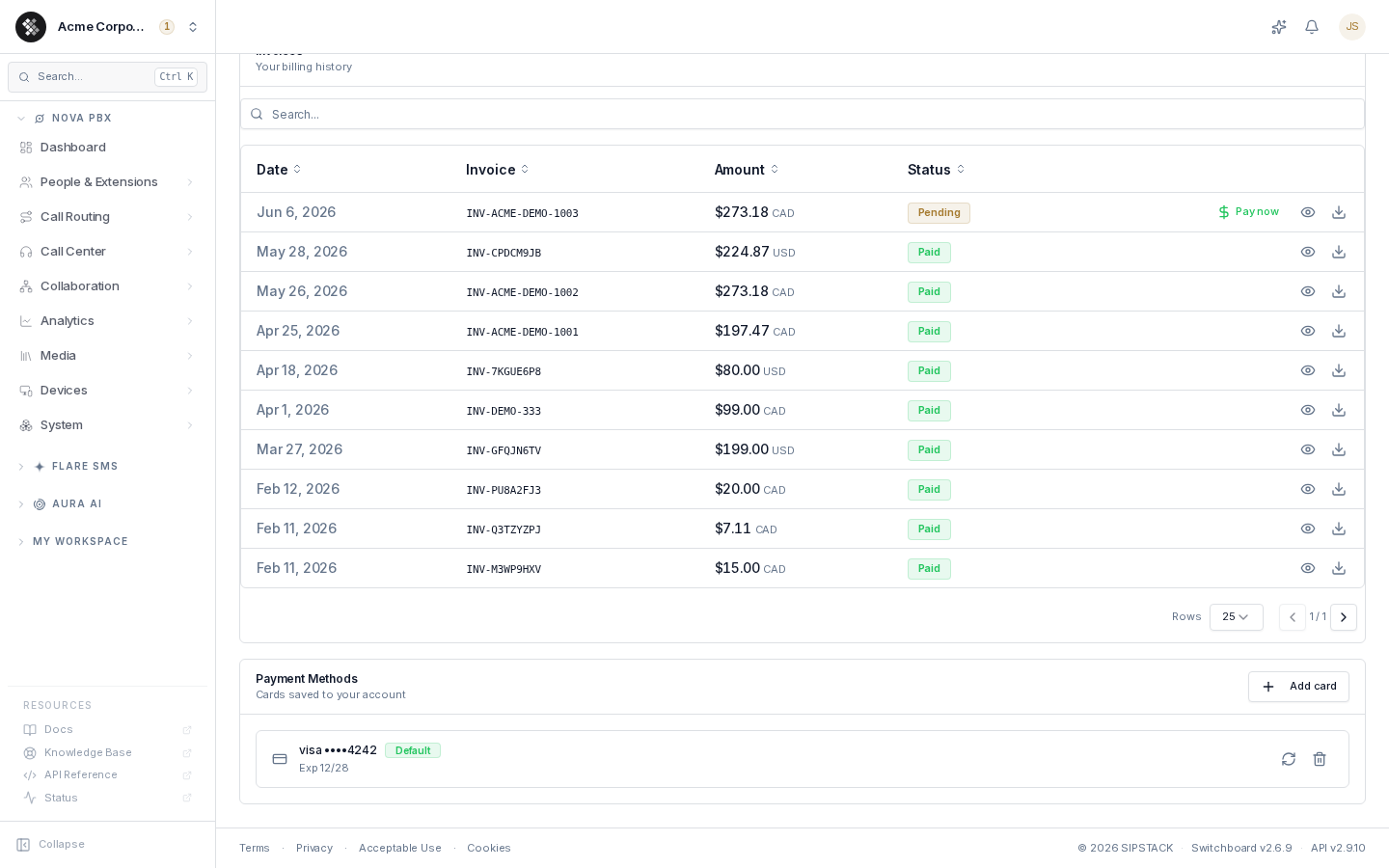
- The Default badge marks the card charged for one-click and automatic payments.
- Cards expiring within 60 days are highlighted amber (Expiring soon); lapsed cards turn red (Expired) and can’t be charged — update or remove them.
- Use the row icons to set a card as default, toggle autopay (only on autopay-exempt accounts), or remove a card (confirmed via dialog).
- Add card opens a secure form powered by our payment processor; the card is tokenized in your browser and never touches SIPSTACK servers.
Autopay
Section titled “Autopay”Most accounts use mandatory autopay: once a card is on file, invoices are charged automatically when due, against your default card. A small number of accounts (legacy contracts, accounts paying by cheque) are autopay-exempt and can opt individual cards in or out.
Invoices are due on receipt unless your account has agreed payment terms, so autopay charges your card on the day an invoice is issued.
If Your Card Is Declined
Section titled “If Your Card Is Declined”You get a Payment Failed — Action Required email with the date of the next retry and a link back to this page. Your service keeps running while the card is retried over the following days. To stop the reminders, add or update your card here and pay the open invoice with Pay now — or update the card before the next retry and let the retry charge it. What happens if the payment is never collected is set out in Subscription Lifecycle.
Upcoming Payment Retries
Section titled “Upcoming Payment Retries”After a card payment is declined, and for as long as the invoice stays unpaid, an Upcoming payment retries section appears on this page (“What happens next if these invoices stay unpaid.”). It has one row per unpaid invoice:
- The retry line. Either
Next retry Oct 18, 2026 (attempt 2 of 4), the date the card on file will be charged again and which attempt that is, orNo retry scheduled — <reason>, for exampleNo retry scheduled — no card on fileorNo retry scheduled — all 4 retry attempts used. - The collection steps. The date of each step still ahead if the invoice stays unpaid, such as
Final notice · Oct 25, 2026orService suspension · Oct 28, 2026. The steps are Warning, Final notice, Service suspension and Cancellation. A step marked(manual)is taken by SIPSTACK billing staff, not automatically. - A payment-date hold. If you chose a payment date with Choose a payment date, the row reads
Collection steps paused until <date> (payment promise). Card retries continue during the hold.
The section is read-only: to stop the retries and the steps, pay the invoice or update your card as described above. It is hidden when nothing is scheduled.
Making a Payment
Section titled “Making a Payment”- Make payment (top-right) — pay any amount; with no specific invoice selected, the payment is applied to your open invoices oldest-first and any remainder becomes account credit.
- Pay now on an invoice row — pays that specific invoice.
- Manage in Stripe (top-right) — opens the Stripe billing portal in a new tab for receipt history and card self-service.
Discounts
Section titled “Discounts”If your account has active discounts, an Active discounts card appears above the invoice list showing each discount, the product it applies to, the monthly savings, and when it expires. The card is hidden when no discounts are active.