

Campaigns
Campaigns
Section titled “Campaigns”A campaign is a one-to-many SMS send targeting contacts by tag. This page lists every campaign in your account with its status, recipient count, and delivery rate. Navigate to Flare SMS → Campaigns.
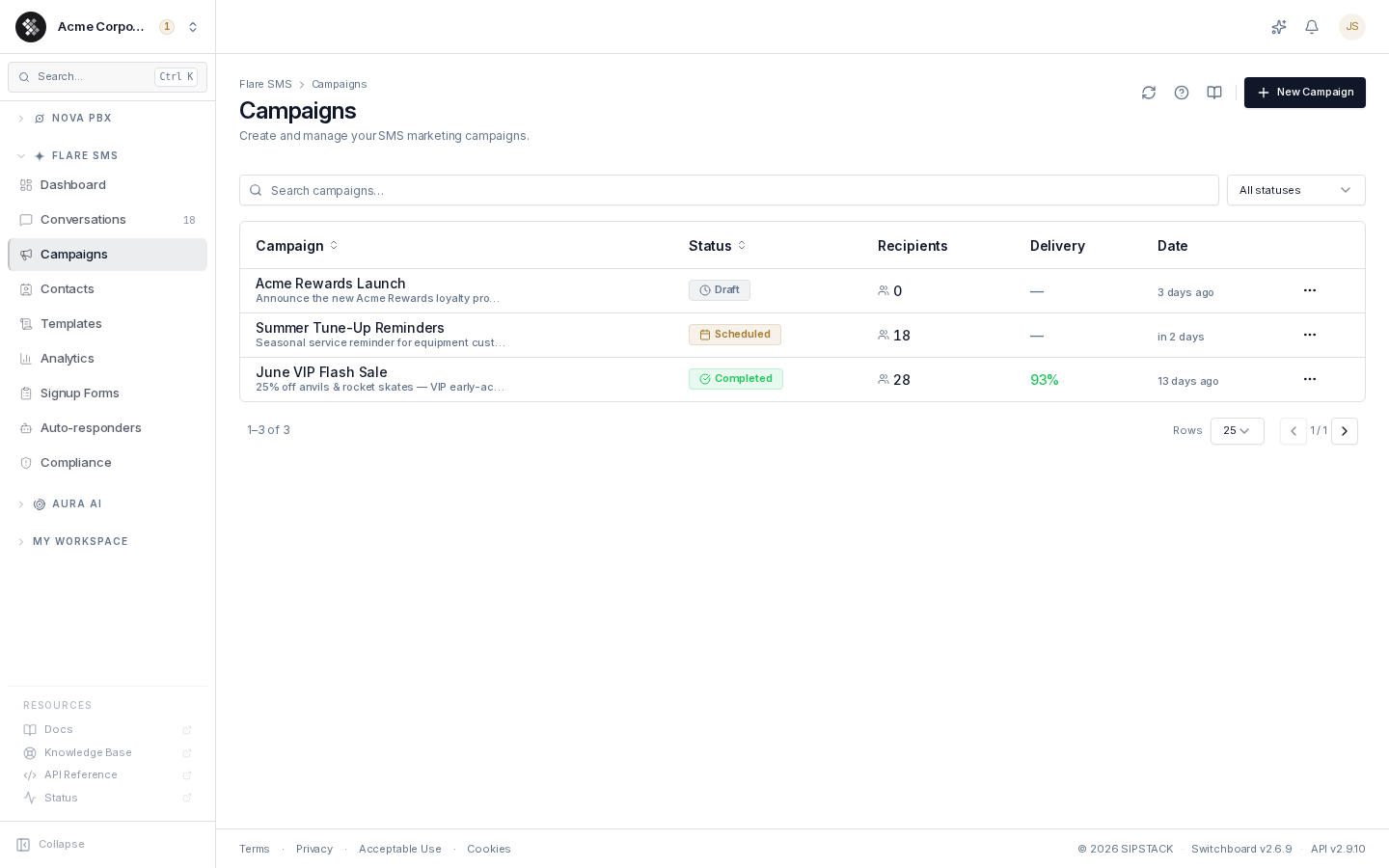
To build a new campaign, click New Campaign — see Creating & Editing Campaigns for the full wizard walkthrough.
Campaign Lifecycle
Section titled “Campaign Lifecycle”| Status | Meaning |
|---|---|
| Draft | Still composing — nothing has sent. Edit freely, then send or schedule when ready. |
| Scheduled | Locked in, waiting for its scheduled time. You can still edit or cancel before it starts. |
| Active | Currently sending. Pause to halt new sends; messages already at the carrier may still deliver. |
| Paused | Temporarily halted: manually, automatically when a Delivery Pacing cap is reached, or before it starts when your account can’t run overage and the campaign is larger than what’s left of your included allowance (the reason shows on the campaign). Resume to continue. |
| Completed | All messages reached a final state. Open the detail page for delivery stats and replies. |
| Cancelled | Manually halted. Remaining recipients did not receive the message. |
| Failed | The platform couldn’t complete the campaign — open the detail page for the reason. |
The Campaign List
Section titled “The Campaign List”- Search filters by campaign name (searches the server, not just the loaded page).
- Status filter narrows the list to one lifecycle state.
- Recipients shows how many contacts the campaign targets.
- Delivery shows a small split bar and the delivered percentage once sending has started. The percentage is delivered ÷ attempted, where attempted is every message handed to the carrier — delivered, failed, and those still awaiting (or that never got) a carrier receipt; queued, scheduled, and cancelled messages don’t count. The bar shows all three parts at once: green for delivered, blue for messages with no carrier receipt yet, and red for failed. The percentage is green at 90% or higher, amber from 70% to 89%, and red below 70%. Next to it is one short count: N awaiting while any receipts are still arriving — this takes priority even if some messages already failed — otherwise N failed when any message failed, and nothing when every message delivered. Hover the bar for all the counts in words.
- Click any row to open the campaign detail page.
Sending Now
Section titled “Sending Now”While a campaign is Active, a live card for it appears above the campaign list. You see up to three cards; if more campaigns are sending, a +N more active — show all link filters the list to Active campaigns.
Each card shows:
- The campaign name, a pulsing live dot, and Sending · started time ago.
- Processed (for example
640 / 1,000), Delivered (%), Failed (count, in red when above zero), Rate (messages per minute), and ETA when one can be estimated. - A progress bar with the same colours as the detail page’s Sending Progress bar.
- Waiting badges when messages are waiting on quiet hours, a send limit, or pacing.
- Pause (only with the Manage Campaigns permission) and View, which opens the detail page.
Cards refresh every 10 seconds while the browser tab is visible.
Row Actions
Section titled “Row Actions”The ⋯ menu on each row is status-aware — only actions valid for the campaign’s current state appear:
| From status | Available actions |
|---|---|
| Draft | View details · Edit · Duplicate · Send now / Schedule · Delete |
| Scheduled | View details · Edit · Duplicate · Cancel |
| Active | View details · Duplicate · Pause · Cancel |
| Paused | View details · Duplicate · Resume · Cancel |
| Completed | View details · Duplicate |
| Cancelled / Failed | View details · Duplicate · Delete |
Every state change (send, pause, resume, cancel) asks for confirmation first. Deleting a campaign requires typing its name and permanently removes it along with its message history — which is why Delete is only offered for campaigns that never sent (Draft) or never finished (Cancelled / Failed). Completed campaigns are retained as your delivery audit trail.
Duplicate creates a fresh Draft with the same message, audience, and from-number — none of the original’s send history. Handy for recurring weekly or monthly sends.
The Campaign Detail Page
Section titled “The Campaign Detail Page”Click a campaign to open its detail page.
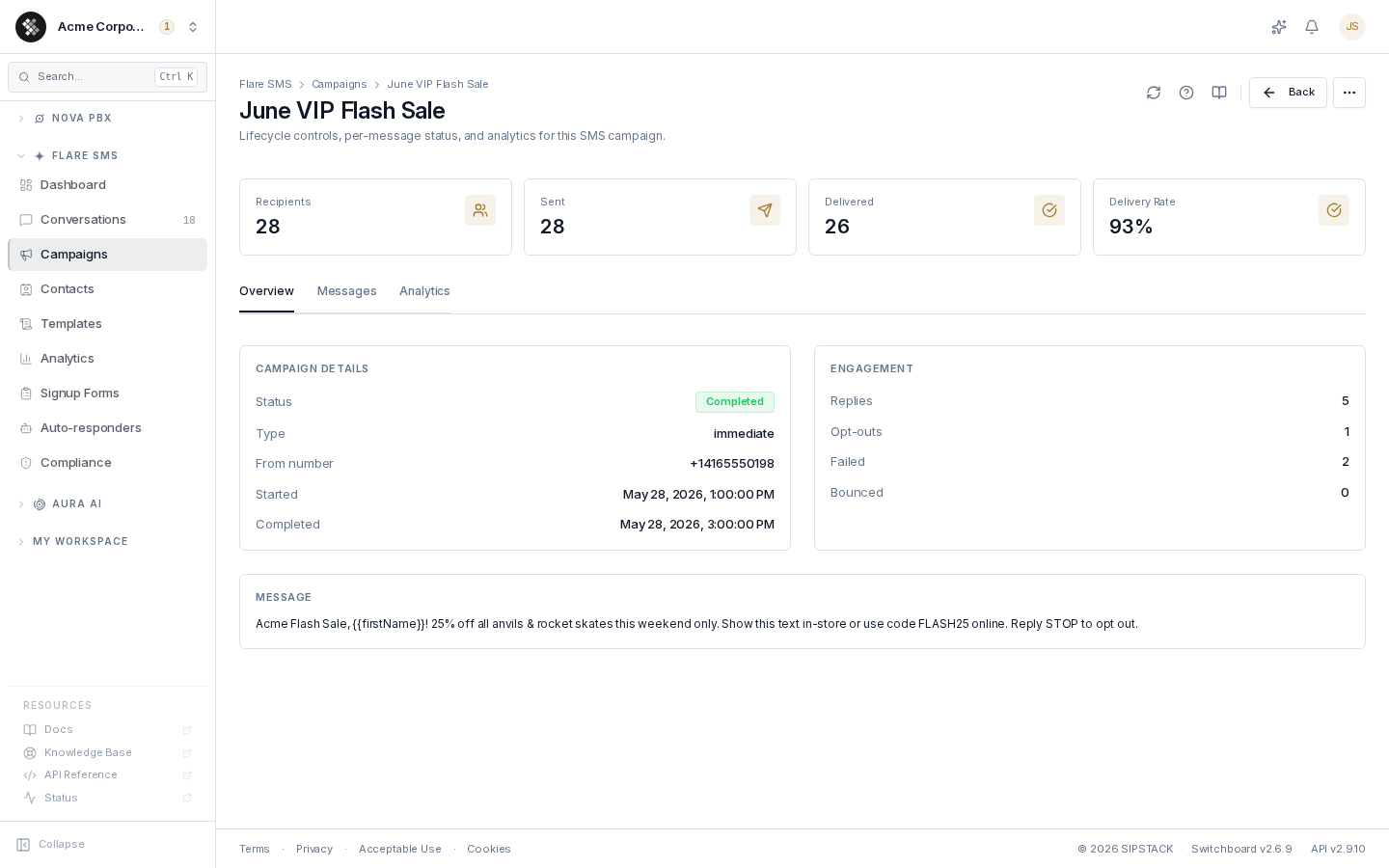
The header shows five headline numbers — Recipients, Sent, Delivered, Failed, and Delivery Rate — plus the same status-aware actions menu as the list. Below the header, a started campaign shows either the Sending progress panel or the Campaign complete summary, then three tabs. Sent is a count, not the rate’s denominator: Delivery Rate is the same delivered ÷ attempted figure as the list’s Delivery column, the Delivered card reads of N attempted once all receipts are in, and the Failed card shows its % of attempted.
Sending Progress
Section titled “Sending Progress”The Sending progress panel appears while a campaign is Active, and stays visible if you pause a campaign that has already sent messages. It refreshes every 5 seconds while the campaign is sending and the browser tab is visible.
- Percent done — the share of recipients processed, with N of M processed.
- ETA — the estimated finish time, for example
3:41 PM (≈ 27 min). When everything left is waiting for later, the panel shows when sending picks up instead, for exampleresumes 9:00 AM (quiet hours). A paused campaign reads Paused. - Send rate — messages per minute, with a small trend line of the last 15 minutes. It shows only while the campaign is sending.
- Progress bar and legend — one bar showing where every message stands. The legend lists each state that has messages, with its count:
| Legend | Bar colour | Meaning |
|---|---|---|
| Delivered | Green | The carrier confirmed delivery. |
| Awaiting confirmation | Blue | Handed to the carrier; the delivery receipt can still arrive. |
| No receipt | Light blue | Handed to the carrier, but no receipt arrived in the expected window. |
| Failed | Red | Failed or undelivered. |
| Queued | Grey | Not sent yet, and free to send now. |
| Scheduled | Dark grey | Not sent yet, and set to go out later: spaced out by pacing to protect deliverability, or waiting for the recipient’s quiet hours to end. This is normal. Hover the label for the next send time. |
| Limit reached | Amber stripes | Not sent yet, because your plan’s send limit was reached. These resume automatically when the limit lifts. Hover the label for the time. |
Badges under the bar explain why messages are waiting and what the message costs:
| Badge | Meaning |
|---|---|
| Quiet hours · N scheduled for time | Recipients are inside their quiet hours. The time is on the recipient’s clock. |
| Send limit reached · N waiting until time | A send limit is holding messages back. See What Happens When You Reach a Limit. |
| Pacing · N scheduled from time | Delivery pacing has spread the remaining sends out. |
| Special characters · N segments per message | The message contains characters outside the standard SMS set, so it sends in a format that fits fewer characters per segment. |
| Long message · N segments per message | The message is longer than one segment. |
The Sending Now cards on the campaign list show only the waiting badges, not the message badges.
Campaign Complete
Section titled “Campaign Complete”When a campaign finishes, the Campaign complete summary replaces the progress panel. It lists the outcome on one line, for example 980 processed in 40 min · 93% delivered · 72 failed · 1,960 segments · from +1 (416) 555-0100, with a delivered-versus-failed split bar. Replies and opt-outs usually arrive over the next 24–48 hours, and the numbers on the page keep updating.
The detail page has three tabs:
Overview
Section titled “Overview”Campaign settings (status, type, from-number, schedule / start / completion times), engagement counters (replies, opt-outs, failed, bounced), and the raw message text as composed — personalization variables appear unsubstituted here.
Messages
Section titled “Messages”The per-recipient message log: contact, delivery status, segment count, sent time, and any carrier error message. Filter by status (Delivered / Sent / Failed / Bounced / Queued) to isolate problems.
A message waiting on a send limit (the daily send limit, the monthly safety ceiling, or the new-account limit) stays Queued, and the error column says which limit it’s waiting on. It’s retried automatically when the limit lifts. See What Happens When You Reach a Limit.
Analytics
Section titled “Analytics”A real-time message status breakdown (queued / sent / delivered / failed / bounced / timeout / read). Campaigns with link tracking enabled also show per-link click counts here; A/B-tested campaigns show per-variant results.
Delivery Expectations
Section titled “Delivery Expectations”Delivery rate is delivered ÷ attempted — the same figure in the campaign list and on the detail page. Only a carrier delivery receipt counts a message as delivered, so a message the carrier hasn’t confirmed yet lowers the rate until its receipt arrives:
- 95–100% — healthy; clean list, compliant content.
- 85–95% — investigate; usually stale numbers or mild carrier filtering.
- Below 85% — significant list-quality or content problem; contact support.
A campaign that’s still Active will show a low or blank delivery percentage early on — receipts arrive over the lifetime of the send. Watch the Awaiting confirmation count in the Sending Progress bar to see how many receipts are still to come.
Permissions
Section titled “Permissions”Viewing campaigns requires the View Campaigns permission (flare.campaigns.view); creating, editing, and lifecycle actions require Manage Campaigns (flare.campaigns.manage).