

Managing Subscriptions
Managing Subscriptions
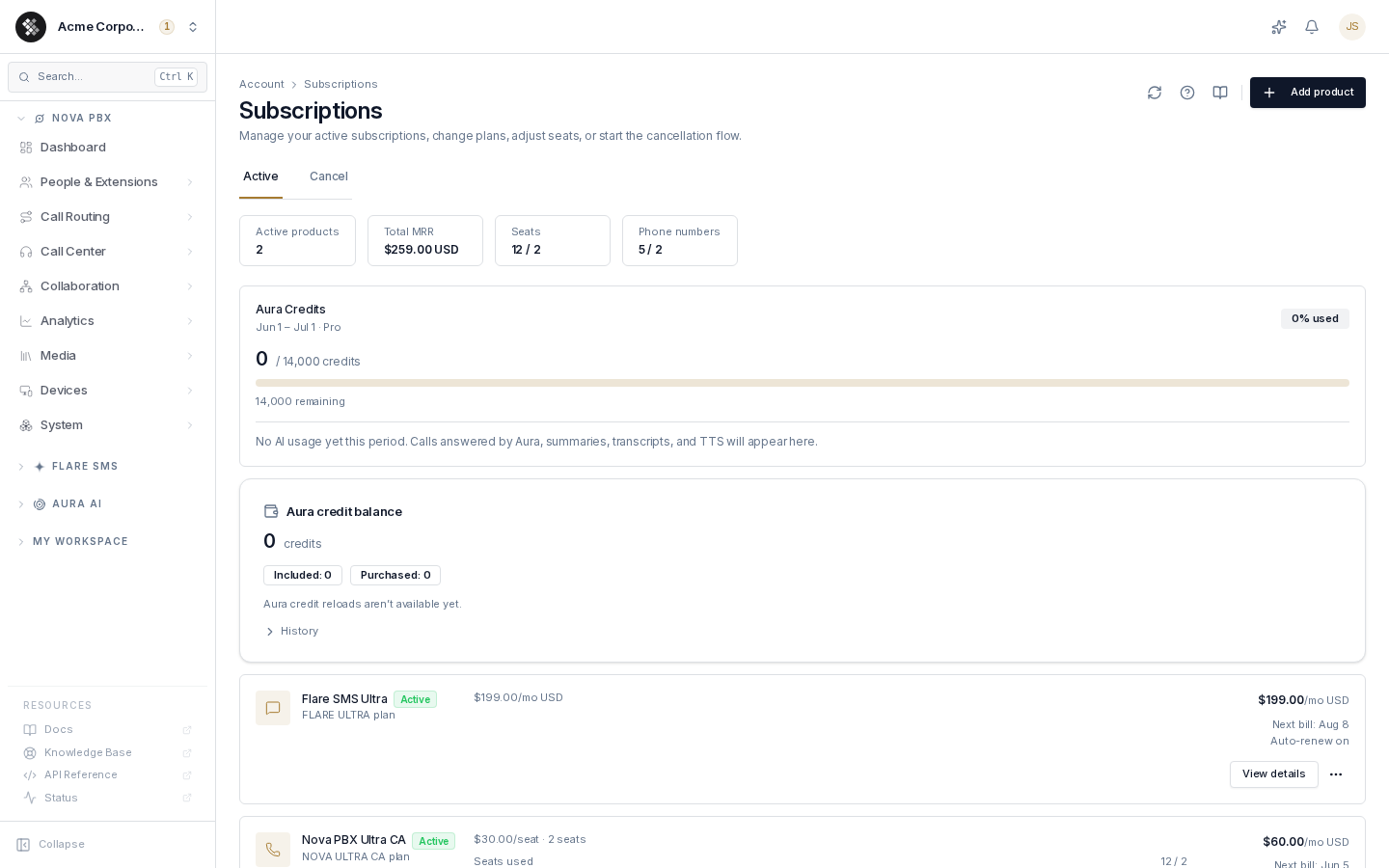
Section titled “Managing Subscriptions”Account → Subscriptions lists your organization’s Nova PBX and Flare SMS subscriptions, one card per subscription. This page is the one place to add a product, change tier, adjust Nova seats, and start the cancellation flow.
The Summary Strip
Section titled “The Summary Strip”Above the cards, a row of tiles summarizes the whole account:
| Tile | What it shows |
|---|---|
| Active products | Count of subscriptions in active or trial status. |
| Total MRR | Your monthly recurring spend, totalled per billing currency (for example $86.00 CAD + $199.00 USD if your account holds mixed-currency subscriptions — common for accounts migrated from legacy systems). |
| Seats | Used / total seats across your seat-based subscriptions. Only shown when at least one subscription is seat-based. |
| Phone numbers | How many numbers you hold (and your plan allowance, when one applies). |
| Trials | Number of trial subscriptions — only shown when at least one is running. |
Subscription Cards
Section titled “Subscription Cards”Each card shows the product, its plan tier, status badge, monthly price in the subscription’s billing currency, next bill date, and seat usage where applicable.
Subscription statuses:
| Status | Meaning |
|---|---|
| Active | In good standing, renews automatically. |
| Trial | Free trial in progress — the card shows when it ends. |
| Past due | A payment failed; update your card on Billing to avoid interruption. |
| Cancelling | A cancellation is pending. It takes effect 72 hours after you confirmed it, or at the end of the paid period if you chose that option; you keep access until then and can undo it. |
Card actions:
- View details — opens the subscription detail page with plan, usage, add-ons, and assigned users.
- Change tier — switch between Core, Pro, and Ultra within the same product; on Nova PBX, also change your seat (licence) count. See Changing Tier.
- Cancel — starts the cancellation flow (owner-only).
Alerts
Section titled “Alerts”When something needs attention — a failed payment, a trial about to end, a pending cancellation — a banner appears above the cards. Some banners can be dismissed with the X; ones tied to an unresolved problem (like a failed payment) stay until the underlying issue is fixed.
Changing Tier
Section titled “Changing Tier”Click Change tier on a Nova PBX or Flare SMS card. The dialog lists only that product’s tiers — Core, Pro, and Ultra — with prices in your billing currency:
- Choose a tier.
- On Nova PBX, set the number of seats (licences) — at least one.
- Review the price preview and confirm.
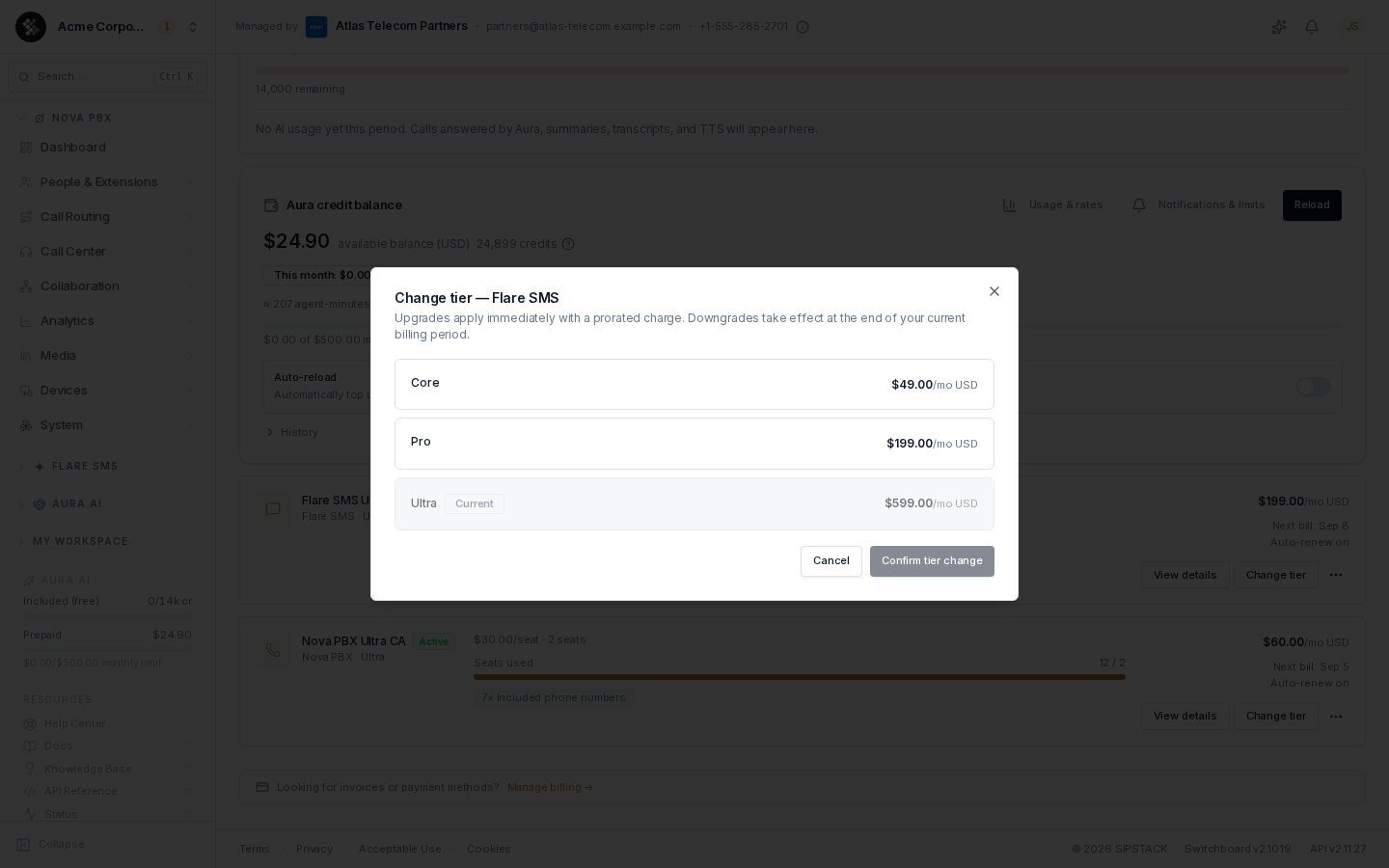
Upgrades are pro-rated and applied immediately; downgrades and seat reductions take effect at the next bill date, and the invoice issued on that date bills the new plan and seat count — not one more period at the old size. A scheduled change appears under Pending changes on the subscription detail page, where you can revert it.
Reducing seats when you have more phone numbers than the new seat count includes
Section titled “Reducing seats when you have more phone numbers than the new seat count includes”Each Nova PBX seat includes a number of phone numbers. If a seat reduction (on its own, or with a tier change) leaves you with more numbers than the smaller plan includes, Switchboard tells you before you confirm: how many numbers you have, how many the new seat count includes, how many will be billed as monthly add-ons, and at what price. The confirm button then reads Reduce seats and keep my numbers.
- Nothing is charged today and there is no activation fee. The add-ons start on your next invoice, when the seat reduction takes effect. Each one is billed at the monthly phone-number rate in your subscription’s billing currency; the dialog shows the exact price before you confirm.
- To avoid the add-ons, release the extra numbers before reducing seats.
- If you keep the numbers and release some later, the add-ons for them are removed — you’re billed only for numbers above what your seats include.
You can’t switch a subscription to a different product (for example, Nova PBX to Flare SMS) — add the other product instead.
Adding a Product
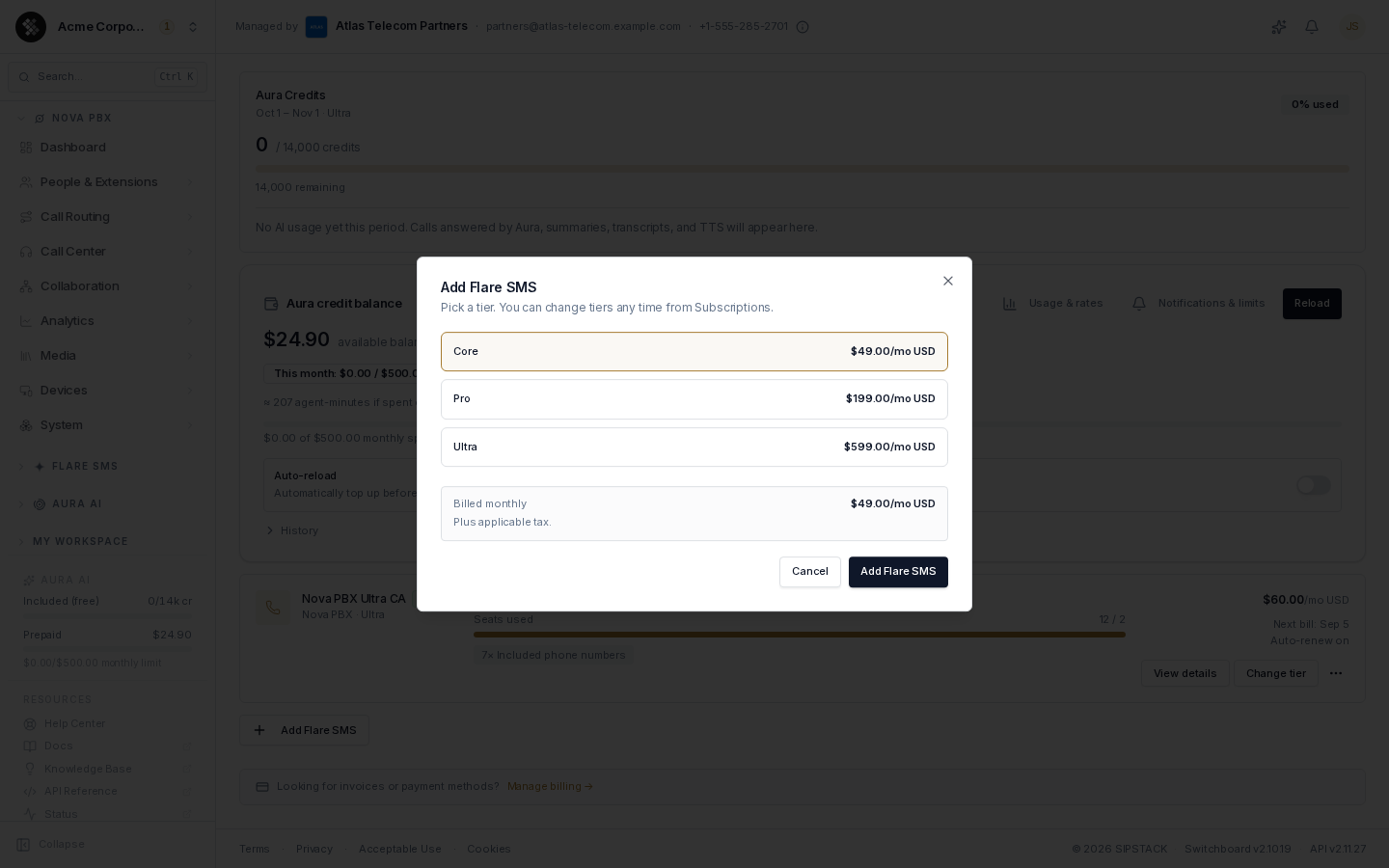
Section titled “Adding a Product”Your organization can hold one Nova PBX subscription and one Flare SMS subscription. When it has only one of them, a single action appears below your subscription cards:
- Add Flare SMS — if you have Nova PBX but not Flare SMS.
- Add Nova PBX — if you have Flare SMS but not Nova PBX.
If you already have both, no add action is shown.
The add dialog asks for:
- A tier — Core, Pro, or Ultra.
- For Nova PBX, the number of seats (licences).
- Confirmation, after a price preview in your billing currency.
For what each tier includes, see Plans & What’s Included.
No Subscriptions Yet
Section titled “No Subscriptions Yet”If your organization has no subscriptions, the page shows just two actions: Add Nova PBX and Add Flare SMS. Each opens the same add dialog described above.
Phone Numbers
Section titled “Phone Numbers”Phone numbers aren’t added here. Buy them at Account → Phone Numbers → Buy numbers — see Buying Numbers. Numbers billed to a subscription are listed on its Add-ons tab.
The Cancel Tab
Section titled “The Cancel Tab”Account owners see a second tab, Cancel, which is the entry point for closing the whole account (as opposed to cancelling a single product). The wizard offers a 30/60/90-day pause as an alternative; if you proceed, there’s a 30-day cooling-off window during which the platform stays fully active and you can reactivate with one click, followed by a 30-day grace period for your phone numbers before release. See Cancelling Your Account.
Looking for Invoices?
Section titled “Looking for Invoices?”Invoices and payment methods live on the Billing page — the hand-off link at the bottom of the subscriptions list takes you straight there.