

Setting Your Password
Setting Your Password
Section titled “Setting Your Password”When an administrator creates your Switchboard account — or sends you a fresh sign-in link — you receive an email with a “Set your password” button. SIPSTACK never emails temporary passwords; you always choose your own password through this secure, single-use link.
You’ll receive one of these emails when:
- You are invited to an organization (welcome email with portal access).
- Your partner account is activated.
- An administrator initiates a password reset on your behalf.
How Long Links Last
Section titled “How Long Links Last”| Link valid for | |
|---|---|
| Welcome / organization invite | 7 days |
| Partner account activation | 7 days |
| Admin-initiated password reset | 24 hours |
Every link is single-use — once you’ve set a password with it, it cannot be used again.
Setting Your Password
Section titled “Setting Your Password”-
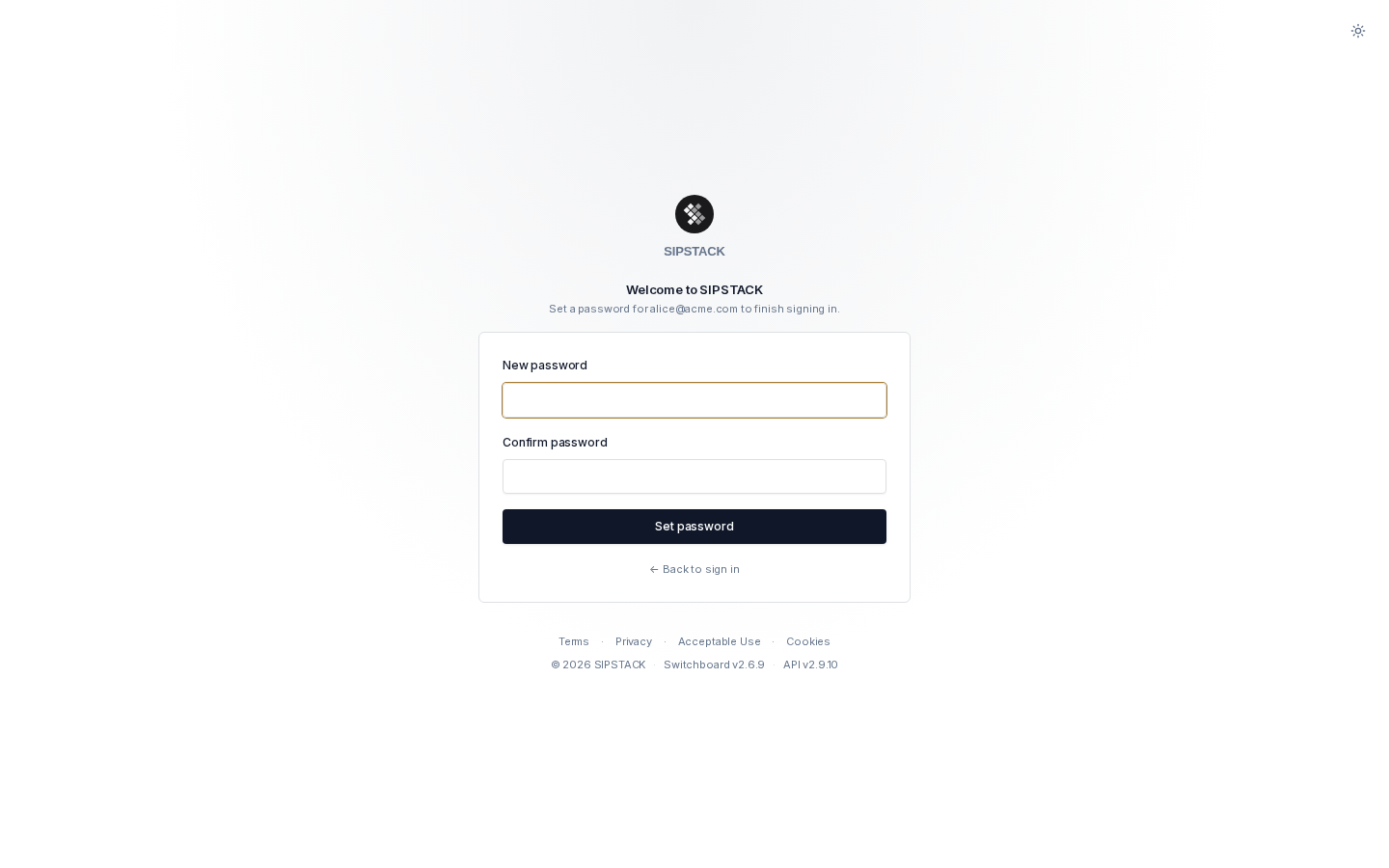
Open the email and click Set your password. The page verifies your link and shows the account email it belongs to.
-
Choose a password that contains:
- At least 12 characters (128 max)
- At least one uppercase letter
- At least one lowercase letter
- At least one number
- At least one special character from
!@#$%^&*(),.?":{}|<>
-
Enter it twice and click Set password.
What happens next depends on the email you came from:
- Invite / partner activation — you are signed in automatically and taken to your dashboard.
- Admin-initiated reset — you are taken to the sign-in page with your email pre-filled; sign in with your new password. A confirmation email is also sent so you have a record of the change.
Troubleshooting
Section titled “Troubleshooting””Link expired” or “already been used”
Section titled “”Link expired” or “already been used””Click Request a new link. You’ll be taken to the forgot-password page with your email pre-filled — submit it to send yourself a fresh reset email (see Resetting Your Password). If you were expecting an organization or partner invite, ask your administrator to re-send it instead.
”Invalid link”
Section titled “”Invalid link””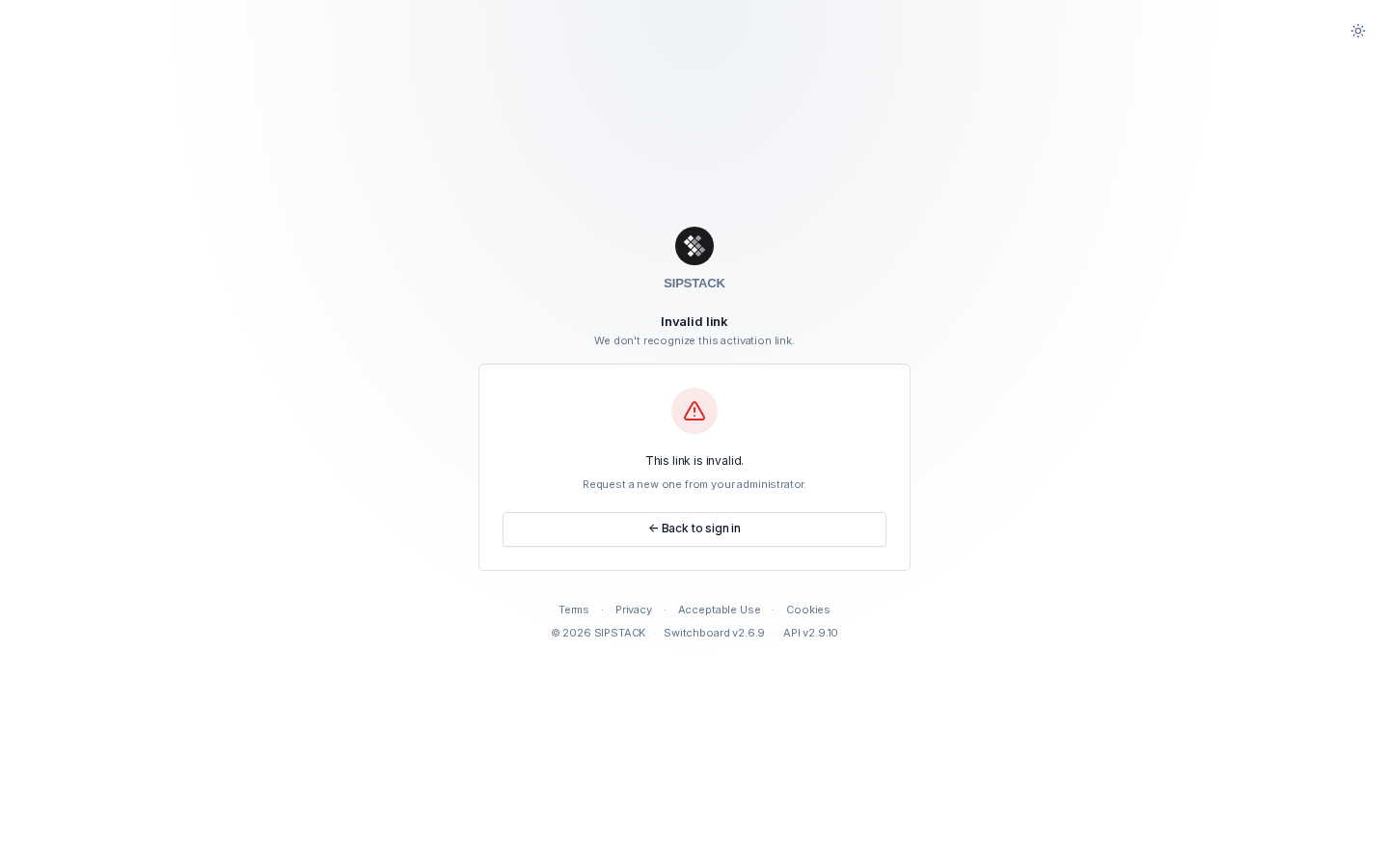
The link is not recognized — it may have been truncated by your email client. Try copying the full URL from the email into your browser. If it still fails, request a new link from your administrator.
”Missing link”
Section titled “”Missing link””You visited /set-password directly without a token. This page only works from the link in your email — open the email and click the button again.