

Two-Factor Authentication
Two-Factor Authentication
Section titled “Two-Factor Authentication”Two-factor authentication (2FA) adds a second layer of security to your SIPSTACK account. After entering your password, you are prompted for a one-time code from your authenticator app — even if someone gets your password, they cannot sign in without the code.
SIPSTACK uses standard TOTP (time-based one-time password) codes. Any TOTP-compatible app works:
- Google Authenticator (iOS / Android)
- Authy (iOS / Android / Desktop)
- 1Password (built-in OTP support)
- Microsoft Authenticator (iOS / Android)
- Bitwarden (paid plans include TOTP)
Where to Manage 2FA
Section titled “Where to Manage 2FA”Your personal 2FA settings live in your profile:
- Click your avatar (photo or initials) in the top-right corner of Switchboard.
- Select My Profile.
- Open the Security tab.
The Personal two-factor authentication panel shows whether 2FA is enabled, how many backup codes you have remaining, and — if your organization requires 2FA — a Required by organization badge.
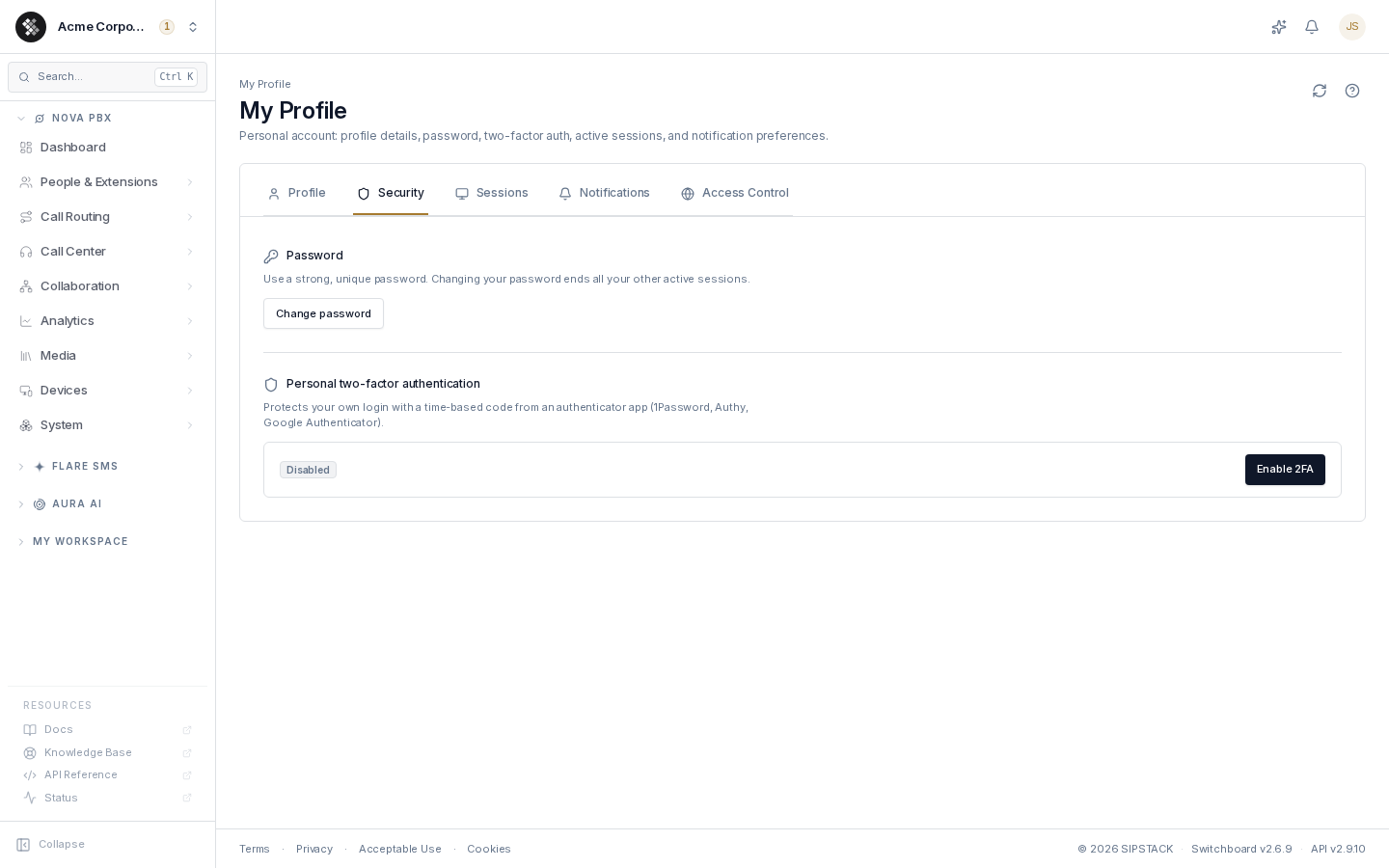
Owners and admins will also find the same panel (plus the organization-wide MFA policy, below) under Account → Settings → Security.
Enabling 2FA
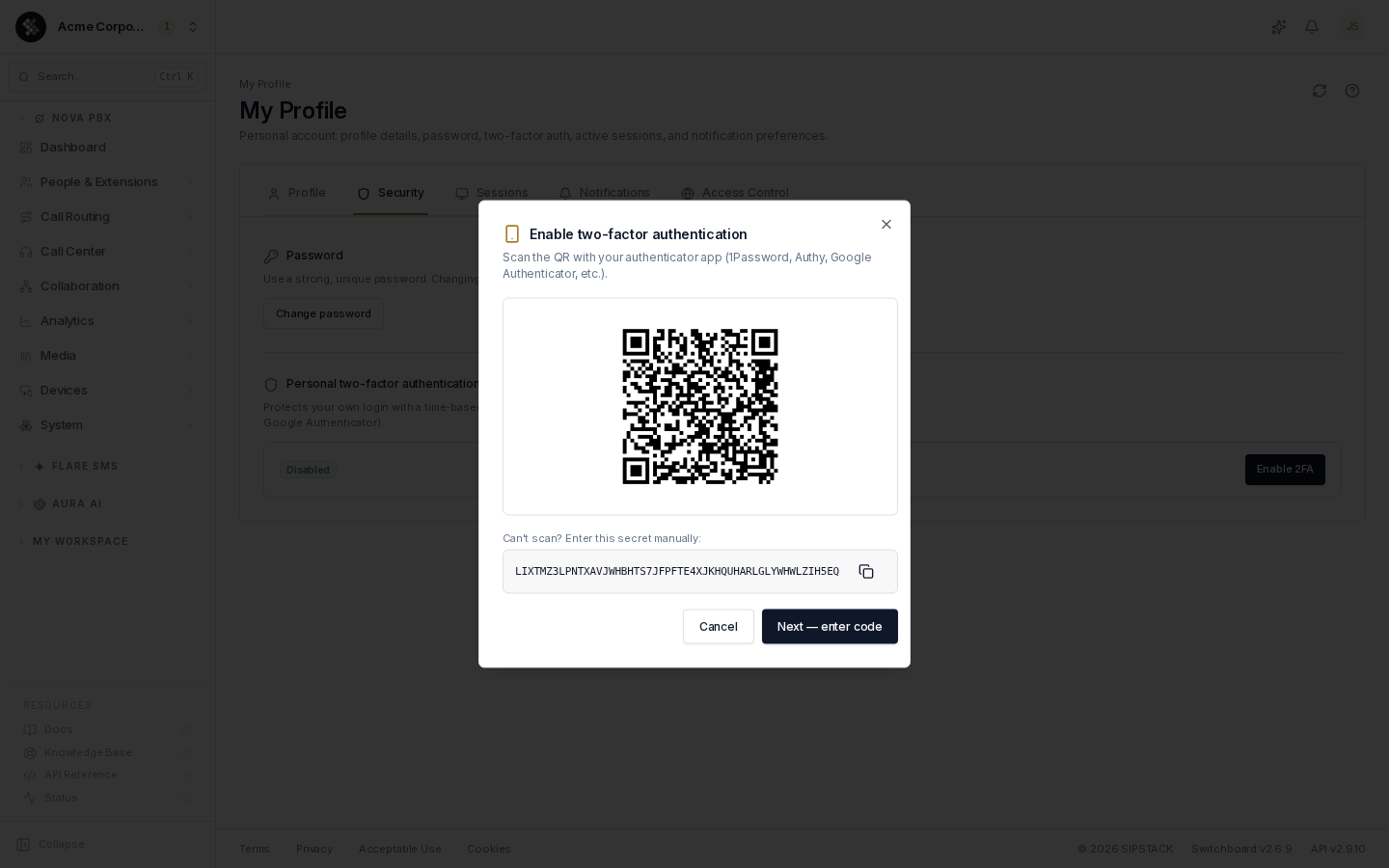
Section titled “Enabling 2FA”- In My Profile → Security, click Enable 2FA.
- Scan the QR code with your authenticator app. If you can’t scan it, copy the manual entry key shown below the code and add it to your app by hand.
- Enter the 6-digit code your app generates and verify.
- Save your backup codes (see below). You must confirm you’ve saved them before the dialog will close — they are not shown again.
Backup Codes
Section titled “Backup Codes”When you enable 2FA you receive 10 single-use backup codes (8-character codes). Each one can be used in place of an authenticator code exactly once — they are your way in if you lose your phone.
- Store them safely — password manager, or a printed copy in a safe place.
- The Security panel shows how many you have left.
- Click Regenerate codes to issue a fresh set of 10 at any time. You must enter a current 6-digit code from your app, and all previous backup codes stop working immediately.
The Sign-In Challenge
Section titled “The Sign-In Challenge”Once 2FA is enabled, signing in becomes a two-step process:
- Enter your email and password as usual on the sign-in page.
- You are prompted for your authentication code. Enter the current 6-digit code from your authenticator app — or one of your backup codes.
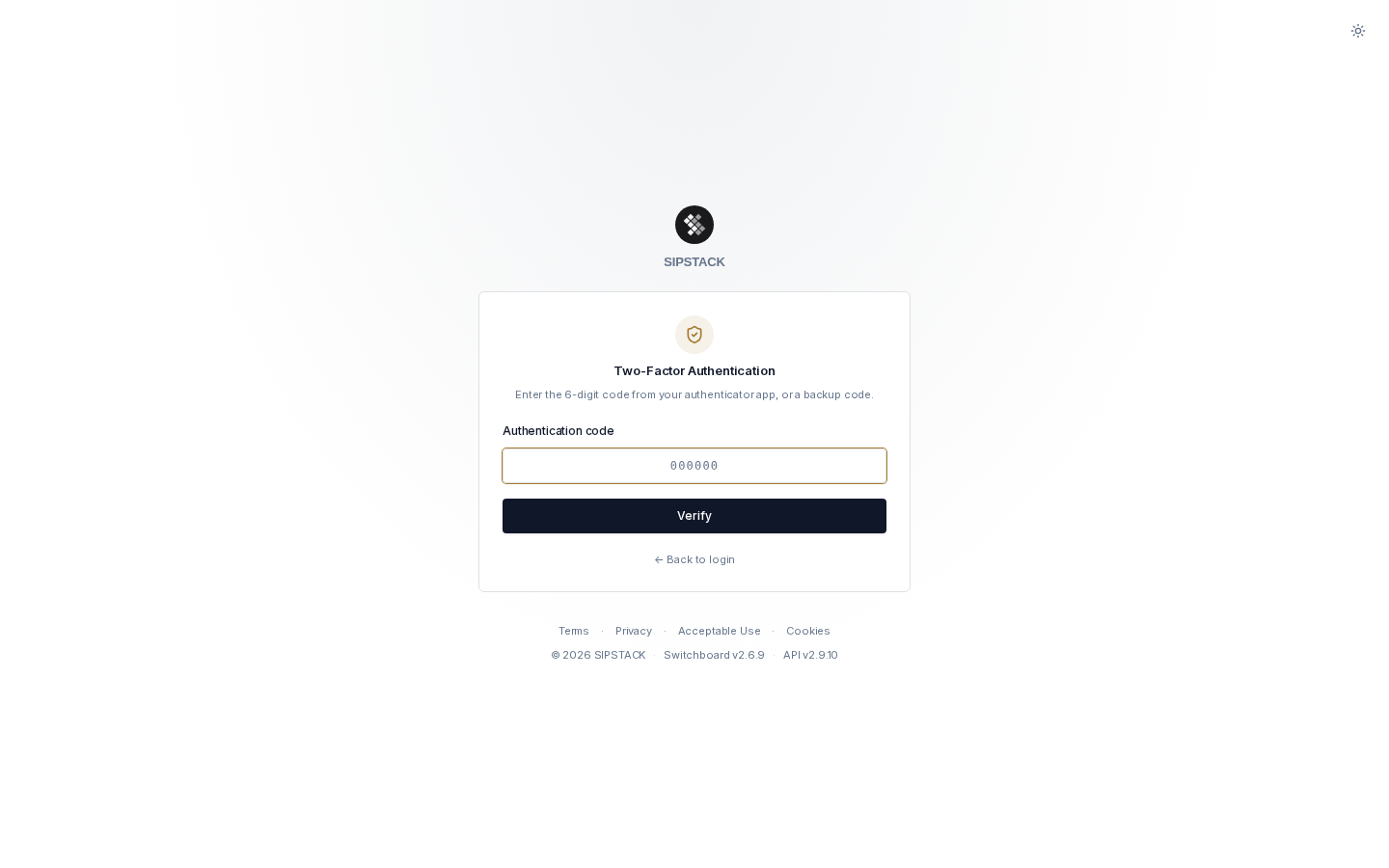
A few things to know:
- Authenticator codes rotate every 30 seconds. If a code is rejected, wait for the next one and try again.
- Backup codes are accepted in upper- or lowercase, and each works only once.
- The challenge is valid for 5 minutes. If you take longer, you are returned to the sign-in form to start over.
- ← Back to login returns you to the credentials step at any time.
Confirming Sensitive Changes
Section titled “Confirming Sensitive Changes”With 2FA on, SIPSTACK also asks for a fresh code before a few sensitive changes, even when you’re already signed in:
- buying phone numbers,
- changing dial permissions (calling profiles), including anything that allows international calling,
- turning off 2FA.
A Confirm it’s you window appears. Enter the current 6-digit code from your authenticator app, or a backup code, and your change goes through. You won’t be asked again for 5 minutes. Signing in with your code counts too, so you won’t be asked again for 5 minutes after you sign in. If you cancel, nothing changes.
This protects your account even if someone learns your password: they can’t buy numbers or open up international calling without your authenticator app.
Organization-Required 2FA
Section titled “Organization-Required 2FA”Owners can require 2FA for everyone in the organization: Account → Settings → Security → Organization MFA Policy.
When the policy is on:
- Users who already have 2FA continue signing in as normal.
- Users without 2FA are walked through setup the next time they sign in — scan the QR code, verify a 6-digit code, and save backup codes, all on the sign-in page (the setup step is valid for 10 minutes).
- Nobody can disable their personal 2FA while the policy is active — the Disable button is locked with a “required by organization” notice.
Disabling 2FA
Section titled “Disabling 2FA”- Go to My Profile → Security → Personal two-factor authentication.
- Click Disable.
- Enter your account password to confirm.
- Enter a current code from your authenticator app when SIPSTACK asks you to confirm it’s you.
This is unavailable while your organization requires 2FA.
Related Security Settings
Section titled “Related Security Settings”The Security tab also lets you change your password (minimum 12 characters with upper/lowercase letters, a digit, and a special character). A confirmation email is sent whenever your password changes.
The Sessions tab next to it lists every device currently signed in to your account, with the option to revoke any session. If you suspect your account is compromised: change your password, revoke unfamiliar sessions, and make sure 2FA is on.