

Dashboard
Dashboard
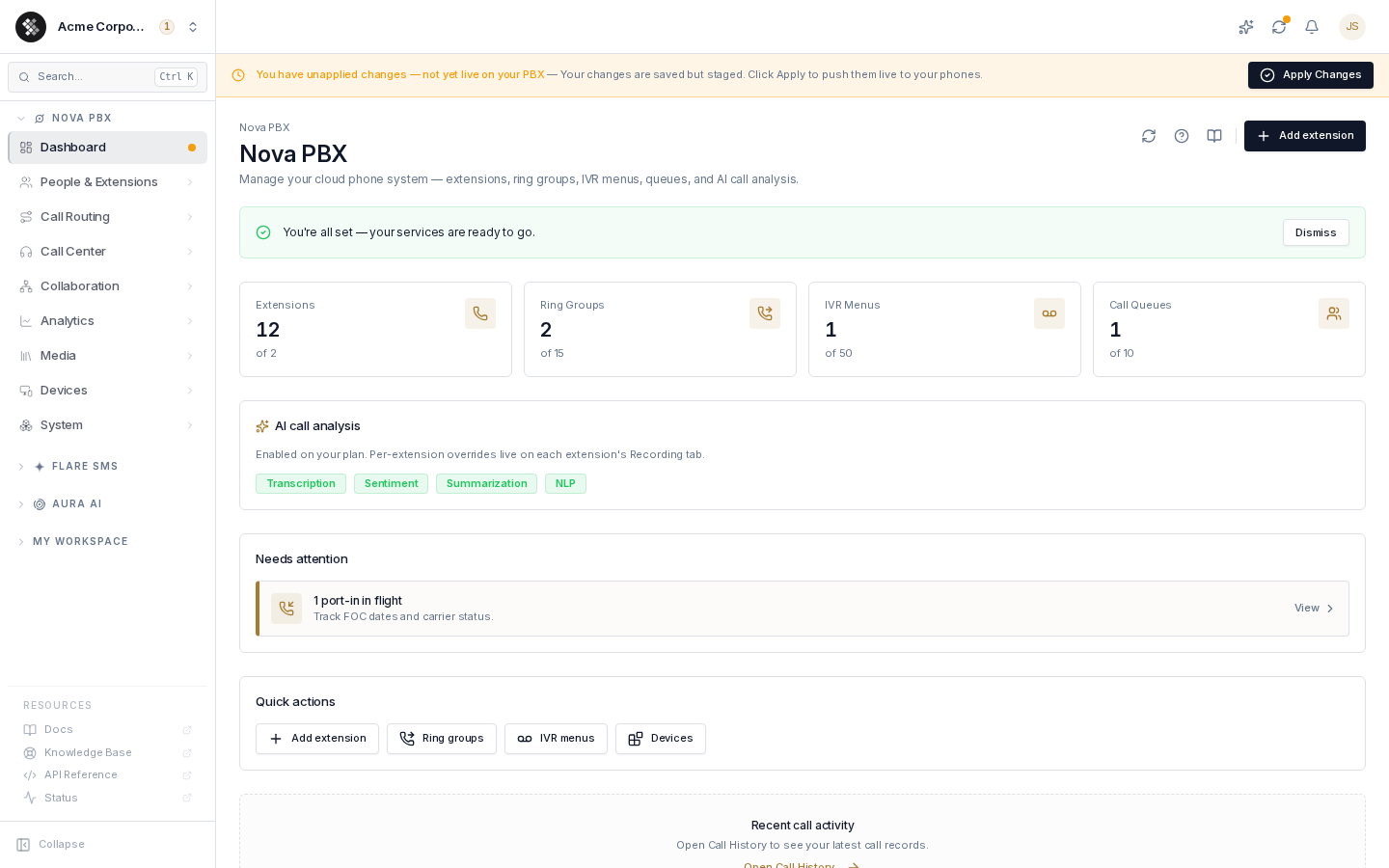
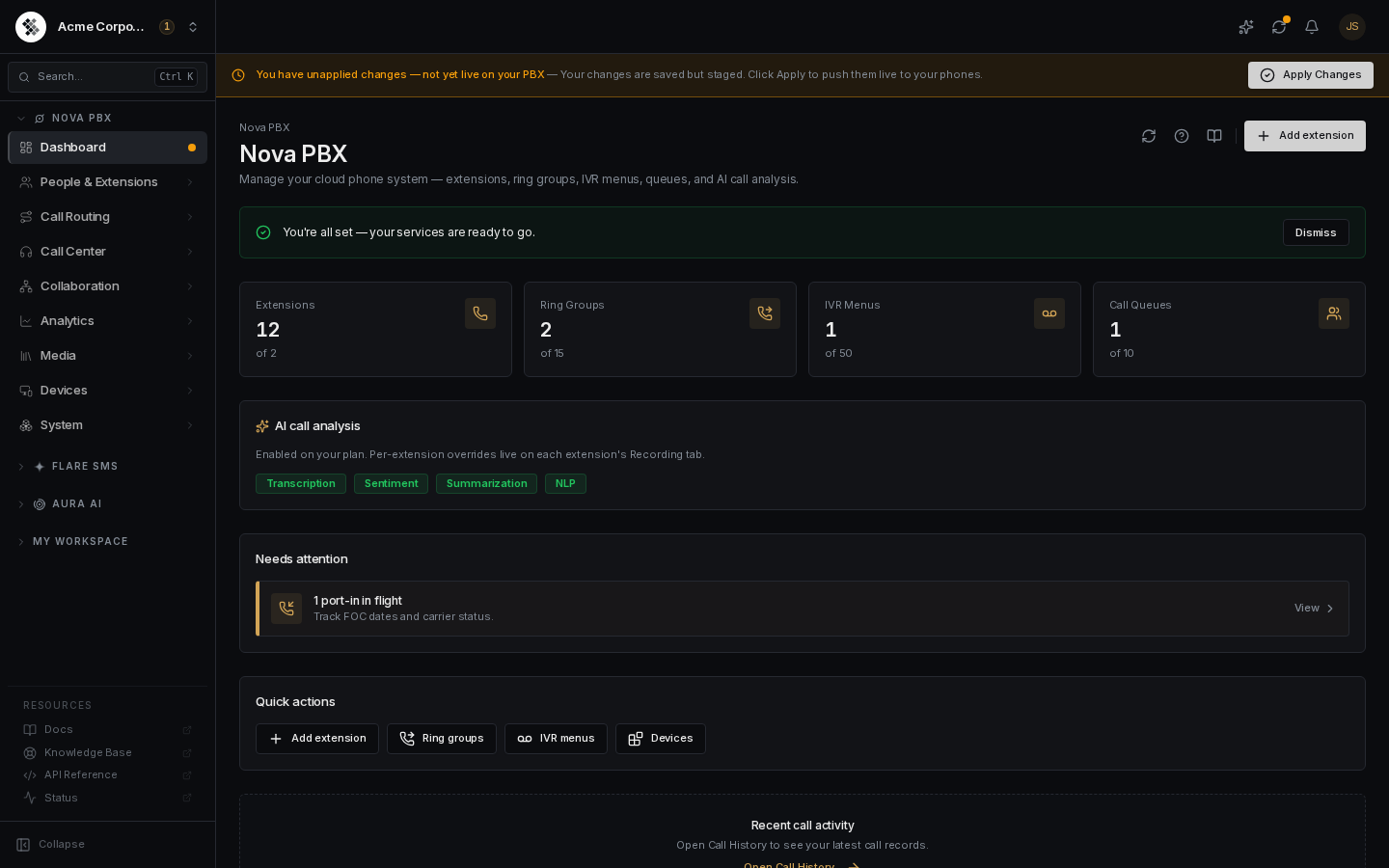
Section titled “Dashboard”Nova PBX → Dashboard is the home page for your phone system. It shows what you have configured against what your plan allows, which AI features are enabled, anything that needs your attention, and one-click shortcuts to the most common tasks.
Capacity Stat Cards
Section titled “Capacity Stat Cards”Four tiles summarize your PBX resources as current count / plan allowance:
| Card | What it counts |
|---|---|
| Extensions | Per-user phone extensions — every person (or device) that can make and receive calls. |
| Ring Groups | Single numbers that ring several phones at once (a sales line, a support hunt group). |
| IVR Menus | Auto-attendant trees (“press 1 for sales, press 2 for support”). |
| Call Queues | Call-center style distribution with hold music and agent states. |
Click a card to open that resource’s management page. If a card shows the count but isn’t clickable, your role doesn’t have permission to manage that resource — an account admin can grant it.
Config Sync Status
Section titled “Config Sync Status”Nova uses a staged-commit model: configuration changes are saved immediately but only go live on your PBX when applied. The dashboard shows a calm “Config synced” strip when everything is live, including when the last push happened. When you have unapplied changes, a yellow Apply Changes banner appears at the top of every Nova page instead — see the commit system.
AI Call Analysis
Section titled “AI Call Analysis”If your plan includes AI features, a panel lists what’s enabled for your account — Transcription, Sentiment, Summarization, and NLP badges appear as your tier unlocks them. These are account-level entitlements; whether each one actually runs on a given extension’s calls is controlled per-extension on the extension’s Recording tab.
If the panel is absent, your current tier doesn’t include any AI features.
Needs Attention
Section titled “Needs Attention”A feed of items that want action — an expiring payment card, a port-in waiting on its FOC date, recording storage near its limit. Each alert links to the page where you can resolve it. When the feed is empty, everything is healthy.
Quick Actions
Section titled “Quick Actions”Shortcut buttons for common destinations: Add extension, Ring groups, IVR menus, and Devices. They mirror the sidebar navigation; buttons you don’t have permission for are hidden.
Recent Call Activity
Section titled “Recent Call Activity”The dashboard links to Call History for your full inbound/outbound call records.
First Visit — PBX Setup
Section titled “First Visit — PBX Setup”Normally your PBX arrives already provisioned, under the PBX address you chose when adding Nova (in the signup wizard or the subscribe dialog — one is derived from your company name if you left the field blank). If your organization has a Nova subscription but no PBX could be provisioned yet, Switchboard instead takes you through a one-time setup step: you choose a short PBX identifier (2–12 lowercase letters/numbers, starting with a letter) that becomes the namespace for all your SIP usernames (acmecorp-1001) and your SIP domain (acmecorp.nova.sipstack.com).
Availability is checked as you type. After you click Activate My PBX, provisioning takes a few seconds and you land on the Extensions page ready to add users. Once provisioned, the setup page simply redirects to your extensions list.
Troubleshooting
Section titled “Troubleshooting”| Symptom | Explanation |
|---|---|
| The page shows a “Nova PBX requires a subscription” message instead of the dashboard. | Your organization isn’t subscribed to Nova PBX. Click Add Nova PBX to pick a tier and seat count on Subscriptions. |
| A stat card shows a count but won’t open. | Your role lacks the permission for that resource — ask an account admin. |
| The setup page says PBX isn’t available in your region yet. | Your phone system is hosted in your billing region and capacity there is still coming online. Contact support; your subscription is unaffected. |
A stat shows 12 of 2. | You’re over the plan allowance (usually after a seat reduction or plan change). Existing resources keep working, but you can’t add more until you’re back under the cap or upgrade. |