

Subscription Details
Subscription Details
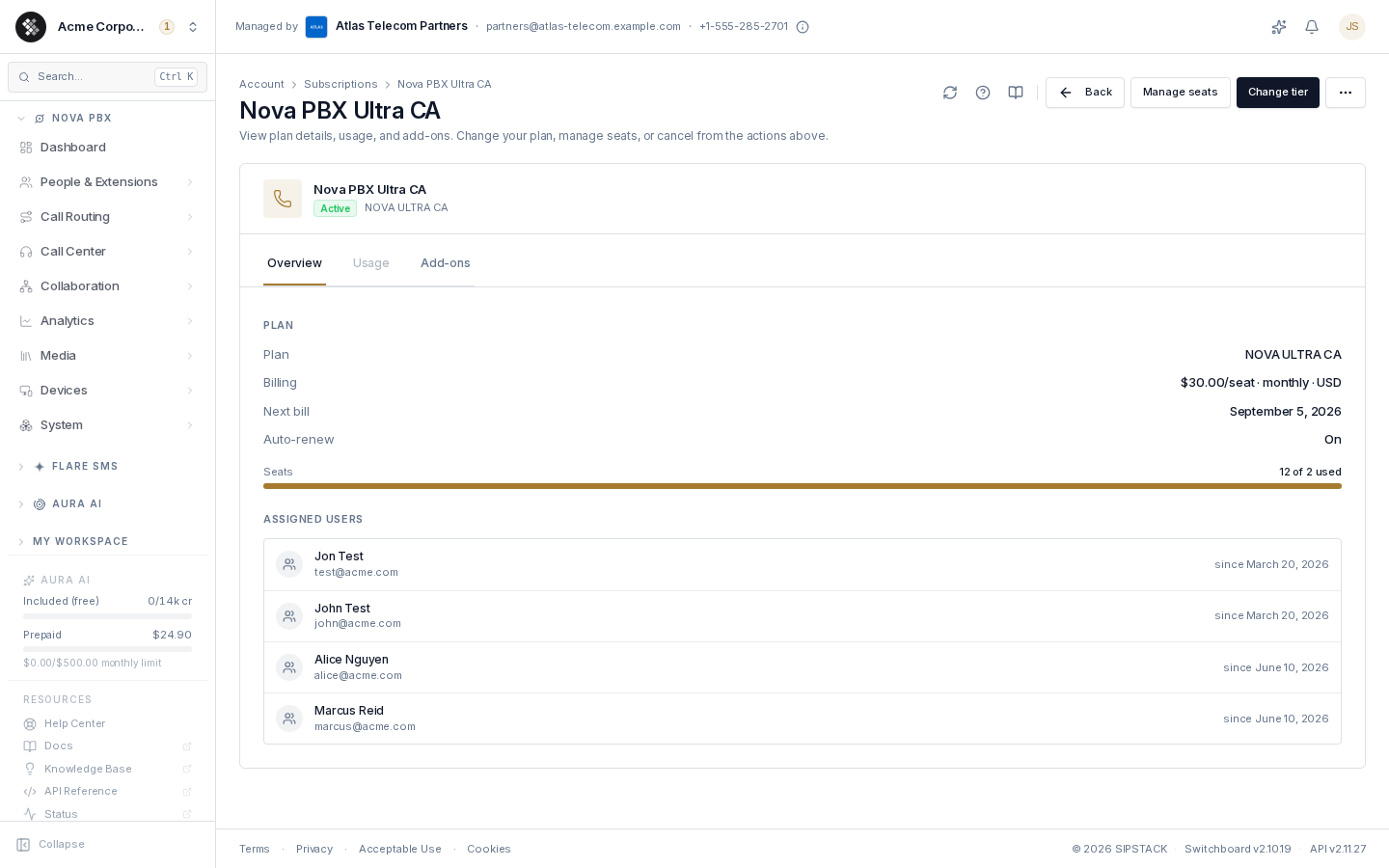
Section titled “Subscription Details”Click View details on any card on the Subscriptions page to open that subscription’s detail view: plan terms, current-period usage, add-ons, and the users assigned to its seats. Three tabs — Overview, Usage, and Add-ons — are deep-linkable via URL hash (#usage, #addons).
Overview
Section titled “Overview”| Row | Meaning |
|---|---|
| Plan | The tier you’re on (for example “Nova Pro”). |
| Billing | Unit price, cadence, and billing currency — $30.00/seat · monthly · CAD for per-seat plans, $199.00/mo · USD for flat plans. |
| Next bill / Trial ends | The same row relabels based on status. |
| Auto-renew | On renews each period; Off means the subscription ends at the next bill date. |
| Discount | Shown only when a discount is applied — its value, name, and expiry. |
On per-seat plans, a Seats progress bar shows how many of your purchased seats are in use. Use Manage seats (top-right) to add or remove seats. Added seats are pro-rated and charged today; removed seats take effect at the end of the billing period (no refund), and the next invoice bills the new seat count. If removing seats leaves you with more phone numbers than the new seat count includes, the dialog warns you first — see Reducing seats.
Assigned Users
Section titled “Assigned Users”When users are assigned to this subscription’s seats, an Assigned users list shows each person’s name, email, and when they were assigned. The list is read-only here — assignments are managed from each user’s detail page (or by SIPSTACK staff) — and the section is hidden when nobody is assigned.
Pending Changes
Section titled “Pending Changes”Anything queued for the end of the billing period — a scheduled downgrade, a pending cancellation — appears under Pending changes. Each entry shows a one-line description plus the action that reverts it:
| Queued change | Revert action |
|---|---|
| Plan downgrade, seat reduction, or both (from Change tier) | Keep … (e.g. “Keep Nova Pro”, “Keep current seats”, “Keep both”) — cancels the scheduled change; the subscription keeps its current plan and/or seat count and bills at the regular price. |
| Cancellation (from the Cancel subscription wizard) | Undo — reverts the cancellation in one click; you’ll be billed at the start of your next period. |
Both actions open a confirm dialog that states exactly what will happen. Scheduled plan/seat changes appear in a highlighted Scheduled change block within the section.
The Usage tab shows live current-period counters for the plan’s metered features (minutes, messages, AI tokens…), each with a used / limit readout and progress bar — or Unlimited where the plan is uncapped. The tab is disabled when the plan has no metered features.
Add-ons
Section titled “Add-ons”The Add-ons tab lists the phone numbers billed to this subscription. Each row shows the add-on name, its quantity (for example × 3), and its monthly price in the subscription’s billing currency. Numbers your plan includes at no extra charge are marked Included in plan.
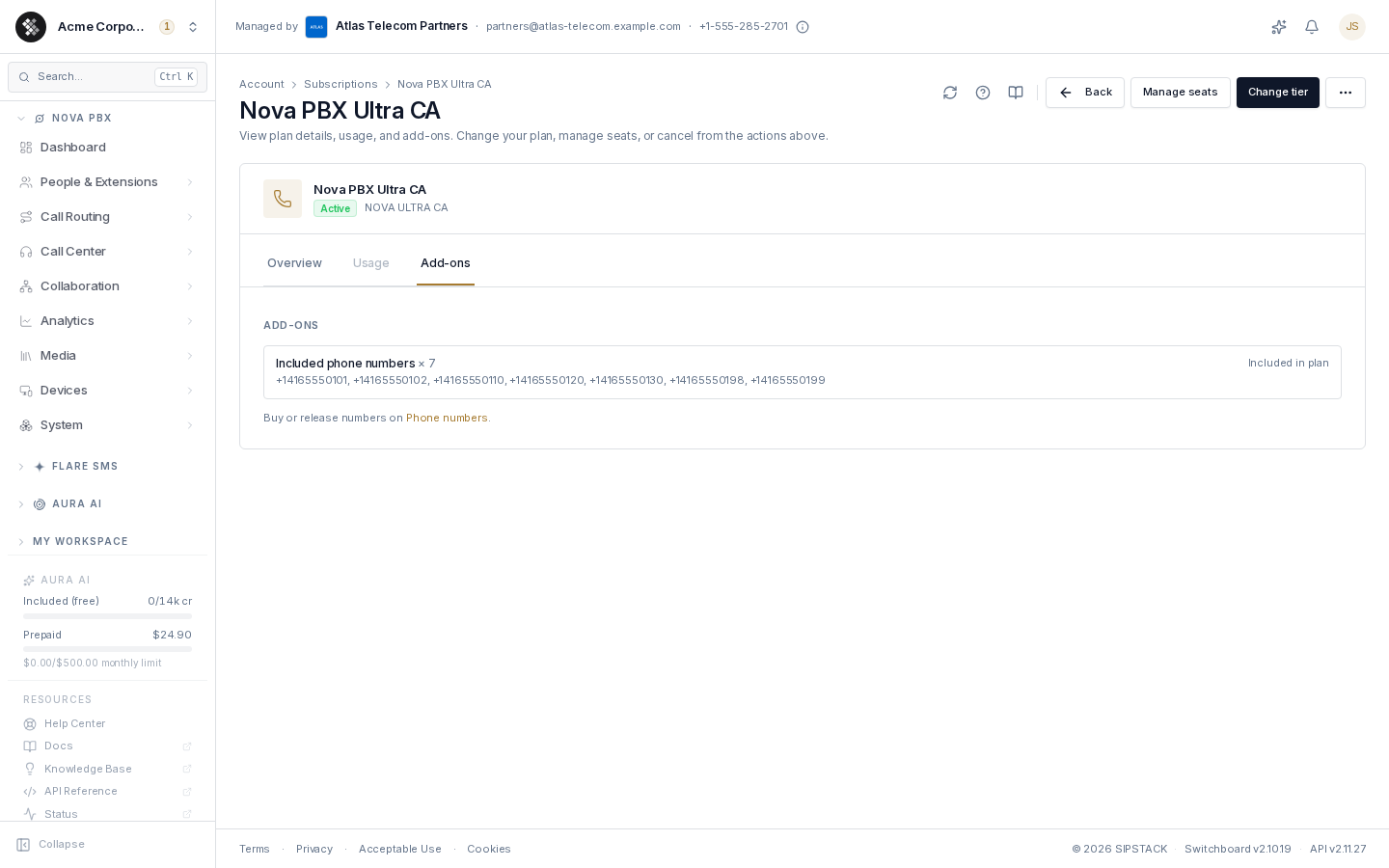
The tab is read-only. To buy more numbers, go to Account → Phone Numbers → Buy numbers — see Buying Numbers.
Actions
Section titled “Actions”The top-right action area:
| Action | Effect |
|---|---|
| Change tier | Switch between Core, Pro and Ultra within this product (Nova PBX can also add seats here). Upgrades pro-rate and apply immediately; downgrades schedule for the next bill date. A scheduled downgrade can be cancelled later from the Pending changes section (Keep …). |
| Manage seats | Per-seat plans only — add seats (pro-rated, charged today) or remove seats (from the next bill date). |
| ⋯ More → Cancel subscription | Opens the cancellation wizard. It first offers a 30/60/90-day pause; if you proceed, you get a 30-day cooling-off window during which reactivating is one click. |
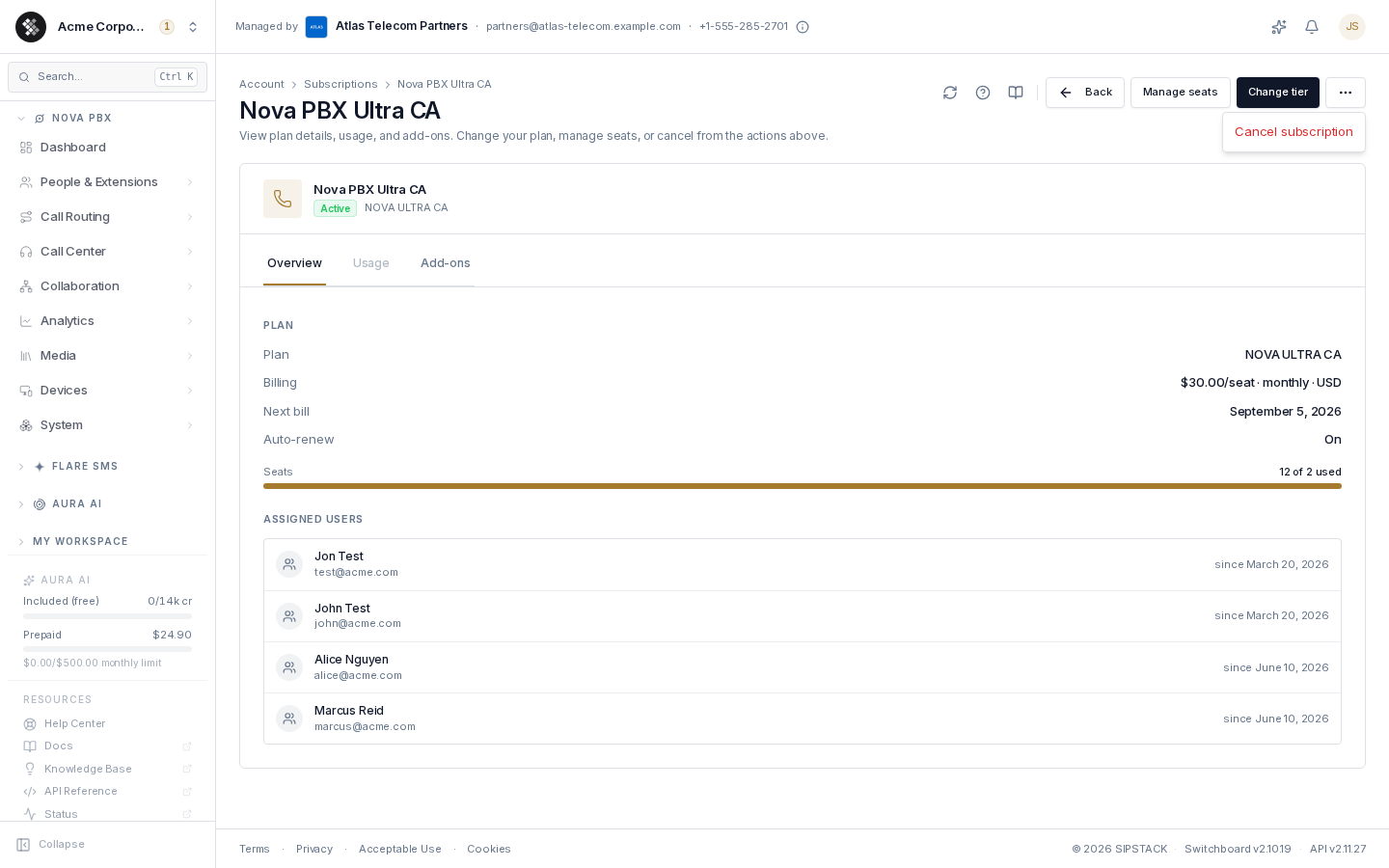
While a cancellation is pending, the ⋯ More menu is hidden — undo the cancellation from the Pending changes section instead.