

Incoming Calls
Incoming Calls
Section titled “Incoming Calls”When someone calls your extension, Pulse rings and shows who’s calling so you can answer or decline.
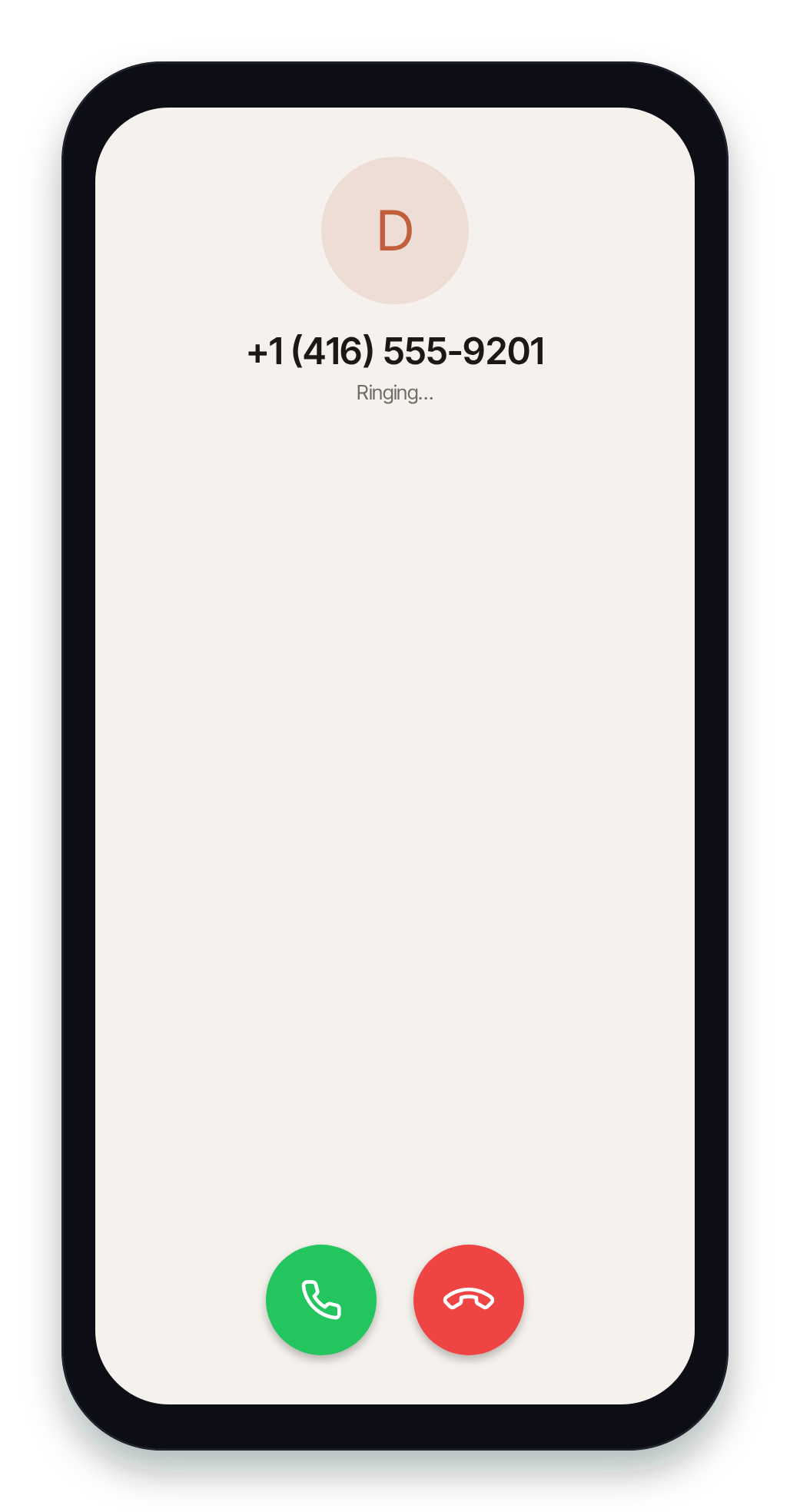
Answer or decline
Section titled “Answer or decline”The ringing screen shows who’s calling along with Answer and Decline:
- Caller name — shown when the number matches a contact (your organization’s directory, your device’s address book, or a connected CRM). Otherwise the formatted number is shown as the primary line.
- Phone number — the caller’s actual number is always shown: as the primary line when no name matches, or as a secondary line beneath the name when one does. You always see the number that’s calling.
- Caller location — a city-and-state line derived from the number’s area code (for North American numbers), e.g. Toronto, ON or Los Angeles, CA. It’s shown for every call, matched or not. Being area-code-based, the city is the area code’s representative metro (paired with its state or province) rather than a guaranteed current city.
Then:
- Answer (green) — pick up the call. Pulse connects you and opens the in-call screen with mute, hold, transfer, and audio controls.
- Decline (red) — reject the call: ringing stops on your device and the caller is routed straight to voicemail or your call-forward-no-answer destination. The call does not re-ring.
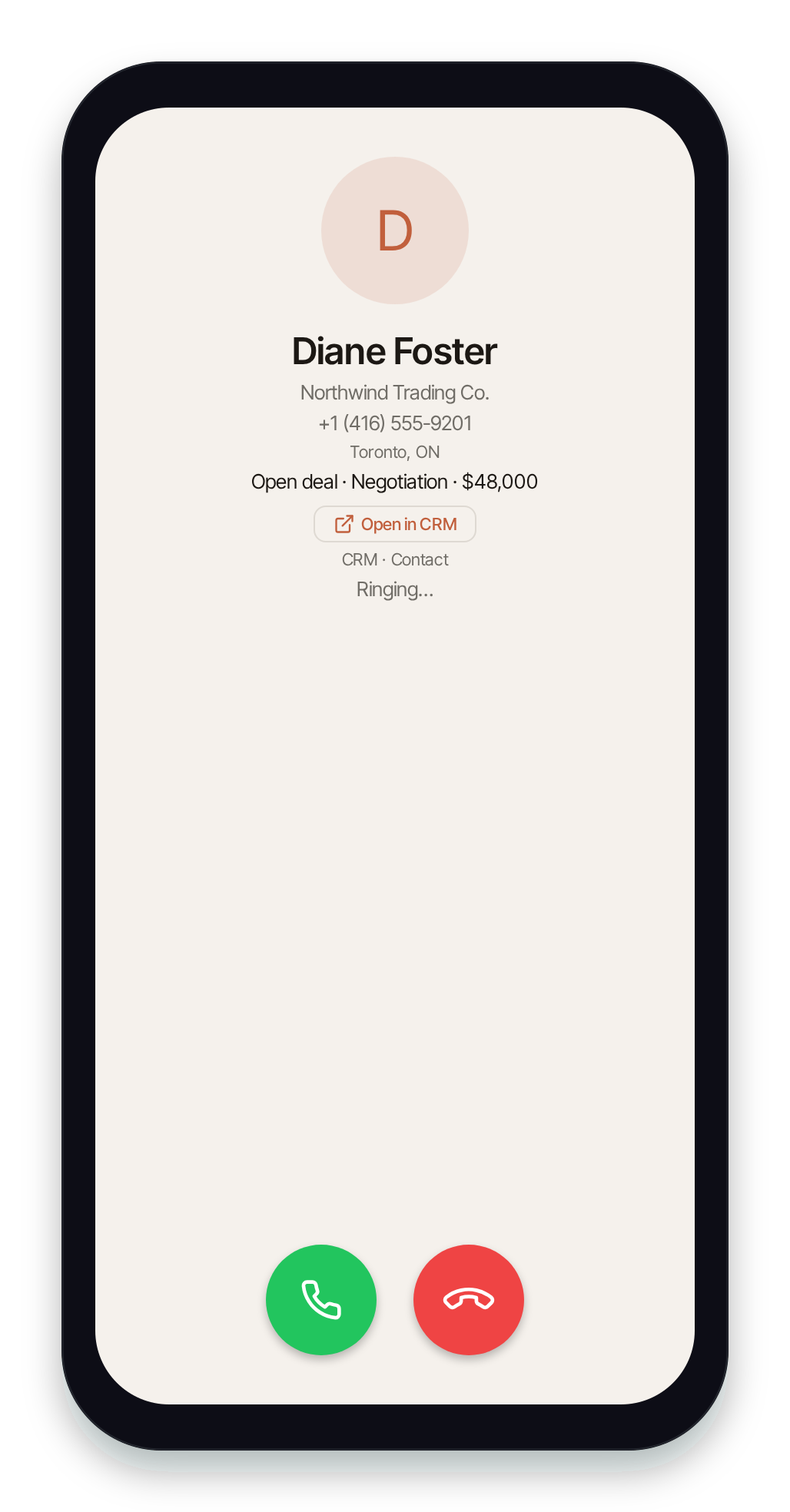
If your organization has connected a CRM (a Nova-Ultra feature), a call from a known record also shows a screen-pop on the ringing screen — the contact’s name, company, an open-deal summary, and an Open in CRM button — alongside the number and caller location:
If you’re already on a call when another comes in, Pulse handles it as call waiting on the in-call screen instead — see A second call comes in.
Who’s calling
Section titled “Who’s calling”Pulse resolves the caller’s name from the best source it has, in order: your CRM (when one is connected), your org directory, your device contacts, the carrier-provided name, and finally the formatted number. When a CRM match is found, the ringing screen also shows the caller’s company, a short deal summary, and a CRM · <record type> label — see CRM caller context. Caller ID from your phone’s own address book works without a CRM (see Contacts).
Ringing on your phone (mobile)
Section titled “Ringing on your phone (mobile)”On iOS and Android, Pulse rings using your phone’s native call screen, so an incoming Pulse call looks and behaves like a regular phone call:
- iOS uses CallKit — the full-screen native call UI, including over the lock screen. Pulse calls appear in the iPhone’s Recents list with the caller’s number, so you can call back from there.
- Android uses a self-managed ConnectionService with a full-screen incoming-call screen and ringtone.
This native screen can ring even when Pulse is closed or in the background: a push notification wakes the app so it can ring you. When you tap Answer from the native screen, Pulse opens (if needed), connects the call, and takes you straight to the in-call controls.
How long a call rings
Section titled “How long a call rings”A call rings for your extension’s ring timeout (20 seconds by default; your administrator can change it per extension in Switchboard). If no one answers in that time, the caller goes to your voicemail, or to your call-forward-no-answer destination if you have one. That’s the same whether Pulse was open or the call woke your phone from the background.
When the push wakes your phone, Pulse reconnects to the phone system straight away, so the call usually reaches the app while the phone is still ringing. If you tap Answer before the app has finished connecting, Pulse tells the phone system you’ve picked up, and the caller is held for a few seconds while the call connects. They aren’t sent to voicemail during that time. If the call still can’t connect, Pulse ends it and shows Call not connected.
Related
Section titled “Related”- In-Call Controls — what you can do once you’ve answered.
- Voicemail — listen to messages from calls you missed.
- Call History — review missed and answered calls.
- Notifications — control how Pulse alerts you.