

Greetings
Greetings
Section titled “Greetings”The Greetings page is your PBX’s audio media library — every IVR greeting, queue announcement, voicemail greeting, and text-to-speech (TTS) clip the platform plays to callers lives here. Create audio three ways (type a script, upload a file, or record over the phone), then reference it from your IVR menus, queues, and voicemail settings.
Navigate to Nova PBX → Media → Greetings.
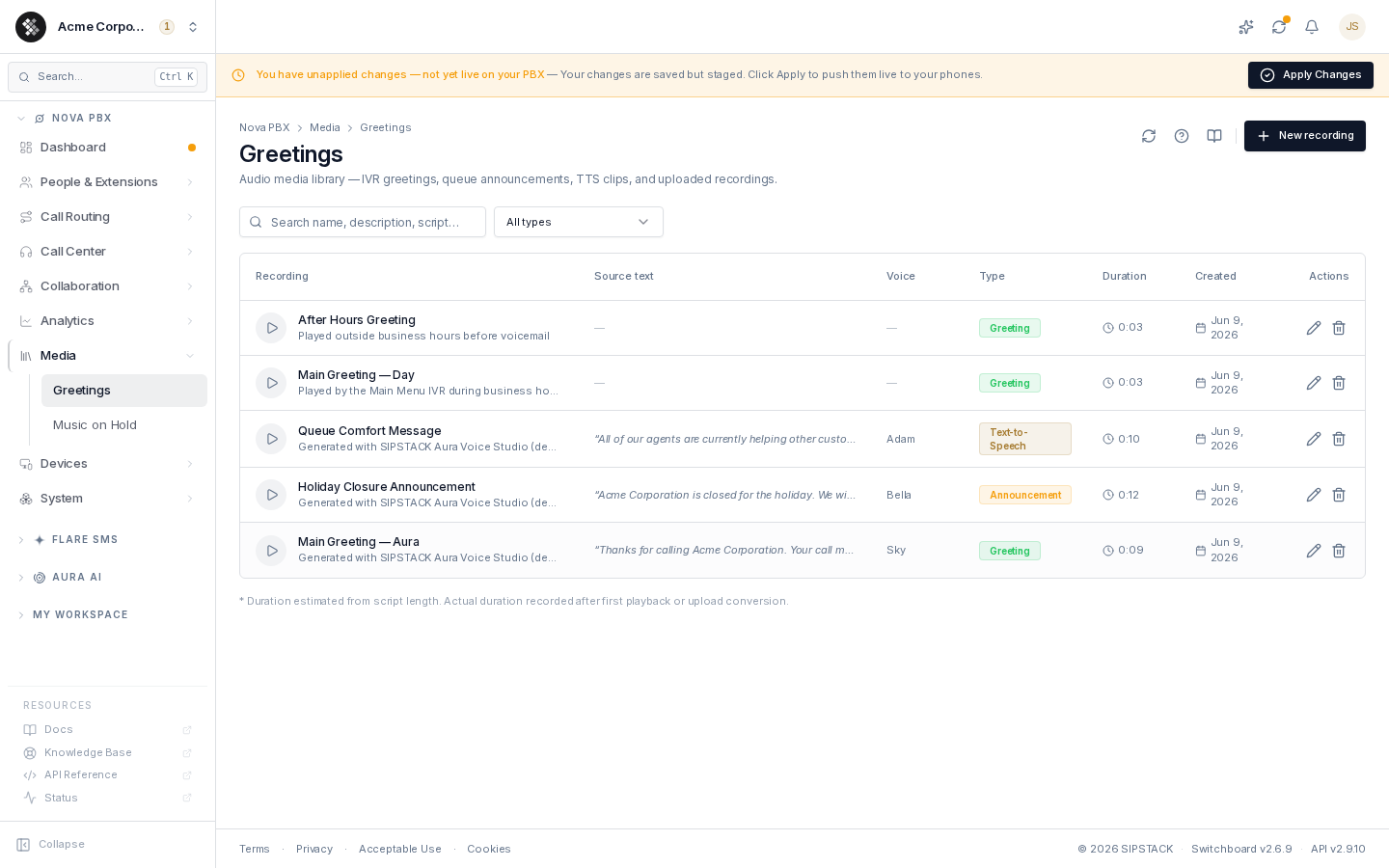
The library
Section titled “The library”Each row shows:
| Column | Meaning |
|---|---|
| Recording | Play button, name, and optional description (or the original filename for uploads). Click play to listen in your browser. |
| Source text | For TTS clips — the exact script the voice reads, so you can verify content without playing it. |
| Voice | The TTS voice’s display name (blank for uploaded or phone-recorded audio). |
| Type | Greeting, Announcement, Text-to-Speech, or Recording. |
| Duration | Length in mm:ss. An asterisk (*) marks a duration estimated from script length. |
| Created | When the file was added. |
| Actions | Edit (rename / change description) and Delete. |
Use the search box (matches name, description, TTS script, and filename) and the type dropdown to narrow the list.
Creating a greeting
Section titled “Creating a greeting”Click New recording to open the studio. Three paths, one library:
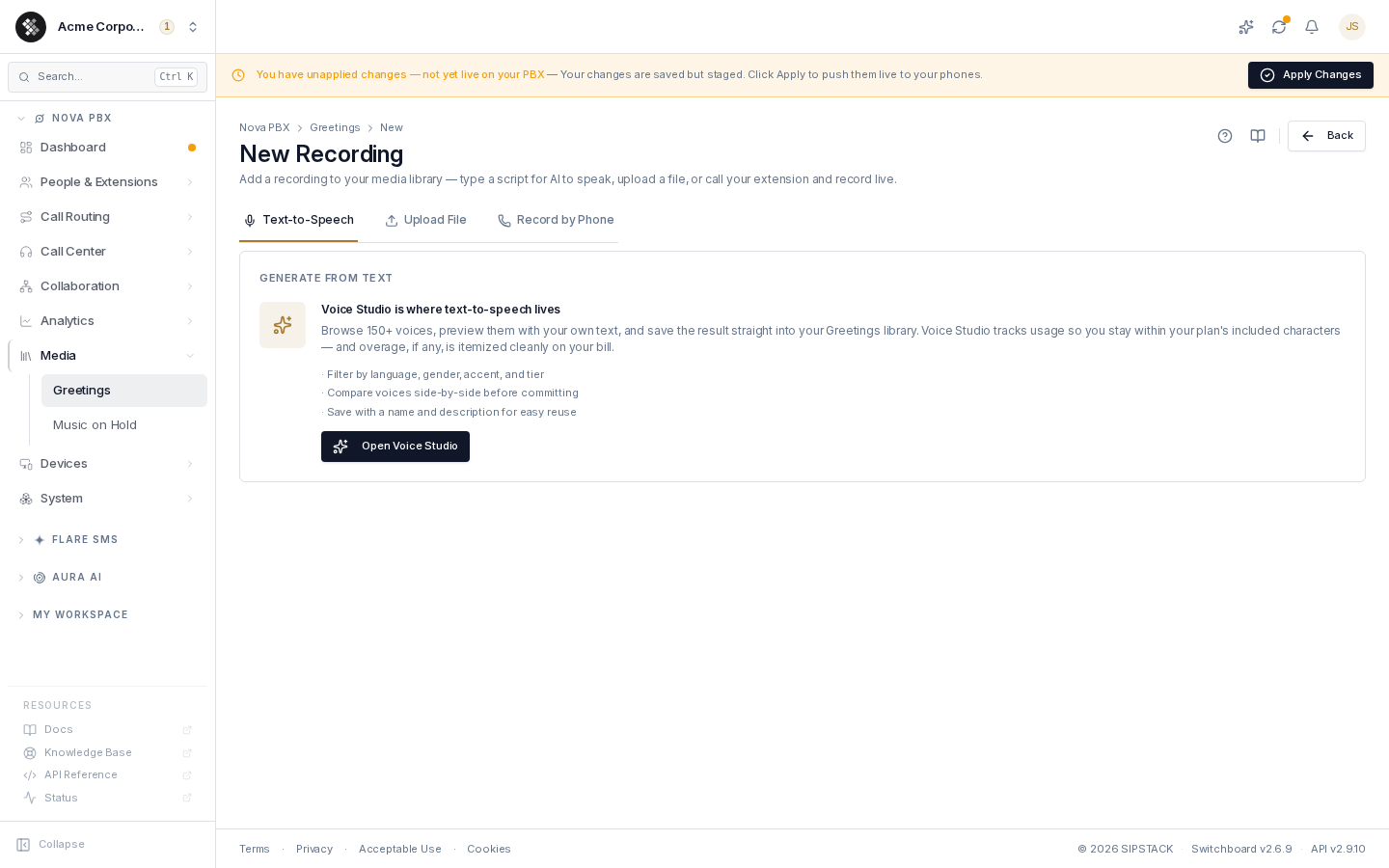
Text-to-Speech
Section titled “Text-to-Speech”The Text-to-Speech tab points you to Voice Studio (Aura AI → Voice Studio), the canonical TTS surface: browse 150+ voices, preview them with your own script, and save the result directly into this library. Voice Studio meters usage against your plan’s included characters, so premium-voice spend is always visible.
Upload a file
Section titled “Upload a file”The Upload File tab accepts WAV, MP3, and OGG (drag-and-drop or browse):
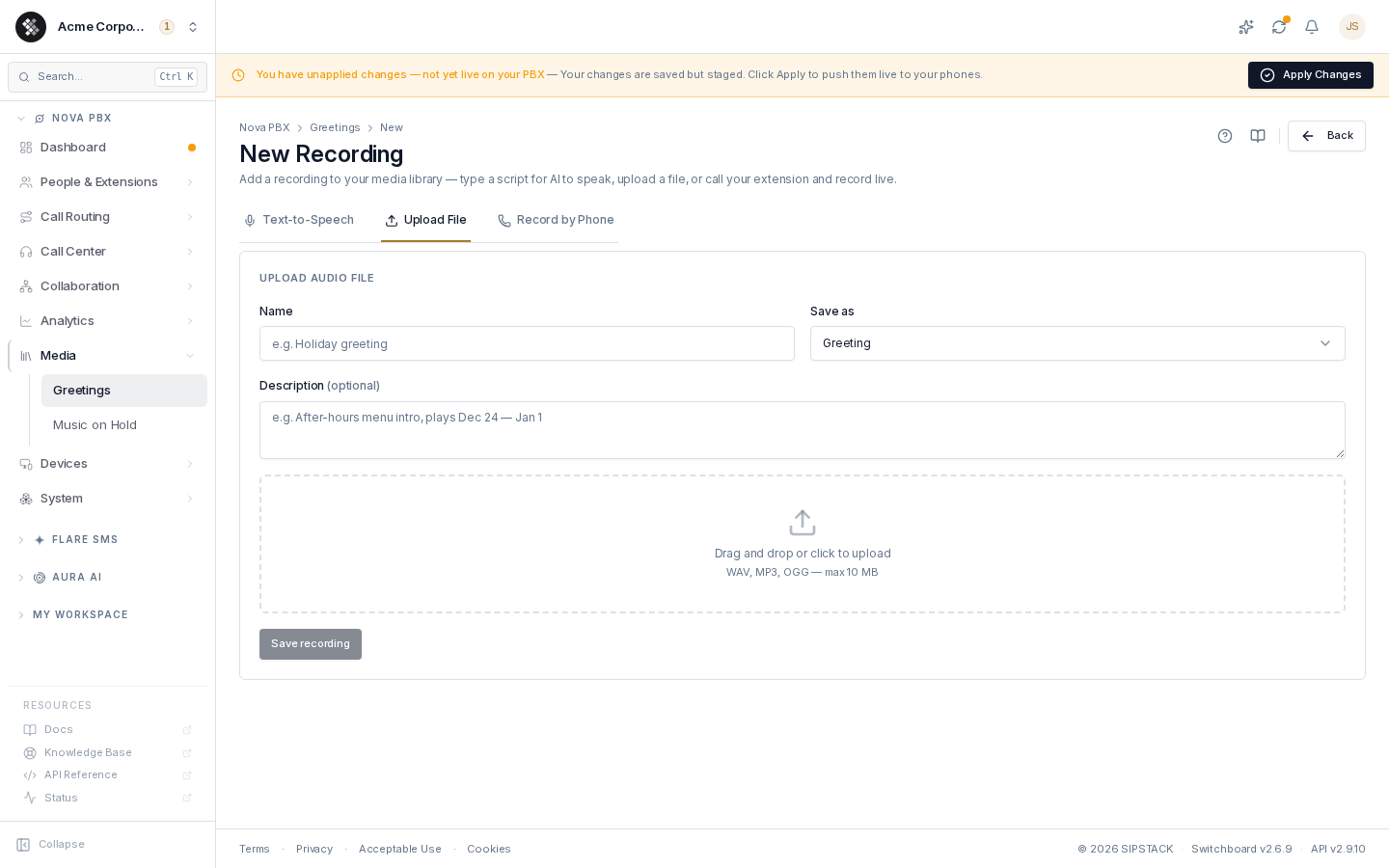
- Enter a Name (pre-filled from the filename) and choose what to save it as — Greeting, Announcement, or Text-to-Speech.
- Optionally add a Description (e.g. “After-hours menu intro, plays Dec 24 – Jan 1”).
- Drop the audio file, preview it with the inline player, then click Save recording.
The platform converts uploads to the telephony format server-side. Files pre-encoded at 8 kHz or 16 kHz mono WAV convert most cleanly.
Record by phone
Section titled “Record by phone”The Record by Phone tab dials one of your extensions:
- Enter a Name and the Extension to call.
- Click Call me to record — your phone rings with caller ID “Recording Studio”.
- Answer, record your message at the tone, and hang up. The recording lands in the library automatically.
This is the easiest way to get a natural, human-voiced greeting without audio software.
Editing and deleting
Section titled “Editing and deleting”- Edit (pencil) — rename a recording or update its description. References from IVRs, queues, and voicemail follow the file, so renaming is safe.
- Delete (trash) — permanently removes the file after a confirmation dialog. Anything still pointing at the deleted file should be re-pointed: open the referencing IVR/queue/extension and pick a different recording.
Where greetings are used
Section titled “Where greetings are used”- IVR menus — the on-entry greeting on each menu’s edit page (IVR)
- Queues — announcement audio on the queue edit page (Queues)
- Voicemail — per-extension greeting on the extension’s Voicemail tab (Extensions)
Hold music has its own library and page: Music on Hold.
Troubleshooting
Section titled “Troubleshooting”- Audio doesn’t play in the browser — click play again (the streaming URL refreshes), then try the reload button in the page header.
- Uploaded file sounds wrong on calls — phone audio is narrowband; re-upload as 8 kHz or 16 kHz mono WAV.
- Phone recording didn’t appear — the extension must be registered and answer within 30 seconds; hanging up without confirming discards the take.