

Partner Guide
The Partner Guide is the day-to-day reference for using the SIPSTACK partner portal once you are an approved partner. It covers what each page in the portal does, the workflows you will run from it, and the policies that govern how commissions, seats, and customer relationships are tracked.
If you are still evaluating the program or applying, start with the Partner Program overview — that section explains the business model, commission rates, and how to apply.
What is in this guide
Section titled “What is in this guide”The Partner Guide mirrors the portal’s left-nav. Each page in the portal has a matching guide page here, plus a few topical guides (tax setup, team management) that span multiple portal pages.
| Topic | What it covers |
|---|---|
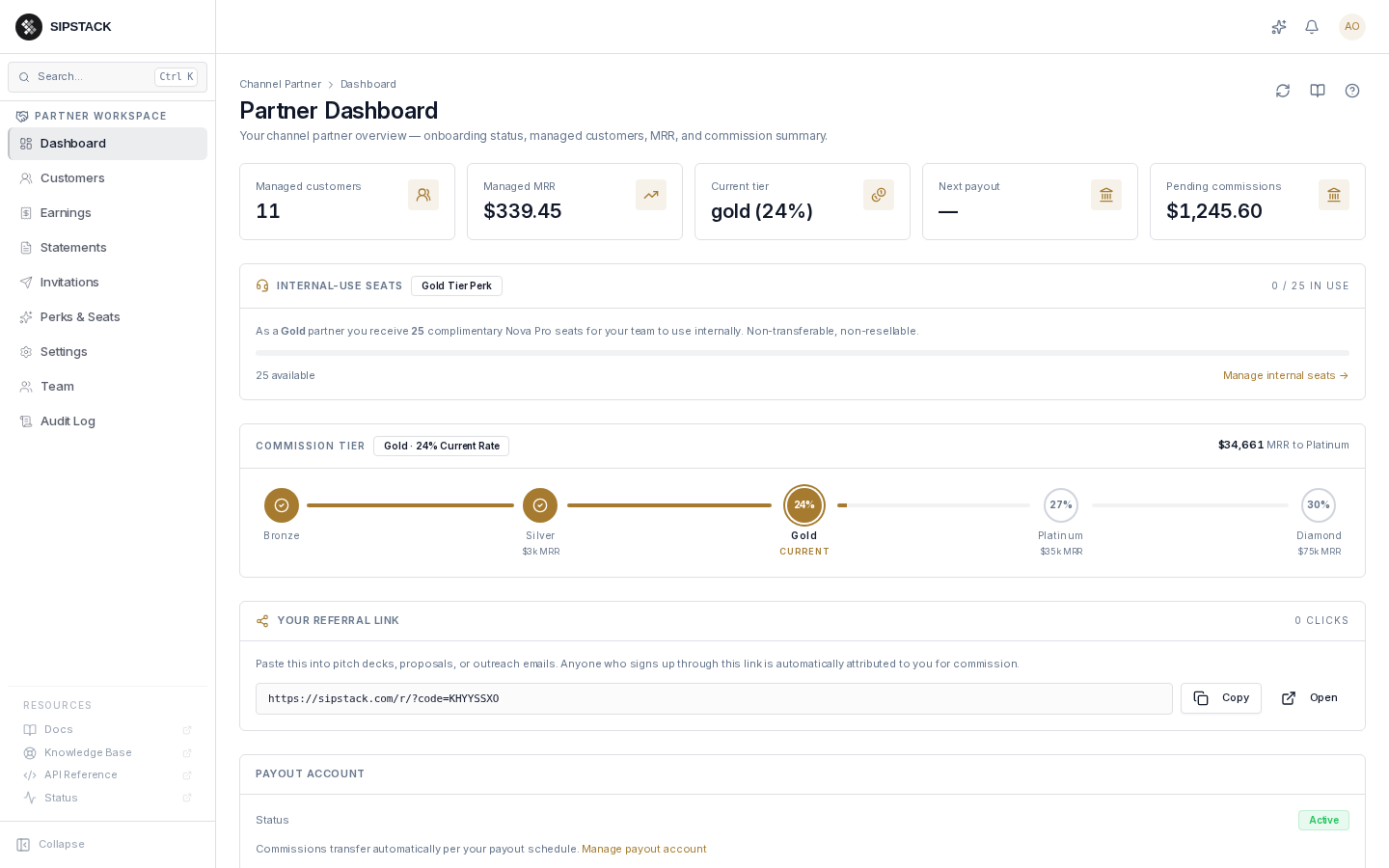
| Dashboard | Your MRR, customer count, commission tier, internal-use seats, and referral link. |
| Managing Customers | Scoping into customer accounts on their behalf, the Recent rail, and customer activation flow. |
| Earnings | The live commission ledger — every commission earned, its status, and Stripe payout reference. |
| Statements | Printable monthly commission statements and how they relate to your annual tax forms. |
| Invitations | Sending activation links, tracking conversion, and resending expired invites. |
| Perks & Seats | Your complimentary Nova PBX allocation for internal team use — non-transferable, non-resellable. |
| Settings | Directory listing, contact info, services offered, coverage regions, and tax registration. |
| Team Management | Inviting teammates to administer your partner account and customers. |
| Onboarding | First-run tasks: payout (Stripe Connect) setup, profile completion, and your first invitation. |
| Tax & Invoicing | RCTI generation, GST/HST treatment, and annual T4A (Canada) forms. |
| How Commission Tax Works | Plain-language walkthrough of self-billing (RCTI), HST, and non-resident treatment. |
The two-mode portal
Section titled “The two-mode portal”The partner portal has two visual modes that determine how your branding is presented and which workspace you are operating in:
-
Mode A — Partner workspace. The standard Switchboard chrome with the Partner Workspace sidebar. You are operating on your own partner record — editing your profile, viewing your earnings, sending invitations, etc. Most of your time is spent here.
-
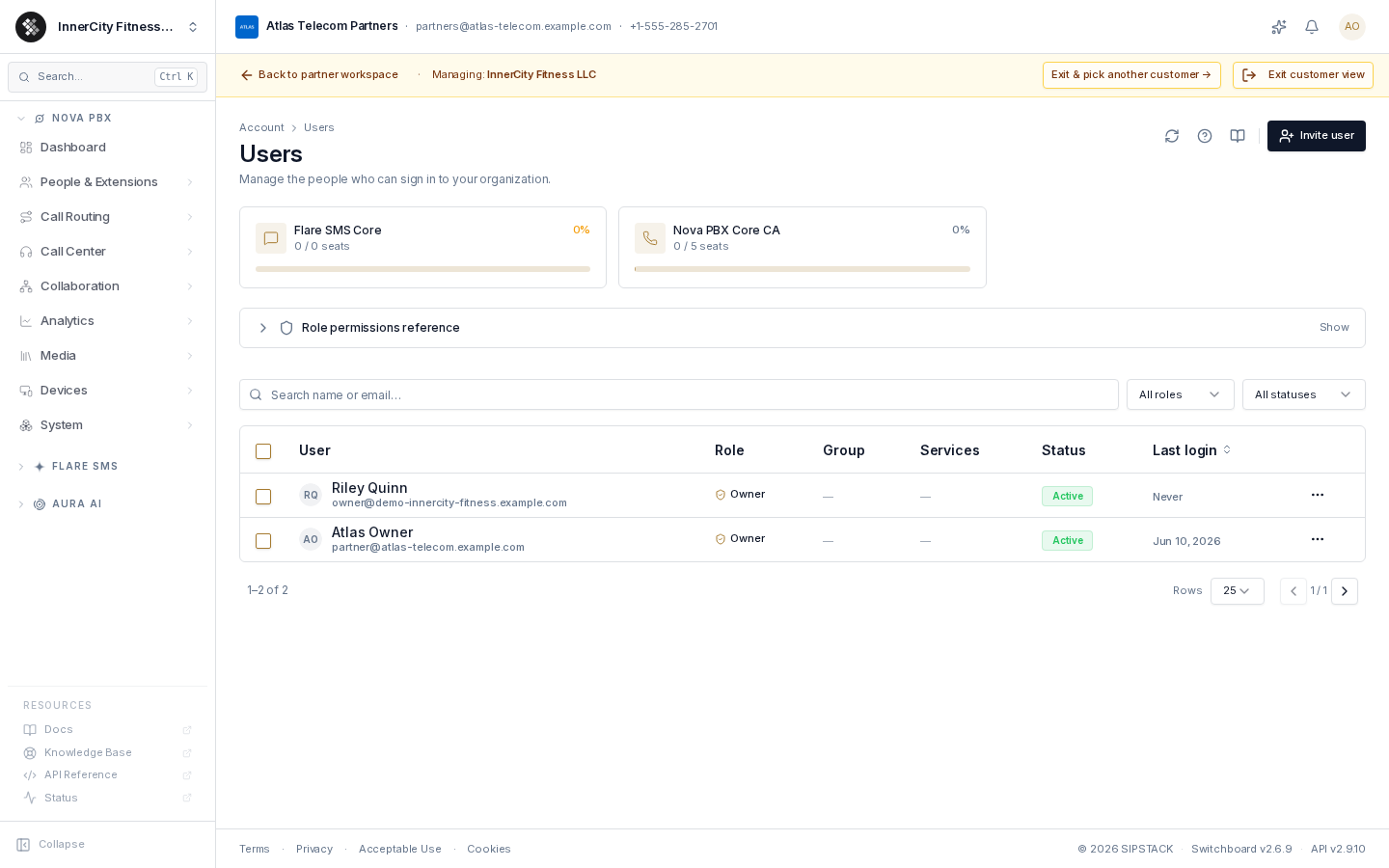
Mode B — Customer workspace (scoped). When you click Manage on a customer from the Customers page, the portal scopes you into that customer’s account. The sidebar shows their organization and the full Nova / Flare / Aura admin surface so you can configure their PBX, set up SMS campaigns, etc. A “Managing: <customer>” banner sits across the top with Back to partner workspace and Exit customer view controls, and your own partner brand lockup stays visible in the header — so it is always clear you are acting as yourself on the customer’s behalf. Customer billing and subscription pages are not available in this view.
The mode switch is automatic; the URL changes from /partner/... to
/partner/org/<customer>/... when you scope into a customer.
In-page help
Section titled “In-page help”Every page in the partner portal has a small ? icon in the top-right header. Clicking it opens an inline help panel with:
- A short summary of what the page does
- Links to the most common next actions
- A “Full documentation” link that brings you directly to the relevant page in this guide
If you ever feel lost in the portal, the ? icon is the fastest route to the right answer. The help content is kept short on purpose — the authoritative long-form lives here in the guide.
Conventions in this guide
Section titled “Conventions in this guide”- Money is shown in your payout currency (CAD or USD), matching what your Stripe payout account uses.
- Tiers are referenced by name throughout (Bronze, Silver, Gold, Platinum, Diamond). The current thresholds and commission rates live in the Channel Partners page.
- Screenshots show the production portal; demo data is real-shaped but fabricated, so any names/dollar amounts you see are illustrative.
Need help?
Section titled “Need help?”- The ? icon on every portal page has page-specific quick links.
- Email partners@sipstack.com for partner-success or commission questions.
- File a support ticket from the in-app Help menu for portal bugs.