

Templates
Templates
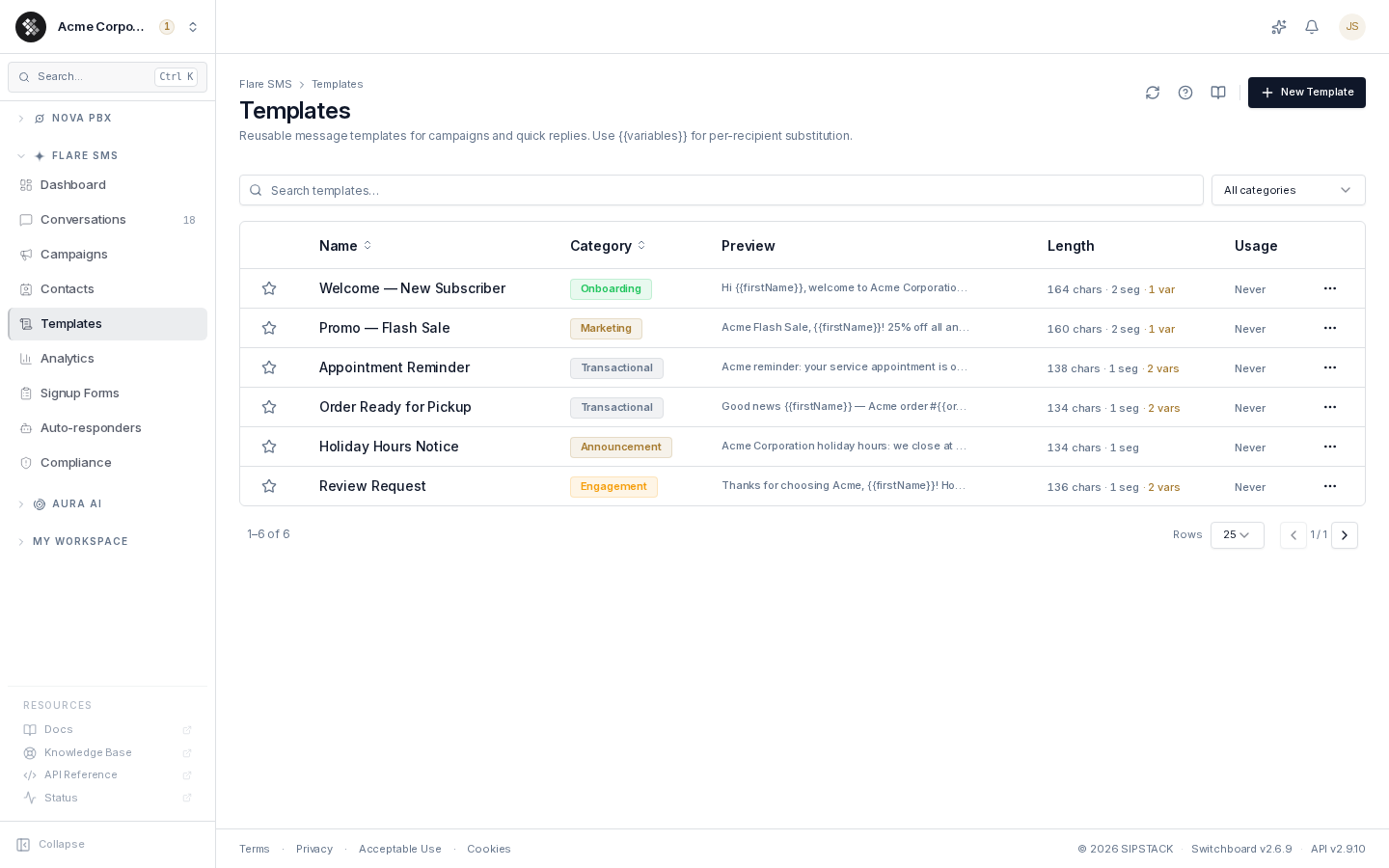
Section titled “Templates”Templates are saved SMS message bodies you can reuse across campaigns and conversations — write the message once, insert it anywhere. Navigate to Flare SMS → Templates.
Why Use Templates
Section titled “Why Use Templates”- Consistency — every staff member sends the same appointment reminder, order notice, or promo copy.
- Speed — insert and send instead of retyping.
- Compliance — bake opt-out language into marketing templates so it’s never forgotten.
- Personalization — variables are replaced with each contact’s data at send time.
Creating a Template
Section titled “Creating a Template”- Click New Template.
- Enter a Name (internal only — e.g. “Appointment Reminder — 24hr”).
- Pick a Category.
- Write the Message body. The live footer shows character count, segment count, and every variable the editor detects.
- Click Create template.
Categories
Section titled “Categories”| Category | When to use |
|---|---|
| Marketing | Promotions, offers, sales. |
| Transactional | Confirmations, receipts, status updates. |
| Reminder | Appointments, follow-ups, due dates. |
| Onboarding | Welcome series and first-touch messages. |
| Announcement | Hours changes, service notices, one-off broadcasts. |
| Engagement | Review requests, re-engagement nudges. |
| Custom | Anything else. |
The category drives the filter on this page; it doesn’t change how messages send.
Personalization Variables
Section titled “Personalization Variables”Variables use double-brace syntax — {{variableName}} — and are substituted with the recipient’s contact data when a message sends. Campaigns auto-fill these (camelCase and snake_case are equivalent):
| Variable | Replaced with |
|---|---|
{{firstName}} / {{first_name}} | Contact’s first name |
{{lastName}} / {{last_name}} | Contact’s last name |
{{fullName}} / {{full_name}} | First + last name |
{{email}} | Contact’s email |
{{phone}} | Contact’s phone number |
{{company}} / {{business}} | Contact’s business name |
Example:
Hi {{firstName}}, your appointment at Acme is confirmed for tomorrow at 2:00 PM.Reply C to confirm or R to reschedule. Reply STOP to opt out.Sent to Sarah Johnson, this becomes “Hi Sarah, your appointment at Acme is confirmed…”.
Using Templates
Section titled “Using Templates”- In a campaign — on the wizard’s Message step, choose Insert a saved template…. The body is inserted into the message editor (replacing it when empty, at the cursor otherwise). See Creating & Editing Campaigns.
- In a conversation — type
/in the Conversations compose box to open the template picker, filter by name, and insert.
Templates provide the message body only — they don’t set the from-number, audience, or schedule. The body is copied at insert time: later edits to the template never change campaigns or messages that already used it.
Managing Templates
Section titled “Managing Templates”- Edit — click a row (or row menu → Edit) to open the editor dialog. Changes apply to future use only.
- Duplicate — row menu → Duplicate creates a copy named ”… (Copy)” — rename it in the editor.
- Favorite — click the star to pin a template to the top of the list and the pickers.
- Delete — row menu → Delete, then type the template name to confirm. Campaigns and past messages that used the template are unaffected.
- Usage — the Usage column shows how many times each template has been used and when it was last used.
Length and Segments
Section titled “Length and Segments”SMS bills per segment:
| Encoding | Segment size |
|---|---|
| GSM-7 (standard English text) | 160 characters; 153 per segment when multi-segment |
| Unicode (emoji, many accented characters) | 70 characters; 67 per segment when multi-segment |
The Length column and the editor footer show characters and segments so you can keep marketing copy to a single segment.
Best Practices
Section titled “Best Practices”- Name templates so the right one is obvious at a glance (“Appointment Reminder — 24hr” vs ”— 1hr”).
- Identify your business in every marketing template — carriers and regulators require sender identification.
- Always include opt-out language in marketing templates (“Reply STOP to unsubscribe.”) — or rely on the campaign wizard’s Include opt-out instructions toggle, which appends it automatically.
- Stay under 160 characters where possible to avoid multi-segment billing.