

Resetting Your Password
Resetting Your Password
Section titled “Resetting Your Password”If you have forgotten your password, you can reset it yourself in about a minute — no need to contact support. You request a reset email, then use either the link or the 6-digit code in that email to choose a new password.
Step 1 — Request a Reset Email
Section titled “Step 1 — Request a Reset Email”- On the sign-in page, click Forgot password? (or go directly to
/forgot-password). - Enter the email address you use to sign in to Switchboard.
- Click Send reset link.
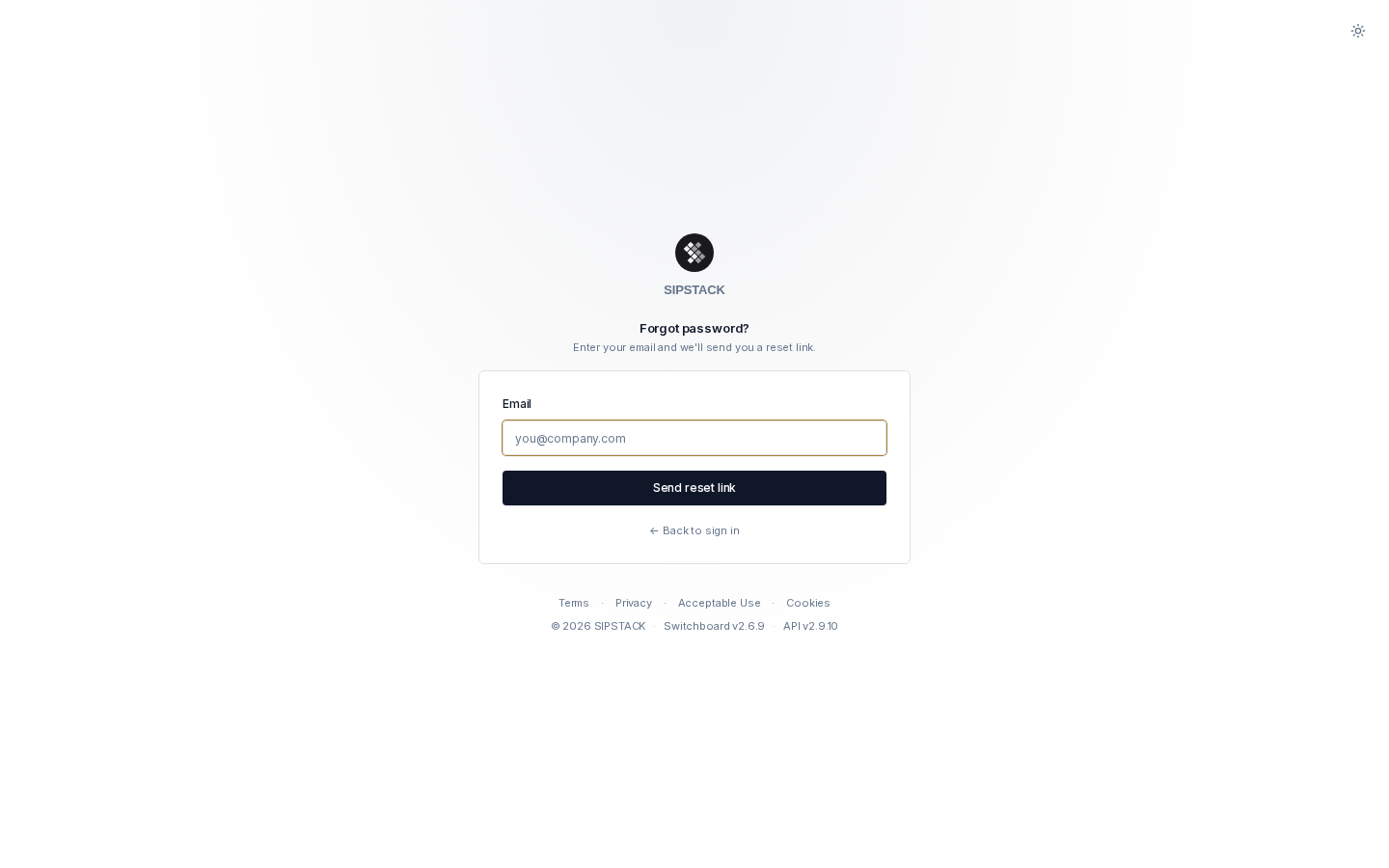
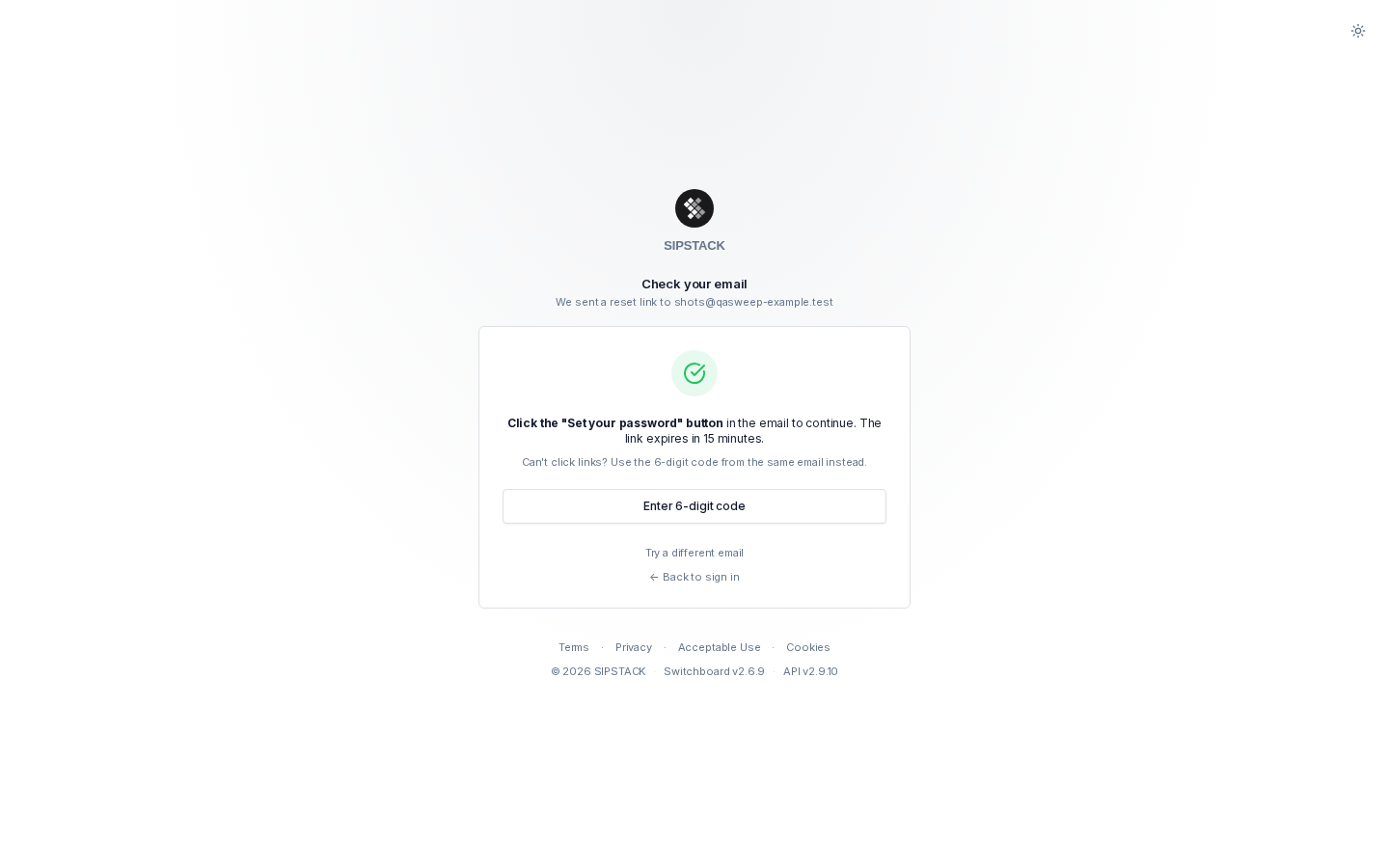
You will see a “Check your email” confirmation. For security, the same confirmation is shown whether or not an account exists for the address you entered.
Step 2 — Open the Email
Section titled “Step 2 — Open the Email”The email from SIPSTACK contains two ways to reset, and both expire after 15 minutes:
- “Set your password” button — the fastest path. It opens the reset page with everything pre-filled.
- A 6-digit code — use this if your email client doesn’t let you click links. Click Enter 6-digit code on the confirmation screen (or go to the reset page) and type the code in.
Step 3 — Choose a New Password
Section titled “Step 3 — Choose a New Password”Whether you arrived by link or code, you’ll choose your new password on the same page.
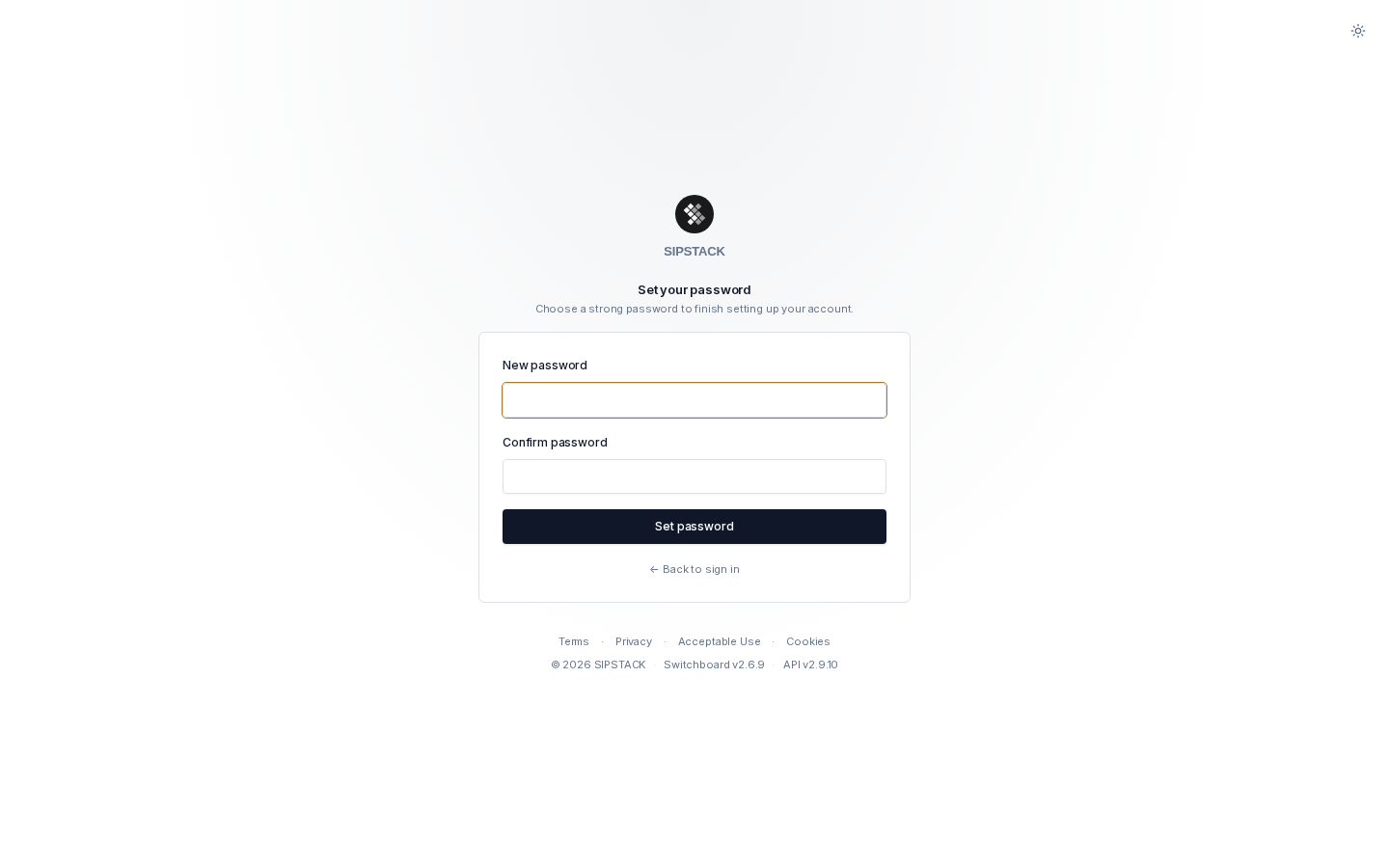
Your new password must contain:
- At least 12 characters (128 max)
- At least one uppercase letter
- At least one lowercase letter
- At least one number
- At least one special character from
!@#$%^&*(),.?":{}|<>
Enter the password twice and click Reset password. On success you’ll see a confirmation screen with a Sign in button — your new password is active immediately.
A confirmation email is also sent to your address. If you ever receive one of these without having changed your password yourself, treat it as a security alert and reset your password right away.
Troubleshooting
Section titled “Troubleshooting””Link expired” — the link no longer works
Section titled “”Link expired” — the link no longer works”Reset links are valid for 15 minutes and can be used only once. If you see the Link expired screen:
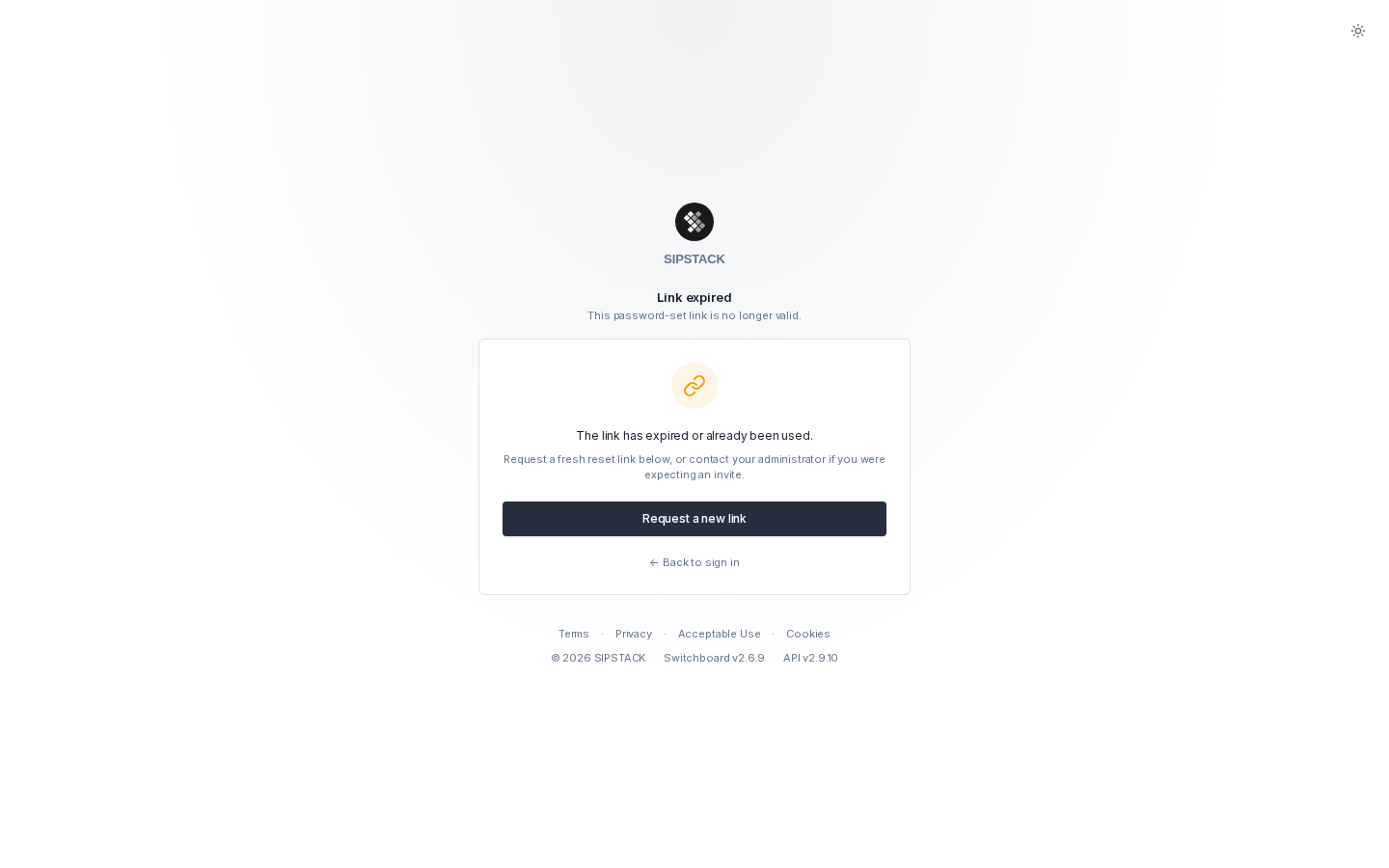
- Click Request a new link — you’ll be returned to the forgot-password page (your email is pre-filled if we know it).
- Submit again and use the newest email. Older reset emails are invalidated each time you complete a reset.
Common causes:
- More than 15 minutes passed between requesting and clicking.
- The link was already used (some corporate mail scanners “click” links automatically — use the 6-digit code instead in that case).
- You requested several resets and clicked an older email.
The 6-digit code is rejected
Section titled “The 6-digit code is rejected”- The code expires with the email — after 15 minutes, request a new one.
- The code is tied to the email address shown on the reset page. If the address is missing or wrong, start over from Forgot password?.
”Too many reset requests”
Section titled “”Too many reset requests””Reset requests are rate-limited (5 per 15 minutes) to protect your account. Wait a few minutes and try again.
Still locked out?
Section titled “Still locked out?”Your administrator can send you a fresh password-setup link from the admin console — see Setting Your Password.