

Navigating Switchboard
Navigating Switchboard
Section titled “Navigating Switchboard”Switchboard is the unified web portal for all SIPSTACK products. This page explains every part of the interface so you can find what you need quickly.
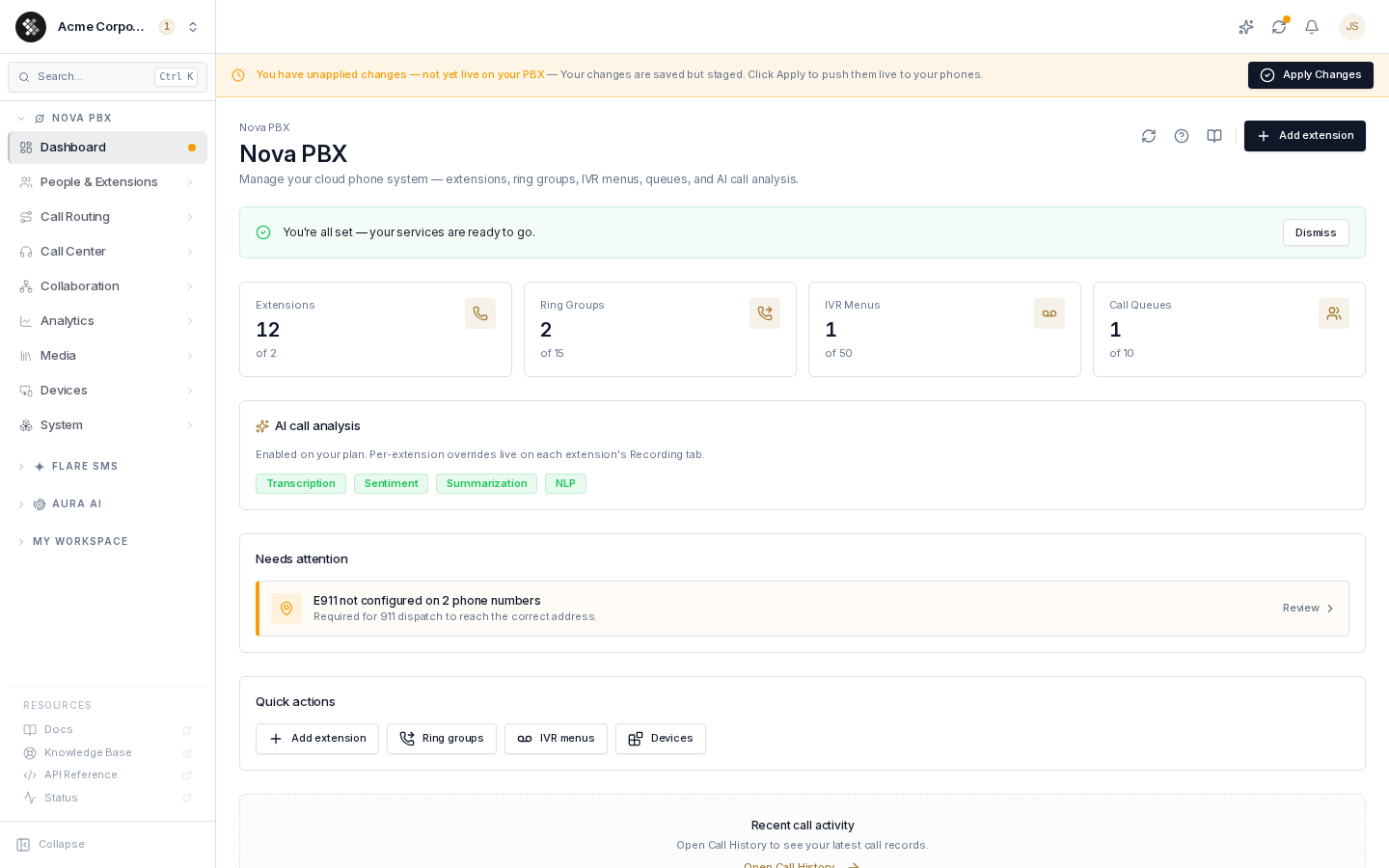
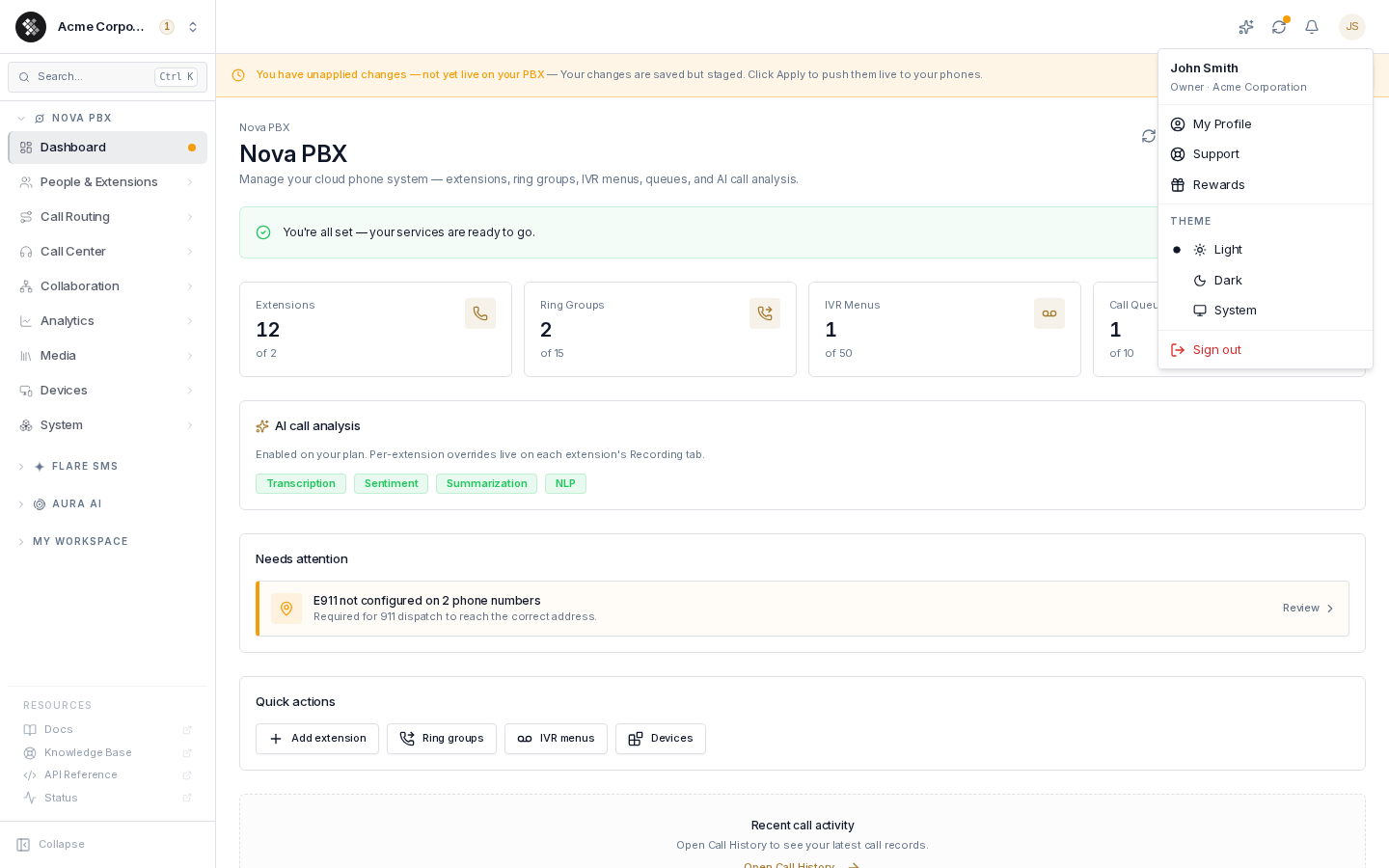
Overall Layout
Section titled “Overall Layout”Switchboard has three regions:
- Left sidebar — the account switcher, search, and all product navigation
- Top bar — SARA, sync status, notifications, and your user menu
- Main content area — the page you are currently viewing
The Sidebar
Section titled “The Sidebar”Account switcher (top-left)
Section titled “Account switcher (top-left)”Your organization name sits at the top of the sidebar. Click it to open the account menu:
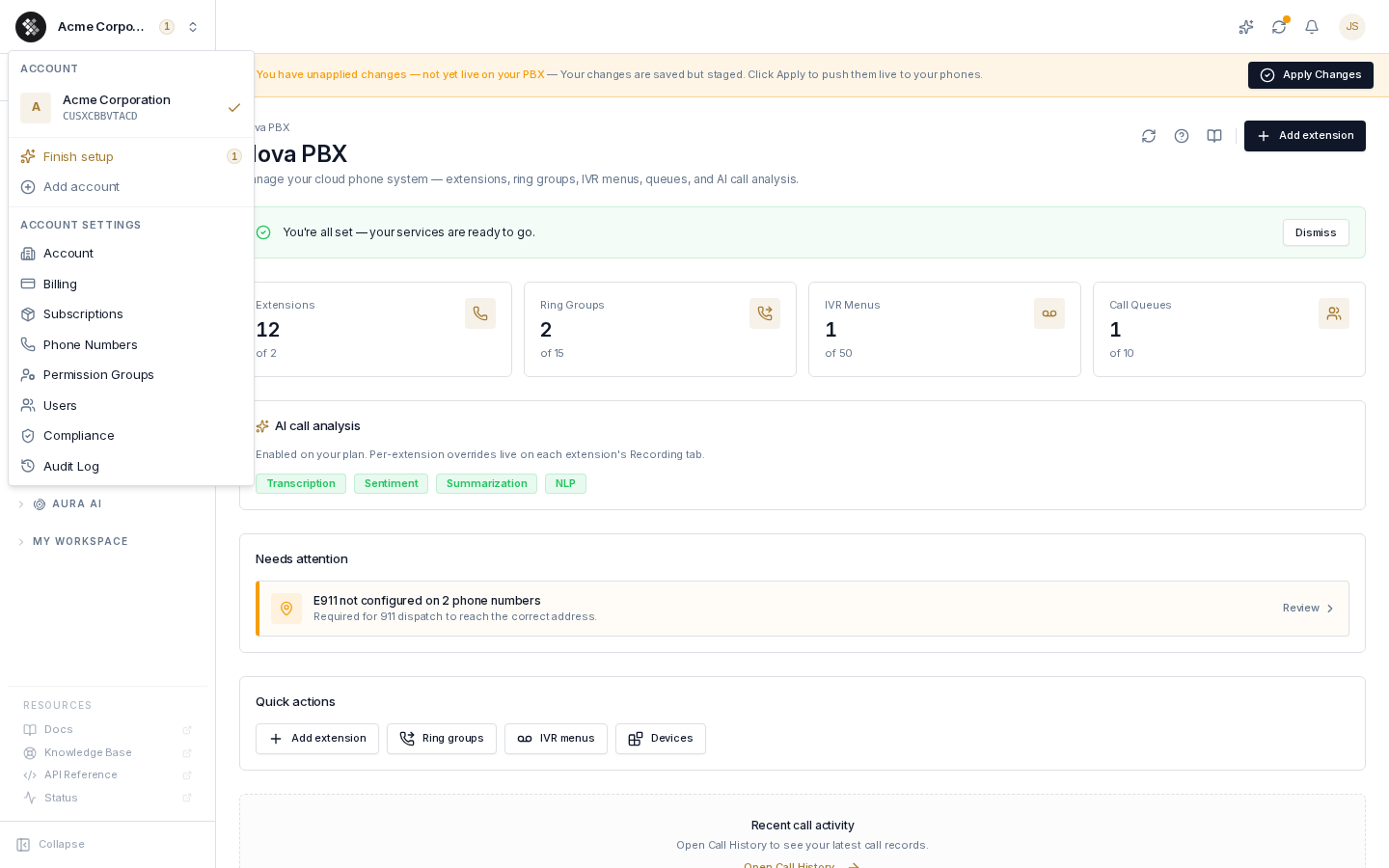
- Your organizations — if you belong to more than one organization, switch between them here (Add account joins another)
- Finish setup — the onboarding checklist, with a badge counting remaining steps
- Account settings — every account-level page lives in this menu: Account, Billing, Subscriptions, Phone Numbers, Permission Groups, Users, Compliance, and Audit Log
Search (Ctrl K / ⌘K)
Section titled “Search (Ctrl K / ⌘K)”The search box under the switcher opens the command palette — type to jump to any page or action. The Ctrl K (Windows/Linux) or ⌘K (Mac) shortcut works from anywhere.
Product sections
Section titled “Product sections”Each subscribed product is a collapsible section; opening one closes the others, so the sidebar stays compact:
- Nova PBX — grouped by task: People & Extensions, Call Routing, Call Center, Collaboration, Analytics, Media, Devices, and System. See the Nova PBX docs.
- Flare SMS — Dashboard, Conversations, Campaigns, Contacts, Templates, Analytics, Signup Forms, Auto-responders, Reply Routing, Compliance. See the Flare SMS docs.
- Aura AI — Voice Studio (Voice Library, Create Audio, Clone Voice) and Agents (AI Voice Agents, Insights, Connections). See the Aura AI docs.
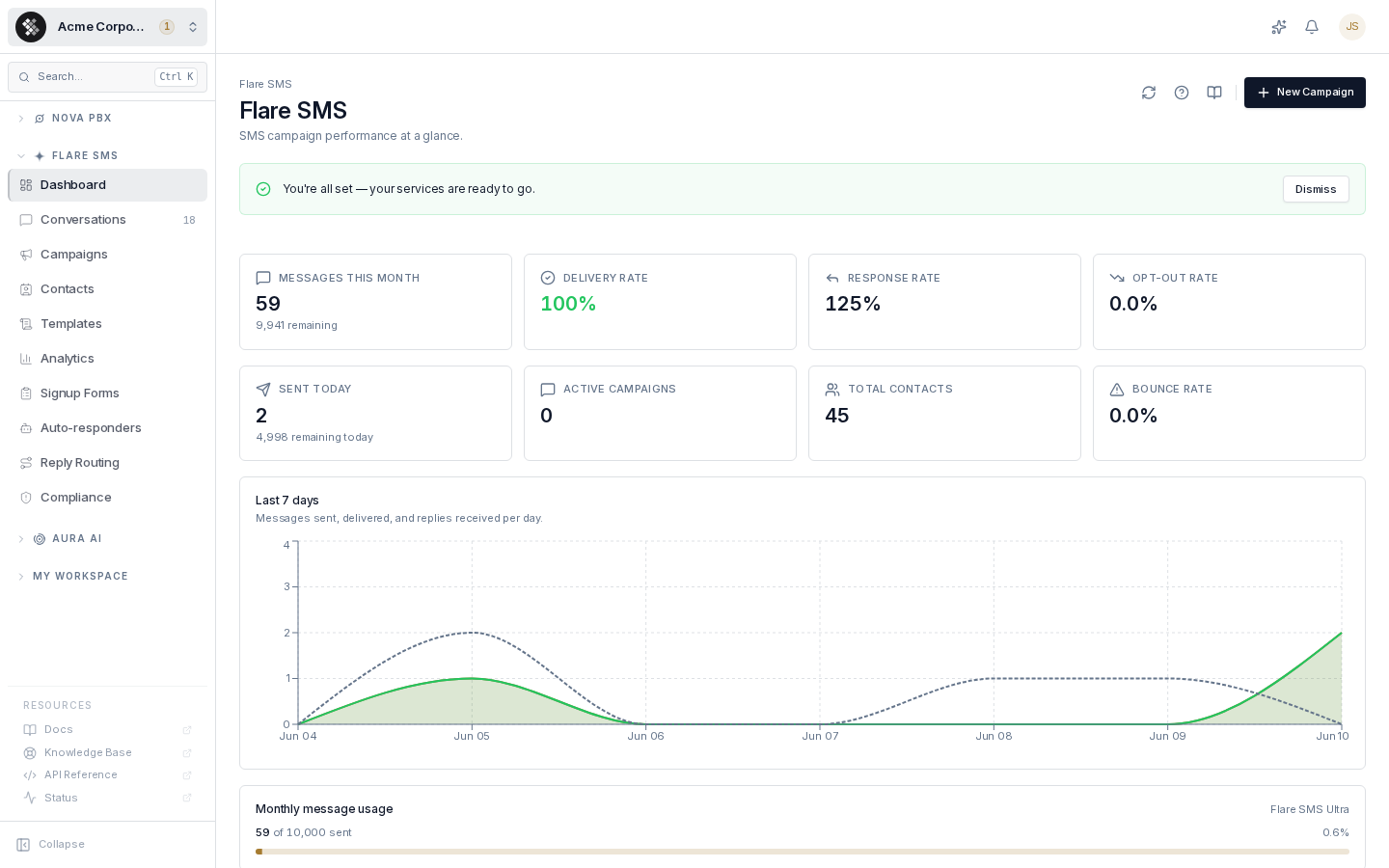
Items you don’t have permission for are hidden, and a product you aren’t subscribed to shows an Upgrade pill on its header instead of navigation.
My Workspace
Section titled “My Workspace”My Workspace is your personal section — your own extension, not the organization’s configuration:
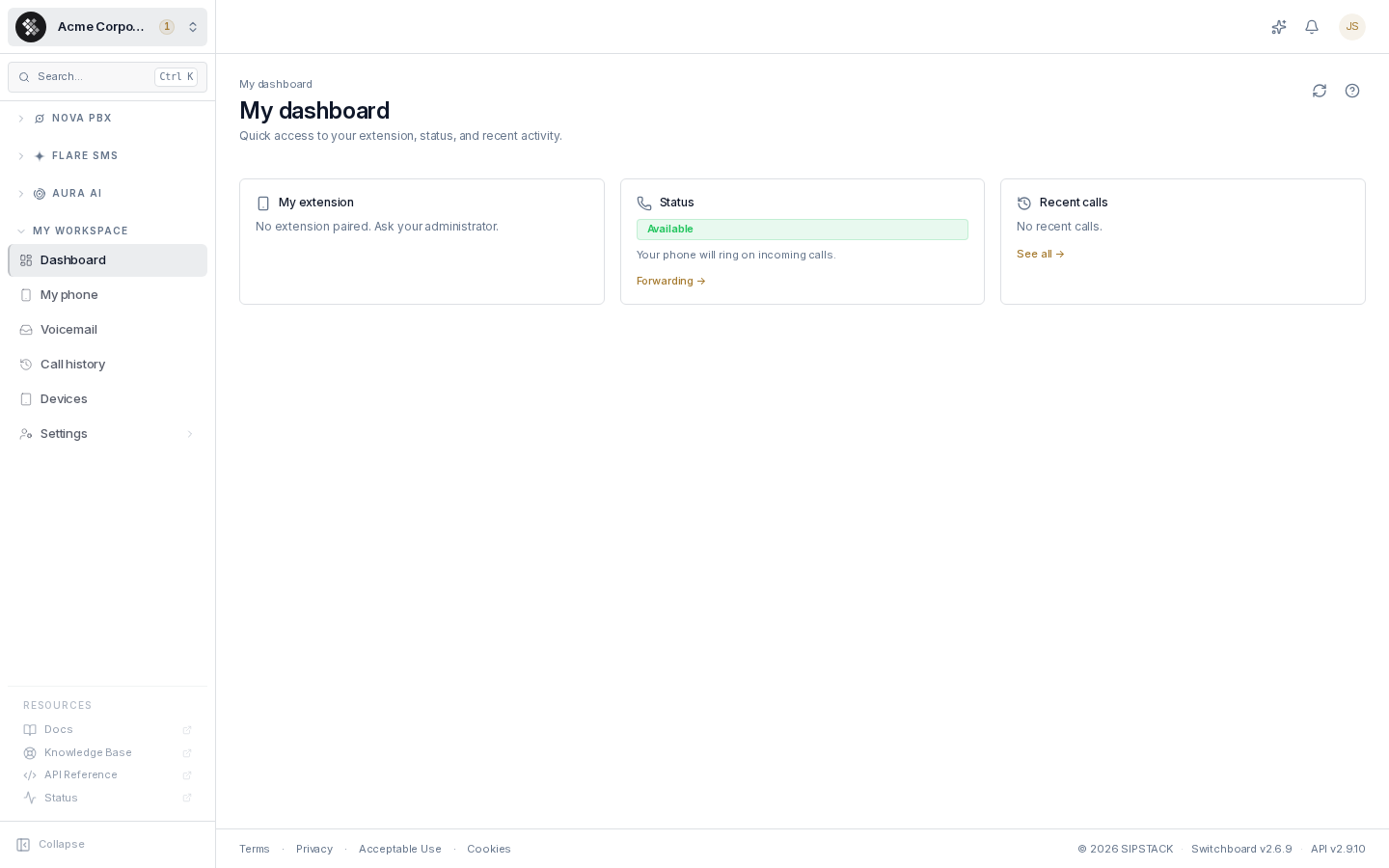
- Dashboard — your extension, availability status, and recent activity
- My phone — your extension’s details and registration
- Voicemail / Call history — your own messages and calls
- Devices — devices registered to your extension
- Settings — your personal voicemail and call-forwarding preferences
Resources & collapse (bottom)
Section titled “Resources & collapse (bottom)”The bottom of the sidebar links out to Docs (this site), the Knowledge Base, the API Reference, and the Status page. The Collapse control shrinks the sidebar to icons.
The Top Bar
Section titled “The Top Bar”On the right side of the top bar:
| Control | What it does |
|---|---|
| SARA (sparkle icon) | Opens SARA, the AI assistant — ask questions about your account or the platform from any page |
| Sync status | Nova’s config-sync indicator — rotates while staged PBX changes are being applied |
| Notifications (bell) | Recent account and system alerts |
| Avatar | Your user menu — My Profile, Support, Rewards, theme (Light / Dark / System), and Sign out |
The Apply Changes banner
Section titled “The Apply Changes banner”When you save Nova PBX configuration, changes are staged, not yet live. A yellow banner appears across the top of every Nova page — click Apply Changes to push everything live in one commit. You can see it in the layout screenshot above. See the commit system.
Footer
Section titled “Footer”The bottom of each page shows legal links plus the running versions — e.g. Switchboard v2.6.9 · API v2.9.10. Include these version numbers when contacting support about a bug.
Mobile Access
Section titled “Mobile Access”Switchboard is responsive: on small screens the sidebar collapses behind a hamburger button in the top-left, and pages reflow to a single column. For taking calls on a phone, use the Pulse mobile app paired to your extension rather than the browser.