

Auto-Responders
Auto-Responders
Section titled “Auto-Responders”Auto-responders automatically reply to inbound SMS messages based on keyword rules you define. When a message arrives, Flare evaluates your active rules and sends the matching rule’s response — no one on your team has to type it.
Navigate to Flare SMS → Auto-responders.
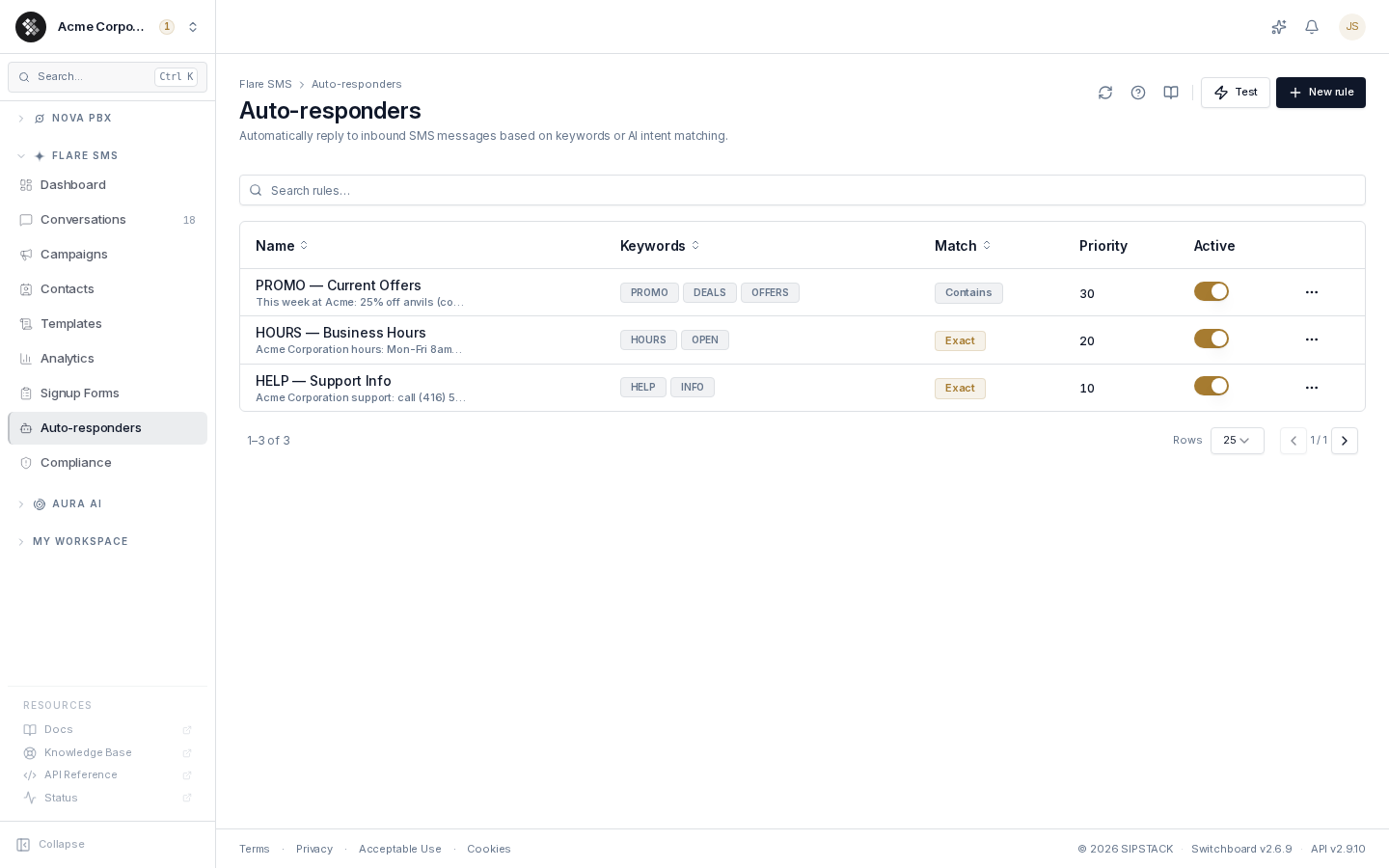
The list shows each rule’s name and response preview, its trigger keywords, match type, the numbers it is Active on, priority, and an Active toggle you can flip directly from the row. Active on reads All numbers, or lists the rule’s numbers as chips (the first two, then +N for the rest).
Creating a Rule
Section titled “Creating a Rule”Click New rule:
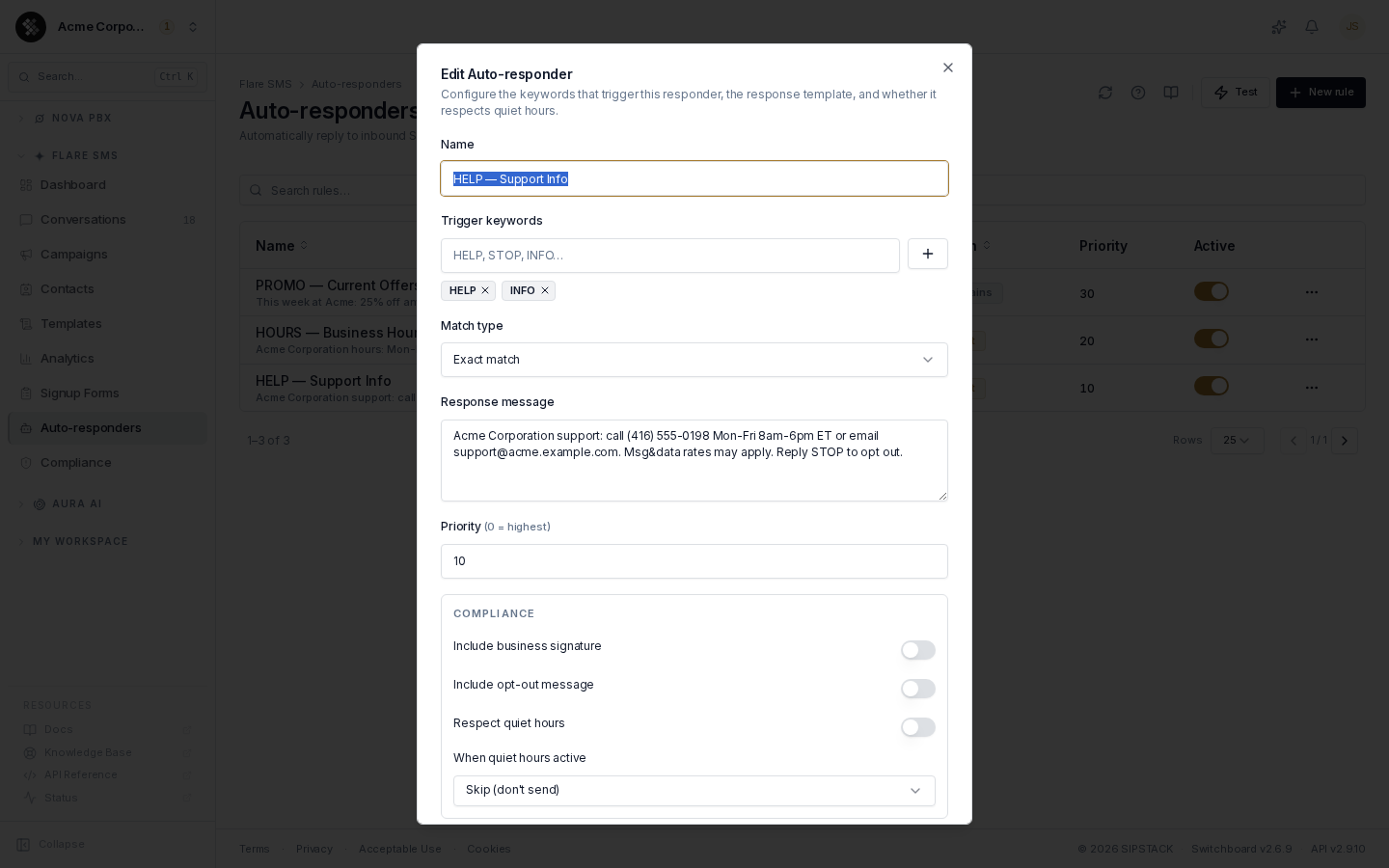
- Name — internal label (“HOURS — Business Hours”).
- Trigger keywords — type a keyword and press Enter (or click +) to add it as a chip. A rule can have any number of keywords; matching any one of them triggers the rule.
- Match type — how keywords are compared (see below).
- Active on — which of your Flare numbers the rule answers on (see below).
- Response message — the reply sent back to the contact.
- Priority — higher numbers are checked first (see Precedence below).
- Compliance — per-rule toggles for business signature, opt-out instructions, and quiet hours.
- Active — inactive rules are saved but never fire.
Choosing Which Numbers a Rule Answers On
Section titled “Choosing Which Numbers a Rule Answers On”By default a rule is active on All numbers: it answers texts received on every Flare number on your account. Rules created before this option existed are set to All numbers.
To limit a rule, pick specific numbers in Active on. The rule then only answers texts received on those numbers — for example, one HOURS reply on your sales line and a different one on your support line.
When a Number Is Released
Section titled “When a Number Is Released”Releasing a number from your account removes it from every rule. If that leaves a rule with no numbers, SIPSTACK turns the rule off rather than widening it to all numbers, and the list shows No numbers (released). To turn it back on, edit the rule and pick numbers or choose All numbers.
Match Types
Section titled “Match Types”| Match | Behavior | When to use |
|---|---|---|
| Exact | The whole inbound message equals a keyword (case-insensitive). | Campaign keywords (INFO, HOURS) where you want zero false positives. |
| Contains | A keyword appears anywhere in the message. | ”what are your hours?” with keyword hours. |
| Fuzzy | Approximate matching tolerates typos and small variations. | Typo-prone customer messages. |
| AI | Semantic intent matching — “are you open today?” can match your hours rule without containing the word. | Natural-language questions. Requires an AI-enabled plan. |
Precedence — Which Rule Wins
Section titled “Precedence — Which Rule Wins”When an inbound message arrives:
- Platform reserved keywords are handled first (see below) — these never reach your rules.
- Active rules that answer on the receiving number are evaluated in priority order — higher number first (priority
10is checked before priority0). - The first matching rule wins: its response is sent and no further rules are evaluated.
A common priority layout: 10 for HELP/support info, 20 for business hours, 30 for promos, 90 for a loose catch-all.
Reserved Words — STOP, START, and Friends
Section titled “Reserved Words — STOP, START, and Friends”The platform’s compliance layer handles opt-out, opt-in and help keywords before auto-responders run. These messages never reach your rules:
| Direction | Keywords | What the platform does |
|---|---|---|
| Opt-out | STOP, STOPALL, UNSUBSCRIBE, REVOKE, OPT OUT, CANCEL, END, QUIT, ARRET, DESABONNER, FIN, ANNULER, QUITTER | Records the opt-out, stops every send to the number, and sends one confirmation. |
| Opt-in | START, UNSTOP | Clears the opt-out and sends the re-subscribe confirmation. |
| Help | HELP, AIDE | Replies with your business name and how to opt out. |
Matching ignores capitalization and punctuation, and STOP-type words also match short phrases like “stop please”. See SMS Compliance for the exact rules. If you add a reserved word as a trigger keyword, the editor shows an inline warning — a rule keyed only on reserved words will never fire.
INFO is not reserved, so a rule on INFO works as normal. YES and SUBSCRIBE are no longer opt-in keywords and can be used in rules.
Compliance Options (Per Rule)
Section titled “Compliance Options (Per Rule)”- Include business signature — appends your org’s signature (set on the Compliance page) to the response.
- Include opt-out message — appends your default opt-out instructions (“Reply STOP to unsubscribe.”). Recommended for any marketing-flavored responder.
- Respect quiet hours — when your org-wide quiet hours are active, choose whether the response is skipped entirely or queued until permitted hours.
Testing Rules
Section titled “Testing Rules”Click Test in the page header, type a sample inbound message, and Flare shows which active rule (if any) would match — including the matched keyword, the match confidence, and the fully rendered response:
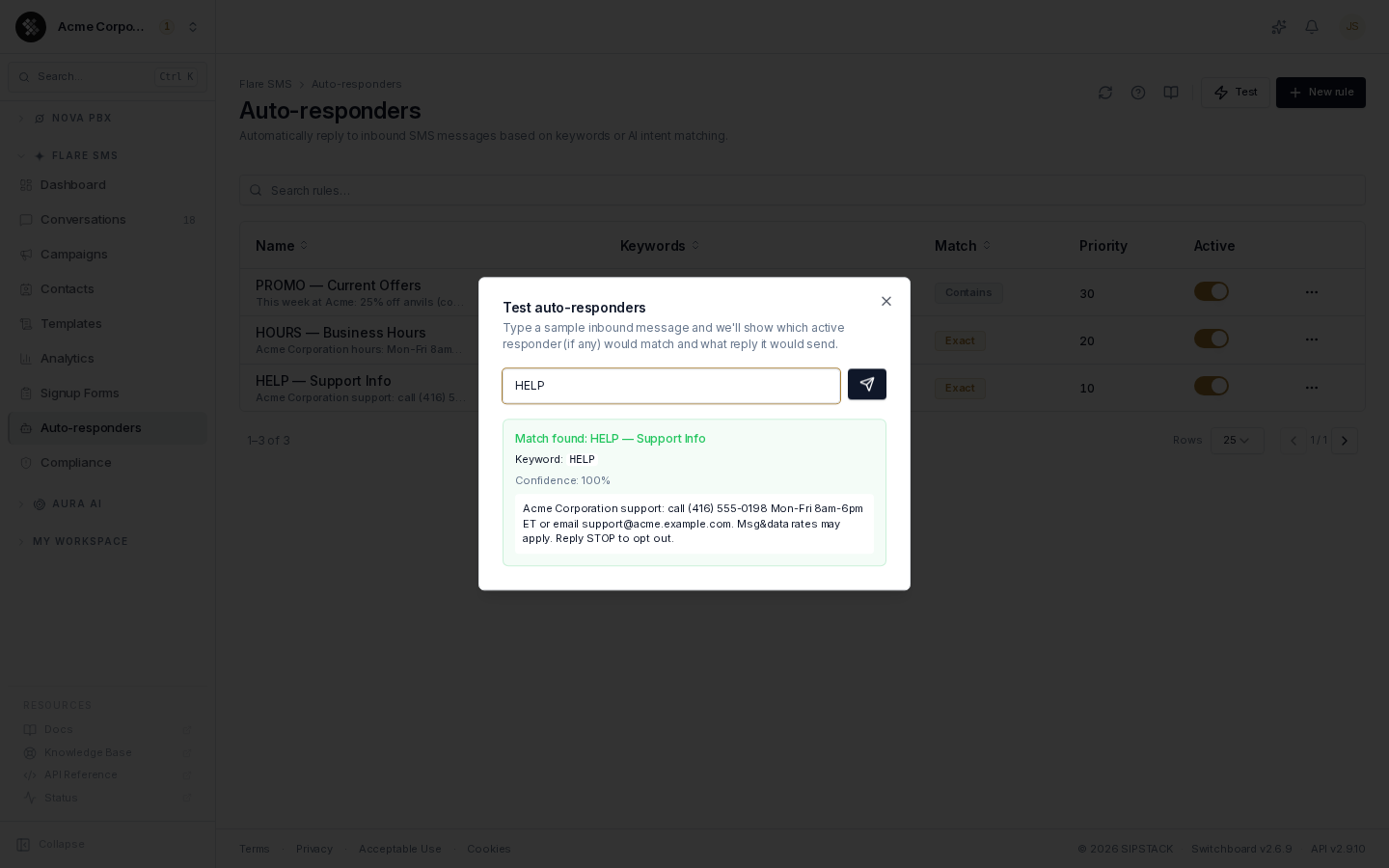
If your account has more than one Flare number, use Received on to preview which rule would answer a text sent to a specific number (or leave it on Any number).
The test tool is read-only: nothing is sent and nothing is recorded. Use it to confirm priority interactions before activating a new rule.
Plan Limits
Section titled “Plan Limits”The number of auto-responders is limited by your Flare plan, and the AI match type requires an AI-enabled plan — the editor rejects AI matching with an upgrade message otherwise.
Auto-Responders vs Campaigns
Section titled “Auto-Responders vs Campaigns”| Auto-responders | Campaigns | |
|---|---|---|
| Triggered by | An inbound message | Your action (send now / scheduled) |
| Audience | The individual sender | A contact list or tag |
| Best for | Reactive replies, keyword info, HELP | Proactive outreach, promotions |
Use them together: a keyword responder acknowledges the inbound interest; campaigns handle the proactive sends to your opted-in tags.
Related Pages
Section titled “Related Pages”- Conversations — the two-way inbox an auto-responder replies into
- Campaigns — proactive sends to a contact list or tag
- Reply Routing — route inbound replies to specific team members