

Voicemail
Voicemail
Section titled “Voicemail”Nova PBX provides per-extension voicemail with an in-portal inbox, AI transcription, email notification, and phone-based retrieval via *97. Each extension has its own mailbox (mailbox number = extension number).
Enabling Voicemail on an Extension
Section titled “Enabling Voicemail on an Extension”- Navigate to Nova PBX → People & Extensions → Extensions.
- Open the extension and toggle Voicemail to On.
- Set a Voicemail PIN (4–10 digits) for phone retrieval.
- (Optional) Confirm the Email field — new-voicemail notifications go there.
- Save, then commit your changes.
The Voicemail Inbox
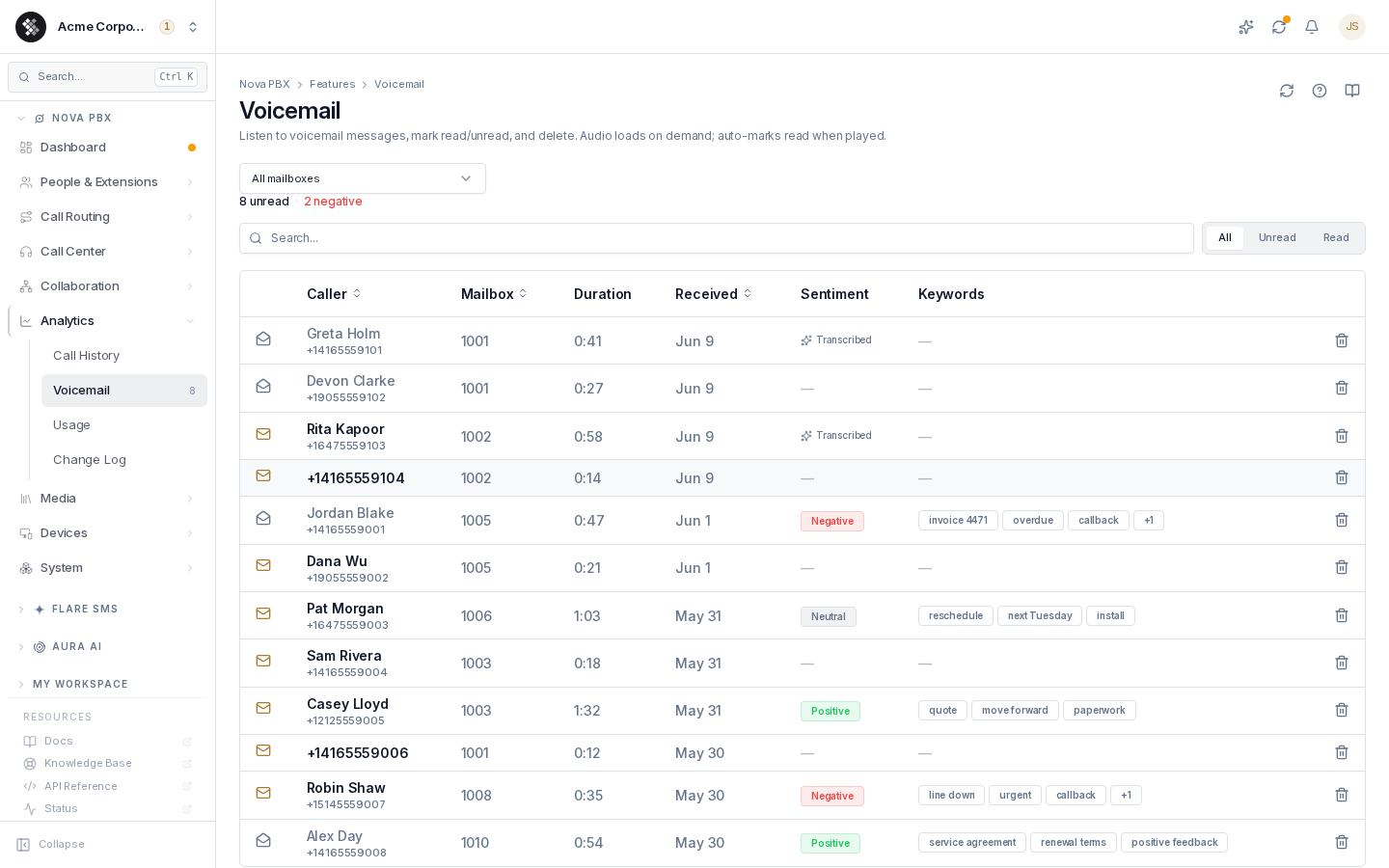
Section titled “The Voicemail Inbox”Navigate to Nova PBX → Analytics → Voicemail. This is the admin inbox — it shows messages across all mailboxes in your PBX. Individual users see only their own mailbox under My Workspace → Voicemail.
Each row shows the caller, mailbox, duration, received time, an AI sentiment badge, and keyword chips. Unread messages show a bold caller name and a filled envelope icon.
Working the list:
- All / Unread / Read pills filter by read status.
- The mailbox dropdown filters to a single extension’s mailbox; the unread count follows the filter.
- Click the envelope icon to mark read/unread without playing.
- Click the trash icon to delete (confirmation required; deletion is permanent).
- Click a row to open the detail panel.
The detail panel contains:
- An audio player — the recording loads on demand and playing it auto-marks the message read.
- The full transcript (free on every tier).
- An AI summary, sentiment, and topics & keywords — these light up with an Aura-enabled plan; on other tiers they show as locked rows.
Transcription and AI Summaries
Section titled “Transcription and AI Summaries”Every deposited voicemail is transcribed automatically — the row shows “Processing…” until it completes. With an Aura-enabled plan, each message also gets:
- A one-line summary of why the caller called — triage the inbox without listening.
- A sentiment label (Positive / Neutral / Negative). The triage line above the table counts negative messages so unhappy callers surface first.
- Topics & keywords chips for fast scanning and search.
For how the transcription pipeline works across voicemail and recorded calls — diarization, sentiment classes, plan gating, privacy — see Transcription & Call Intelligence.
Email Notification
Section titled “Email Notification”When a new voicemail lands, SIPSTACK sends one email to the address set on the extension. It shows the caller’s name and number, the mailbox, the message length and the time the message was left. The recording is attached unless Attach audio is off on the extension’s Voicemail tab.
The transcript goes in the same email, below those details. There is no separate transcription email. The email waits for the transcript, which is usually ready within seconds, for at most a minute. If no transcript is ready by then, or the message has no speech, the email says no transcription is available. The transcript still appears in the inbox once it’s done.
To leave the transcript out of the email, turn off Transcript in voicemail email on the extension’s phone profile. It’s on by default. With it off, the email goes out as soon as the message is left, and the transcript appears only in the inbox.
Update the extension’s Email field to change the recipient.
Greetings
Section titled “Greetings”Record from your phone: dial *97 from your own extension, enter your PIN, press 0 for mailbox options, and follow the prompts.
Upload or generate: go to Nova PBX → Media → Greetings to upload a WAV/MP3 or generate one with text-to-speech, then assign it as the voicemail greeting.
Letting callers press 0
Section titled “Letting callers press 0”You can let a caller skip leaving a message by pressing 0 during the voicemail greeting, and send them somewhere else instead, such as the front desk, a ring group or your main menu. It’s set per mailbox:
- An extension’s own mailbox: the extension’s Voicemail tab, in the Behavior card. The option isn’t shown when the extension sends its voicemail to another extension’s mailbox.
- A group mailbox: Nova PBX → Call Routing → Group Mailboxes, open the mailbox, then the Behavior card.
To turn it on:
- Switch on Let callers press 0 during the voicemail greeting. It’s off by default.
- Under Send the caller to, pick the destination type and then the destination: Extension, Ring Group, Call Queue, Conference Room, IVR Menu, Voicemail (another extension’s mailbox), Group Mailbox, Aura AI Voice Agent, External Number, or Feature code (listed as code and name, such as
*97 — Check Voicemail). IVR Menu and Aura AI Voice Agent appear once you have one. A group mailbox can’t send callers back into itself. - Save, then apply your changes.
The option is available on every plan. Only an administrator can set it; users don’t see it in their own voicemail settings.
Turning it off keeps the destination. Switching the option off stops the press-0 breakout but remembers where it sent callers. Switch it back on and the stored destination is restored, so you don’t have to pick it again.
Good to know:
- Feature codes and outside callers. A feature code that acts on the caller’s own extension (Do Not Disturb, call forwarding, call pickup, paging, intercom and similar) works only when the caller is on one of your organization’s own phones. Callers from outside can reach only the voicemail, echo test, conference and voice agent feature codes. To send outside callers to a queue, choose Call Queue rather than a queue feature code.
- If the destination is gone or can’t be used (for example, the ring group was deleted, or an outside caller pressed 0 into an extension-only feature code), the caller hears “goodbye” and the call ends. Check the destination after deleting anything a mailbox points to.
Retrieving by Phone
Section titled “Retrieving by Phone”Dial *97 from your own extension to reach your own mailbox. To check a different mailbox (a colleague’s or a group mailbox), dial *98: it asks for the mailbox number, then that mailbox’s PIN. You can also dial *98 + the extension to go straight in. From outside, call your main number and use your auto-attendant’s voicemail option (if configured), then enter your extension and PIN.
Retention
Section titled “Retention”Voicemail retention is tier-based — messages are automatically deleted after your plan’s retention window to keep mailboxes manageable. Download or act on anything you need to keep long-term. Deleting a message in the portal is immediate and permanent (no undo).
Disabling Voicemail
Section titled “Disabling Voicemail”Toggle Voicemail off on the extension. Unanswered callers hear a generic unavailable message instead of a voicemail prompt. Existing messages are preserved and reappear if voicemail is re-enabled.