

Transcription & Call Intelligence
Transcription & Call Intelligence
Section titled “Transcription & Call Intelligence”Aura AI turns the spoken audio your phone system captures into text and intelligence: transcripts (with who-said-what speaker labels), AI summaries, sentiment, topics & keywords, and semantic search across everything that was said. This page is the map — what gets transcribed, what each analysis layer adds, where each result shows up in Switchboard, and how your plan gates it.
Where transcripts come from
Section titled “Where transcripts come from”There are two pipelines, and they behave differently:
| Source | When it runs | Setup needed | Plan |
|---|---|---|---|
| Voicemail | Automatically, on every deposited message | None | Every plan — free |
| Recorded calls | Automatically on ingest when Auto-process is on, or on demand per call | Call recording enabled on the extension + auto-process or a manual request | Transcription on every Nova plan; deeper analyses by tier (see Plan gating) |
Very short audio is skipped on purpose — a few seconds of ring, beep, or silence isn’t worth a transcript. Skipped calls can still be transcribed manually from the call detail (see On-demand transcription).
Voicemail transcription
Section titled “Voicemail transcription”Every voicemail left on a Nova mailbox is transcribed automatically, on every plan, with nothing to configure. The inbox at Nova PBX → Analytics → Voicemail shows the AI results inline — a sentiment badge and keyword chips per row, and a triage line that counts unread and negative messages so unhappy callers surface first.
Open any message to see the full result:
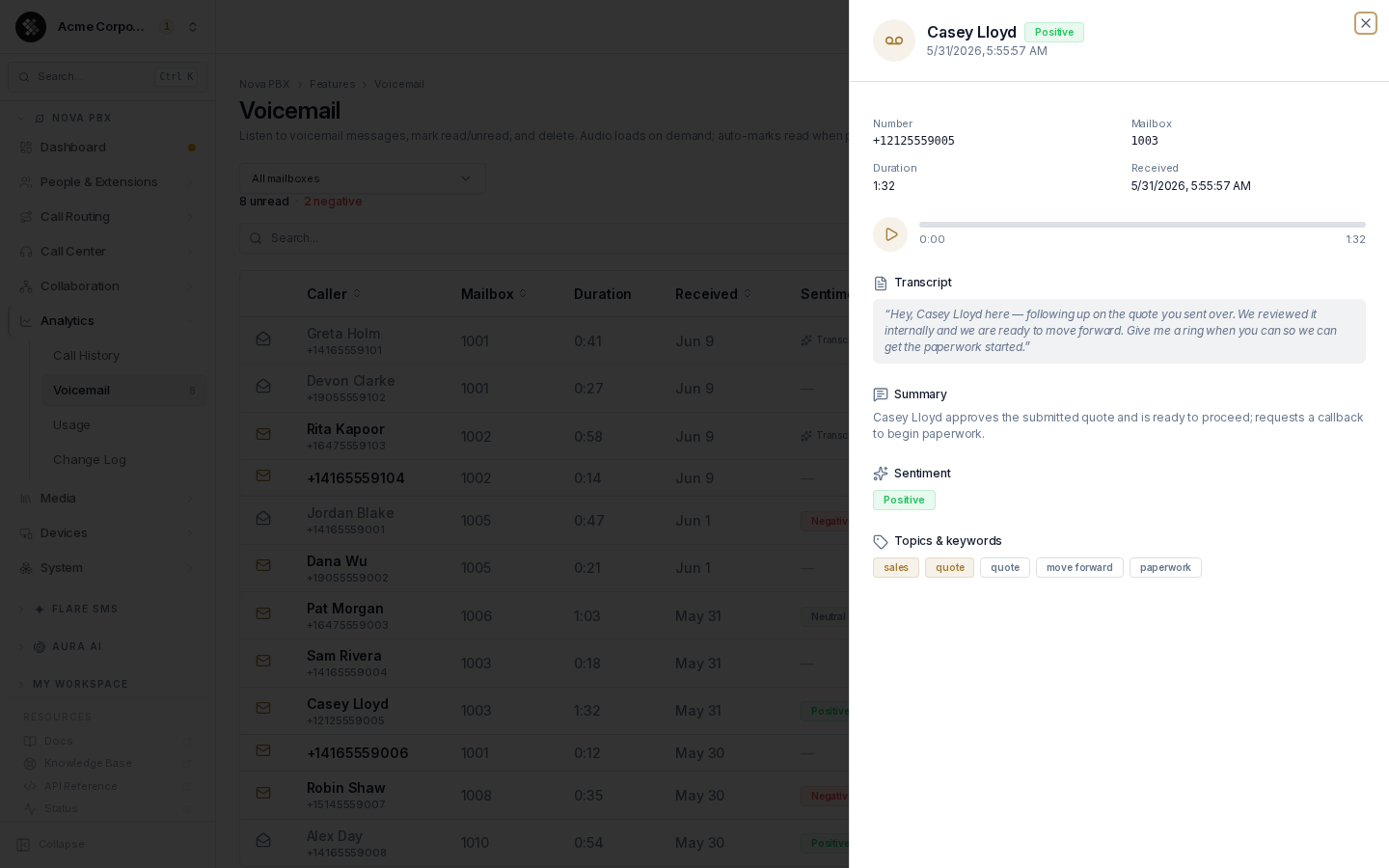
- Transcript — the message as text, on every plan. Triage your inbox without pressing play.
- Summary — a one-line “why they called”, when your plan includes summarization.
- Sentiment — Positive / Neutral / Negative, when your plan includes sentiment analysis.
- Topics & keywords — chips for fast scanning, when your plan includes NLP processing.
Voicemail is a single speaker, so there is no diarization step — the plain transcript is the whole feature. Messages shorter than a couple of seconds are skipped as hang-ups.
See Voicemail for the full inbox workflow (filters, mark read/unread, email notification, retrieval by phone).
Call transcription
Section titled “Call transcription”For two-sided conversations, Aura transcribes recorded calls. Recording capture itself is configured per extension; whether recorded calls are processed automatically is the Auto-process recordings with Aura AI switch on Recording Settings:
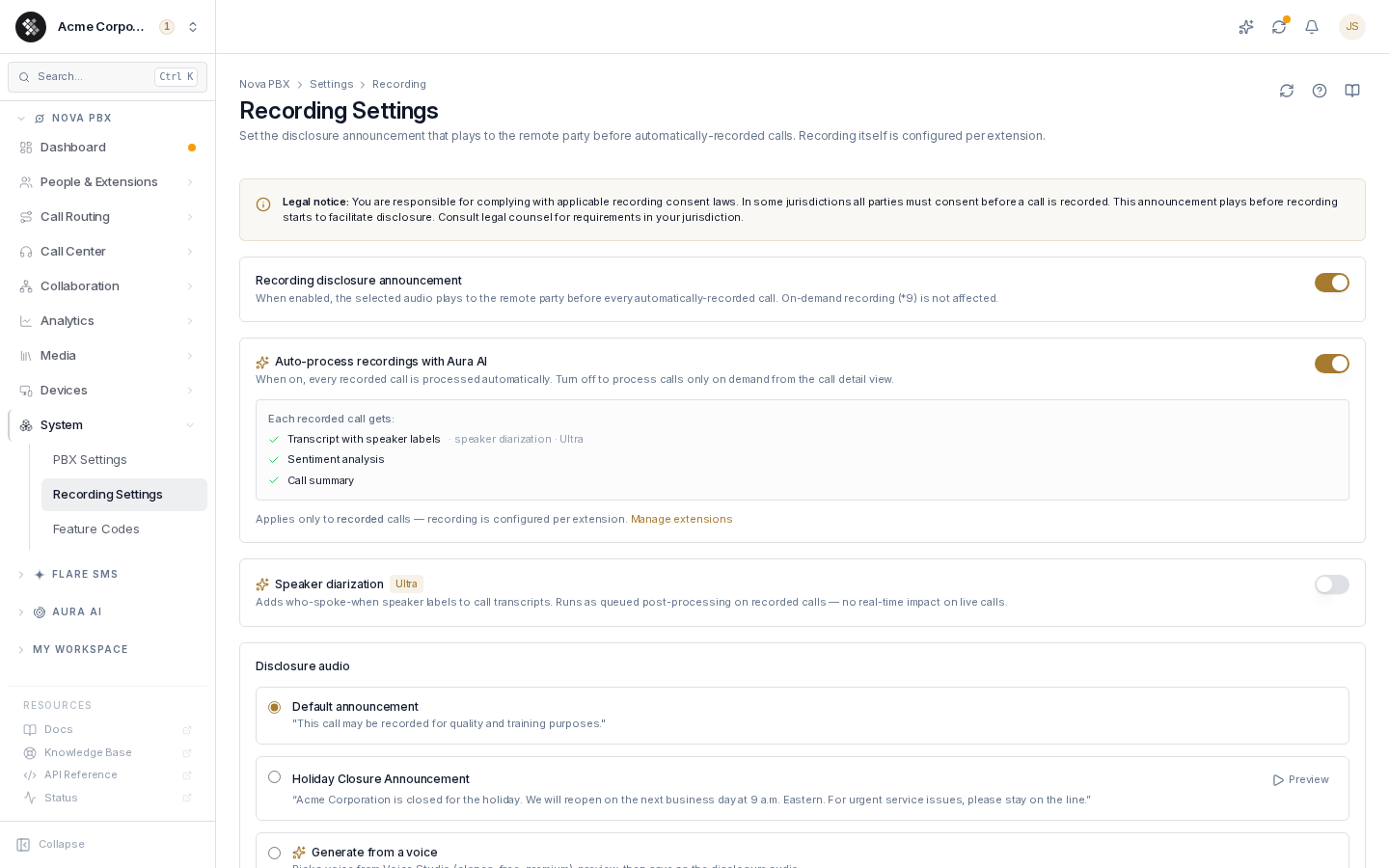
With auto-process on, every recorded call flows through the pipeline shortly after hangup: transcription → (optionally) speaker diarization → the analyses your plan includes. With it off, nothing is processed until someone requests it per call.
Reading a call transcript
Section titled “Reading a call transcript”Open any call from Nova PBX → Analytics → Call History, then switch to the Transcript tab:
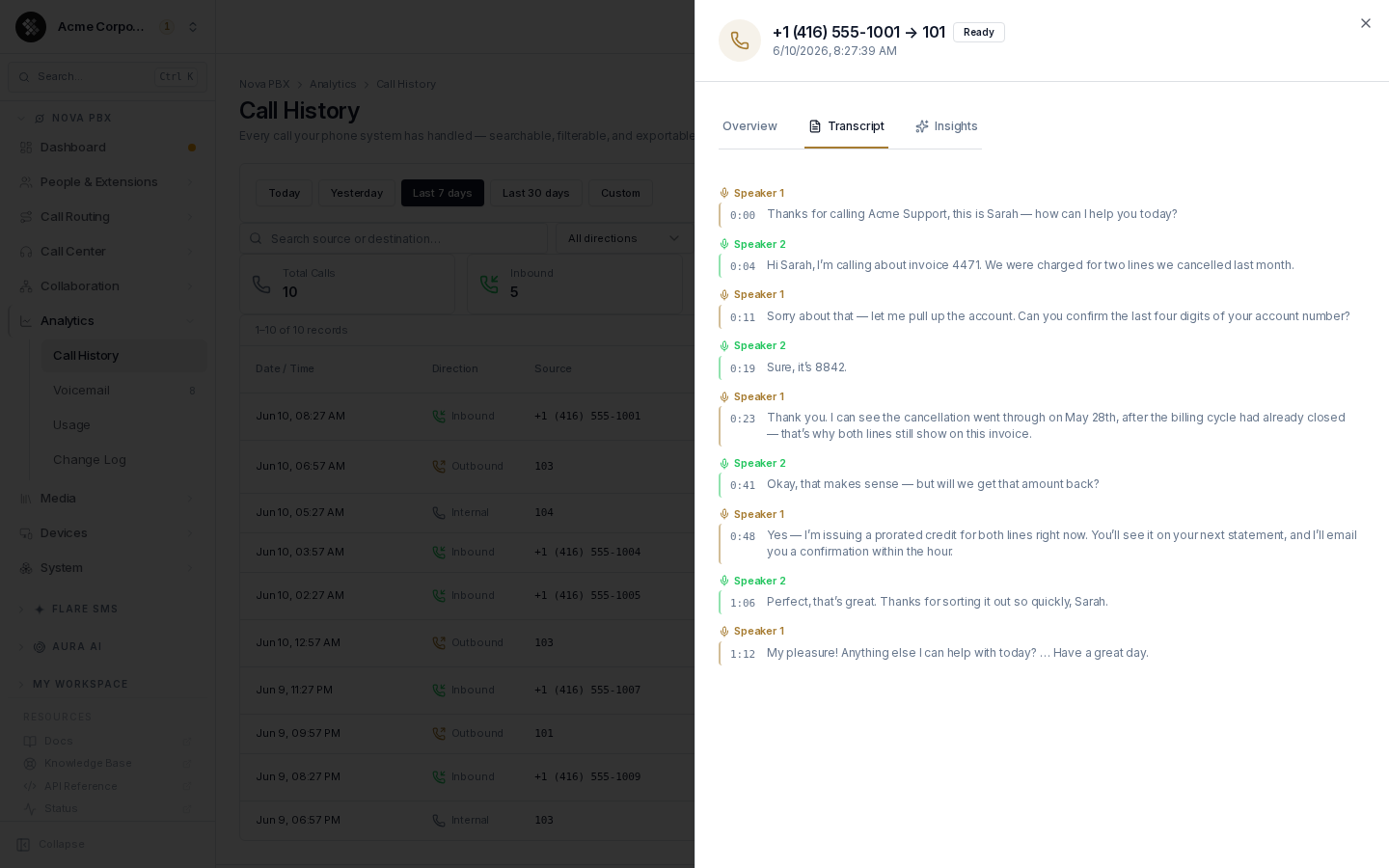
- Each speaker turn is labeled (Speaker 1, Speaker 2, …) and color-accented, so a two-party call reads like a conversation instead of a wall of text.
- Every segment carries a timestamp. Click any line to jump the audio player to that moment — the fastest way to verify what was actually said.
- Without diarization (lower tiers, or the toggle off), the same tab shows a plain timestamped transcript with no speaker labels.
Speaker diarization — who said what, where
Section titled “Speaker diarization — who said what, where”Diarization adds who-spoke-when labels to call transcripts. It answers the question a flat transcript can’t: which side of the call said that?
How it works. Diarization separates the recording by voice, labelling each distinct voice as a speaker and stamping every turn with its start time. It runs as queued post-processing on recorded calls — there is no real-time impact on live calls.
What it can do:
- Label each turn in a two-party call so agent and caller are visually distinct.
- Handle more than two voices (three-way calls, transfers) — each distinct voice gets its own label.
- Combine with click-to-seek: jump straight to the moment a specific person said something.
What it can’t do:
- It doesn’t know names. Labels are positional (“Speaker 1” is whoever spoke first), not identities. It does not match voices to your extension directory.
- Crosstalk is hard. When both parties talk over each other, segments may merge, swap, or drop words.
- Hold music and IVR prompts can occasionally register as a “speaker”.
Enabling it. Diarization is a Nova Ultra entitlement with its own toggle on Recording Settings (the server refuses to enable it on lower tiers). Once on, it applies to newly processed recordings.
Per-call insights: summary, sentiment, topics
Section titled “Per-call insights: summary, sentiment, topics”The Insights tab on the same call detail shows what Aura’s analysis layer extracted from the transcript:
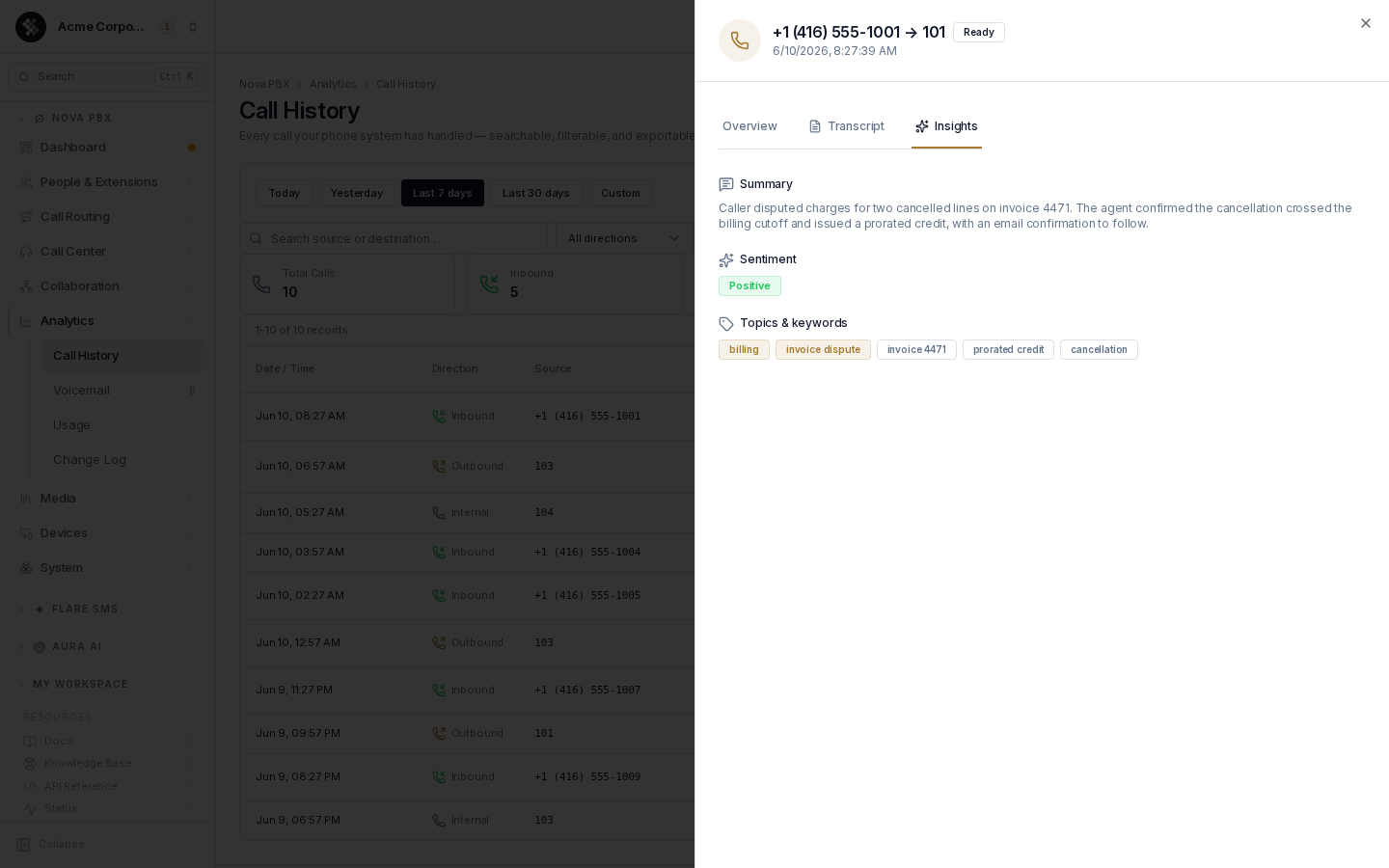
- Summary — a few sentences covering why they called and how it ended. Read it instead of the recording.
- Sentiment — one of three classes: Positive, Neutral, or Negative, judged across the whole call. Sentiment also appears as a badge in the Call History table’s AI column, so you can spot unhappy calls without opening anything.
- Topics & keywords — short tags (e.g. billing, invoice 4471) for scanning and cross-call patterns.
Analyses your plan doesn’t include render as locked rows with an upgrade link — the transcript itself is never hidden behind them.
Follow-ups (Nova Ultra)
Section titled “Follow-ups (Nova Ultra)”The Follow-ups tab on the call detail lists the action items Aura found in the transcript — commitments, requests, and reminders someone asked for — each with a done toggle. Re-extract runs the extraction again on the existing transcript.
If Aura’s AI service can’t produce a result right then, Re-extract fails with “Aura AI is temporarily unavailable — please retry in a moment” and the call keeps its current follow-ups — nothing is cleared. Wait a minute and click Re-extract again.
On-demand transcription
Section titled “On-demand transcription”Calls that weren’t auto-processed (auto-process off, call skipped as too short, or a failed run) show a Transcribe this call button on the Transcript tab. One click queues the same pipeline for that call; the tab shows “Transcribing…” and updates itself when the result lands — typically within a couple of minutes.
Semantic search & trends — Aura Insights
Section titled “Semantic search & trends — Aura Insights”Individual transcripts answer questions about one call. Aura AI → Agents → Insights answers questions about all of them:
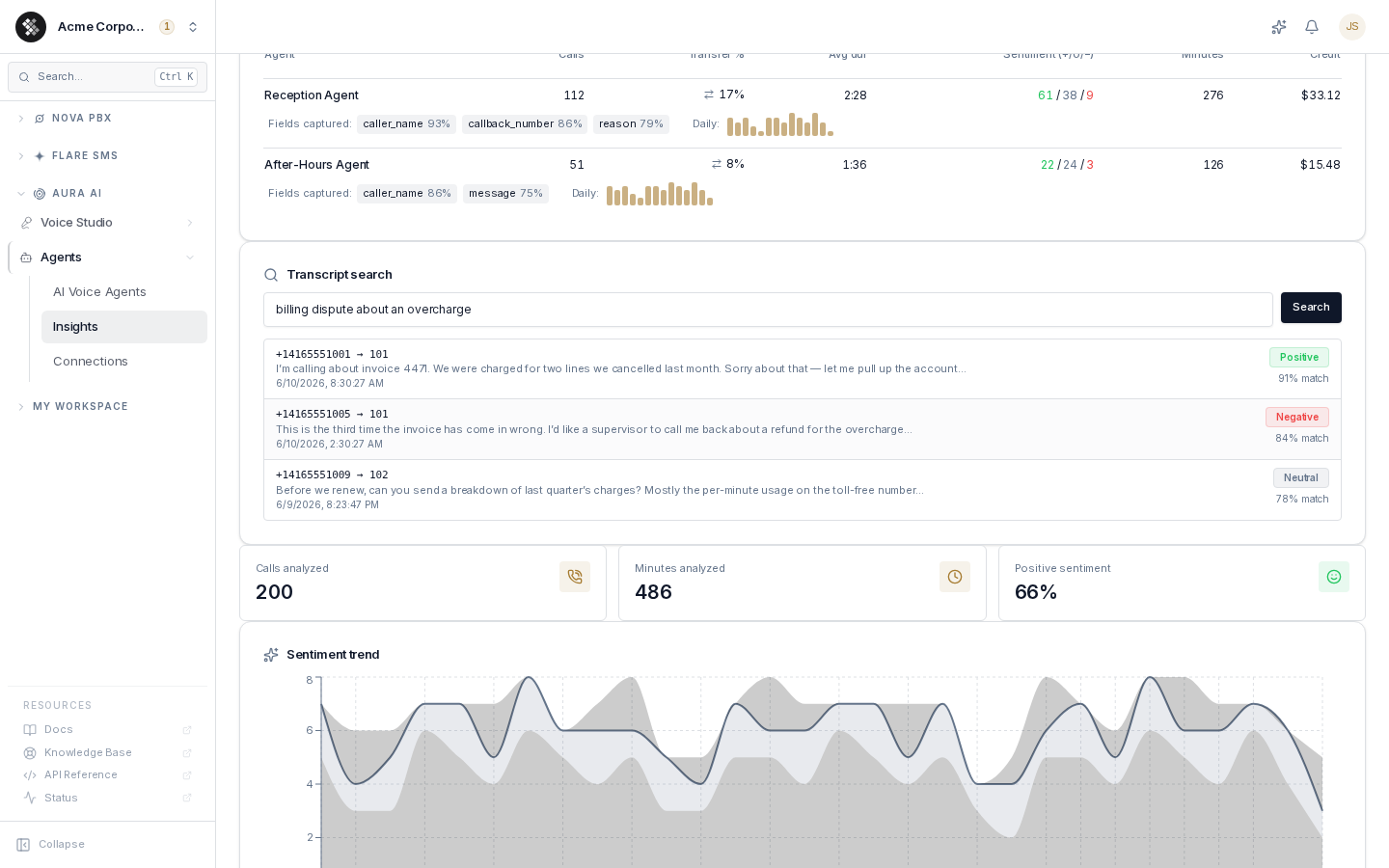
- Transcript search matches meaning, not keywords: searching “billing dispute about an overcharge” finds calls where the caller said “the invoice came in wrong” — no shared words required. Each hit shows the matching snippet, the call’s sentiment, and a match score; click through to the full transcript and recording.
- Sentiment trend charts daily Positive / Neutral / Negative counts across your processed recordings. Watch for negative spikes after a pricing change, an outage, or a new IVR flow.
- The page also covers per-voice-agent performance — see Aura Insights for the full page reference.
Search runs over the transcripts of auto-processed recordings — calls that were never processed aren’t in the index.
Plan gating
Section titled “Plan gating”Aura AI is not a separate subscription — it comes with every paid Nova plan, and your Nova tier decides which layers light up:
| Capability | Core | Pro | Ultra |
|---|---|---|---|
| Voicemail transcription | ✅ | ✅ | ✅ |
| Call (recording) transcription | ✅ | ✅ | ✅ |
| Speaker diarization | — | — | ✅ |
| Sentiment analysis | — | — | ✅ |
| AI summaries | — | — | ✅ |
| Topics & keywords (NLP) | — | — | ✅ |
| Semantic transcript search | — | — | ✅ |
Everything in this table is entitlement-gated, not metered — there is no per-minute charge for transcribing or analyzing your own calls on an entitled plan. In the product, locked rows and upgrade prompts reflect your live entitlements; manage your plan under Account → Subscriptions.
Accuracy
Section titled “Accuracy”Transcription is tuned for telephone audio, but it is machine-generated:
- Clear audio with one speaker per turn transcribes very accurately; background noise, low line quality, strong accents, and crosstalk reduce accuracy.
- English is the primary supported language.
- Transcripts are not human-reviewed. For legal or compliance purposes, treat the transcript as an aid and the audio recording as the authoritative record.
Privacy & retention
Section titled “Privacy & retention”Transcripts and AI analyses are derived from — and live with — the underlying audio:
- Retention follows the recording/voicemail. Deleting a recording or voicemail removes its transcript and analyses; recordings age out per your plan’s retention window (see Recording Settings → Storage and retention).
- Access is permission-gated. Viewing call transcripts requires call-history access (
nova.cdr.view_all); listening to the audio additionally requires the Play any call recording permission (or a narrower team or own-call tier). Transcript search is hidden from users without call-history access, since snippets expose caller numbers. - Consent. If your jurisdiction requires consent to record, that consent covers the transcription and analysis of those recordings. The recording disclosure announcement is configured on Recording Settings — and remember on-demand
*9recordings play no announcement.
Where everything lives
Section titled “Where everything lives”| Surface | What you’ll find | Path |
|---|---|---|
| Voicemail inbox | Per-message transcript, summary, sentiment, keywords | Nova PBX → Analytics → Voicemail |
| Call History detail | Diarized transcript (click-to-seek), per-call insights, on-demand transcribe | Nova PBX → Analytics → Call History |
| Aura Insights | Semantic transcript search, sentiment trends, agent performance | Aura AI → Agents → Insights |
| Recording Settings | Auto-process switch, diarization toggle, disclosure audio | Nova PBX → System → Recording Settings |