

Number Detail & E911
Number Detail & E911
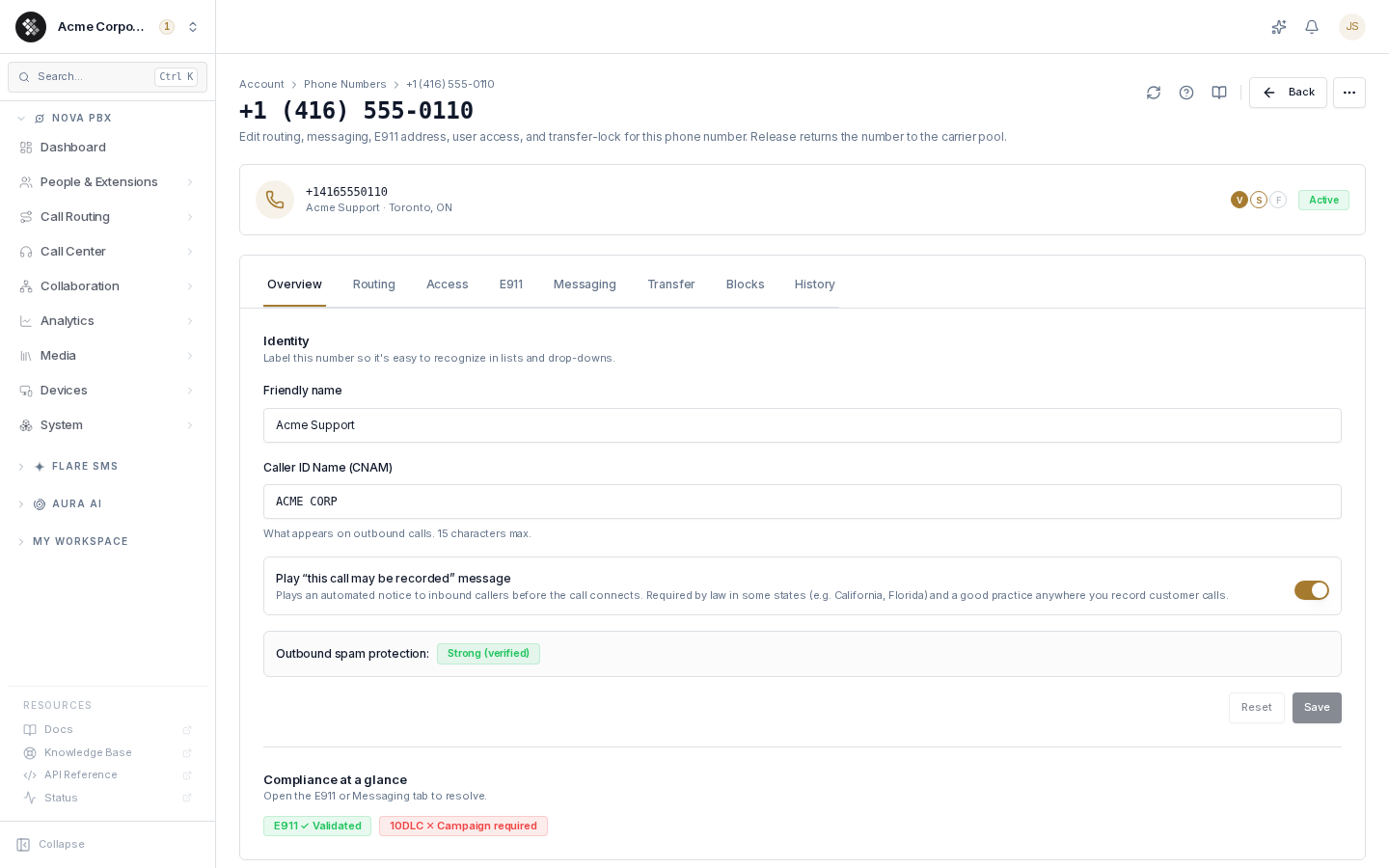
Section titled “Number Detail & E911”Click any row on Phone Numbers to open that number’s detail page. Eight tabs cover everything about the number; the summary strip above them (number, friendly name, locality, capabilities, status) stays pinned as you move between tabs.
The active tab is reflected in the URL hash (#routing, #e911, …) so you can deep-link to any tab. The compliance chips on the parent list do exactly that — clicking E911 ✕ lands here with the E911 tab open.
Tabs at a glance
Section titled “Tabs at a glance”| Tab | What it covers |
|---|---|
| Overview | Friendly name, CNAM (caller-ID name), recording-disclosure flag, the STIR/SHAKEN Outbound spam protection badge, and a compliance summary. |
| Routing | Inbound call routing and routing controls (anonymous-caller blocking, international-outbound blocking). |
| Access | Per-user capability grants for this number — outbound voice, SMS, fax send/view. |
| E911 | The emergency dispatchable address — see below. |
| Messaging | SMS routing (disabled / direct to a user / team inbox) and 10DLC campaign assignment. Fax is set up on the Routing tab. |
| Port-out | Transfer lock and port-out PIN. |
| Blocks | Per-number caller block list. Shows whether blocking is active for your account. |
| History | Acquisition, assignment, and porting timeline. |
Release number lives in the ⋯ (More actions) menu at the top-right. It returns the number to the carrier pool after a signed agreement, with a 30-day grace period for recovery. The action is hidden while the number is locked or still provisioning.
Overview tab — identity
Section titled “Overview tab — identity”- Friendly name — an internal label (“Acme Main Line”) shown across SIPSTACK.
- CNAM — the outbound caller-ID name receiving parties see, capped at 15 characters by carriers (e.g.
ACME CORP). - Recording disclosure — flag the number as requiring a recording disclaimer.
- Outbound spam protection — the read-only STIR/SHAKEN attestation badge: Strong (A — fully verified, best deliverability), Partial (B), or Weak (C — likely to flag as “Spam Likely”). The network assigns this automatically.
E911 — emergency address
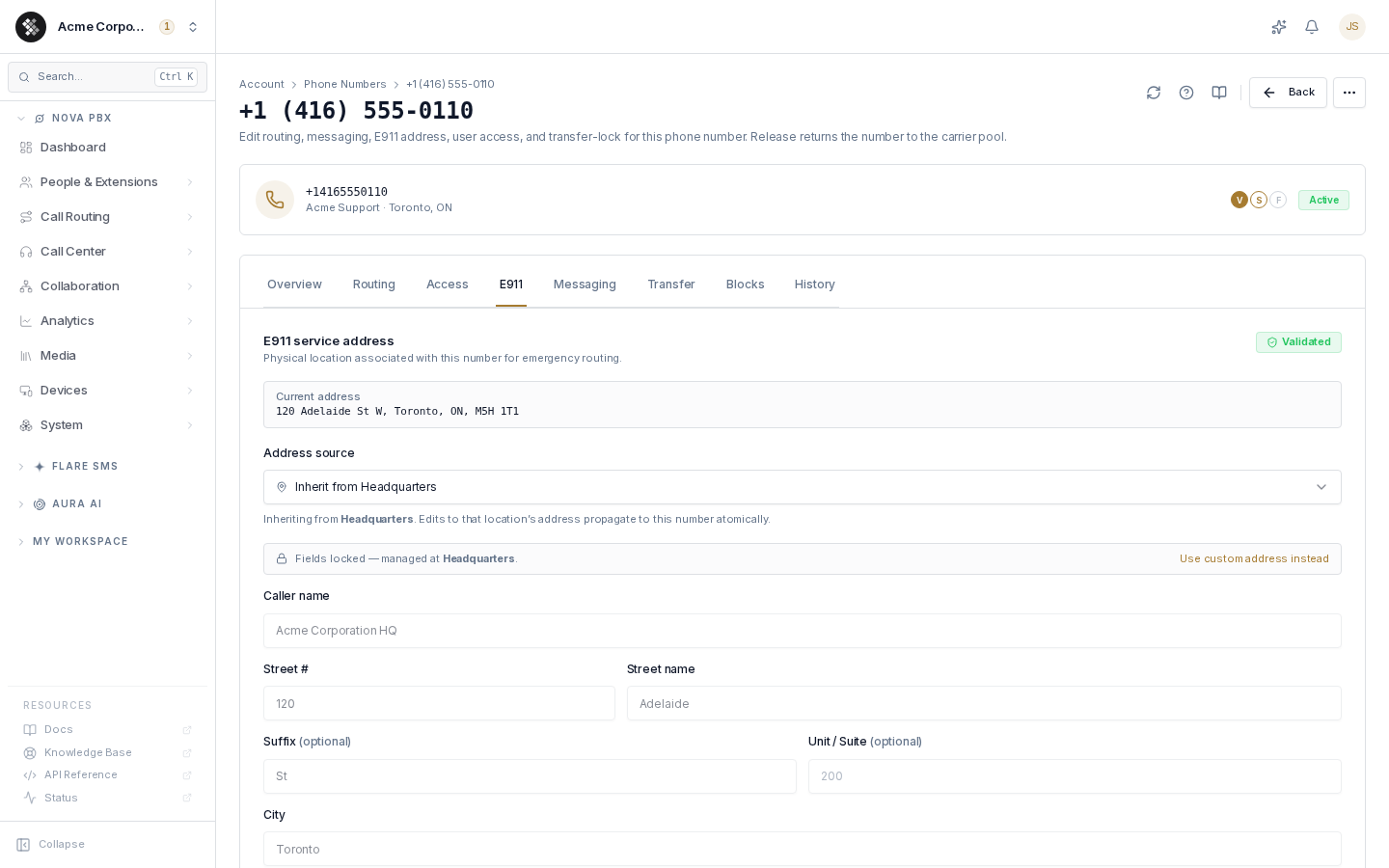
Section titled “E911 — emergency address”When someone dials 911 from this number, the carrier delivers the registered dispatchable address to the emergency dispatcher. If it’s missing or stale, responders are sent to the wrong place — this is the one setting on the page that can have life-safety consequences, and regulators (FCC Kari’s Law / RAY BAUM’S Act §506) require it for every voice-capable number.
Address source: inherit or override
Section titled “Address source: inherit or override”The tab’s Address source selector offers two modes:
- Inherit from a Location — point the number at one of your Nova Locations (e.g. Headquarters). The address fields lock, and any future edit to the Location’s address propagates to every number inheriting from it — one update covers the whole office.
- Custom address (override) — give this number its own address (e.g. a remote worker’s home line). Edits stay local to this number.
Registering or updating the address
Section titled “Registering or updating the address”- Open the number → E911 tab.
- Pick the address source. For a custom address, fill the dispatchable-address fields — caller name (what the dispatcher sees), street number and name, suffix, unit/suite, city, state/province, ZIP/postal code, country (US or Canada). The form starts pre-filled with the address currently on file.
- Click Save address (or Apply inheritance). Saving validates and registers the address with the carrier — allow 5–15 seconds.
- The tab shows a green Validated badge and the current address on file.
Troubleshooting
Section titled “Troubleshooting”The tab shows “Address required” even though the number is new. New numbers don’t get an address automatically. Register one before treating the number as production-ready for voice.
Validation fails when I save. The carrier validates against postal records. Check for typos, use the official street suffix (St/Ave/Blvd), and put unit information in the Unit/Suite field rather than appending it to the street name.
I switched to a Location but the fields look frozen. That’s by design — inherited fields lock and show Fields locked — managed at {Location}. Edit the address on the Location itself, or click Use custom address instead to take local control.
Does E911 apply to fax/SMS-only numbers? No. The tab tells you E911 doesn’t apply if the number has no voice capability.
Access tab — who can use this number
Section titled “Access tab — who can use this number”One row per user with grant chips for outbound voice, SMS, fax send, and fax view. This is the source of truth for per-number permissions; the Messaging tab’s team-inbox roster is a focused view of the same SMS grants.
Messaging tab — SMS routing & 10DLC
Section titled “Messaging tab — SMS routing & 10DLC”- SMS routing — Disabled, Direct to a user, or Team inbox (a Flare-backed shared inbox). Team-inbox mode exposes an inline member roster.
- 10DLC campaign — attach this number to a registered campaign so US carriers deliver its SMS at full throughput. See 10DLC Registration.
- View SMS history — deep-link into Flare conversations pre-filtered to this number.
Port-out tab — transfer lock & PIN
Section titled “Port-out tab — transfer lock & PIN”Numbers are locked by default so no one can port them away without your involvement:
- To move a number to another carrier, open the Port-out tab and click Unlock.
- SIPSTACK issues a time-limited port-out PIN — give it to the gaining carrier.
- Re-lock at any time to cancel; the PIN can also be regenerated.
The Port-out tab only appears for account owners and users with the Release / Port-out Numbers permission. If you don’t see it, ask your account owner. While a number is locked, the Release action is hidden as well.
Each number has its own PIN, valid for 30 days or until your next invoice is issued, whichever comes first — it is the only PIN that authorizes a port-out. To move several numbers at once, select them on Phone Numbers and use Unlock for transfer: they all get one shared PIN, and re-locking any one of them cancels the PIN for that number only.
Leaving SIPSTACK? Port your numbers first, then cancel. See Leaving SIPSTACK.
Blocks & History
Section titled “Blocks & History”- Blocks — add caller numbers that should never ring through. When per-number blocking is active for your account, a matching caller is declined at the network edge before the call reaches your phones; the tab tells you whether it is switched on yet.
- History — the number’s life story: ordered, ported, assigned, released. Useful when support asks “what changed?”
Common questions
Section titled “Common questions”I don’t see Release number in the ⋯ menu. The number is locked or still provisioning. Unlock on the Port-out tab, or wait for the pending order to finish.
A user can’t call out from this number. Check the Access tab — they need the outbound-voice grant.
A user can’t send text messages from this number. Check the Access tab — they need the SMS grant on this number. No grants at all = an empty Messages tab in Pulse.
A user doesn’t see inbound texts. On Messaging, confirm routing is Team inbox (and they’re a member) or Direct to a user pointed at them.
What caller ID does a forwarded call show? The original caller’s number, always — the person you forward to sees who is really calling, not your SIPSTACK number. SIPSTACK separately tells the carrier that the call was forwarded and which of your numbers forwarded it. There is no setting to change this.
Can I change the digits of a number? No — buy or port the number you want, then release the old one.