

Call History
Call History
Section titled “Call History”The Recents tab in Calls shows your call history — every call to and from your extension, across all your Pulse devices.
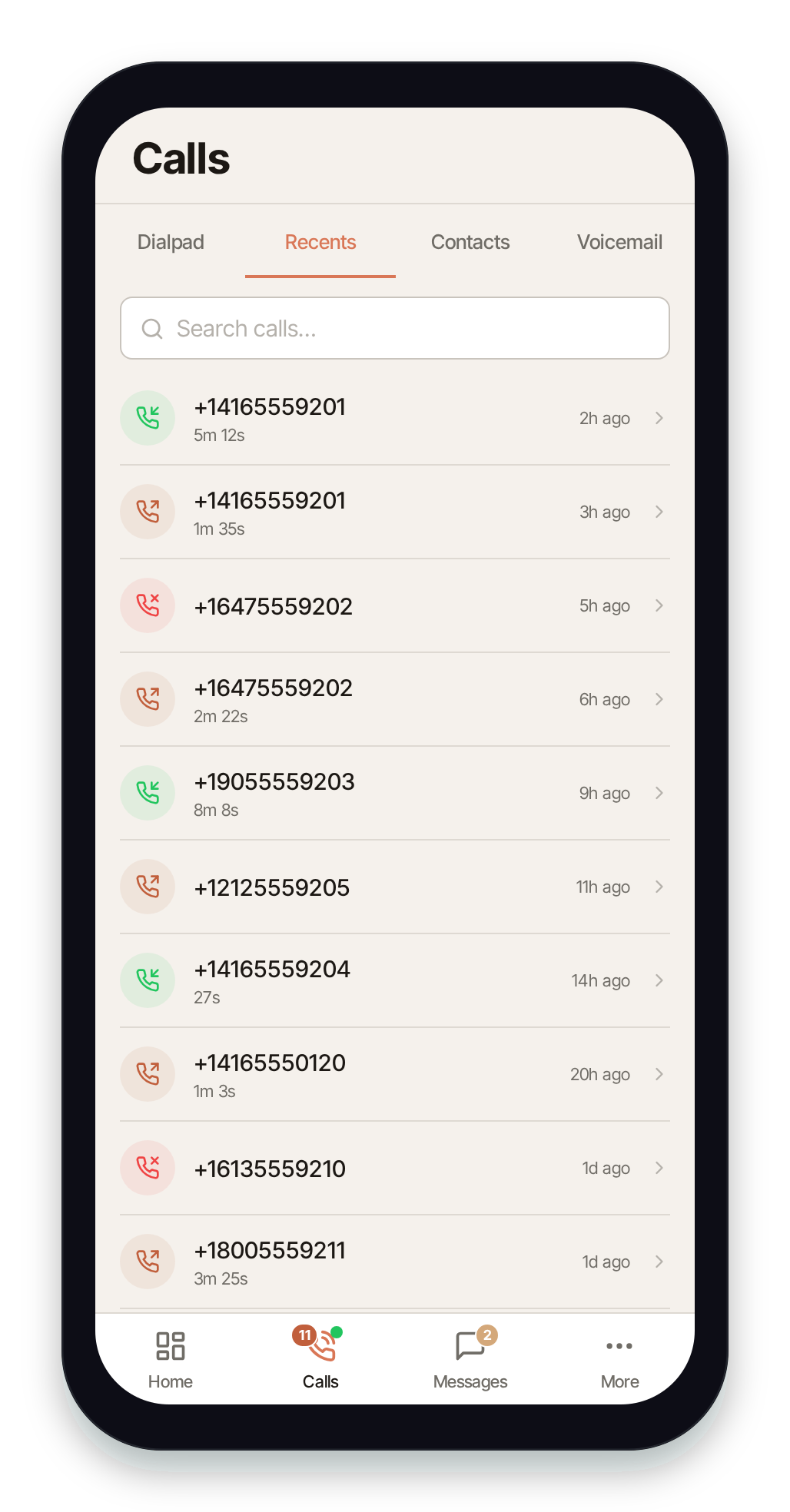
The Recents list
Section titled “The Recents list”Each row shows the other party (a name if they’re in your directory, otherwise the number), how long ago the call was, and its duration. An icon and color tell you the call type at a glance:
- Inbound (green, arrow in) — a call you received and answered.
- Outbound (arrow out) — a call you placed.
- Missed (red, missed-call icon) — an incoming call you didn’t answer.
Calls from all your devices appear here, so a call you took on your desk phone shows up in Pulse too.
Search
Section titled “Search”Use the search bar at the top to filter the list by number.
Pull to refresh
Section titled “Pull to refresh”Pull the list down to refresh it. Recents also refreshes automatically each time you open the tab.
Missed-call badge
Section titled “Missed-call badge”Unseen missed calls raise a badge on the Calls tab. Opening Recents clears the badge — the missed calls themselves stay in the list.
Call details
Section titled “Call details”Tap any call to open its detail screen, with the date, full duration, and the call’s direction and type.
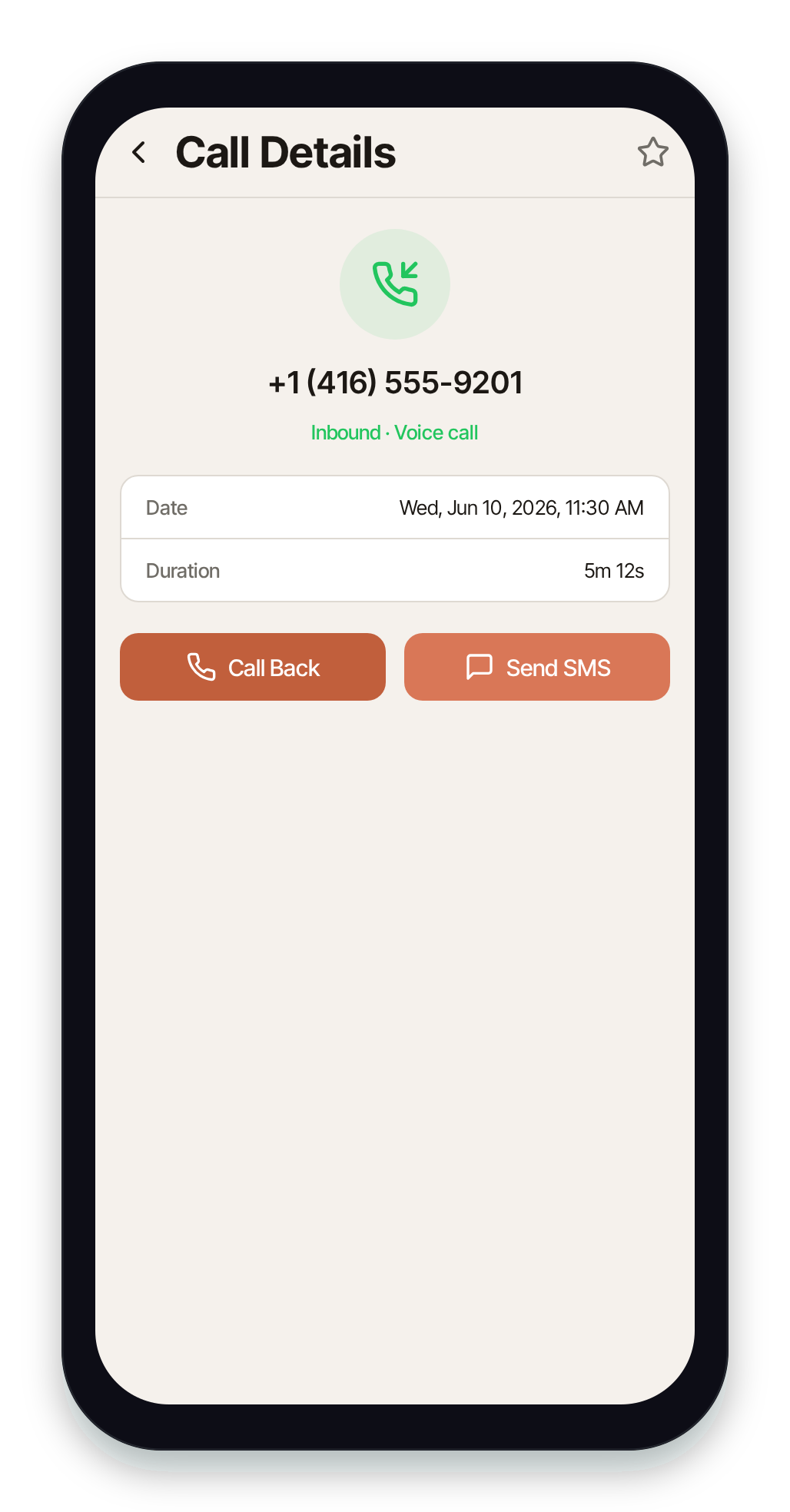
From here you can:
- Call Back — redial the other party. (Disabled while you’re already on a call.)
- Send SMS — open a new text message to that number.
- Star (☆ in the header) — add the number to your favorites for one-tap dialing from the dialpad.
Calls blocked by the destination carrier
Section titled “Calls blocked by the destination carrier”If the network of the number you called refused an outbound call because its spam analytics flagged your caller ID, the call’s detail screen shows this notice below the call details:
Blocked by destination carrier (spam analytics) The receiving network flagged this caller ID. Register the number’s reputation with the carriers or contact support.
The notice appears only on calls the destination carrier rejected this way. The same notice appears in Switchboard under Your Call History.
Related
Section titled “Related”- Making Calls (Dialpad) — place a new call.
- Voicemail — messages from calls you missed.
- Text Messaging (SMS/MMS) — pick up the SMS thread after a call.
- Call History (CDRs) — the full call-detail records for your organization in Switchboard.