

Signing In
Signing In
Section titled “Signing In”Pulse uses your SIPSTACK portal account — the same email and password you use for Switchboard. There are two ways to sign in: scan a QR provisioning code from Switchboard, or enter your email and password. Either way you end up on the same line.
Prefer to watch? Install Pulse & sign in walks through installing Pulse and signing in end to end, in about two minutes.
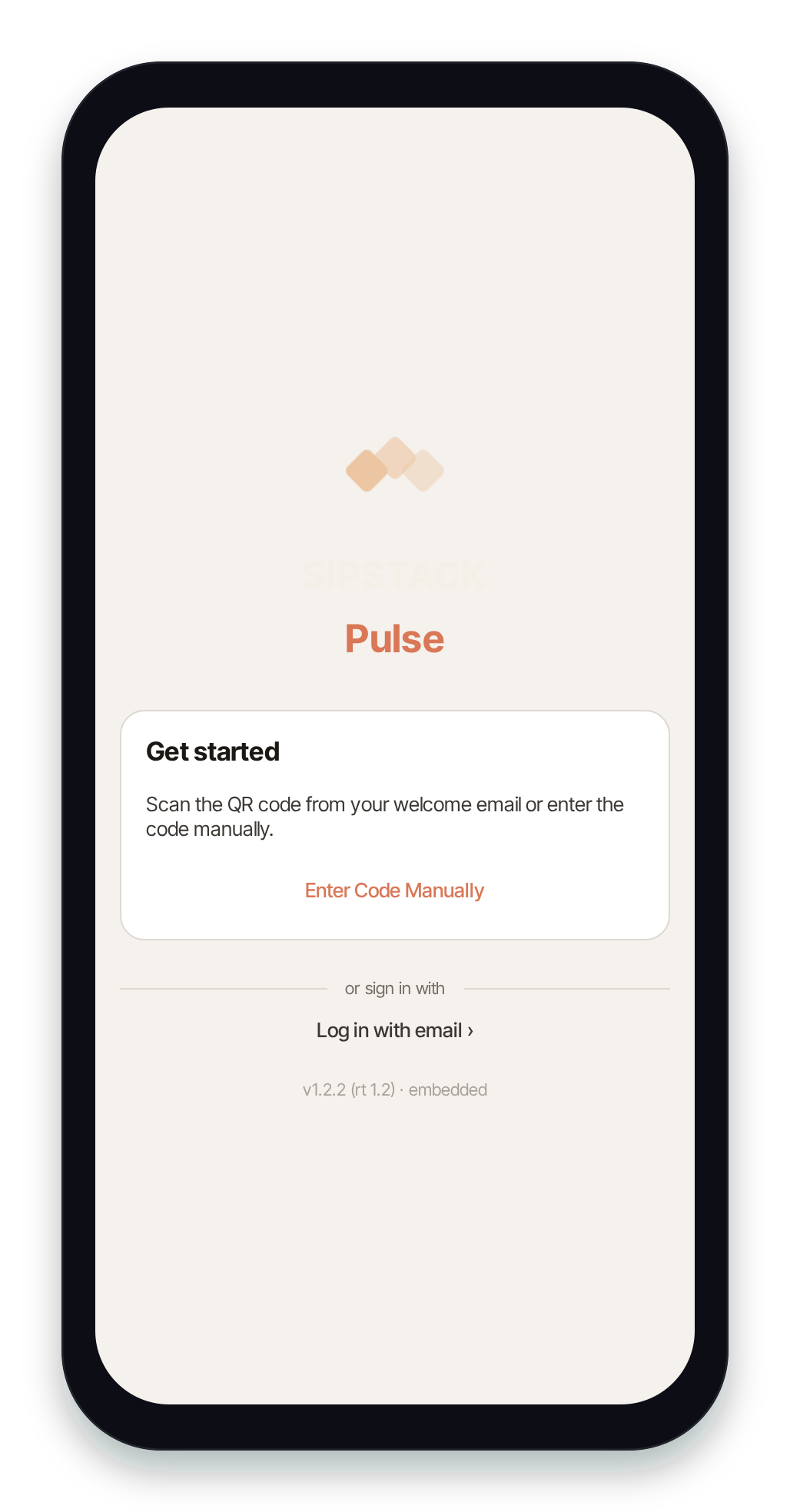
Option 1 — Scan the QR code (fastest)
Section titled “Option 1 — Scan the QR code (fastest)”The QR provisioning code is never emailed to you — it is shown in Switchboard, and there are two ways to get one:
- Your administrator shows you one. They open your extension in Switchboard and click Pair Pulse app. Scan it off their screen.
- You get your own. Sign in to Switchboard in a browser and go to /pulse/activate. Your code is displayed there.
Then, on the Pulse start screen:
- Tap Scan QR Code.
- Point your camera at the QR code shown in Switchboard.
Pulse activates and signs you in automatically — no password to type.
No camera (for example on the desktop or web app)? Tap Enter Code Manually and paste the provisioning code shown next to the QR (it begins with pulse:), then tap Continue.
Each code can be used once and expires after 7 days. If yours has expired or has already been used, ask your administrator for a new one, or generate a fresh one yourself from /pulse/activate.
Option 2 — Email & password
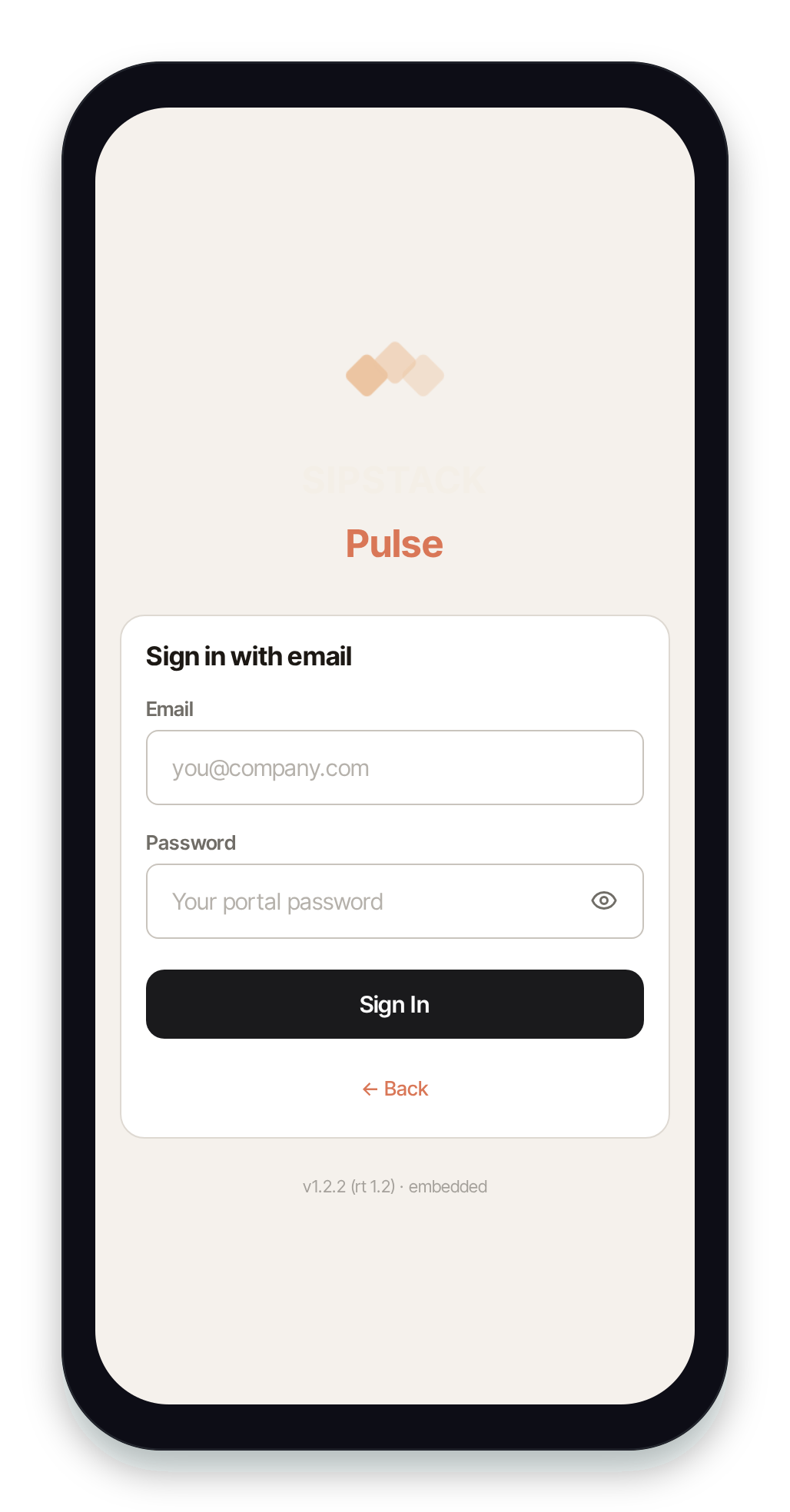
Section titled “Option 2 — Email & password”On the start screen, tap Log in with email, then enter:
- Email — your SIPSTACK login (the same one you use for Switchboard).
- Password — your portal password.
Tap Sign In.
Two-factor authentication
Section titled “Two-factor authentication”If your organization requires two-factor authentication (2FA), Pulse asks for the 6-digit code from your authenticator app after you sign in. If you haven’t set 2FA up yet, Pulse walks you through it: scan the setup QR code with an authenticator app (Google Authenticator, Authy, etc.), verify a code, and save the backup codes somewhere safe — each one works once if you lose your authenticator.
”Requires an active phone extension or messaging seat”
Section titled “”Requires an active phone extension or messaging seat””Pulse only signs in accounts that have a seat. If you see:
Pulse requires an active phone extension or messaging seat. Contact your administrator.
your login is valid, but your account doesn’t yet have a phone extension or messaging seat assigned. Contact your account administrator — they assign seats in Switchboard. See Users & Seats for who gets a seat and how they’re assigned.
Next step
Section titled “Next step”After your first successful sign-in, Pulse runs a short setup — continue to First-Run Setup.