

Creating & Editing Campaigns
Creating & Editing Campaigns
Section titled “Creating & Editing Campaigns”The campaign wizard walks you through four steps: Basics → Audience → Message → Review. Navigate to Flare SMS → Campaigns and click New Campaign.
You can click Save draft at any step — a draft keeps everything you’ve entered and never sends anything. The same wizard opens when you Edit a Draft or Scheduled campaign; campaigns that have started sending can no longer be edited.
Step 1 — Basics
Section titled “Step 1 — Basics”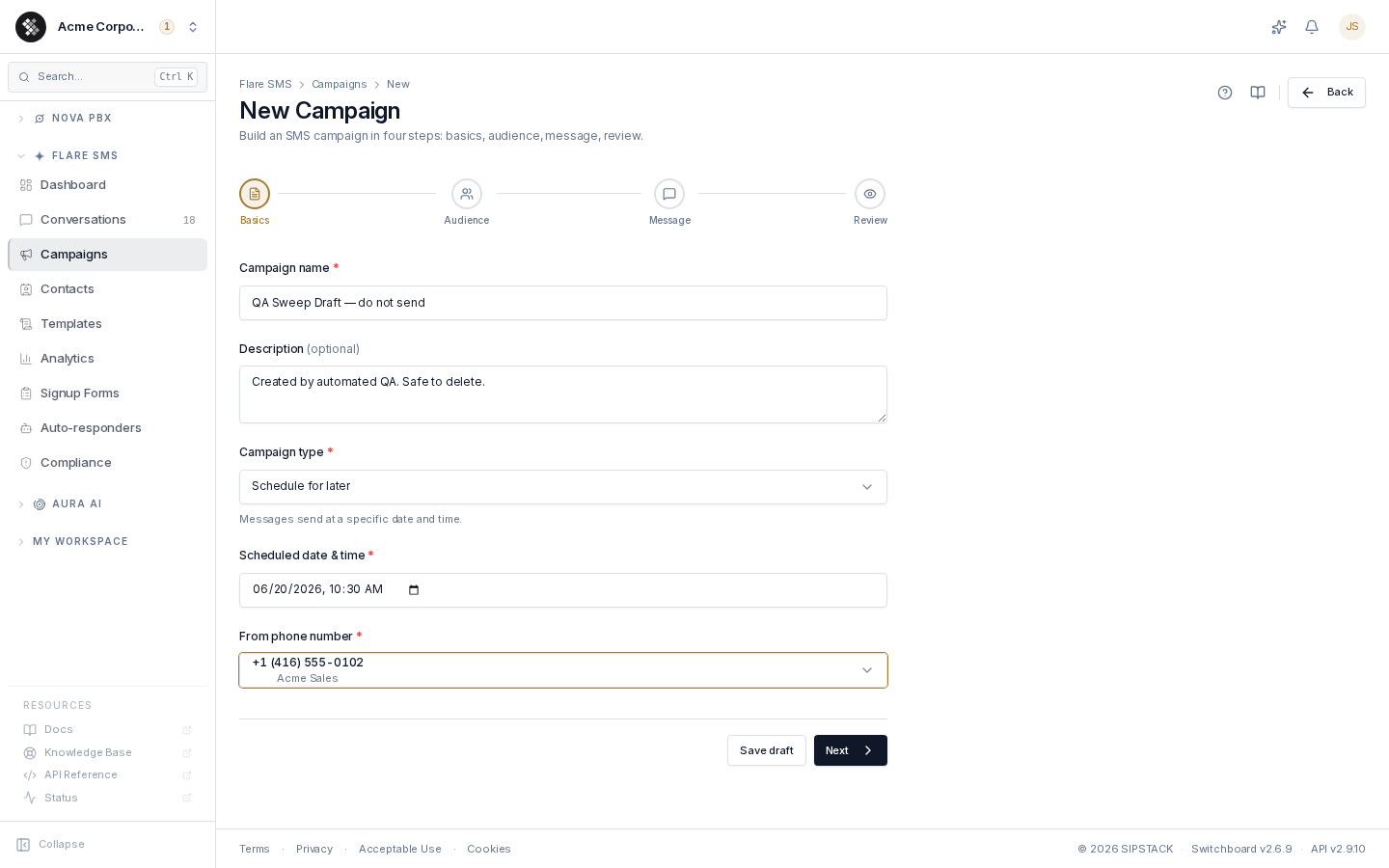
| Field | Notes |
|---|---|
| Campaign name | Internal reference only — never sent to contacts. |
| Description | Optional internal notes. |
| Campaign type | Send immediately (sends when you launch) or Schedule for later. |
| Scheduled date & time | Appears for scheduled campaigns. Entered in your local timezone; the platform converts and stores it as an absolute instant. |
| From phone number | The sending number. Only numbers whose SMS routing is set to Flare appear — if the list is empty, open Phone Numbers, pick a number, and set its SMS routing to Flare on the Messaging tab. |
When editing an older campaign whose from-number has since been re-routed away from Flare, the saved number still appears in the list labelled current campaign number, so the form stays valid until you pick a replacement.
Step 2 — Audience
Section titled “Step 2 — Audience”Targeting is tag-based: pick one or more contact tags, and every contact carrying any of the selected tags receives the campaign. Each tag chip shows its contact count, and the wizard shows a running estimate of total recipients.
- Contacts who have opted out are automatically excluded at send time — you don’t need to filter them yourself.
- No tags showing? Import or tag contacts first on the Contacts page.
Step 3 — Message
Section titled “Step 3 — Message”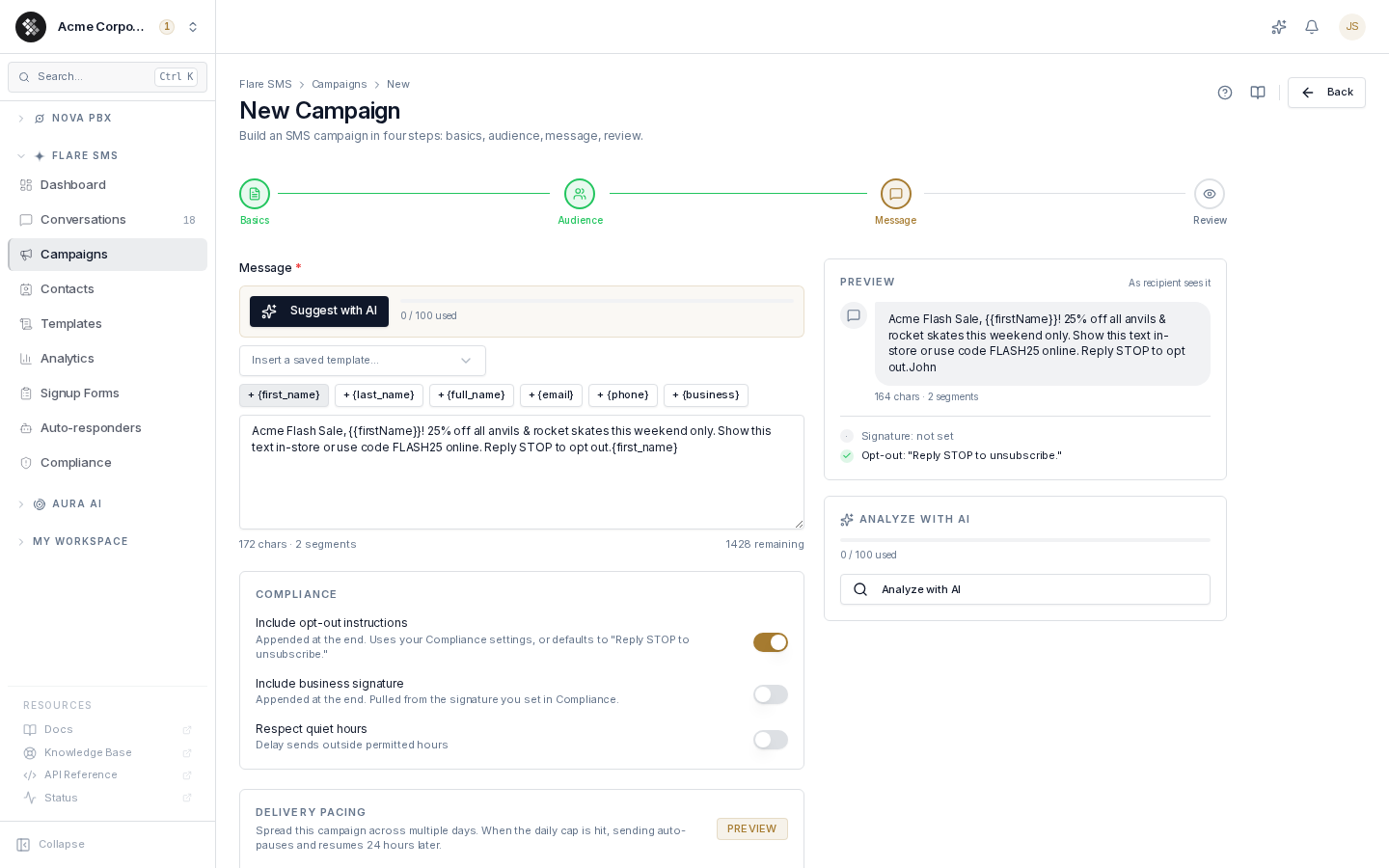
Compose the SMS body. The right-hand panel shows a live preview of exactly what the recipient will see (including your signature and opt-out footer), plus an optional AI analysis of the message.
Starting from a Template
Section titled “Starting from a Template”Use Insert a saved template… to drop a template into the message. If the message box is empty the template replaces it; otherwise it’s inserted at the cursor. If the template contains variables that campaigns can’t auto-fill (e.g. {{orderNumber}}), the wizard warns you so you can replace them with real values before sending.
Personalization Variables
Section titled “Personalization Variables”Click a variable chip to insert it at the cursor. At send time each variable is replaced with the recipient’s contact data — both single-brace and double-brace forms work, and camelCase aliases are accepted:
| Inserted / accepted forms | Replaced with |
|---|---|
{first_name} · {{first_name}} · {{firstName}} | Contact’s first name |
{last_name} · {{last_name}} · {{lastName}} | Contact’s last name |
{full_name} · {{full_name}} · {{fullName}} | First + last name |
{email} · {{email}} | Contact’s email |
{phone} · {{phone}} | Contact’s phone number |
{business} · {{business}} · {{company}} | Contact’s business name |
If a contact’s field is empty, the variable renders as an empty string — write greetings that survive a missing name.
Character & Segment Counter
Section titled “Character & Segment Counter”The counter under the message box shows characters and SMS segments: 160 characters for a single segment and 153 per segment after that in standard text, or 70 and 67 if the message contains an emoji or another character outside the standard set (maximum 1,600 characters). Each segment counts toward your allowance and send limits — see how segments are counted.
Compliance Toggles
Section titled “Compliance Toggles”| Toggle | Effect |
|---|---|
| Include opt-out instructions | Appends your Compliance settings’ opt-out line (default: “Reply STOP to unsubscribe.”). On by default. |
| Include business signature | Appends the signature configured in Flare → Compliance. Defaults to on when a signature is configured. |
| Respect quiet hours | Holds sends that fall outside the permitted window (start/end pickers appear, 24-hour format); held messages go out after the quiet period ends, in the contact’s timezone. |
Tier-Gated Options
Section titled “Tier-Gated Options”These appear on the Message step but require a qualifying plan — the controls are disabled (with an upgrade note) below the required tier, and the server enforces the same gates:
- Delivery Pacing (Pro+) — a daily send cap. When the cap is hit, sending auto-pauses and resumes 24 hours later. Useful for long lists where carriers throttle bursts.
- Link Tracking (Growth+) — rewrites URLs as short links and records per-contact clicks, shown on the campaign’s Analytics tab.
- Smart-Send Time (Growth+) — delays each message to the hour that contact historically engages, based on their 90-day reply/click history.
Step 4 — Review
Section titled “Step 4 — Review”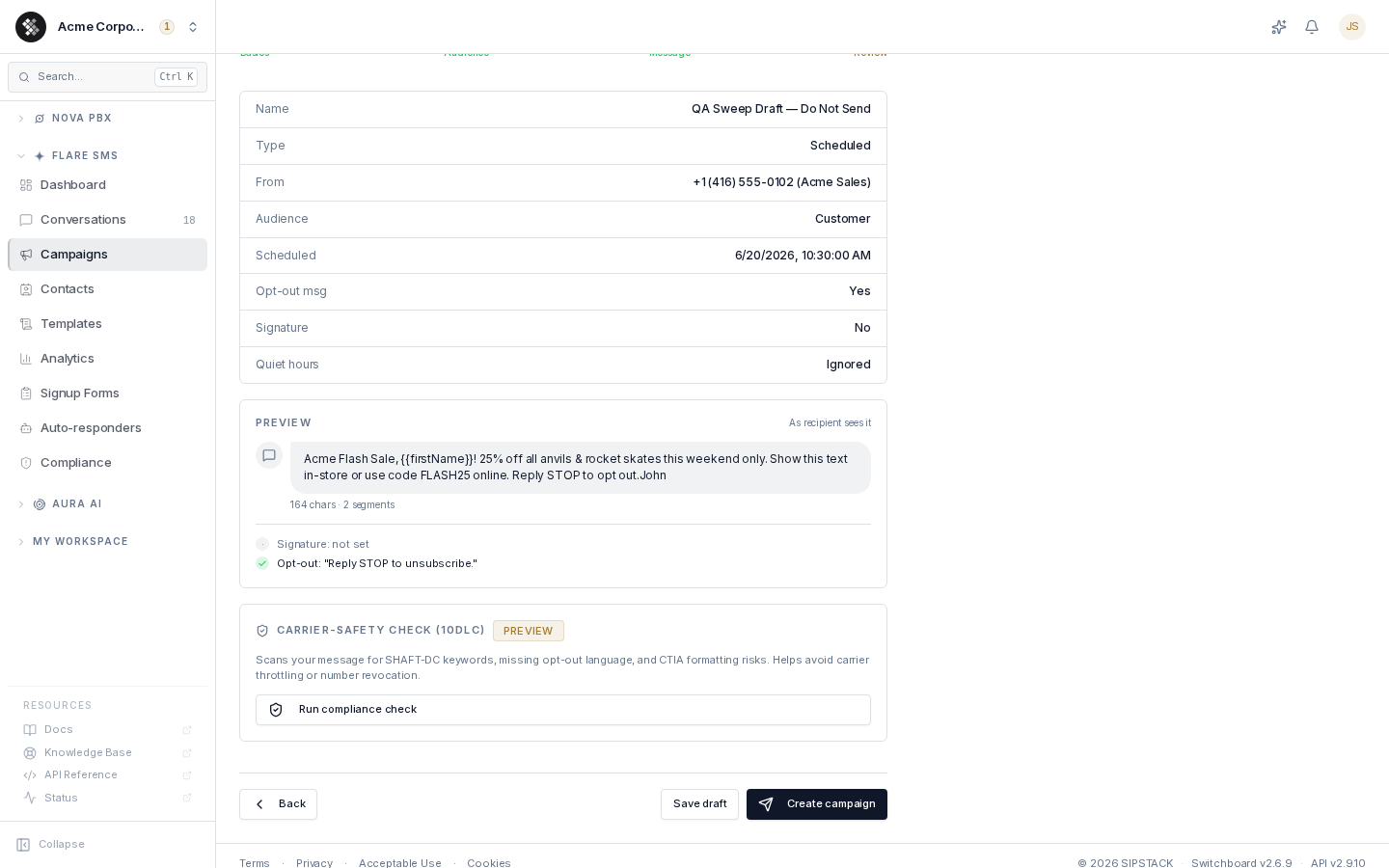
A summary of everything: name, type, from-number, audience tags, schedule, and compliance choices, plus the final message preview and an optional 10DLC carrier-safety scan — the same scan re-runs server-side at send time, so running it here catches content flags early.
Then choose:
- Create campaign — creates the campaign. An immediate campaign still waits for you to press Send now from the list or detail page (with a confirmation); a scheduled campaign arms itself for the scheduled time once you start it.
- Save draft — saves everything as a Draft to finish later.
Editing an Existing Campaign
Section titled “Editing an Existing Campaign”Open the ⋯ row menu → Edit (Draft and Scheduled campaigns only). The wizard loads with every saved value — audience tags, message, compliance toggles, schedule, and pacing settings. Save draft updates the campaign in place (it never creates a copy, and it won’t demote a Scheduled campaign back to Draft); Update campaign saves and returns to the list.
The reload button in the header re-fetches the saved campaign from the server, discarding unsaved edits.
Validation Rules
Section titled “Validation Rules”- Name, from-number, message, and at least one audience tag are required (drafts too).
- A scheduled campaign requires a date and time.
- Quiet hours require both a start and an end when enabled.
- Messages cap at 1,600 characters (10 segments).