

Text Messaging (SMS/MMS)
Text Messaging (SMS/MMS)
Section titled “Text Messaging (SMS/MMS)”The Messages → SMS tab is your text inbox in Pulse. You can text from any of your SIPSTACK business numbers, send and receive pictures (MMS), and pick up the same conversations you see in Switchboard — Pulse and the web portal share one SIPSTACK Flare messaging surface, so a thread you read on your phone is already read on the web.
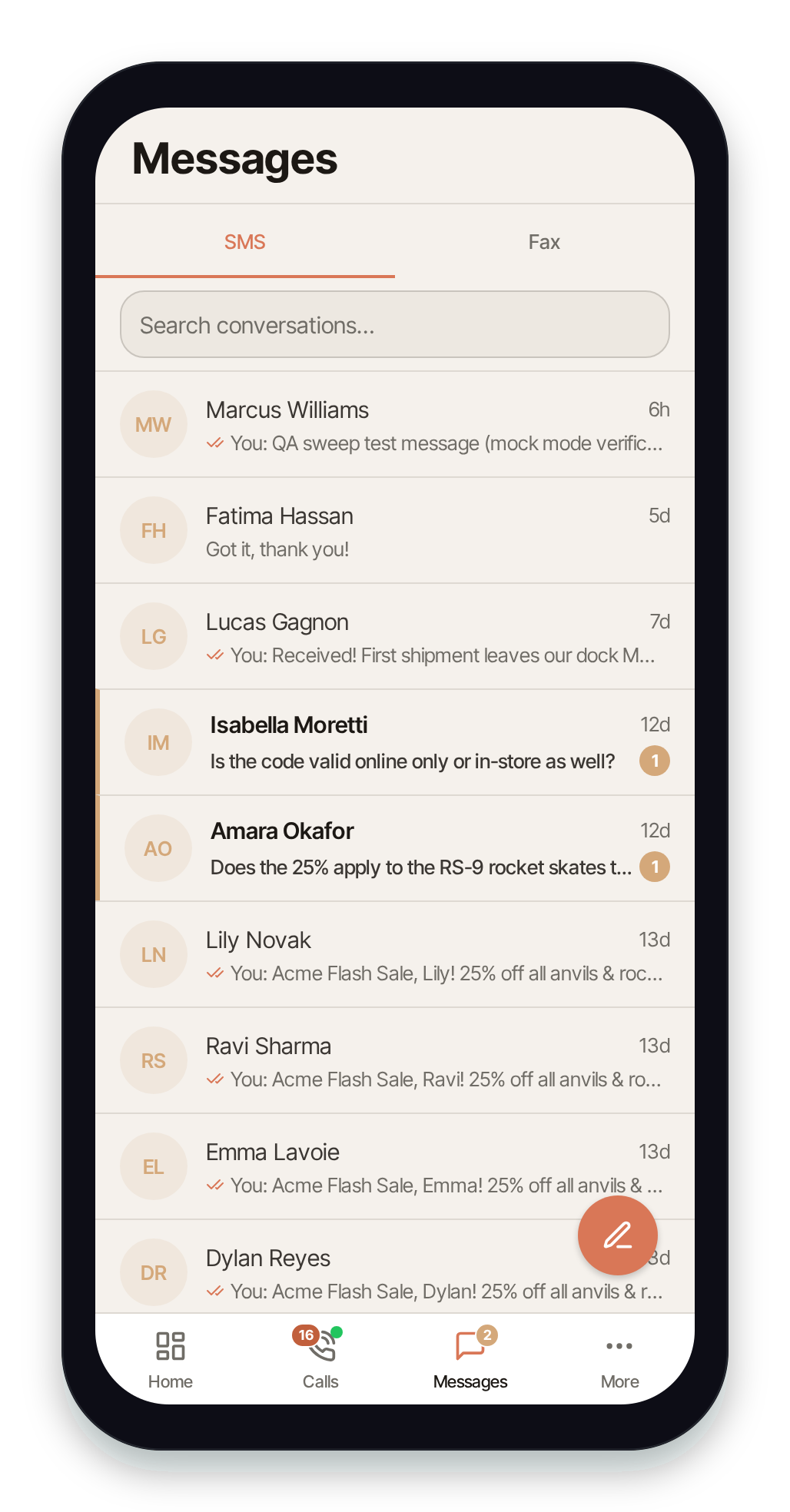
To open it, tap Messages in the bottom tab bar, then the SMS sub-tab.
The conversation list
Section titled “The conversation list”Each row is one conversation, newest activity first. A row shows the contact name (or number), a preview of the last message, the time, and an unread badge. If you have more than one messaging number, a small line badge tells you which of your numbers the thread is on.
Search
Section titled “Search”Use the search bar at the top to filter conversations. Type a name, number, or message text and the list narrows as you type. Clear the search to return to the full inbox.
Filter by your number
Section titled “Filter by your number”If your account has more than one SMS-enabled number, a row of phone chips sits below the search bar. Tap a number to show only conversations on that line; tap it again (or All) to clear the filter.
Pin, archive, mute, block, mark unread
Section titled “Pin, archive, mute, block, mark unread”Pulse gives you two ways to manage a conversation: swipe the row, or long-press it for a menu.
- Pin to Top — long-press a conversation and choose Pin to Top. Pinned threads stay at the top of the list above everything else. Long-press again and choose Unpin to release it. (Pins are stored on your device.)
- Mark Unread — long-press and choose Mark Unread to flag a thread to come back to later. It also appears in the thread’s ”…” menu.
- Mute — swipe a row and choose Mute to silence notifications for that conversation. Mute is reversible and takes effect immediately, with no confirmation. Swipe again to unmute.
- Archive — swipe a row and choose Archive to move the conversation out of your inbox. Pulse confirms before archiving.
- Delete — swipe a row and choose Delete to remove a conversation from your inbox. Pulse confirms first. This is a soft delete — message history is retained on the server for audit purposes and is not permanently erased. If that contact texts you again, or you message them, the conversation comes back to your inbox with its earlier history.
- Block Sender — long-press and choose Block Sender to hide all messages from that number. Blocked senders are hidden locally on your device; you can unblock them later from Settings.
Opening a thread
Section titled “Opening a thread”Tap any conversation row to open it. The thread shows your message history oldest-to-newest, with date separators (Today, Yesterday, or the date) between days. Opening a thread marks it as read and clears its unread badge automatically.
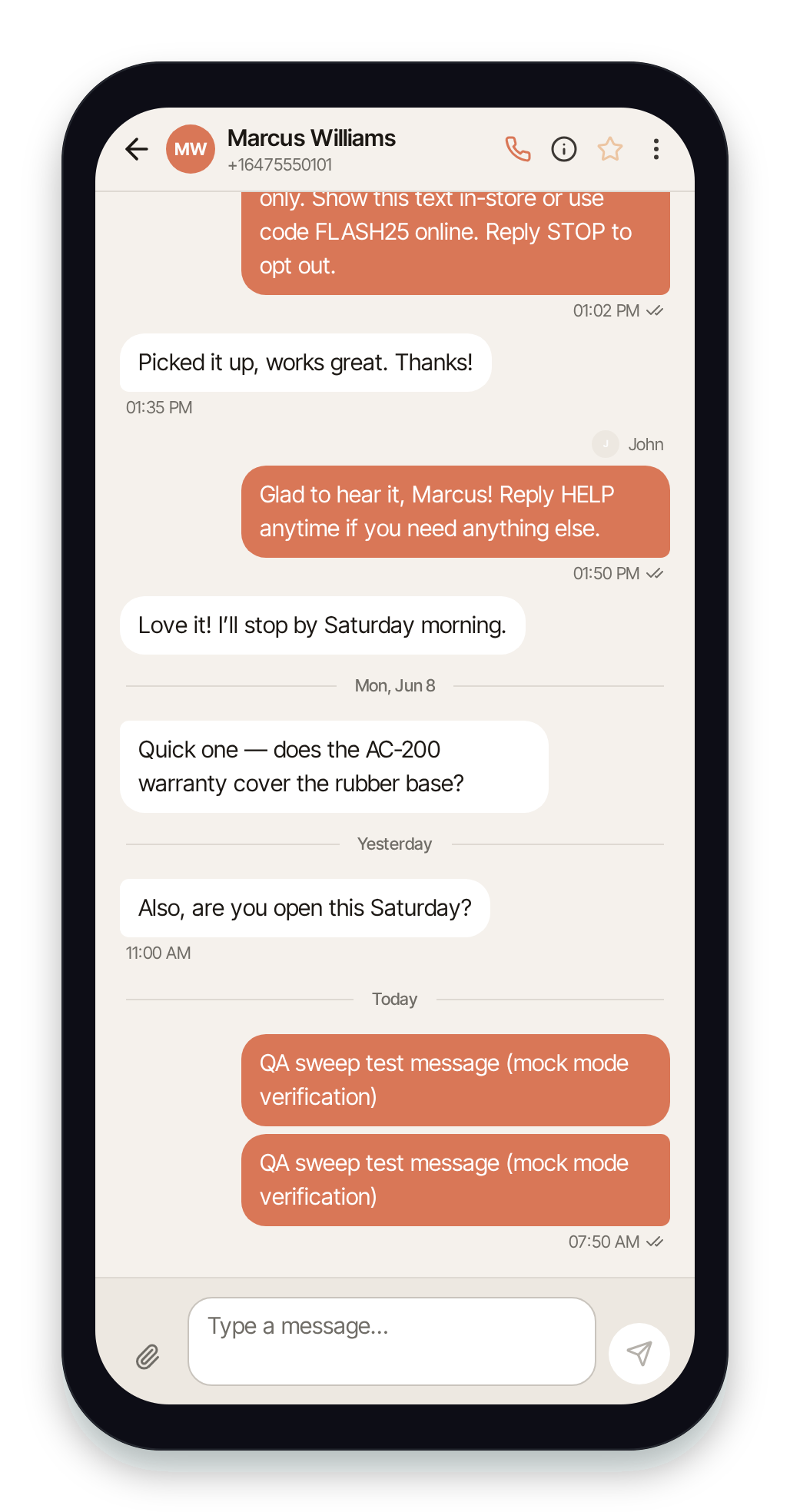
The header shows the contact’s avatar, name, and number. From the header you can:
- Tap the name or avatar (or the info icon) to open the contact info sheet.
- Tap the phone icon to call the contact on your dialpad.
- Tap the star to flag the conversation.
- Tap the ”…” (more) icon for Mark Unread, Mute / Unmute Notifications, Archive, Block / Unblock Sender, and Delete Conversation.
In a team conversation, outbound messages are attributed to the teammate who sent them, so you can tell replies apart when more than one person is texting from the shared number.
Sending a message
Section titled “Sending a message”Type in the composer at the bottom of the thread and tap Send.
- Text — enter your message and send. Messages can be up to 1,600 characters.
- MMS (pictures) — attach an image from the composer and send it with or without text. Picture messages are delivered as MMS.
Delivery status
Section titled “Delivery status”Outbound messages carry a delivery state — queued, sending, sent, delivered, read, or failed / undelivered. If a message fails, tap it to retry sending. For a detailed delivery timeline (including carrier error codes), tap a message to open its info sheet.
Real-time updates
Section titled “Real-time updates”The SMS tab and open threads update live. New inbound messages, delivery status changes, and reads pushed from the server appear without a manual refresh. You can also pull down on the list to refresh manually.
Compose a new message
Section titled “Compose a new message”Tap the compose button (the pencil) in the bottom-right of the SMS tab to start a fresh conversation.
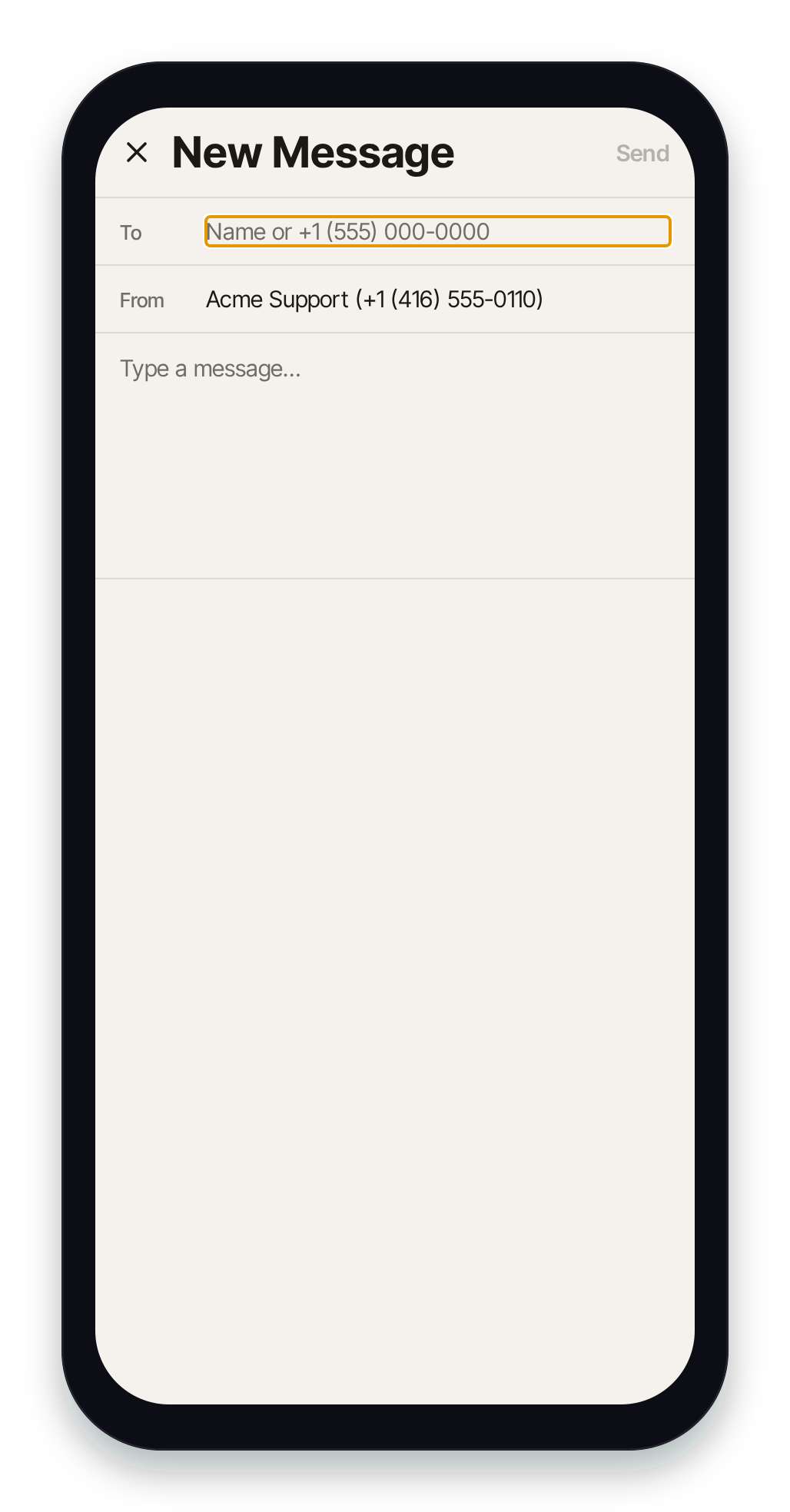
- To — type a name to search your contacts (matching contacts appear in a dropdown — tap one to select it), or type a phone number directly. A selected contact shows as a removable chip; tap the × to clear it and choose someone else.
- From — pick which of your SIPSTACK numbers to send from. If you have only one messaging number it’s selected automatically; if you have several, tap the From row to choose.
- Message — type your text, then tap Send. Pulse opens the new thread once the first message is sent.
You can also reach this screen pre-filled — for example, the Send SMS action on a call detail opens a new message addressed to that number.
Where these conversations also live
Section titled “Where these conversations also live”Pulse SMS is SIPSTACK Flare messaging surfaced on your phone. The very same conversations, contacts, and numbers appear in the Switchboard web portal. To work with them on the web — including campaigns, templates, and team reply routing — see the Switchboard Flare docs:
- Flare Conversations — the web inbox that shares these threads.
- Flare Contacts — the contact list behind the To search.
- Managing Phone Numbers — which numbers are SMS-enabled.
- Give a user permission to send texts from a number — per-number SMS access grants.
Sending requires number access
Section titled “Sending requires number access”Sending (and seeing) texts from a number requires a per-number SMS access grant. If your Messages tab is empty or you can’t pick a From number, an admin needs to grant you the number: Account → Users → your user → Phone access (toggle the number on), or Account → Phone Numbers → the number → Access (enable the SMS grant).