

Profile & Account
Profile & Account
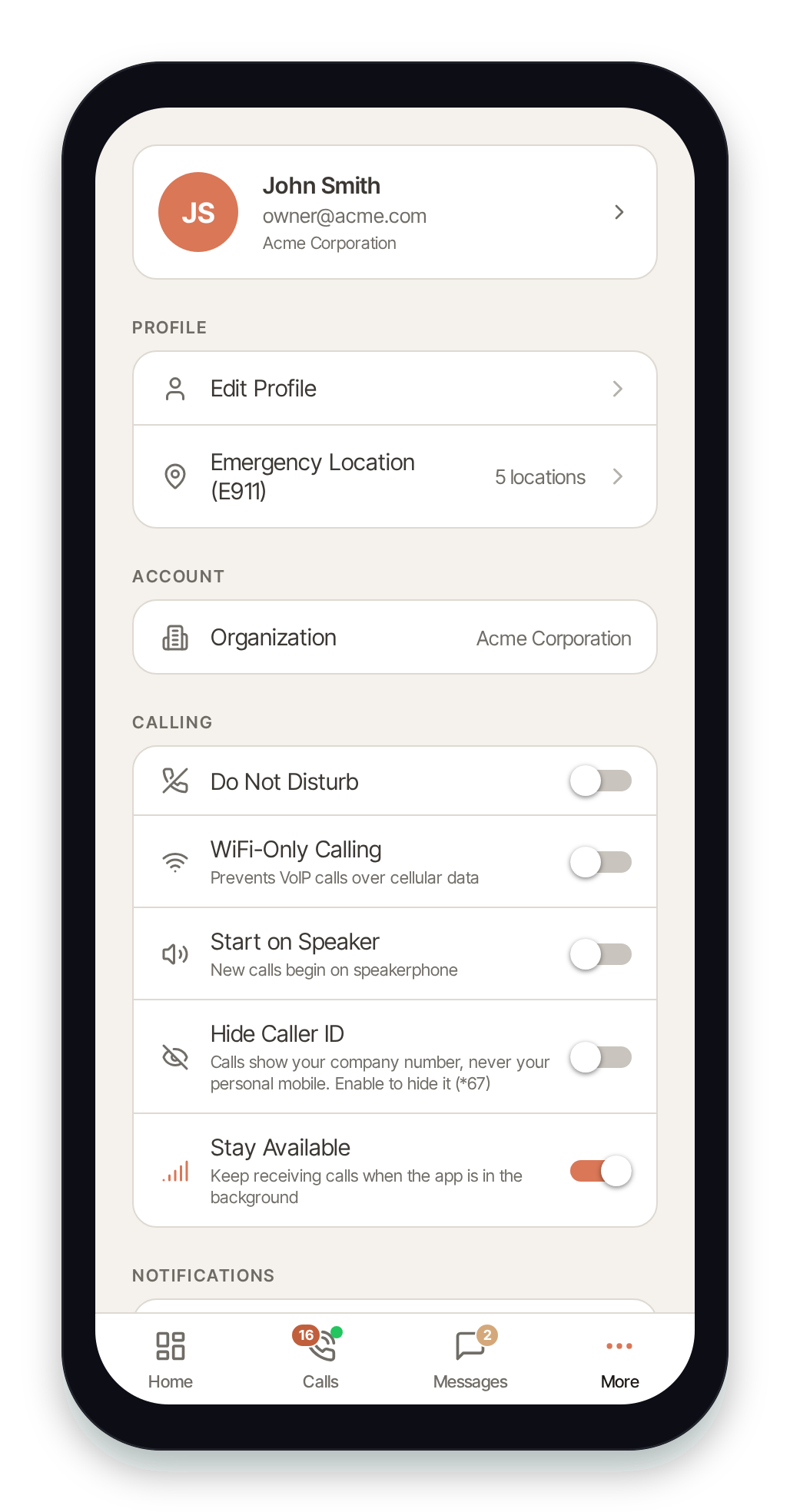
Section titled “Profile & Account”Your profile and account controls live on the More tab. Tap More in the bottom navigation to open Settings, then use the cards at the top of the screen.
Your profile card
Section titled “Your profile card”The card at the very top of More shows your avatar, name, email, and organization. Tap it (or the Edit Profile row under Profile) to open the profile editor.
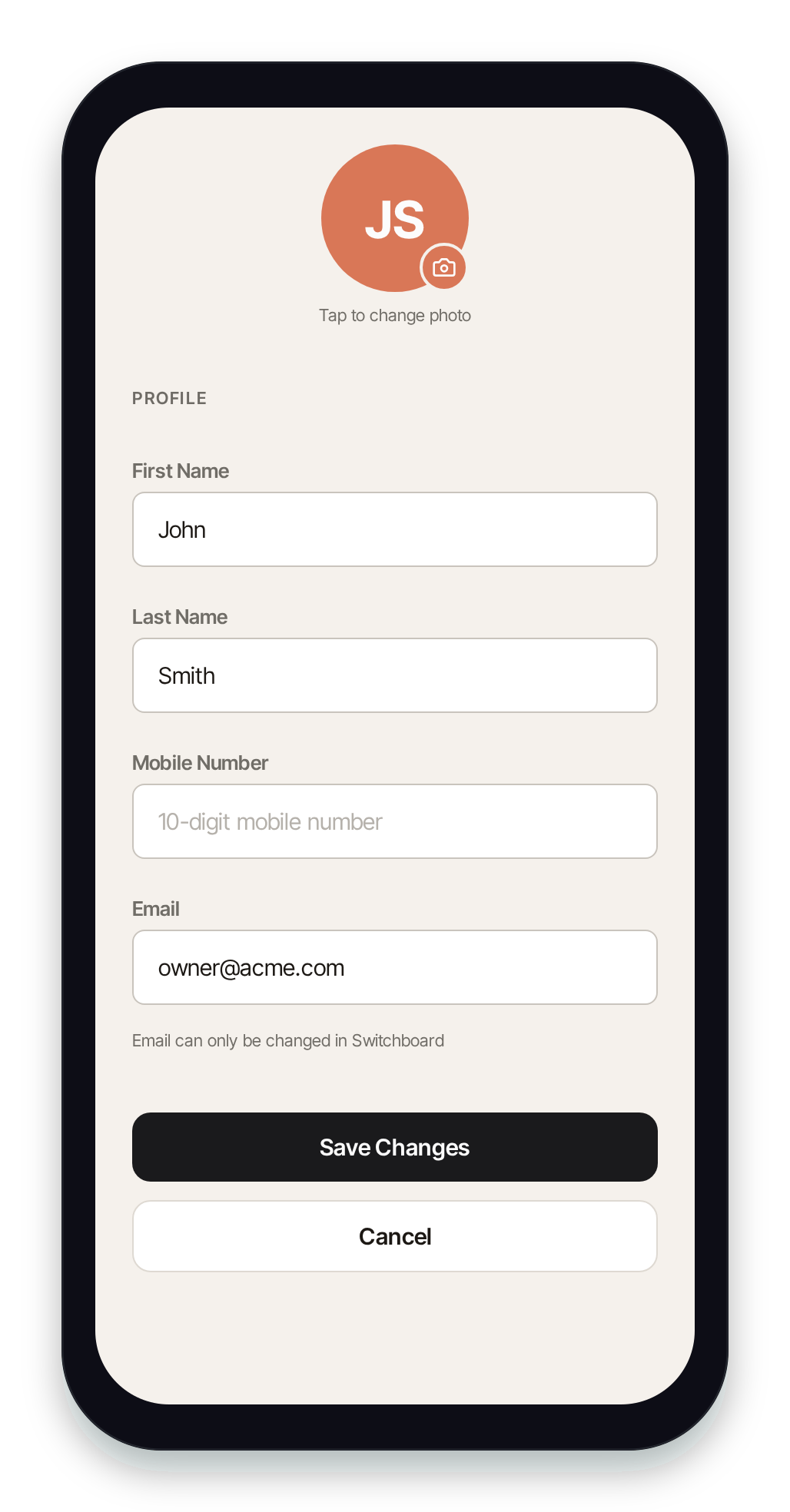
On the Edit Profile screen you can:
- Change your photo — tap the avatar (or the camera badge) and pick a JPEG or PNG from your photo library. Pulse crops it square to match the circular avatar.
- Update your first and last name.
- Update your mobile number — this is your personal mobile, used for account contact. It is not your calling number.
Tap Save Changes to apply, or Cancel to discard.
Email is read-only
Section titled “Email is read-only”Your email is shown but cannot be edited in Pulse — it is your SIPSTACK portal login. To change it, sign in to Switchboard on the web. See Users & Seats.
Account & organizations
Section titled “Account & organizations”Under the Account section you’ll find your organization.
- If you belong to one organization, you see a read-only Organization row so you can confirm which account you’re signed in to.
- If you belong to multiple organizations, you see a Switch Organization row instead. Tap it to expand the list, then tap an org to switch. The current org is marked with a check.
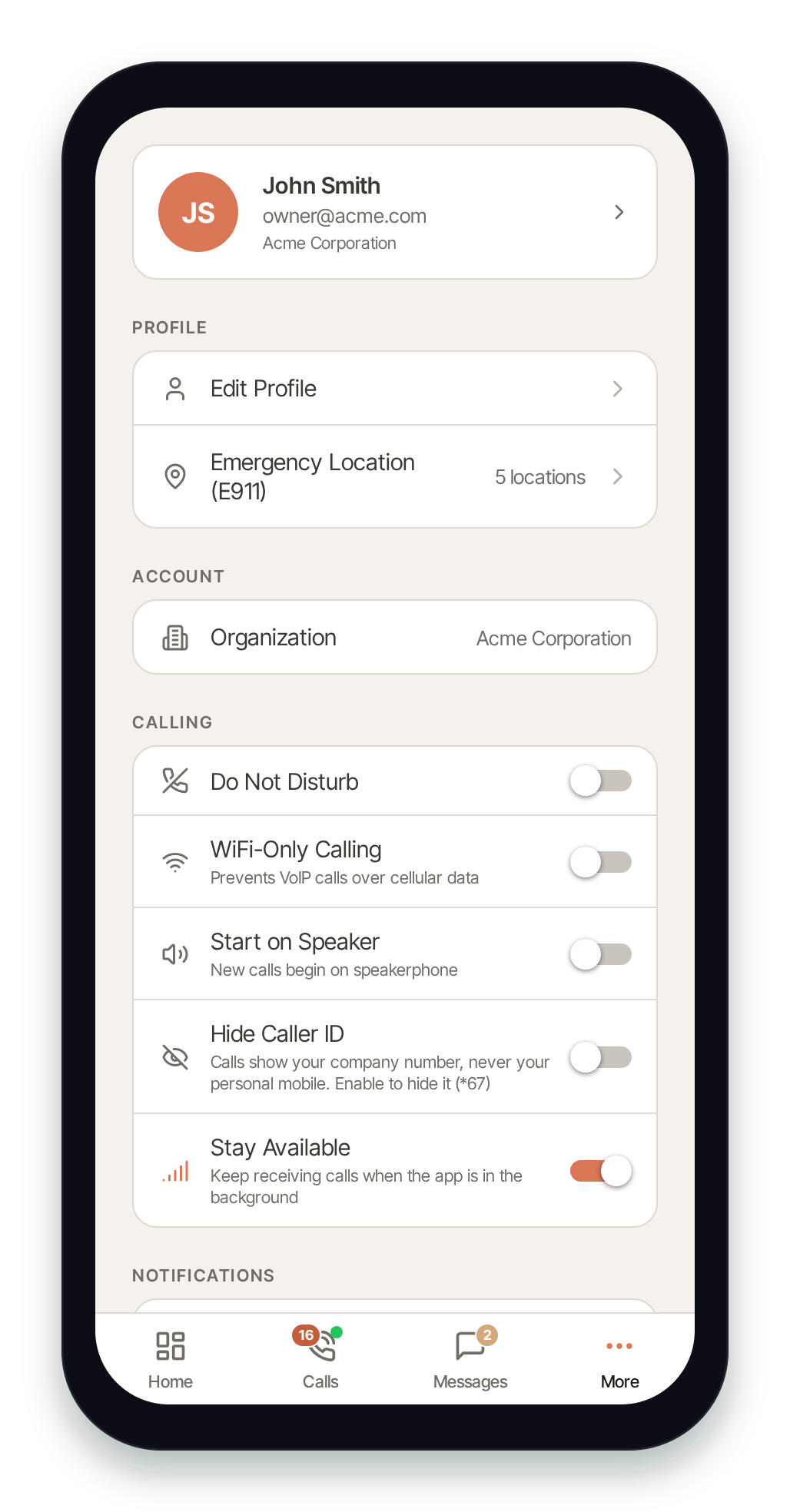
Switching organizations reloads your calls, messages, contacts, and other feature screens for the newly selected org.
About & diagnostics
Section titled “About & diagnostics”The About section (near the bottom of More) gives you support and version information:
- Help & Support, Terms of Service, and Privacy Policy open the SIPSTACK website.
- SIP Status shows whether your line is currently Registered and ready to take calls.
- Check for Updates downloads the latest Pulse update (production builds only) and prompts you to restart.
- About Pulse (vX.X.X) opens the Diagnostics screen.
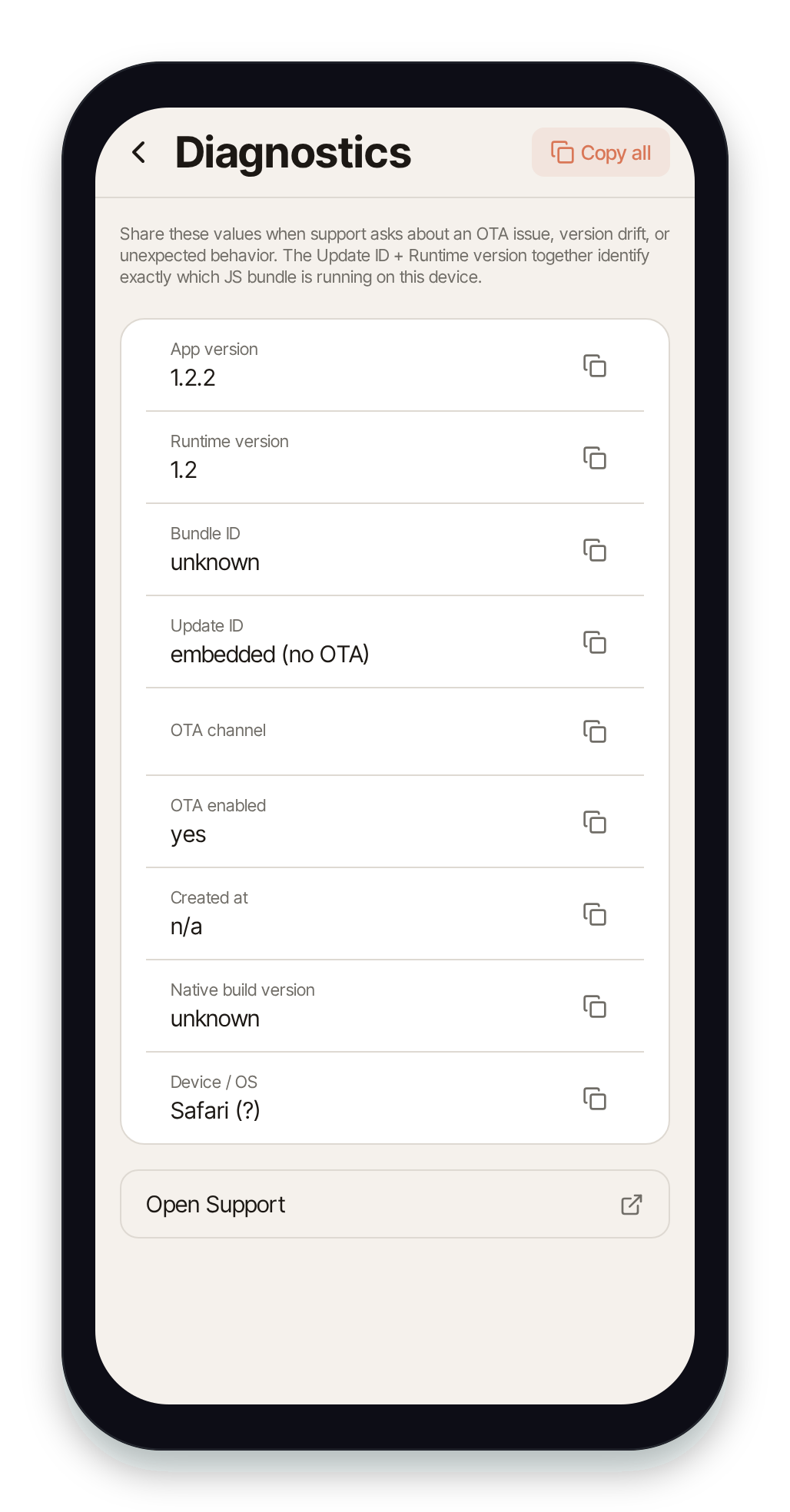
The Diagnostics screen lists your app version, runtime version, bundle ID, update ID, OTA channel, and device/OS. Tap the copy icon on any row — or Copy all in the header — when support asks you to share these values to diagnose an update or version issue.
Signing out
Section titled “Signing out”Tap Sign Out at the bottom of More, then confirm in the dialog.
When you sign out, you’ll need to re-pair this device next time you sign in — using a QR code or provisioning code from Switchboard, or your portal email and password. Your calls and messages are not affected.
See Signing In for how to sign back in.