

Making Calls (Dialpad)
Making Calls (Dialpad)
Section titled “Making Calls (Dialpad)”The Dialpad is where you place calls from Pulse. Open the Calls tab and choose the Dialpad sub-tab — it’s the first one.
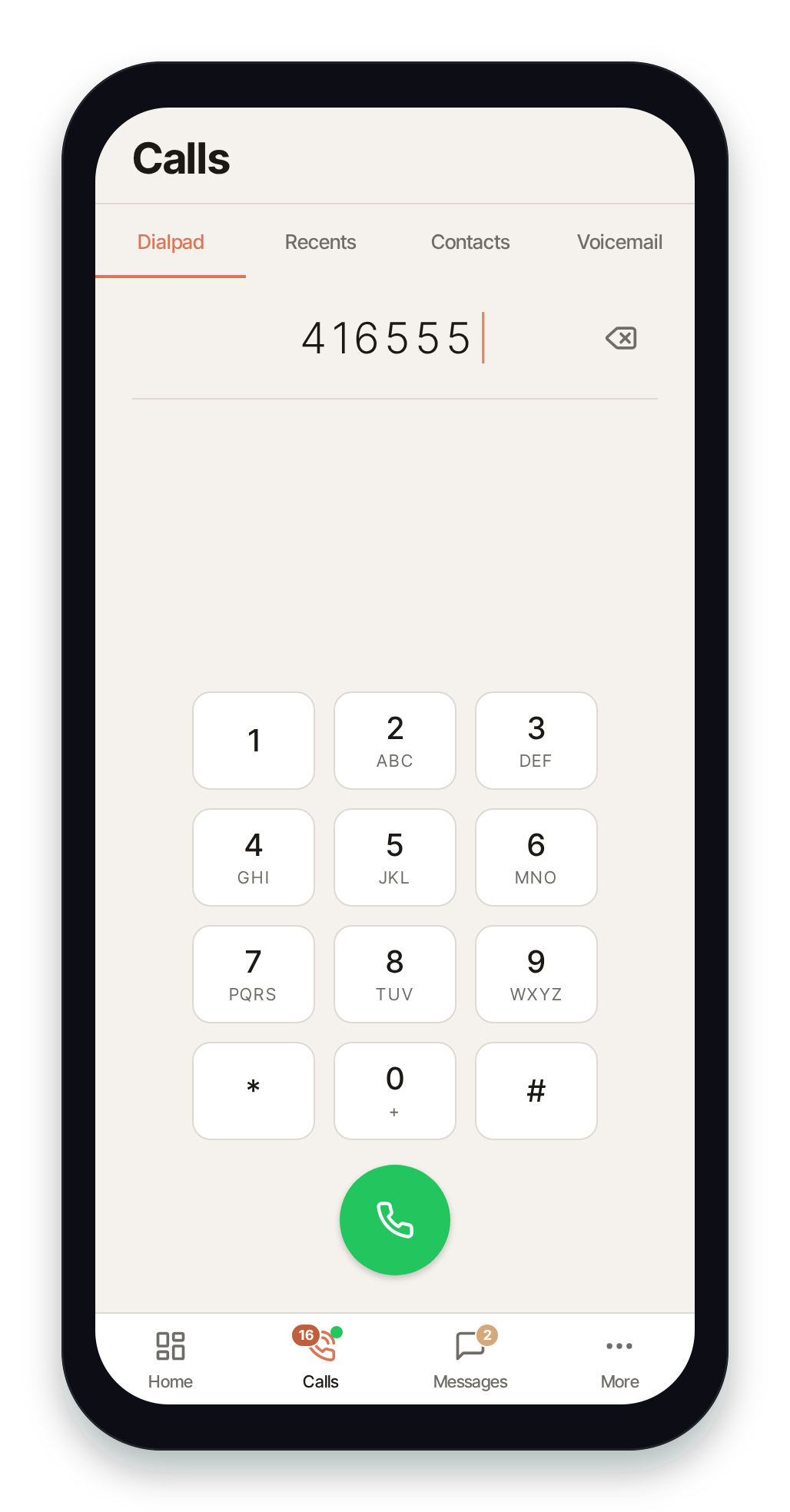
Place a call
Section titled “Place a call”- Open Calls → Dialpad.
- Tap the keys to enter a phone number or an internal extension.
- Tap the green call button to dial. Pulse opens the in-call screen and connects you.
The keypad shows the standard letters under each number, so you can dial vanity numbers as easily as on a desk phone.
Entering a number
Section titled “Entering a number”- Backspace removes the last digit. Tap and hold to clear the whole number.
- Long-press the
0key to insert a+for international dialing. - On the web and desktop apps, you can also type digits on your physical keyboard and press Enter to place the call.
Favorites
Section titled “Favorites”Contacts you’ve starred appear as favorites above the keypad for one-tap dialing. Star a contact from the Contacts tab or a call’s detail screen to add it here.
Pulse must be registered to call
Section titled “Pulse must be registered to call”The call button is only active when Pulse is registered to your extension. If you’re not registered, the button is greyed out and a status message appears beneath the keypad:
- Connecting… / Reconnecting… — Pulse is still establishing its connection. Wait a moment and try again.
- Connection Failed — Tap to Retry — tap the message to retry the connection.
- WiFi-Only Mode — Connect to WiFi to make calls — Pulse is set to only run on Wi-Fi and you’re on cellular. Connect to Wi-Fi, or change this in Calling Preferences.
If the dialpad stays disabled, see Not Registered / Can’t Call.
Related
Section titled “Related”- In-Call Controls — mute, hold, transfer, and audio routing once you’re connected.
- Call History — redial recent calls.
- Contacts — tap a name to dial.