

Change Log
Change Log
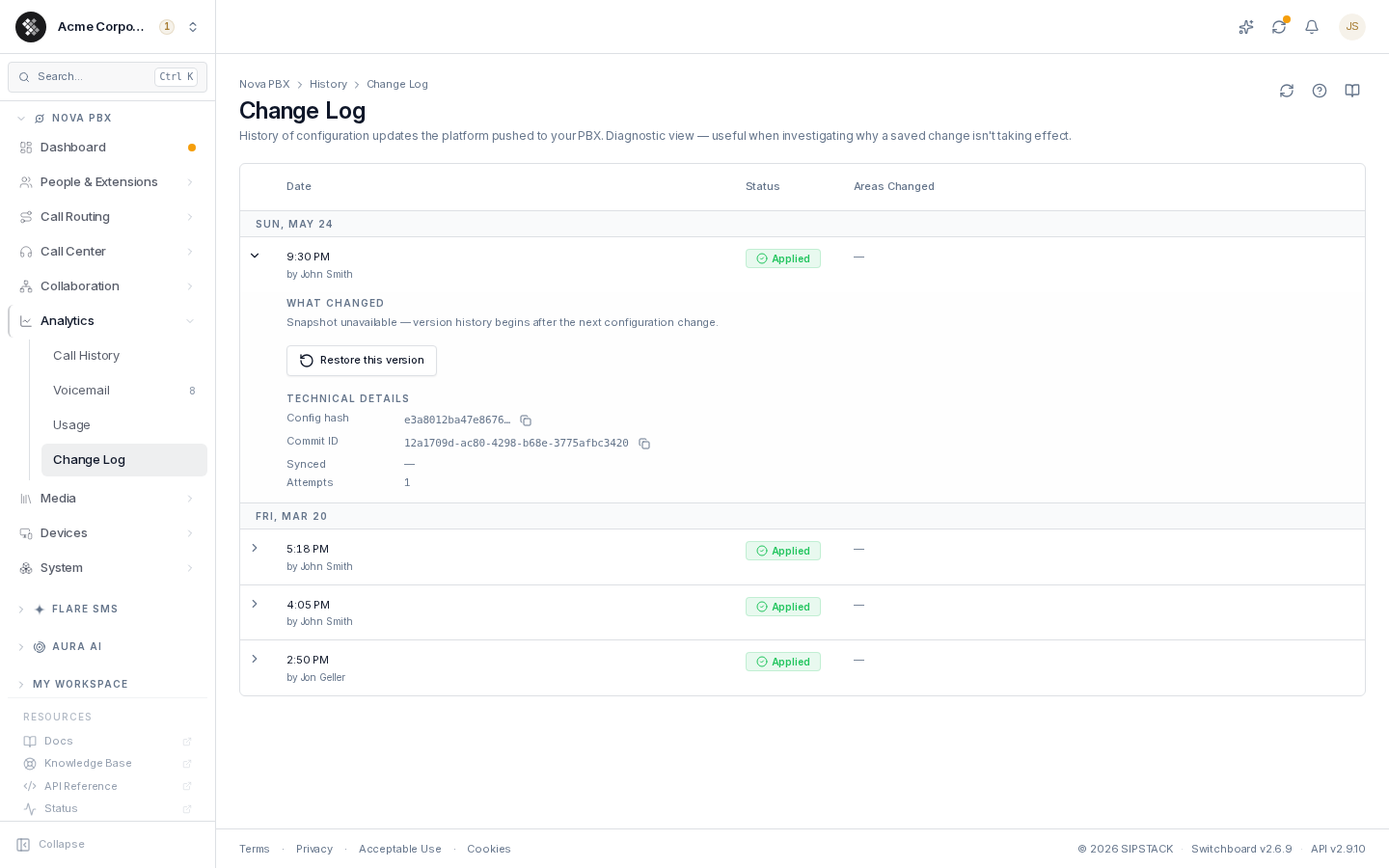
Section titled “Change Log”Nova PBX → Analytics → Change Log shows who changed what on your phone system, and when. Every time someone adds, changes or removes something — an extension, a ring group, a route, an IVR menu — it appears as one plain line:
- Deleted extension 204 — Front Desk
- Changed ring group Sales — 2 settings
- Added inbound route +1 416 555 0100
Each line shows who made the change, their role, the time, and whether it is live on your phones.
Open it when:
- A change you saved isn’t taking effect (look for Failed or Waiting to apply)
- A greeting plays as silence even though the menu or queue looks right (look for Partly applied)
- Something stopped working and you need to know what changed, when, and who changed it
- You’re reviewing configuration changes for your records
- You need to roll back to a known-good version
Access requires the Manage PBX settings and devices permission — the same permission that gates PBX Settings. It covers both viewing this page and using Restore.
If you manage this organization as a partner, you can read the change log but not Restore from it: a restore is applied with your own organization’s permissions, which do not carry into a customer’s PBX.
Times and time zone
Section titled “Times and time zone”All times are shown in your phone system’s time zone (set in PBX Settings), not your computer’s. Changes are grouped by day — Today, Yesterday, then the date — in that same time zone, so a change made at 7:30 PM in Toronto is listed on the Toronto day, wherever you are reading from. The zone in use is printed above the list.
Who made the change
Section titled “Who made the change”- A person’s name with their role badge (Owner, Admin, Member, …) — someone on your team saved it.
- SIPSTACK support — our support team made the change on your behalf.
- Automatic — the platform made the change itself (for example, a scheduled update).
Routine automatic re-syncs that changed nothing are hidden by default. Turn on Show automatic syncs to include them.
Statuses
Section titled “Statuses”- Applied — live on your phones.
- Waiting to apply — saved, but not on your phones yet. It is applied within about a minute, or when you click Apply Changes. A change that stays here for more than a few minutes suggests the phone system is slow to respond — contact support.
- Partly applied — your settings ARE live, but one or more audio files (an IVR greeting, queue announcement or voicemail greeting) did not upload. Callers hear silence where that recording should play. Re-upload the audio on the item it belongs to and apply again.
- Failed — not applied; your phones still run the previous settings. Save the change again; if it fails again, contact support with the Change ID from the row’s details.
Seeing the details
Section titled “Seeing the details”Click the arrow at the end of a row to expand it:
- Changed items show a Setting / Before / After table with every setting that changed, in plain names (“Ring time (seconds)”, “Caller ID name”). Passwords and PINs are never shown — they read Hidden.
- Added and deleted items list their main settings, so you can see what was created or what was removed.
- Things that were set up or removed together with the item are summarised in one line, for example “Also removed its voicemail box and phone login.”
Applied changes also show technical details for support: the Change ID and the configuration fingerprint (identical fingerprints mean identical configurations).
Filtering
Section titled “Filtering”Use the bar above the list to narrow it:
- Type — extensions, ring groups, queues, IVR menus, routes, and so on
- Person — one team member, or Automatic
- From / To — a date range, in your phone system’s time zone
- Search — a name or number, such as
204orFront Desk
The newest changes come first. Click Load more at the bottom for older ones.
Restoring an earlier version
Section titled “Restoring an earlier version”Every applied change has a Restore this version button in its expanded details.
What a restore does:
- Shows a preview first — exactly which items would be added, changed, and removed compared to your current live configuration. Nothing changes until you confirm.
- Applies only the differences. Unchanged settings are untouched.
- Never touches data: your voicemail messages, call recordings, and call history are not part of configuration and are never altered by a restore.
- Adds a new entry to the Change Log (plus an automatic recovery point of the pre-restore state). History is append-only — a restore can itself be undone by restoring the version just before it.
When a restore is blocked: if rolling back would delete an extension that still owns data the platform won’t silently destroy, the preview lists the blockers and the Restore button stays disabled. Remove those items manually, then restore. If the preview reports the version already matches your current configuration, there is nothing to do.
Changes made before the Change Log kept full version history can’t be restored; the preview says so.
Retention
Section titled “Retention”The Change Log loads the most recent changes first; Load more goes further back. The platform retains configuration history beyond what is listed for compliance — contact support if you need older records.