

Call History (CDRs)
Call History (CDRs)
Section titled “Call History (CDRs)”Nova PBX → Analytics → Call History is the row-by-row record of every call your phone system has handled — one row per call, with caller, callee, duration, outcome, and (where captured) the recording, transcript, and AI analysis. Use it for auditing specific calls, resolving disputes (“did this caller reach us at 3:47pm yesterday?”), and spreadsheet exports.
Viewing this page requires the View call history permission (nova.cdr.view_all). Users without it see their own calls under My Workspace instead.
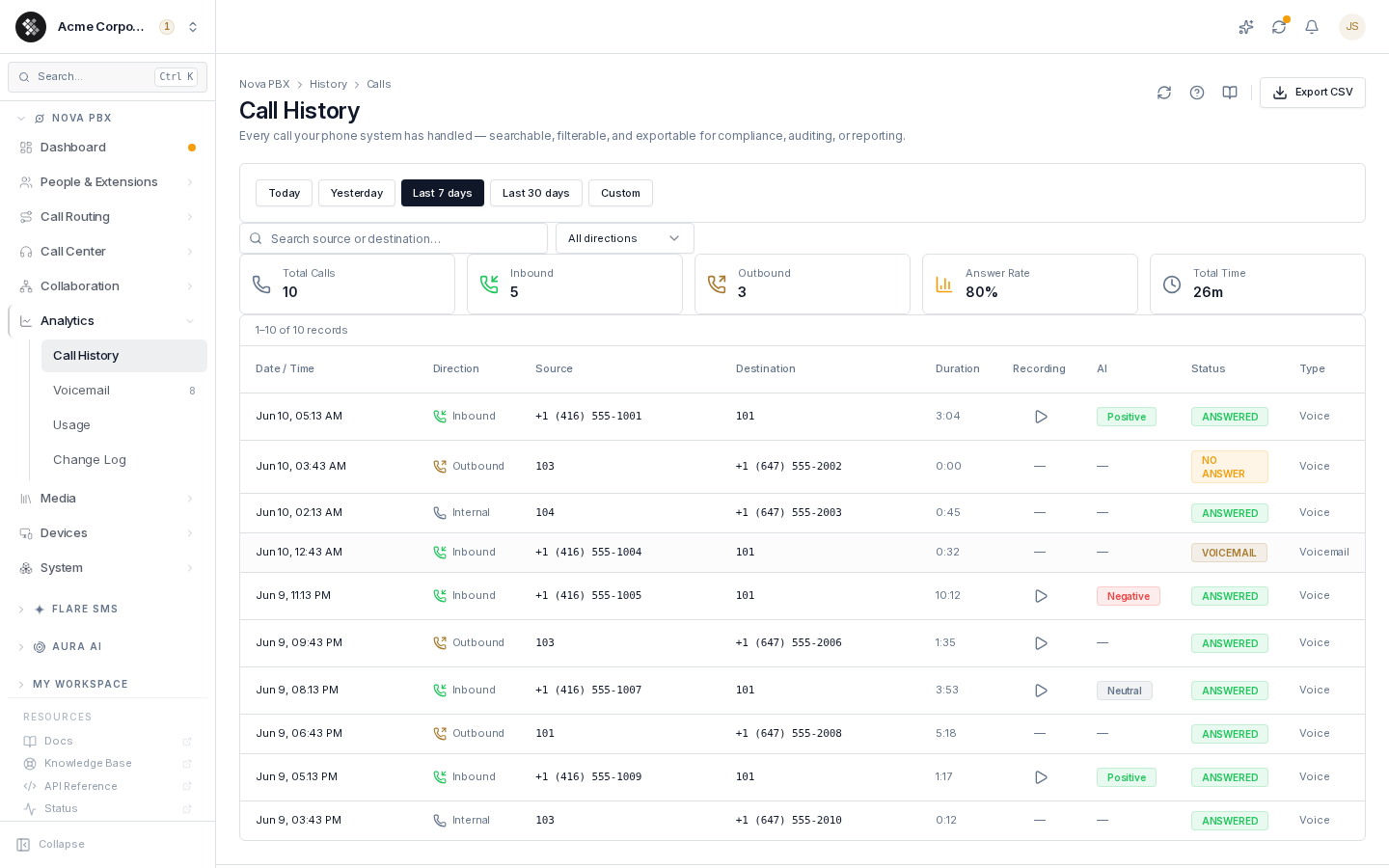
Reading the table
Section titled “Reading the table”| Column | What it shows |
|---|---|
| Date / Time | When the call happened, in your browser’s timezone. |
| Direction | Inbound (someone called you), Outbound (you called out), or Internal (extension to extension). |
| Source / Destination | Caller and callee. External numbers are formatted for readability — +14165551234 displays as +1 (416) 555-1234; internal extensions stay as 3–4 digit numbers. |
| Duration | mm:ss of the connected portion. 0:00 means the call never connected. |
| Recording | ▶ — play the recording inline. A lock icon — a recording exists but your role lacks the Listen to recordings permission (nova.recordings.listen). A dash — no recording was captured. |
| AI | Aura’s analysis state for the call’s recording: a sentiment badge (Positive / Neutral / Negative) once processing completes, or a progress indicator while it runs. |
| Status | The call’s disposition — see below. |
| Type | Voice, voicemail, fax, or voice agent (a call handled by an Aura AI agent). |
Transferred and forwarded calls
Section titled “Transferred and forwarded calls”Some rows carry a short grey line under the caller:
- Transferred by x201 (or Transferred by Front Desk (x201)) appears when someone at that extension blind-transferred the call to its current destination.
- Forwarded from +1 (416) 555-0144 appears when an extension’s call forwarding (always, busy, or no answer) sent an incoming call to an outside number. On that row, Source shows your own number, because that is the caller ID the forwarded call goes out with. The grey line names the person who actually called.
A row shows at most one of these lines. When a call was both transferred and forwarded, Transferred by wins.
Dispositions
Section titled “Dispositions”- Answered (green) — the call connected (duration > 0).
- No Answer (yellow) — the call never connected: ring-out, busy, or abandoned.
- Voicemail (blue) — the call routed to a voicemail box (whether or not the caller left a message).
Summary cards
Section titled “Summary cards”The five cards above the table — Total Calls, Inbound, Outbound, Answer Rate, Total Time — are computed across the entire filtered date range, not just the 50 rows on screen, so they always agree with the record counter.
Filtering
Section titled “Filtering”Date range. Preset buttons (Today / Yesterday / Last 7 days / Last 30 days) or Custom with explicit start and end dates. All ranges are interpreted in your browser’s timezone — “Today” is your local calendar day, midnight to midnight.
Search. Matches against source or destination, with partial matches — type 416 to find every call to or from a 416 number. Search applies to the whole range server-side, so the record counter and summary cards update with it.
Direction. Narrow to Inbound, Outbound, or Internal. This filter applies to the rows currently on screen.
Call detail, recordings, and transcripts
Section titled “Call detail, recordings, and transcripts”Click any row to open the call detail panel:
- Overview — direction, duration, from/to, and an inline recording player (when a recording exists and you have the listen permission). A Download recording link appears under the player only if you also hold a download permission — downloading is granted separately from playback. See Who can play and download recordings.
- Transcript — the diarized, speaker-labeled transcript. Click any line to jump the audio to that moment. Calls that weren’t transcribed automatically show a Transcribe this call button.
- Insights — Aura’s one-line summary, sentiment label, and topics & keywords for the call. Features your plan doesn’t include show as locked rows.
Calls blocked by the destination carrier
Section titled “Calls blocked by the destination carrier”When the destination carrier rejected an outbound call because its spam analytics flagged the caller ID, the Overview shows this notice below the call details:
Blocked by destination carrier (spam analytics) The receiving network flagged this caller ID. Register the number’s reputation with the carriers or contact support.
The notice appears only on calls the destination carrier rejected this way. The caller hears a short announcement saying that the network of the number they called declined the call, possibly because their caller ID was flagged as spam. It does not say the number is not in service. The same notice appears on users’ own call history and in Pulse.
You can also play a recording directly from the table’s ▶ button without opening the detail panel.
For the full story on diarized transcripts, sentiment, summaries, and what your plan includes, see Transcription & Call Intelligence.
Exporting to CSV
Section titled “Exporting to CSV”Export CSV downloads the rows currently on screen (up to 50, respecting your filters) with date, direction, type, source, destination, duration, and status columns. For a larger export, narrow the date range page by page, or contact support for a bulk pull.
Tips & limits
Section titled “Tips & limits”- The list paginates at 50 rows; use Previous / Next at the bottom of the table.
- Call history is append-only — records can’t be edited or deleted from the portal. Contact support for compliance redactions.
- For aggregate analytics — per-hour volume, queue SLAs, agent performance — use Call Center → Reporting instead; Call History is for individual calls.