

Feature Codes
Feature Codes
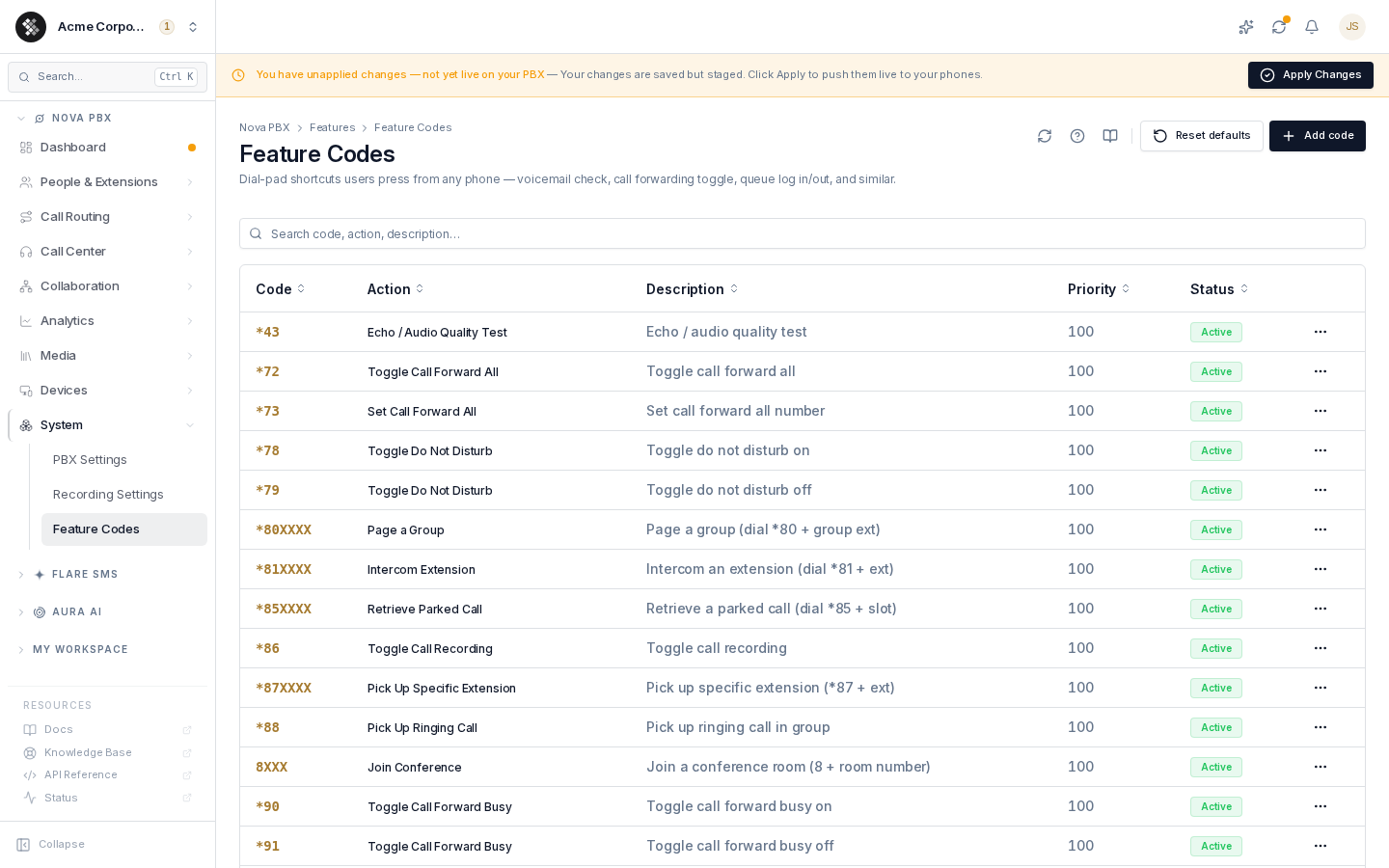
Section titled “Feature Codes”Feature codes are short dial-pad shortcuts (usually * + digits) that trigger PBX features from any phone — no portal needed. The platform ships a standard set; you only edit this page to resolve a code conflict or add a custom shortcut. Navigate via the sidebar: Nova PBX → System → Feature Codes.
Related pages: Extensions · Queues · Paging Groups · Parking Lots
Default codes
Section titled “Default codes”These are the platform defaults (restored by Reset defaults):
| Code | Action | What it does |
|---|---|---|
*97 | Check Voicemail | Open your own mailbox to listen to messages and record greetings (PIN may be required). |
*98 | Dial / Access Voicemail | Access another mailbox — *98 prompts you for the mailbox number, then its PIN, and drops you into that mailbox. |
*98 + ext | Access Voicemail (direct) | Go straight into a specific mailbox, e.g. *981005 accesses extension 1005’s mailbox (wildcard code *98XXXX). |
*55 + ext | Transfer to Voicemail | Send a caller straight to an extension’s voicemail: transfer the call to *55 + ext (e.g. *551005) and the caller hears that mailbox’s greeting and leaves a message — the phone never rings. Dialled yourself, it leaves a message in that mailbox (wildcard code *55XXXX). |
*43 | Echo Test | Audio loopback — speak and hear yourself back to test audio quality and latency. |
*72 | Toggle Call Forward All | Turn forward-all on/off for your extension. |
*73 | Set Call Forward All | Set the number that forward-all sends calls to. |
*78 / *79 | Toggle Do Not Disturb | DND on / off. |
*90 / *91 | Toggle Call Forward Busy | Forward-when-busy on / off. |
*92 / *93 | Toggle Call Forward No Answer | Forward-when-unanswered on / off. |
*88 | Pick Up Ringing Call | Answer a call ringing on another phone in your pickup group. |
*87 + ext | Pick Up Specific Extension | e.g. *871005 answers the call ringing at extension 1005. |
*80 + group | Page a Group | e.g. *804001 opens one-way audio to the phone in paging group 4001 (a paging group pages one phone). |
*81 + ext | Intercom an Extension | Two-way intercom that auto-answers on the target phone. |
*85 + slot | Retrieve Parked Call | e.g. *85701 picks up the call parked in slot 701. |
*86 | Toggle On-Demand Recording | Turn the extension’s on-demand recording permission on or off. Plays “not available” when an administrator has recording turned off for the extension. |
9 + queue | Dial a Call Queue | e.g. 9100 drops you into queue 100 (wildcard code 9XXX). |
8 + room | Join a Conference | e.g. 8500 joins conference room 500 (wildcard code 8XXX). |
*11 | Hot Desking Log In | On a shared phone with hot desking turned on, log in as your extension: enter your extension then #, then your voicemail PIN then #. Nova Ultra. Not available by default — contact SIPSTACK Support to have hot desking enabled; until then the code plays “invalid” like an unknown code. See Hot Desking. |
*12 | Hot Desking Log Out | Log out of the shared phone you’re logged in to. Not available by default (see *11). |
*45 | Queue Agent Log In | Become available in every call queue your extension belongs to (also ends a pause). |
*46 | Queue Agent Log Out | Log out of your call queues; queue calls stop ringing your phone until you dial *45. |
*47 | Queue Agent Pause | Pause in your call queues without logging out; dial *45 to resume. Plays “not available” if your extension is not a queue agent. |
Codes followed by + ext, + group or + slot work with 3-, 4- and 5-digit numbers, e.g. *87101, *871005 and *8710005.
In-call keys
Section titled “In-call keys”These work during a connected call. They are not dialled from the keypad as a new call, so they never clash with the codes above.
| Key | What it does |
|---|---|
#1 | Blind transfer: enter the extension or number and the call is handed over. |
*2 | Attended transfer: talk to the other person first, then complete the transfer. |
*9 | Start or stop recording this call, if on-demand recording is allowed for your extension. |
Phones that SIPSTACK provisions are set up to match: directed pickup *87, group pickup *88, park-retrieve *85, and the voicemail key *97. To park a call, transfer it to your parking lot’s park extension (see Parking Lots).
The codes table
Section titled “The codes table”| Column | Meaning |
|---|---|
| Code | The dial pattern. X is a single-digit wildcard — *80XXXX matches *80 followed by any four digits. |
| Action | What the platform does when the code is dialed. |
| Description | Free-form note shown to administrators. |
| Priority | Lower = checked first when multiple patterns could match. Default 100. |
| Status | Active (works) or Disabled (silently ignored). |
The search box filters by code, action, and description. Click a row to edit.
Adding or editing a code
Section titled “Adding or editing a code”- Click Add code (or click an existing row).
- Enter the code — use
Xper wildcard digit for parameterized codes. - Pick the action from the catalogue (voicemail, DND, pickup, paging, intercom, parking retrieve, queue, conference, day/night toggle, recording, and more).
- Optionally set a description, priority, and enabled state.
- Save, then Apply Changes to push the dial plan to your PBX.
Codes carrying an action value from an older release show it as “(legacy)” in the action picker — you can keep it or move the code to a current action.
Reset to defaults
Section titled “Reset to defaults”Reset defaults deletes every configured code (including custom ones) and restores the standard set above. This cannot be undone — note your custom codes before resetting.
Troubleshooting
Section titled “Troubleshooting”- A code returns “invalid” or busy — confirm it’s Active, the dialed digits match the pattern exactly, and the action is one your platform implements. A code pointing at an action with no dialplan support (from a hand-edited or legacy row) will fail; pick a current action from the catalogue or remove the code.
- Phone waits after dialing — most SIP phones need a Send/Dial press after a star code, or wait out the inter-digit timeout.
- Two patterns overlap — the more specific pattern wins; use Priority to override.