

Extensions
Extensions
Section titled “Extensions”An extension is a numbered SIP endpoint within your Nova PBX — a desk phone, a softphone, or the Pulse mobile app. Each person (or shared device) that makes and receives calls needs one. Navigate via the sidebar: Nova PBX → People & Extensions → Extensions.
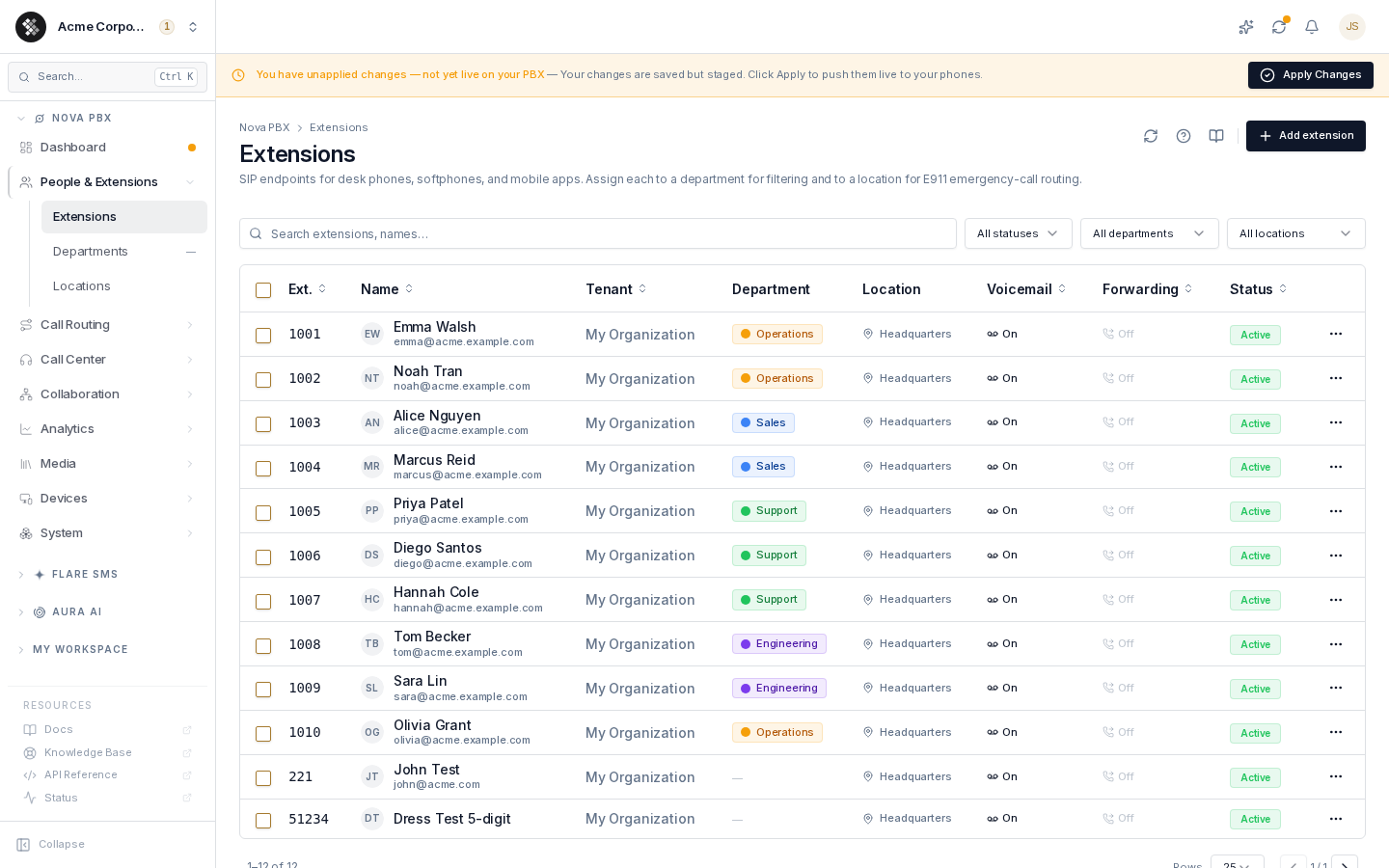
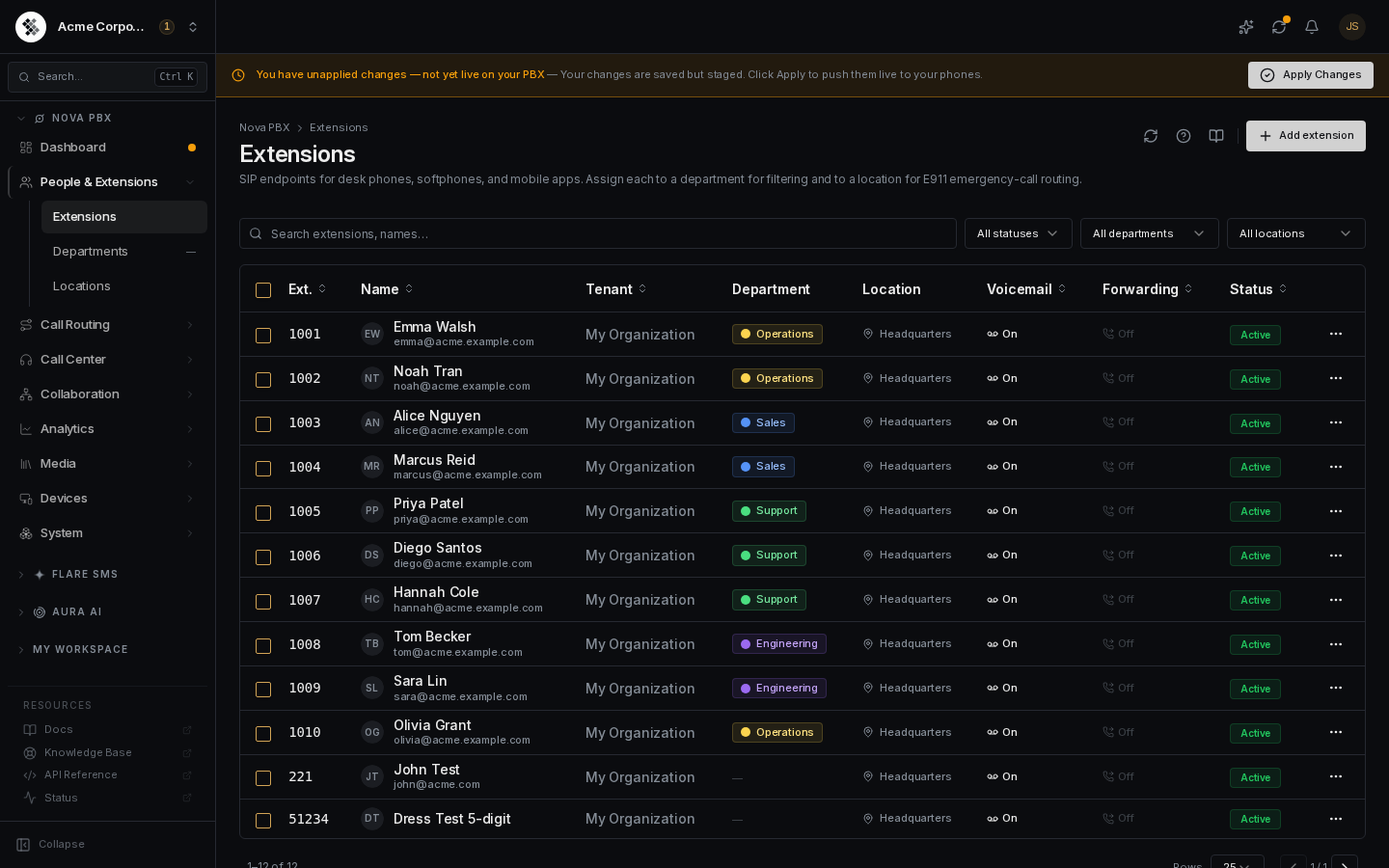
The extensions table
Section titled “The extensions table”| Column | Meaning |
|---|---|
| Ext. | The internal extension number (3–10 digits, e.g. 1001). What teammates dial to reach this person. |
| Name | Display name (shown on caller ID and the phone screen) with the email underneath when set. |
| Tenant | Your account’s PBX namespace — set during setup, doesn’t change. |
| Department | Optional organizational tag with a color swatch. Used for filtering and reporting; doesn’t affect call routing. |
| Location | The physical address used for E911 emergency-call routing. A “No location” warning badge shows until one is assigned. |
| Voicemail | Whether the extension has a voicemail mailbox (On/Off). |
| Forwarding | The forward-all target when call forwarding is enabled, otherwise Off. |
| Devices | Live device state — see the four states below. Click it for per-device detail. |
| Status | Active (registers and rings) or Disabled (stops registering; inbound fails over). |
Click any row to open the nine-tab extension editor.
The Devices column
Section titled “The Devices column”Live state from the SIP edge, refreshed automatically. Click any cell to open the device detail panel.
| State | Meaning |
|---|---|
| Online | At least one device is registered right now. The number beside it is how many. |
| Push | Nothing is registered, but a signed-in Pulse mobile app can be woken by a push notification when a call arrives — the phone is reachable. See why a signed-in Pulse app shows this way. |
| Offline | Nothing is registered and no app is reachable by push. Calls go to voicemail or the forwarding target. |
| Unknown | We could not read live state just now — for example the registrar was briefly unreachable, or the account has not been assigned a region yet. Hover for the specific reason. Unknown is not offline: phones already registered keep working normally; only our view of them is affected. |
Search and filters
Section titled “Search and filters”The search box matches extension numbers and names as you type. The toolbar adds three dropdown filters:
- Status — Active vs Disabled
- Department — one team, or “No department”
- Location — one office, or “No location”
Active filters appear as removable chips above the table; click the ✕ on a chip to clear it.
Row actions
Section titled “Row actions”The ⋯ menu at the end of each row offers:
- View / edit — opens the extension editor (same as clicking the row)
- Delete — permanently removes the extension after a typed confirmation (you must type the extension number)
Bulk actions
Section titled “Bulk actions”Select rows with the checkbox column to act on many extensions at once:
- Apply profile — assign a phone profile (self-service permission template) to every selected extension in one pass
- Delete — bulk-remove the selected extensions (typed confirmation required)
Adding an extension
Section titled “Adding an extension”- Click Add extension in the top-right.
- Enter the extension number (3–10 digits, unique within your PBX), a display name, and an optional email (used for voicemail-to-email and portal self-service login).
- Click Create extension.
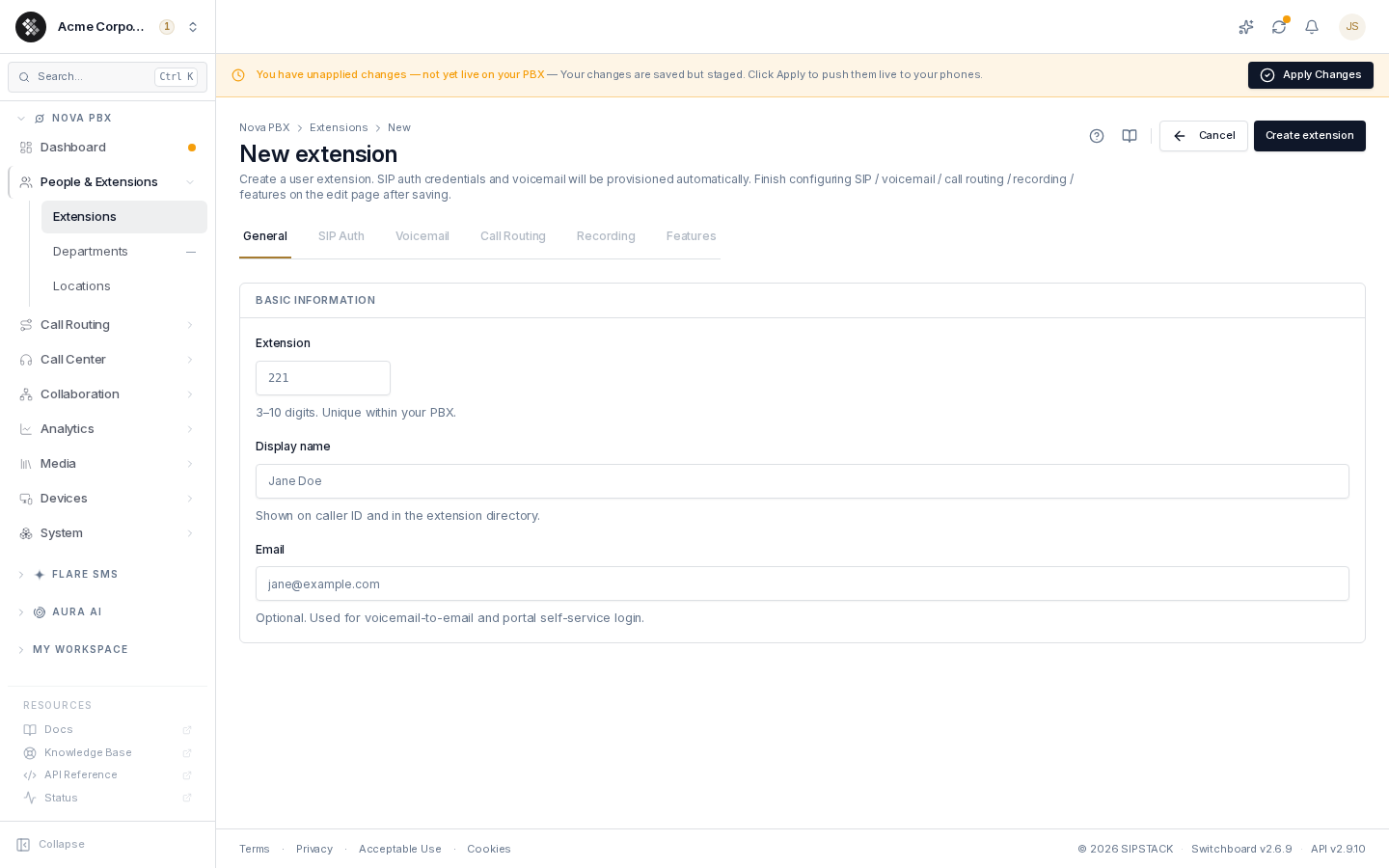
SIP credentials and a voicemail mailbox are provisioned automatically. After saving you land on the extension editor where the remaining tabs unlock — assign a department and an E911 location on the General tab there.
E911 and locations
Section titled “E911 and locations”Assign every extension to a location. When a phone dials 911, the location’s validated dispatchable address is what emergency dispatchers see — this is required under RAY BAUM’s Act §506. Extensions without a location show a warning badge in the list and a warning panel in the editor; their 911 calls dispatch using whatever DID is configured for outbound caller ID, which may not match the caller’s actual location.
Locations are managed under Nova PBX → People & Extensions → Locations. Add one per physical address you operate from.
Disabling vs deleting
Section titled “Disabling vs deleting”- Disable (Active toggle on the editor’s General tab) — the extension stops registering and inbound calls fail over, but the number, voicemail, and configuration are preserved. Use this when someone leaves temporarily or you want to keep history.
- Delete (row menu or bulk action) — permanently removes the extension along with its voicemail and call-flow rules. Update any ring groups, IVR keys, or inbound routes that referenced it.
Emergency-route compliance banner
Section titled “Emergency-route compliance banner”If your account has voice extensions but no enabled emergency outbound route, a red banner appears above the table: 911 calls would die in routing without reaching a PSAP (a Kari’s Law §9.10 violation). Follow the banner’s link to add an emergency outbound route.
Related pages
Section titled “Related pages”- Adding & Editing Extensions — the full nine-tab editor reference
- Departments — organizational tags for filtering
- Locations & E911 — dispatchable addresses
- Phone Profiles — self-service permission templates
- Voicemail — tenant-wide voicemail features