

Voice Library
Voice Library
Section titled “Voice Library”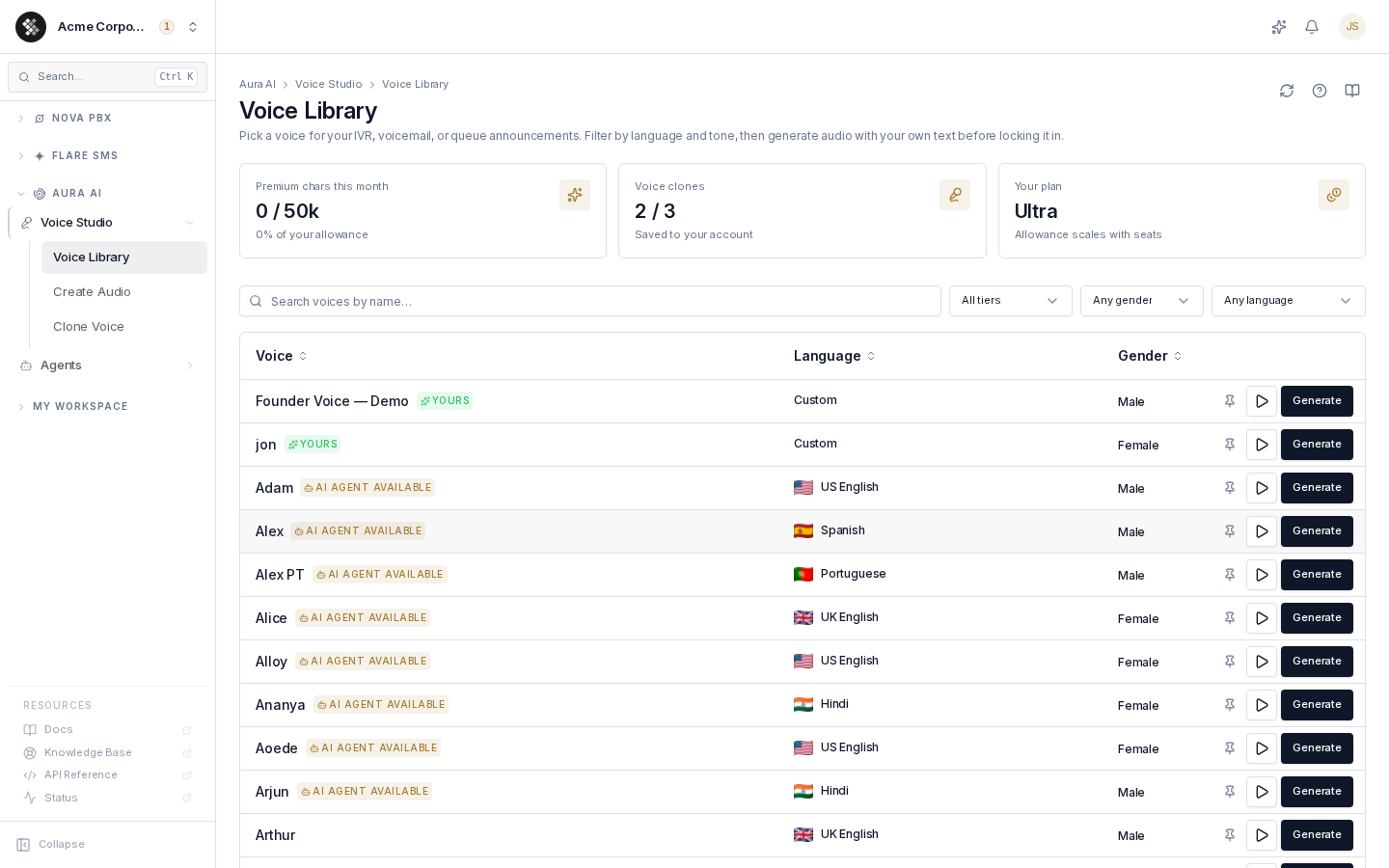
The Voice Library is the catalog of every AI voice your organization can use — 150+ ready-made voices across languages and accents, plus any voice clones you’ve created. Pick a voice here, then use it for IVR greetings, voicemail prompts, queue announcements, and Aura AI voice agents.
Navigate to Aura AI → Voice Studio → Voice Library.
Catalog Voices vs. Cloned Voices
Section titled “Catalog Voices vs. Cloned Voices”The library lists two kinds of voices:
| Kind | Tag | Where it comes from |
|---|---|---|
| Catalog voices | — | Pre-built voices included with the platform |
| Cloned voices | Yours | Voices your organization created on the Clone Voice page |
Catalog voices are split into tiers that determine cost:
| Tier | What it costs |
|---|---|
| Free | Unlimited — included in every plan |
| Premium | Saving audio draws from your monthly premium character allowance |
| Yours (cloned) | Saving audio draws from a separate cloned-voice character allowance |
Auditioning and previewing is always free — only saving audio to your media library is metered.
AI Agent Available
Section titled “AI Agent Available”Voices tagged AI Agent Available can drive a live Aura AI voice agent in real time, in addition to generating static audio. If you want your AI receptionist to sound the same as your IVR prompts, pick a voice with this tag.
Finding a Voice
Section titled “Finding a Voice”The toolbar above the table narrows the list:
- Search — match by name, language, or gender
- Tier — Free / Premium / Yours
- Gender — Female / Male
- Language — US English, UK English, French Canadian, Spanish, French, Hindi, Italian, Japanese, Portuguese, Chinese, or Custom (your clones)
Click the pin icon on any row to mark a favorite. Pinned voices float to the top of the list so your shortlist stays in view. Pins are saved per browser.
Auditioning a Voice
Section titled “Auditioning a Voice”Each row has two actions:
- Play (▶) — hear a short sample phrase in that voice. Instant and free.
- Generate — opens a panel where you type your own text (up to 500 characters) and hear the voice read it. Use the quick-pick phrases (“IVR greeting”, “Hold message”, “After hours”) to compare voices on identical text.
From the Generate panel you can also name the result and save it straight to your media library. For the full text-to-speech workbench — delivery speed control, longer iteration — use the Create Audio page.
Usage Meters
Section titled “Usage Meters”The strip at the top of the page shows where you stand for the current billing period:
- Premium chars this month — premium-voice characters used vs. included
- Voice clones — clone slots used vs. included
- Your plan — your Aura tier; allowances scale with the number of seats
If you exhaust the premium allowance, a cap notice appears: free voices keep working, and premium voices resume next billing period or after an upgrade.
Where Voices Are Used
Section titled “Where Voices Are Used”Once you save audio with a voice (or assign a voice directly), it shows up across Switchboard:
| Surface | How |
|---|---|
| IVR menus | Pick saved audio in the IVR builder’s prompt picker |
| Voicemail greetings | Assign saved audio as a mailbox greeting |
| Queue announcements | Hold messages and position announcements |
| Aura AI voice agents | Voices tagged AI Agent Available can be set as an agent’s voice |
Permissions
Section titled “Permissions”The Voice Studio pages require the Use Voice Studio (aura.voice_studio.use) permission. Account owners can grant it from the Permission Groups page.