

Calling Preferences
Calling Preferences
Section titled “Calling Preferences”Pulse’s calling behavior is controlled from the More tab. Tap More in the bottom navigation, then find the Calling and Sound & Haptics sections. Each setting is a toggle that saves instantly on your device.
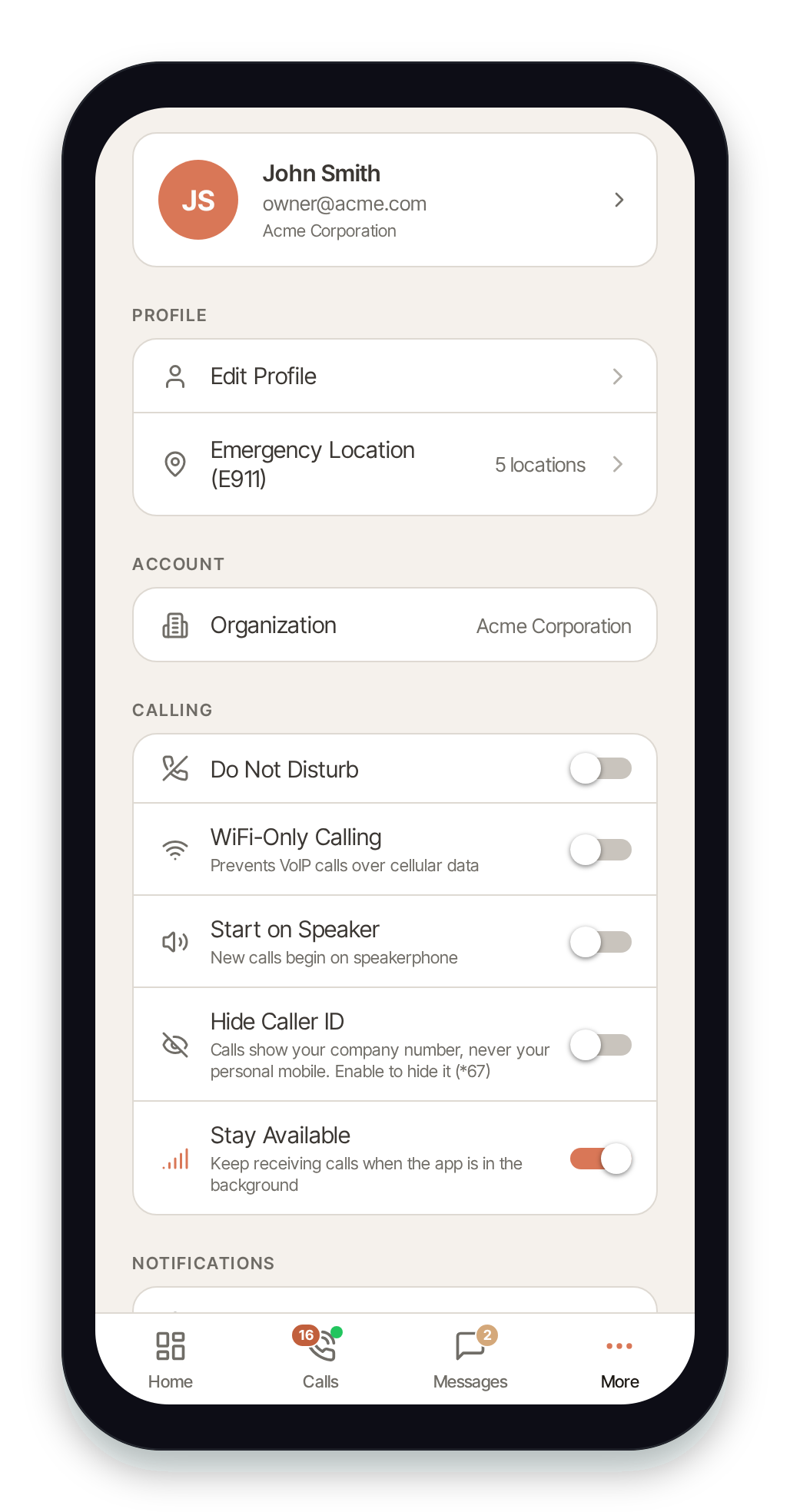
Calling
Section titled “Calling”Do Not Disturb
Section titled “Do Not Disturb”When Do Not Disturb is on, incoming calls go straight to voicemail instead of ringing your device. Turn it off to receive calls normally.
WiFi-Only Calling
Section titled “WiFi-Only Calling”When WiFi-Only Calling is on, Pulse will not place or receive VoIP calls over cellular data — it only connects on Wi-Fi. Use this to avoid using mobile data for calls. Note that with this on, you won’t be reachable when you have no Wi-Fi.
This setting is for phones. On the desktop app and in a desktop web browser it is hidden, unless it was already turned on, so you can still switch it off.
Start on Speaker
Section titled “Start on Speaker”When Start on Speaker is on, new calls begin on speakerphone automatically. Leave it off to start calls on the earpiece. For outgoing calls this applies from the moment you dial: the ringing tone plays on the route the call will use.
This setting is for phones. On the desktop app and in a desktop web browser it is hidden, unless it was already turned on, so you can still switch it off. On a computer, choose your speaker in Audio Devices instead.
Hide Caller ID
Section titled “Hide Caller ID”Your outbound calls always show your company number, never your personal mobile. Turn on Hide Caller ID to also suppress the company number (the equivalent of dialing *67), so the person you call sees a withheld number.
Stay Available
Section titled “Stay Available”When Stay Available is on, Pulse keeps your line registered while the app is in the background, so you keep receiving calls when the app is minimized. If you turn it off, you won’t receive calls unless Pulse is open in the foreground.
If calls aren’t waking your device, see Missed Calls & Background Wake.
Audio Devices (desktop and web)
Section titled “Audio Devices (desktop and web)”On desktop and the web, an Audio Devices row also appears in the Calling section, letting you pick a specific microphone and speaker. It does not appear on mobile, where the OS handles audio routing. See Audio Devices.
Sound & Haptics
Section titled “Sound & Haptics”The Sound & Haptics section controls the cues Pulse plays as you use it:
- Vibrate on Incoming Call — vibrate your device when a call comes in.
- Dialpad Haptics — a tap of feedback when you press dialpad keys.
- Keypress Haptics — feedback on buttons, tabs, and list items throughout the app.
- DTMF Tones — play the audible touch-tone when you press dialpad keys.
- Call Control Haptics — feedback on in-call buttons like mute, hold, transfer, answer, and hang up.
- Call Control Sounds — an audible cue when you answer and hang up.
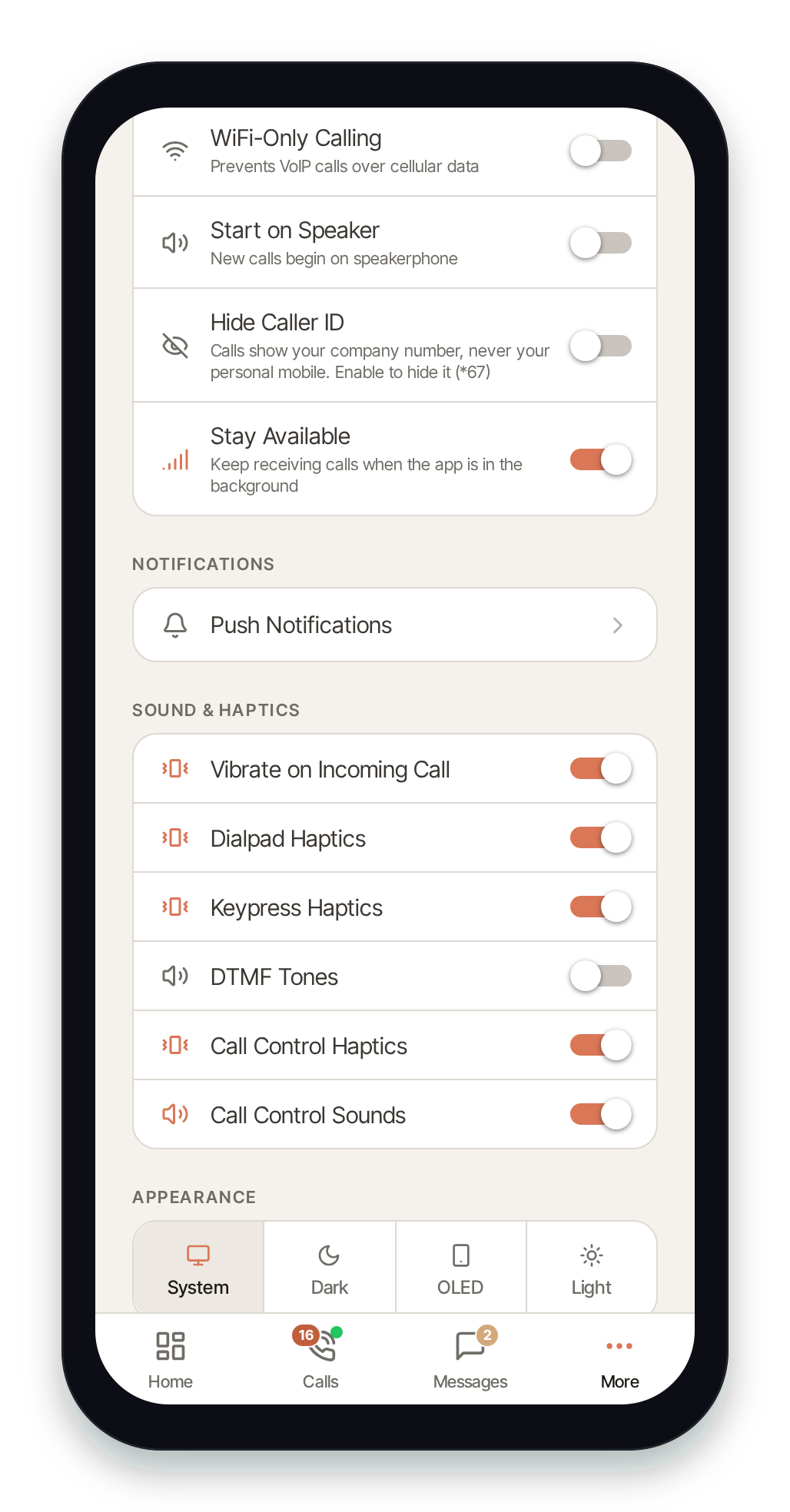
All calling preferences are stored on this device, so each device you use Pulse on can be configured independently. The Blocked Numbers row in the Calling section is the exception: it is stored on your extension and applies to every device that rings it — see Blocked Numbers.