

Working in a Customer's Account
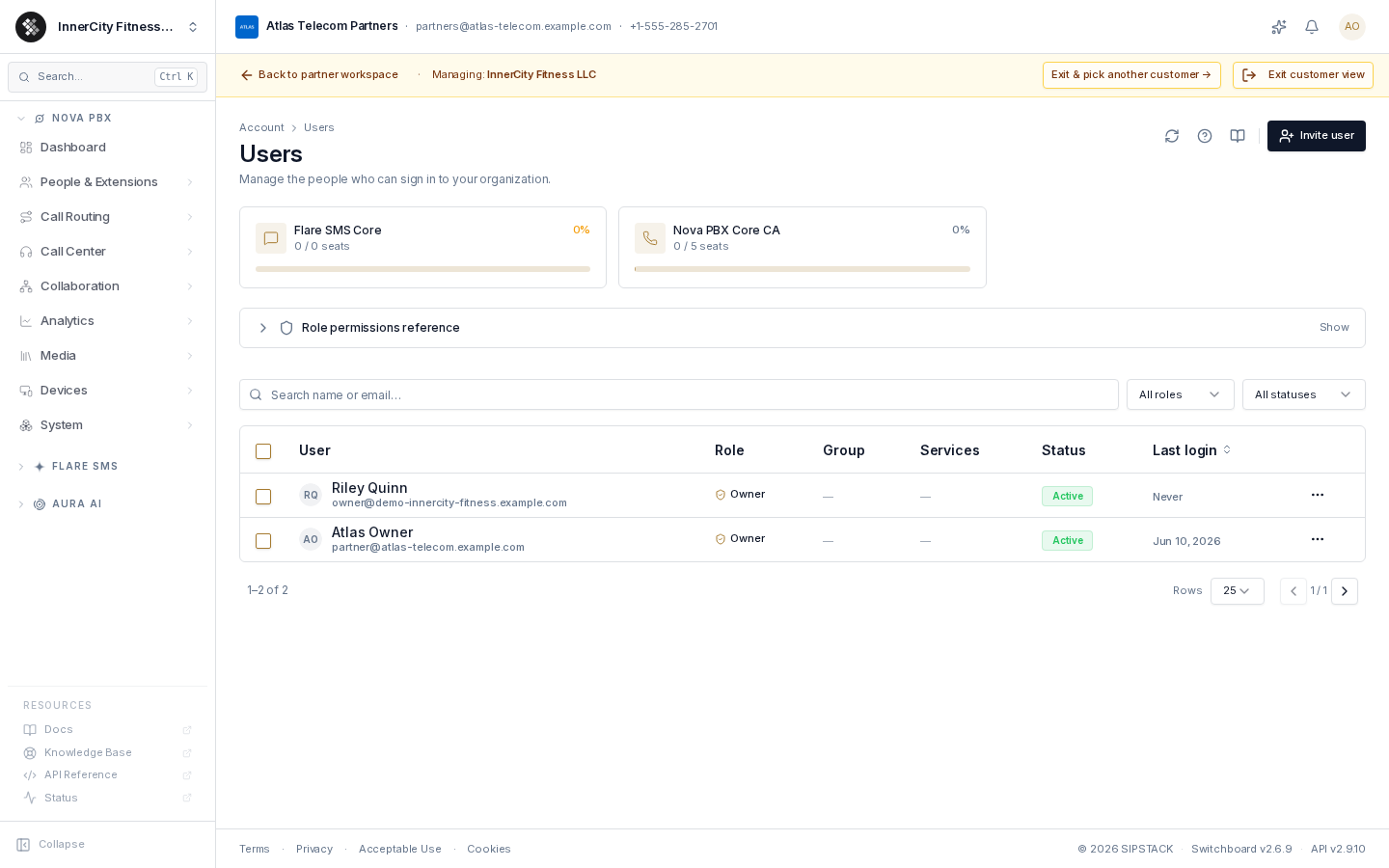
Clicking Manage on an active customer scopes you into their account — what SIPSTACK calls Mode B. You administer their Nova / Flare / Aura setup on their behalf while remaining signed in as yourself.
This is not impersonation. Your own login is never swapped out for the customer’s, and every action you take is recorded against you as a partner.
Opening the account
Section titled “Opening the account”Two entry points, both on Customers:
- Manage at the end of any active customer’s row.
- The Recent rail at the top of the page — one click back into the customers you scoped into most recently.
A partner that a customer invited has no Customers page. It opens the customer from the account switcher (its own organization’s name, top-left) instead, under Customers you manage. That section lists every customer you can open, whether it invited you or you are its managing partner. A Channel Partner sees it while working in its own organization’s view. A customer that revokes your access leaves the list the next time it loads.
Every entry point lands you on /partner/org/<customer>/users. No second
login, no password from the customer, no account switching.
Manage is disabled when the customer’s partner link is not active,
or their organization is cancelled or still pending_activation.
What changes on screen
Section titled “What changes on screen”| Element | What it tells you |
|---|---|
| Amber strip under the top bar | ”Managing: <customer>” — persists across every page in the customer’s scope. |
| Partner co-brand lockup in the header | Your own brand, name and contact details — you are acting as yourself, on their behalf. |
| Sidebar | The customer’s Nova / Flare / Aura admin surface. |
| Account button | A “Manage this customer” section: Phone Numbers, Permission Groups, Users, Partner Access. |
The customer in the URL is the scope. Every page load re-validates your access grant server-side, so a link to a customer you are not entitled to simply does not resolve.
What you can reach
Section titled “What you can reach”There are no access levels. You get the same permissions on every customer that has given you access, whether you are its managing partner or a partner it invited:
| Area | What you can do |
|---|---|
| Nova, Flare and Aura | Full management: extensions, departments, locations, inbound routes, ring groups, IVR menus, queues, devices, greetings, Flare conversations and campaigns, Aura agents. The exceptions are Flare contacts and the Nova setup wizard |
| Users | View, add and update users, and assign them permission groups |
| Phone numbers | View, order and port in numbers, and change their settings and assignments |
| Permission groups, account settings, Audit Log | View only |
What you cannot reach
Section titled “What you cannot reach”- The customer’s Flare contacts and contact lists.
- Billing, invoices, subscriptions and payment methods. They are refused under partner scope, and nothing the customer sets can grant them to you. A customer’s money stays private to them.
- Cancelling the customer’s subscriptions or account.
- Porting the customer’s numbers out to another provider, or releasing them.
- Setting a user’s password, changing a user’s role, or creating an owner or admin. Users you add choose their own password from an emailed invitation.
- Set up your team, the Nova setup wizard.
- Granting, revoking or restoring partner access, including your own.
- The notes the customer adds when it grants access. Only the customer’s team and SIPSTACK staff see them.
On top of that, four
privacy overrides
can be set per managed customer — hide_call_recordings,
hide_voicemail, hide_cdrs and hide_sms_content. They are enforced server-side ahead of any
permission check, so a blocked surface refuses outright for the whole
session. Use them to deliberately blind yourself to a customer’s call and
message content when their industry or their contract calls for it.
The customer’s side of the same switch
Section titled “The customer’s side of the same switch”Your access exists because the customer invited you, or because it came with the customer’s link to you as its managing partner. The customer controls it on its own Partner Access (MSP) page:
- Revoke access: takes effect from your next request. The customer’s account refuses you until access is given back.
- Restore access (managing partner) or a new invitation (invited partner): gives it back, with the same permissions as before.
Revoking your access does not end your partnership with the customer or change your commission or give-back, but you stop seeing its Aura credit status.
The audit trail
Section titled “The audit trail”Your actions land in the customer’s own audit log, attributed to you by name and email, with a Partner actions only filter so either side can pull up exactly what a partner touched. That reciprocal visibility is what makes handing a partner the keys a reasonable decision.
Leaving
Section titled “Leaving”What the amber strip offers depends on the kind of partner you are.
As a Channel Partner, the strip carries three buttons, but only two destinations:
- Back to partner workspace and Exit customer view both return you to your partner dashboard. The pair is deliberate — the left-hand button is the one that survives on mobile, where the two right-hand buttons are hidden to keep the row from overflowing.
- Exit & pick another customer → returns you to your customer list with the search box already focused, for when you are working a queue of accounts.
As an invited partner, you have no partner workspace or customer list. Back to your account and Exit customer view both return you to your own organization. To open another customer, choose it under Customers you manage in the account switcher.
The strip disappears the moment you leave the customer’s scope.
Related: Managing Customers, Invitations, Partner Access (MSP).