

Reply Routing
Reply Routing
Section titled “Reply Routing”Reply routing automatically assigns inbound SMS replies to the right person on your team. When a contact’s reply matches one of your rules, the conversation is assigned to that rule’s user — billing questions land with billing, cancel requests land with retention, and nothing sits unowned in the shared inbox.
Navigate to Flare SMS → Settings → Reply Routing (/flare/settings/reply-routing).
Plan Availability — Ultra Tier
Section titled “Plan Availability — Ultra Tier”Reply routing rules are included in the Ultra plan. On other plans the page shows an upgrade card and rule creation is disabled:
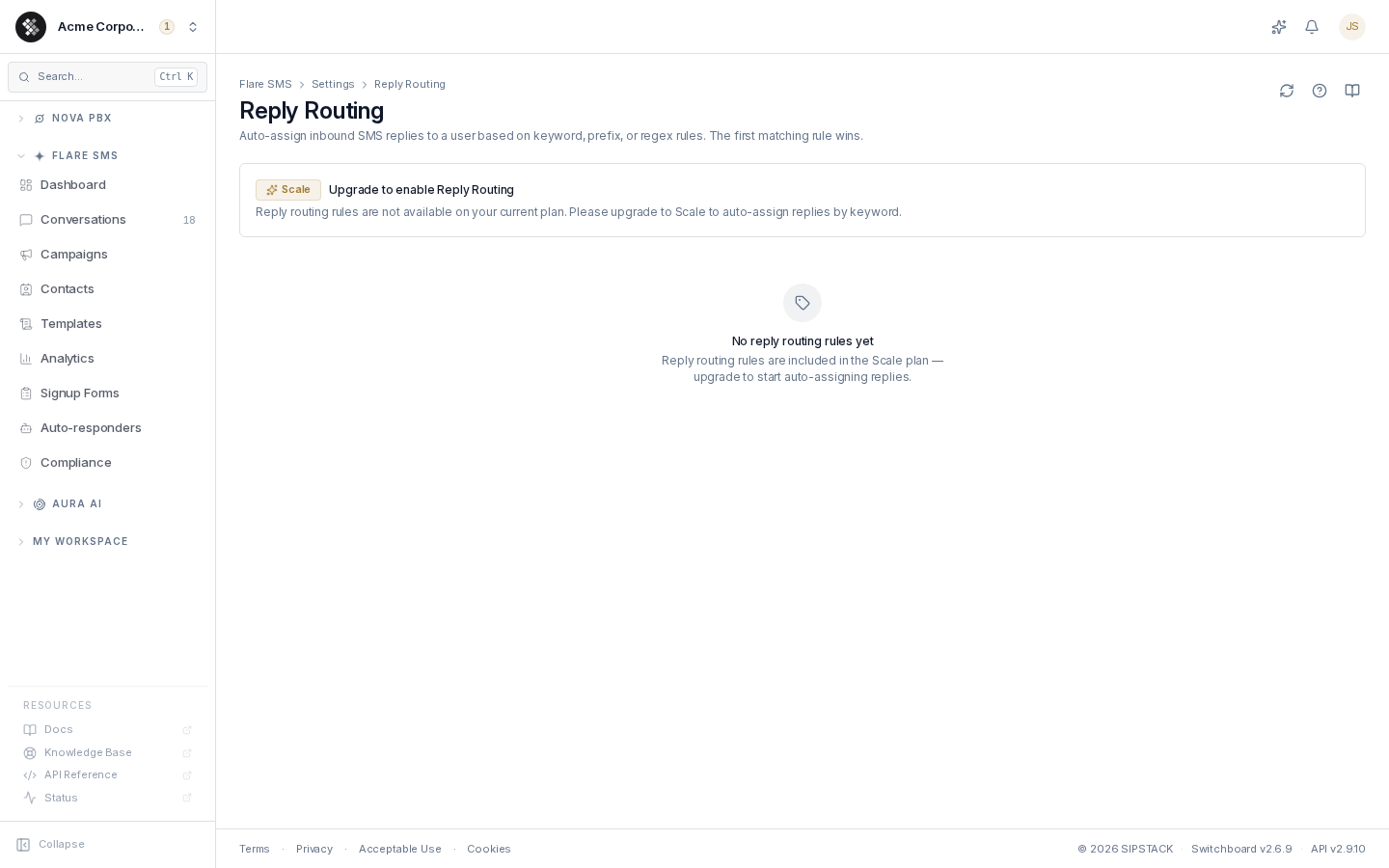
If your organization downgrades after creating rules, the rules remain visible (read-only) but stop being editable until you return to Ultra.
How Matching Works
Section titled “How Matching Works”Every inbound reply is checked against your enabled rules in priority order (the numbered order in the list — use the up/down arrows to reorder). The first matching rule wins; later rules are not evaluated for that message.
| Match mode | Behavior | Example |
|---|---|---|
| Contains | The pattern appears anywhere in the message. | invoice matches “Question about my invoice” |
| Starts with | The message begins with the pattern. | RE: matches “RE: your quote” |
| Regex | ECMAScript regular expression. | ^(cancel|quit)\b |
Matching is case-insensitive by default; enable the per-rule “Case sensitive” switch for exact-case matches.
Creating a Rule
Section titled “Creating a Rule”Click New rule and fill in:
- Name — internal label (“Billing replies”, “Cancel requests”).
- Match mode + Pattern — what to look for (table above).
- Assign to user — the active portal user who receives matching conversations.
- Case sensitive / Enabled — per-rule switches. Disabled rules stay in the list but are skipped.
New rules are appended at the lowest priority; reorder with the arrows so the most specific rules sit on top.
What Reply Routing Does NOT Do
Section titled “What Reply Routing Does NOT Do”- It never replies to the customer. Routing only assigns the conversation internally. Automatic replies are Auto-responders.
- It never hides or drops messages. A reply that matches no rule lands in the shared Conversations inbox, unassigned — exactly as before.
- It doesn’t process compliance keywords.
STOPand the other opt-out/opt-in keywords are handled by the platform’s compliance layer before routing runs — don’t write rules for them.
Troubleshooting
Section titled “Troubleshooting”The page says routing is paused for this environment. The plan tier and the platform rollout flag are separate gates. If your plan includes the feature but the platform flag is off, your rules are saved but won’t fire yet — contact support if you expected it to be live.
A rule isn’t firing. Check, in order: the rule is Enabled; a higher-priority rule isn’t matching first; the assignee is still an active user; and the pattern actually matches (regex patterns are easy to over-anchor).