

User Details & Roles
User Details & Roles
Section titled “User Details & Roles”Open any row on Account → Users to manage one user. The page is organized into four tabs — Profile, Permissions, Service access, and Phone access — with a sticky Save / Cancel bar that appears as soon as anything changes. All edits commit together when you click Save changes.
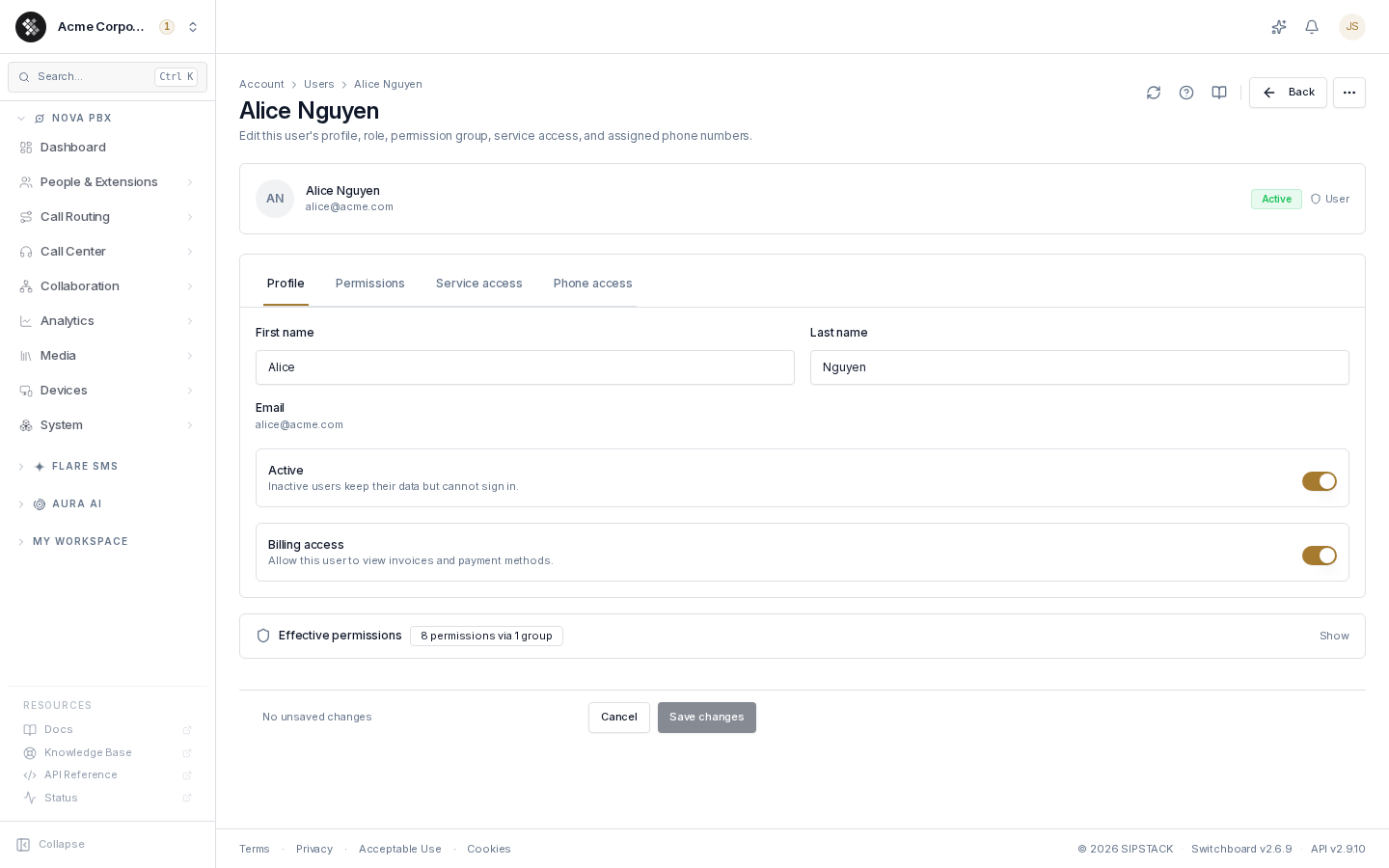
Each tab is deep-linkable via URL hash: /account/users/<id>#permissions, #services, or #phones.
Header actions
Section titled “Header actions”Lifecycle actions live in the ⋯ More menu in the top-right:
| Action | Behavior |
|---|---|
| Reset password | Set a new password for the user (12+ characters with mixed case, a number, and a symbol). They’re emailed a notification and must change it on their next sign-in. |
| Delete user | Removes the user after you type their email to confirm. Hidden when viewing your own account — you can’t delete yourself. |
Profile tab
Section titled “Profile tab”| Field | Notes |
|---|---|
| First / Last name | Display name across Switchboard, Pulse, and call features. |
| Read-only — it’s the sign-in identity. | |
| Active | Toggle off to suspend (the user keeps all data but can’t sign in). Disabled on your own account. |
| Reports to | The user’s manager. Saves as soon as you pick it — see Reports to below. |
| Billing access | Non-owners only: adds this user to the billing notice list, so they receive invoice and payment notifications. It grants no access by itself; to let a teammate view and pay invoices, add them to the Billing permission group. The toggle is hidden for owners. |
Reports to
Section titled “Reports to”Reports to sets who this user reports to. Pick a teammate from the list, or No manager to clear it. Unlike the other Profile fields, it saves immediately rather than with Save changes, and confirms with a “Manager updated” or “Manager removed” message.
The reporting chain decides team access to call recordings. A manager who holds Play your team’s call recordings can play the full recording of any call one of their reports was on, directly or further down the chain. With Download your team’s call recordings as well, the manager can download them too. A user with no manager set falls back to the Recording Managers named on the queues and ring groups they belong to. The full model is in Who can play and download recordings.
- A user can’t report to themselves, and SIPSTACK refuses a choice that would make the chain loop back on itself.
- Changing it needs permission to update users. Without that permission the control is read-only and says so.
Permissions tab
Section titled “Permissions tab”Assign the user to a permission group (or No group). The group’s permissions render as chips below the selector so you can see exactly what it grants before saving.
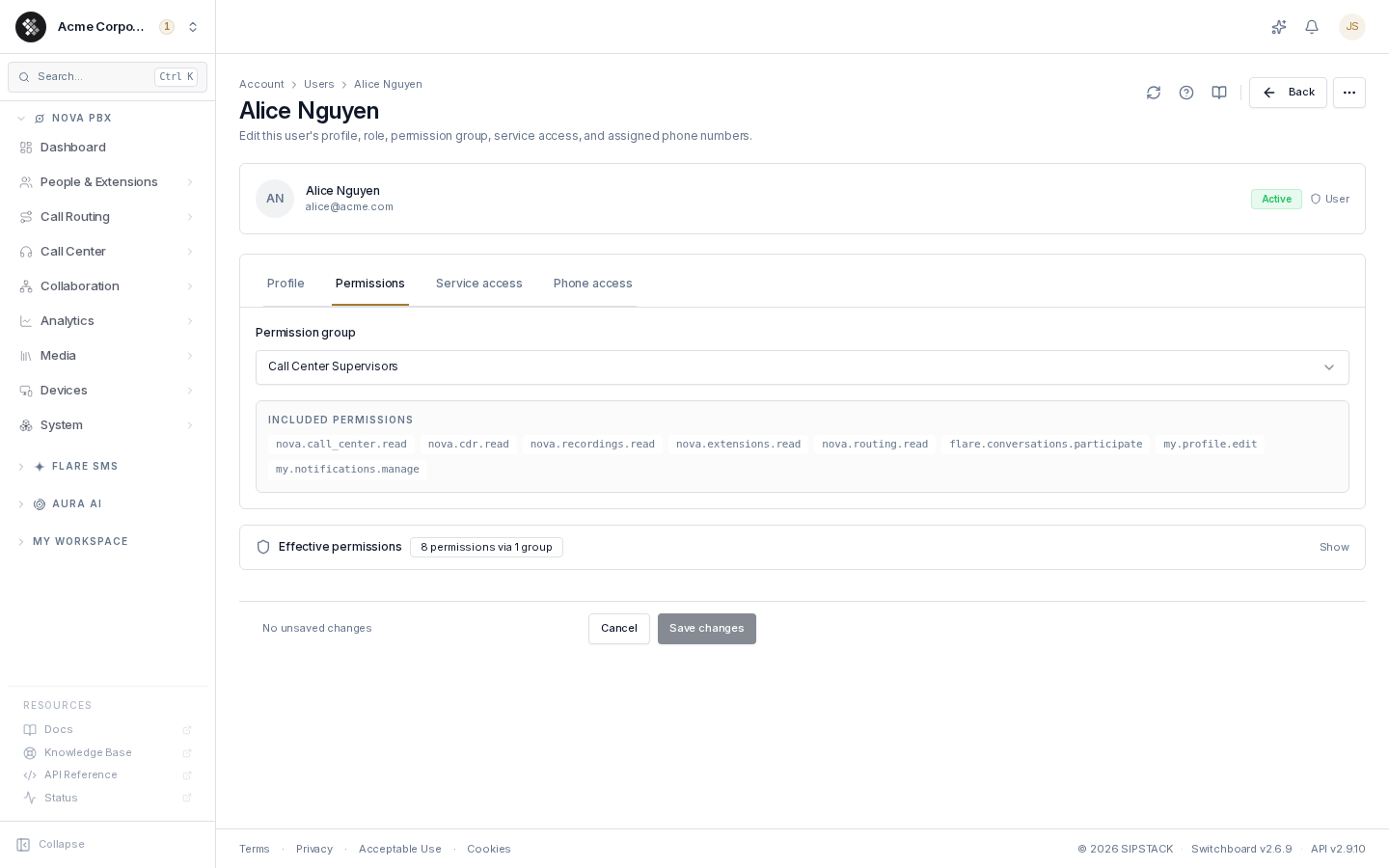
If your organization has no groups yet, the tab links to Permission Groups to create one. Until a group is assigned, a User has only role-default capabilities.
Effective permissions panel
Section titled “Effective permissions panel”Below the tabs, the collapsible Effective permissions panel shows the user’s resolved permission set with per-group attribution:
- Owners show a “Full bypass (owner)” badge — group membership is informational because owners pass every check.
- Users show each group they belong to and the permissions it contributes.
- A user with no group sees a note that they can’t perform gated actions until assigned to one.
Service access tab
Section titled “Service access tab”One row per subscription, with a seat-capacity bar:
- Toggle a subscription on to grant the user access; the count previews the change immediately (e.g. ”(+1 pending)”) but commits only on Save.
- When a capped subscription is full, the toggle is disabled with an At capacity warning — add seats on the subscription or unassign another user first.
- Un-toggling an already-assigned user is always allowed (it frees a seat).
Phone access tab
Section titled “Phone access tab”One row per phone number in the account. Toggle a number on to grant this user access to it — receiving calls (Pulse + Switchboard), plus SMS inbox and fax where the number supports those channels. Capability chips on each row (Voice, SMS, Fax) show what the toggle grants.
Like service access, changes preview as pending and commit on Save. The same grants can also be managed from the number’s side (Account → Phone Numbers → number) — both views stay in sync.
Common questions
Section titled “Common questions”I don’t see the Save bar. It only appears when something has changed. Cancel reverts every pending edit.
I changed the permission group but the chips updated before I saved. The chips preview the selected group. The user’s actual permissions change only when you click Save changes.
The user still can’t see a service I just granted. They may need to sign out and back in — access is stamped into their session at sign-in time.