

First-Run Setup
First-Run Setup
Section titled “First-Run Setup”The first time you sign in, Pulse shows a short onboarding carousel — three swipeable cards that get you ready to make and take calls. You can swipe between them or tap Skip at the top to jump straight into the app.
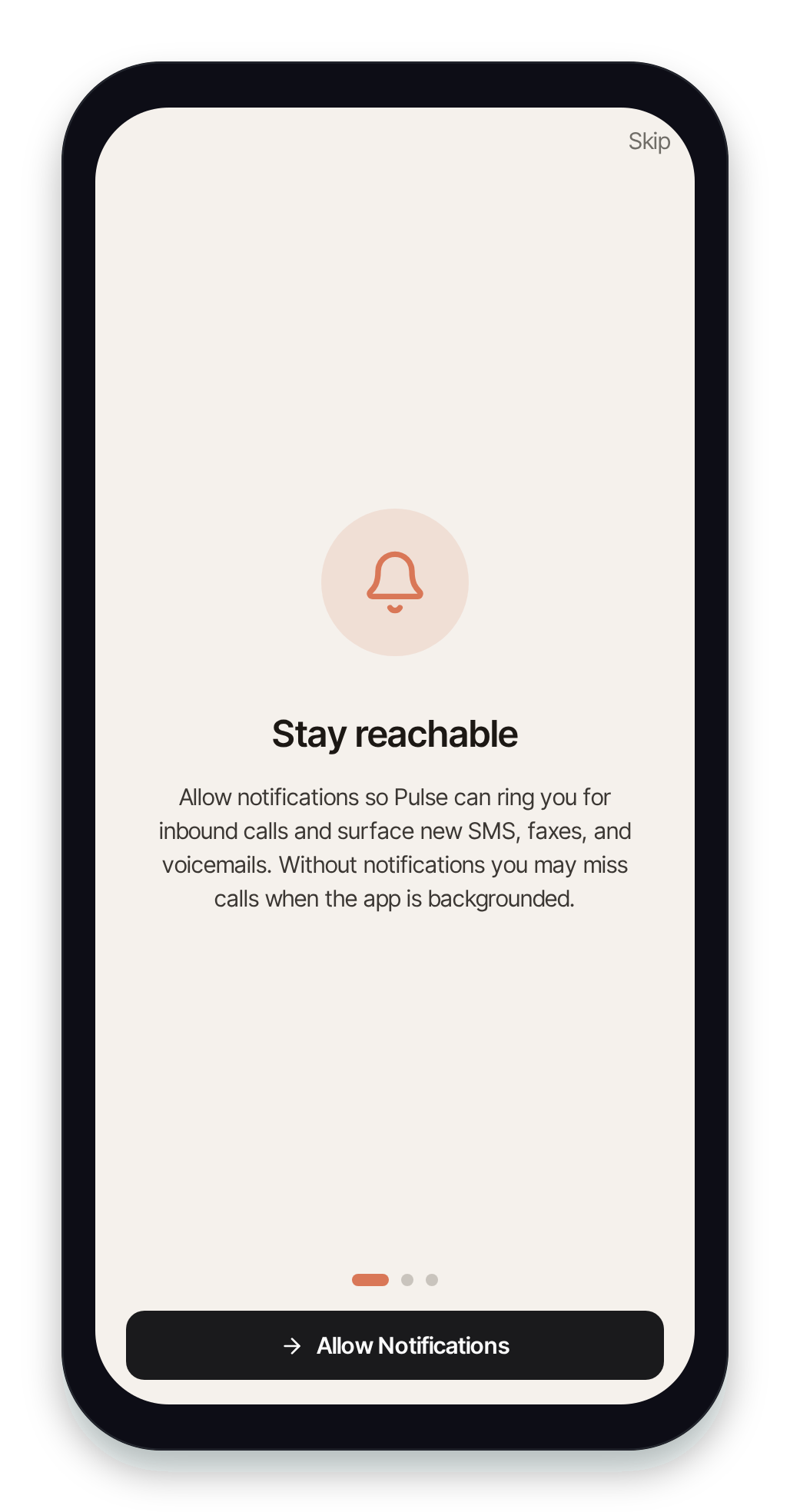
1. Stay reachable — allow notifications
Section titled “1. Stay reachable — allow notifications”Tap Allow Notifications and accept the system prompt. This lets Pulse ring you for incoming calls and surface new SMS, faxes, and voicemails. Without notifications you may miss calls while the app is in the background.
You can change this later in Settings → Notifications — see Notification Settings.
2. Set your emergency location (E911)
Section titled “2. Set your emergency location (E911)”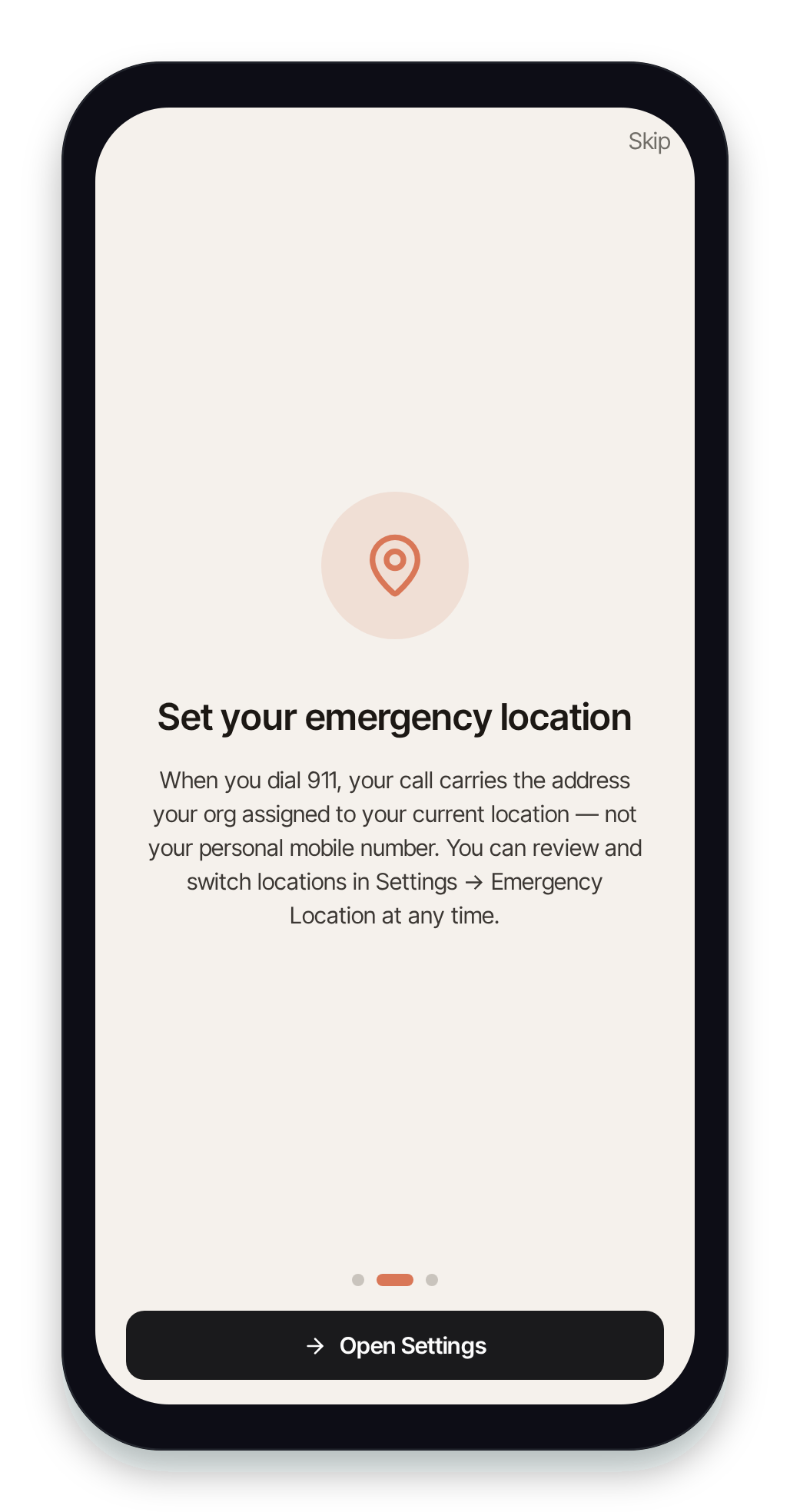
This is the most important step. Pulse hands 911 to your phone’s dialer, so your carrier supplies your location and callback number. The address on your organization’s E911 location applies only to Pulse Desktop and the web app, and to test calls to 933. Tap Open Settings to review the address on file.
If you use Pulse Desktop or the web app away from the address on file, confirm your emergency location is correct before you rely on it for emergency calls. You can review it any time from the More tab under Emergency Location (E911); it’s read-only in Pulse, so ask your administrator to change it — see Emergency (E911) Location.
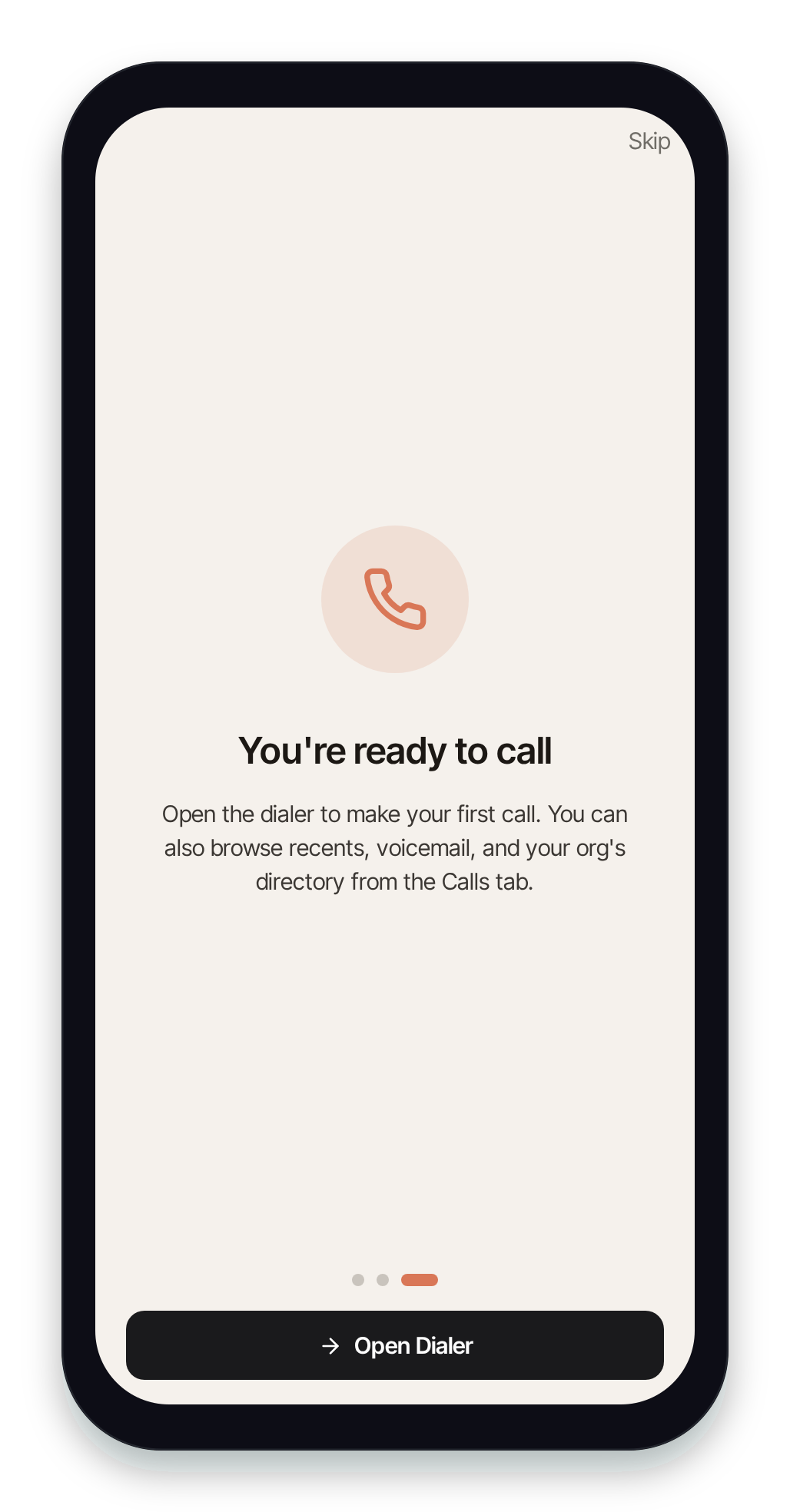
3. You’re ready to call
Section titled “3. You’re ready to call”The last card lands you in the dialer. Tap Open Dialer to place your first call. From the Calls tab you can also browse recents, voicemail, and your organization’s directory.
Onboarding only appears once per install. To revisit these settings later, open Settings from the More tab.