

Phonebook
Phonebook
Section titled “Phonebook”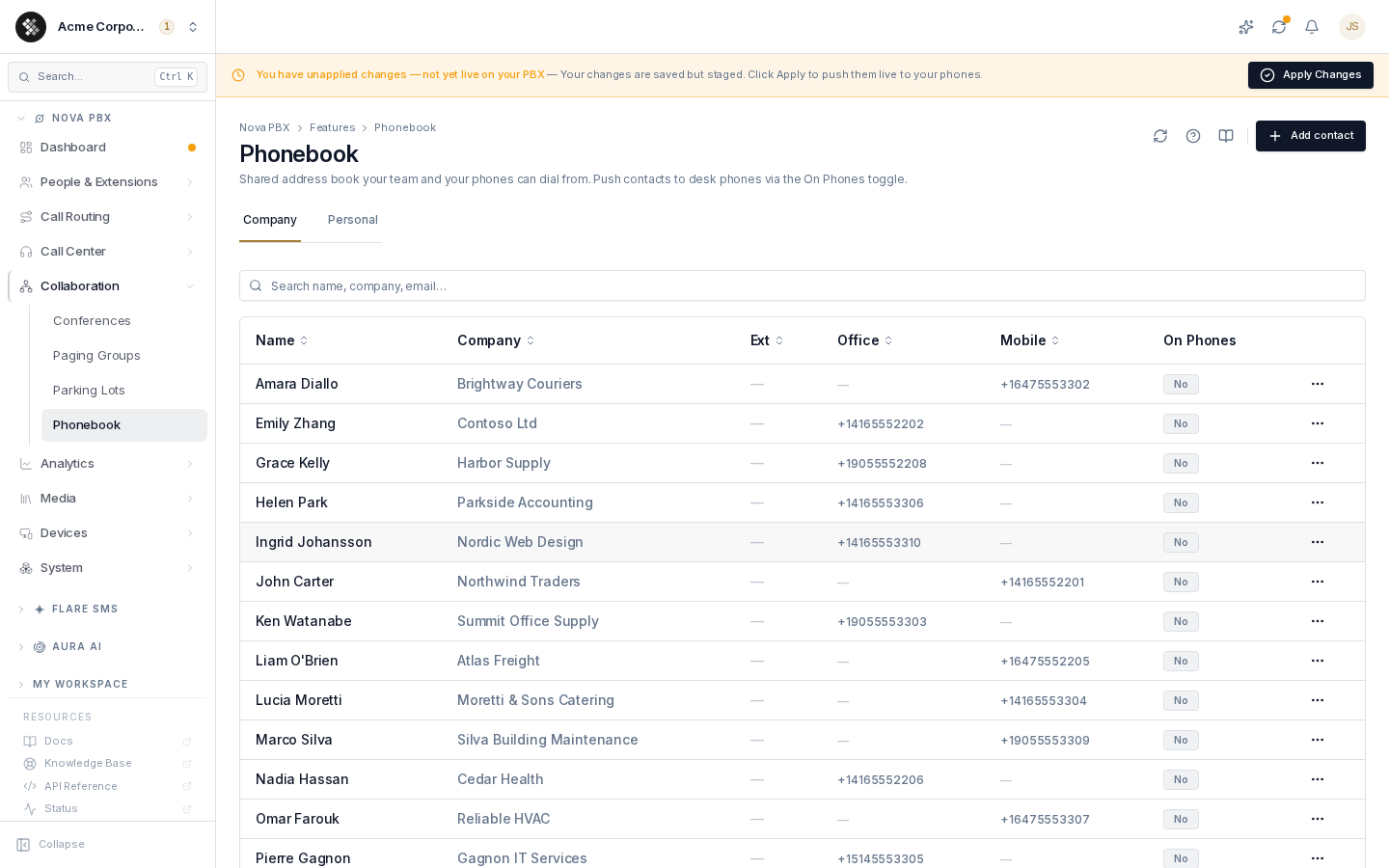
The Nova PBX phonebook is your organization’s dialing address book. It stores contacts — vendors, partners, customers, after-hours services — that your staff can look up in Switchboard and click to dial. (Browsing it from a desk phone is not available yet; see Phone Display.) Navigate to Nova PBX → Collaboration → Phonebook.
Phonebook changes are portal-only: they take effect immediately, with no PBX commit required.
Company vs Personal
Section titled “Company vs Personal”The page has two tabs, each with its own list and Add contact action:
| Company | Personal | |
|---|---|---|
| Visible to | Everyone in your organization | Only you |
| Typical contents | Vendors, partners, shared external contacts | Your own speed-dial list |
| Who can edit | Users with the phonebook manage permission | The owner of the contact |
Personal contacts are scoped to your user account — other users (including admins browsing this page) see their own personal tab, not yours.
Phonebook vs Extensions
Section titled “Phonebook vs Extensions”| Extensions | Phonebook | |
|---|---|---|
| What it stores | SIP endpoints registered to your PBX | Any contact, internal or external |
| Who appears | Staff with a Nova PBX extension | Anyone — vendors, clients, partners |
| Requires PBX commit | Yes | No |
| Syncs to phones | Via provisioning | Via the phone’s remote directory (not available yet) |
A phonebook entry can also reference an internal extension — useful when a coworker should appear in the directory under a friendlier name, or alongside their mobile number.
Managing Entries
Section titled “Managing Entries”Adding a contact
Section titled “Adding a contact”- Pick the Company or Personal tab (this decides who can see it).
- Click Add contact.
- Fill in the fields — only First name is required. Optional fields: last name, company, department, email, extension, office / mobile / home phone, and notes.
- In Settings, optionally toggle:
- Mark as favorite — shows a star next to the name for quick scanning.
- Include in phone directory — pushes the contact to desk phones (see below).
- Click Create contact.
Editing and deleting
Section titled “Editing and deleting”- Click any row to open the contact’s edit page.
- Use the ⋯ menu on a row for quick Edit / Delete. Deleting asks for confirmation and is permanent.
- Click the On Phones badge on a row to flip directory inclusion without opening the editor.
Searching
Section titled “Searching”The search box matches name, email, company, extension, and phone numbers across the loaded list.
Phone Display (On Phones)
Section titled “Phone Display (On Phones)”Contacts with On Phones = Yes are flagged for inclusion in the directory that desk phones browse (e.g. Menu → Directory → Remote Phone Book on Yealink). That directory always includes your PBX extensions plus any phonebook entries flagged for inclusion; entries without any phone number are skipped.
Keep the flagged list short and high-value: add hundreds of contacts to the phonebook, but mark only the most-dialed dozen as On Phones.
Plan Limits
Section titled “Plan Limits”Phonebook capacity scales with your Nova PBX subscription tier. When you reach your tier’s limit, creating another entry is blocked with a limit error — remove unused entries or upgrade the plan.
Frequently Asked Questions
Section titled “Frequently Asked Questions”Does the phonebook affect call routing? No. It is a directory for people (and phones) placing calls — inbound/outbound routing is untouched.
Why isn’t my new entry showing on phones yet? Phone-side directory browsing is not available yet on any brand — see Phone Display. Staff can look the contact up in Switchboard in the meantime.
Can other admins see my personal contacts? No. Personal contacts are visible only to the user who created them. Company contacts are visible to the whole organization.
Can I import contacts from CSV? Bulk import isn’t self-serve yet — contact SIPSTACK support for a one-time bulk load.
What’s the difference between a favorite and On Phones? Favorite is a visual star in the Switchboard list. On Phones controls whether the contact is pushed to desk-phone directories. They’re independent.