

Create Audio
Create Audio
Section titled “Create Audio”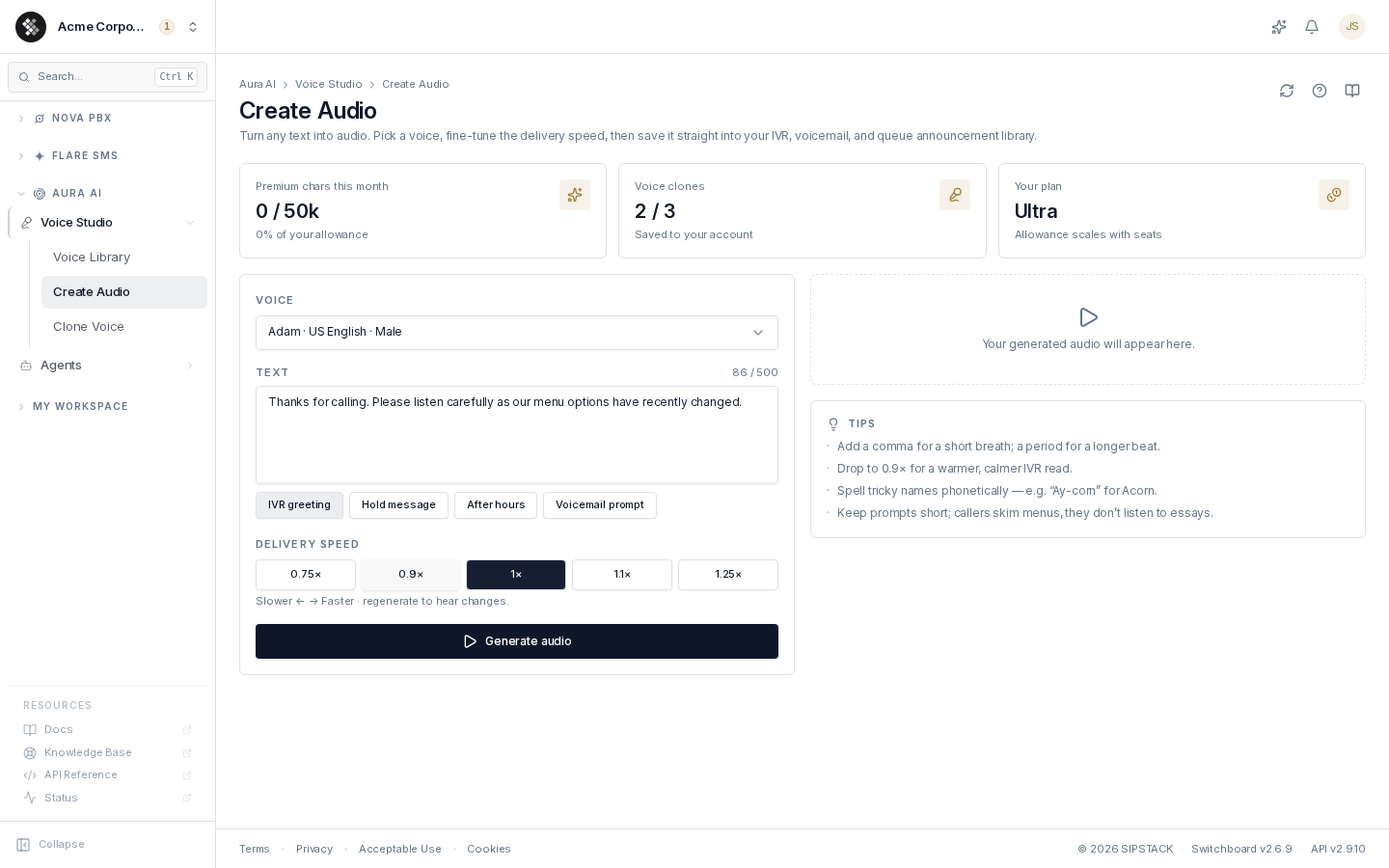
Create Audio is Voice Studio’s text-to-speech workbench. Type a script, pick a voice, tune the delivery speed, listen, and save the result into your media library — ready for IVR menus, voicemail greetings, and queue announcements. No recording equipment, no voice talent.
Navigate to Aura AI → Voice Studio → Create Audio.
Generating Audio
Section titled “Generating Audio”- Pick a voice. The picker groups your clones first (“Your clones”), then Free voices, then Premium. Browse and audition voices on the Voice Library page first if you haven’t chosen one.
- Type your script — up to 500 characters. Quick-pick buttons (IVR greeting, Hold message, After hours, Voicemail prompt) give you a starting point.
- Choose a delivery speed — 0.75× to 1.25×. Dropping to 0.9× gives a warmer, calmer IVR read; regenerate to hear the change.
- Click Generate audio. The preview plays automatically in the browser player.
- Iterate freely — generating previews is always free, on every voice tier.
Writing Scripts That Sound Right
Section titled “Writing Scripts That Sound Right”- A comma adds a short breath; a period adds a longer beat.
- Spell tricky names phonetically — e.g. “Ay-corn” for Acorn.
- Keep prompts short; callers skim menus, they don’t listen to essays.
- Read the same text in two voices before committing — differences are easier to hear on identical words.
Saving to Your Library
Section titled “Saving to Your Library”After generating, a save form appears next to the player:
| Field | Notes |
|---|---|
| Name | Required. One word — lowercase letters, numbers, hyphens, underscores (it becomes the media file’s name). A name is suggested from your text. |
| Description | Defaults to your script so you can find the file later. |
| Save as | Greeting (IVR / voicemail), Announcement (queue / hold), or Reusable (offered in any picker). |
Click Save to library. The platform re-renders the audio server-side in telephony format (8 kHz mono WAV) — what you heard in the browser is an MP3 preview; the saved file is PBX-grade and reaches your Nova node automatically the first time it’s referenced in a config commit.
What Saving Costs
Section titled “What Saving Costs”- Free voices — saving is unmetered and instant.
- Premium voices — saving deducts the script’s character count from your monthly premium allowance. A confirm dialog shows the exact charge before anything is deducted.
- Cloned voices — same confirm-before-charge flow, drawing from the separate cloned-voice character allowance.
If you hit the premium cap, a notice appears and premium generation pauses until the next billing period (or an upgrade) — free voices keep working throughout. The usage meter strip at the top of the page always shows where you stand.
Where the Output Lands
Section titled “Where the Output Lands”Saved files go into your organization’s media library and appear immediately in:
- the IVR builder prompt picker
- Voicemail greeting pickers
- Queue announcement pickers (hold messages, pre-call prompts)
Files saved as Reusable are offered in every picker.
Permissions
Section titled “Permissions”Requires the Use Voice Studio (aura.voice_studio.use) permission.