

Fax
The Messages → Fax tab is your fax inbox in Pulse. Inbound faxes arrive as PDFs you can open, download, and share, and you can send a fax by attaching a PDF and entering a destination number. Faxing runs on your SIPSTACK fax-capable numbers.
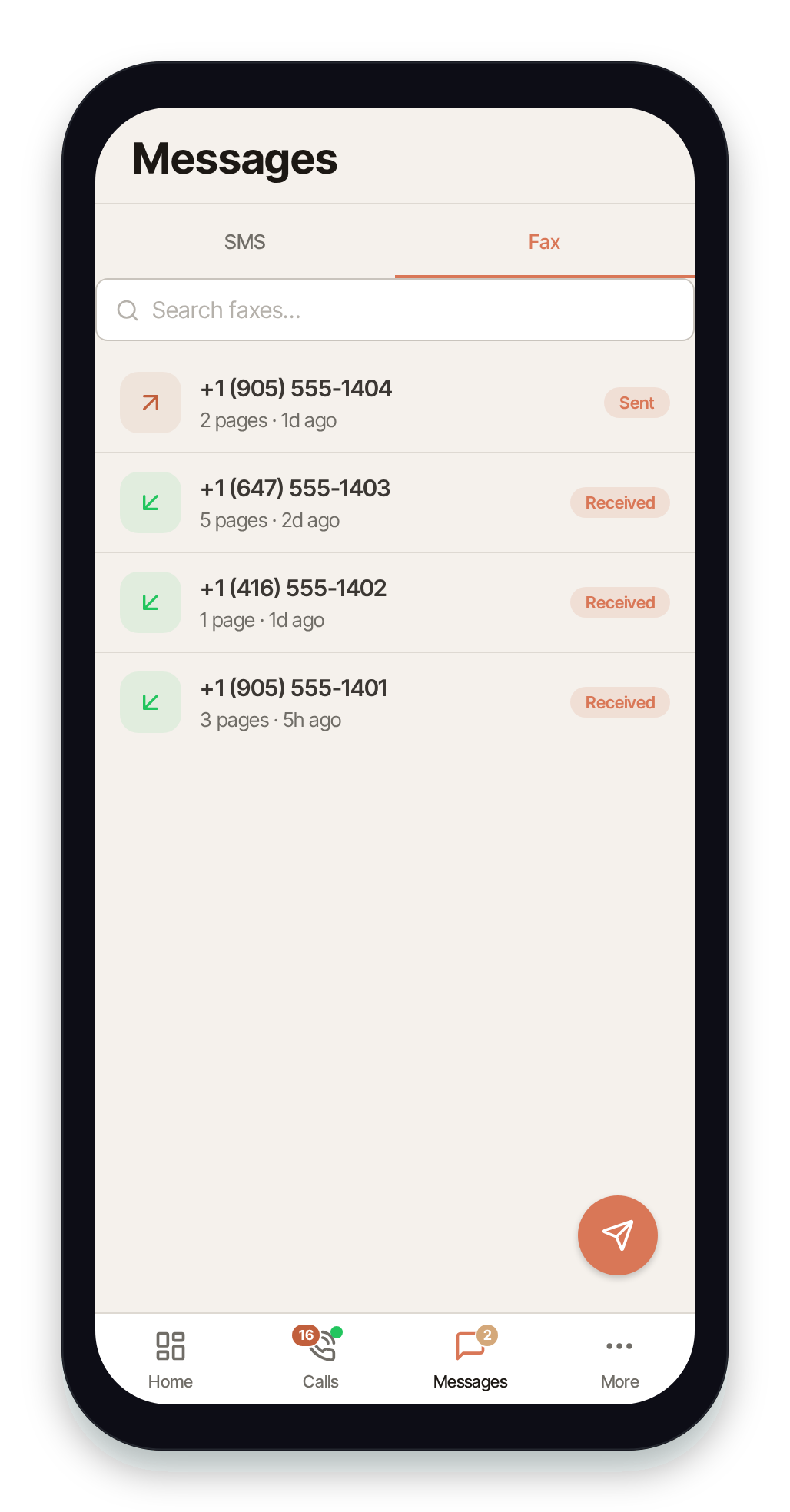
To open it, tap Messages in the bottom tab bar, then the Fax sub-tab.
The fax inbox
Section titled “The fax inbox”The list shows your sent and received faxes together, with the remote number, the SIPSTACK number it went through, the page count, the date, and a status badge:
- Received / Sent — completed faxes.
- Queued / Sending — an outbound fax in progress.
- Failed / Partial — a fax that did not complete.
Unread inbound faxes are flagged until you view them. Simply visiting the Fax tab marks your unread inbound faxes as read, clearing the badges.
Search
Section titled “Search”Use the search bar at the top to filter the list by remote number, your fax number, status, or file name.
Real-time updates
Section titled “Real-time updates”The fax list updates live — a newly received fax or a status change on an outbound fax (for example Sending → Sent) appears without a manual refresh. You can also pull down to refresh.
Viewing a fax
Section titled “Viewing a fax”Tap any fax row to open it. The detail screen shows a meta card with From/To, the number it went Via, the date, the page count, and the status, followed by the fax document.
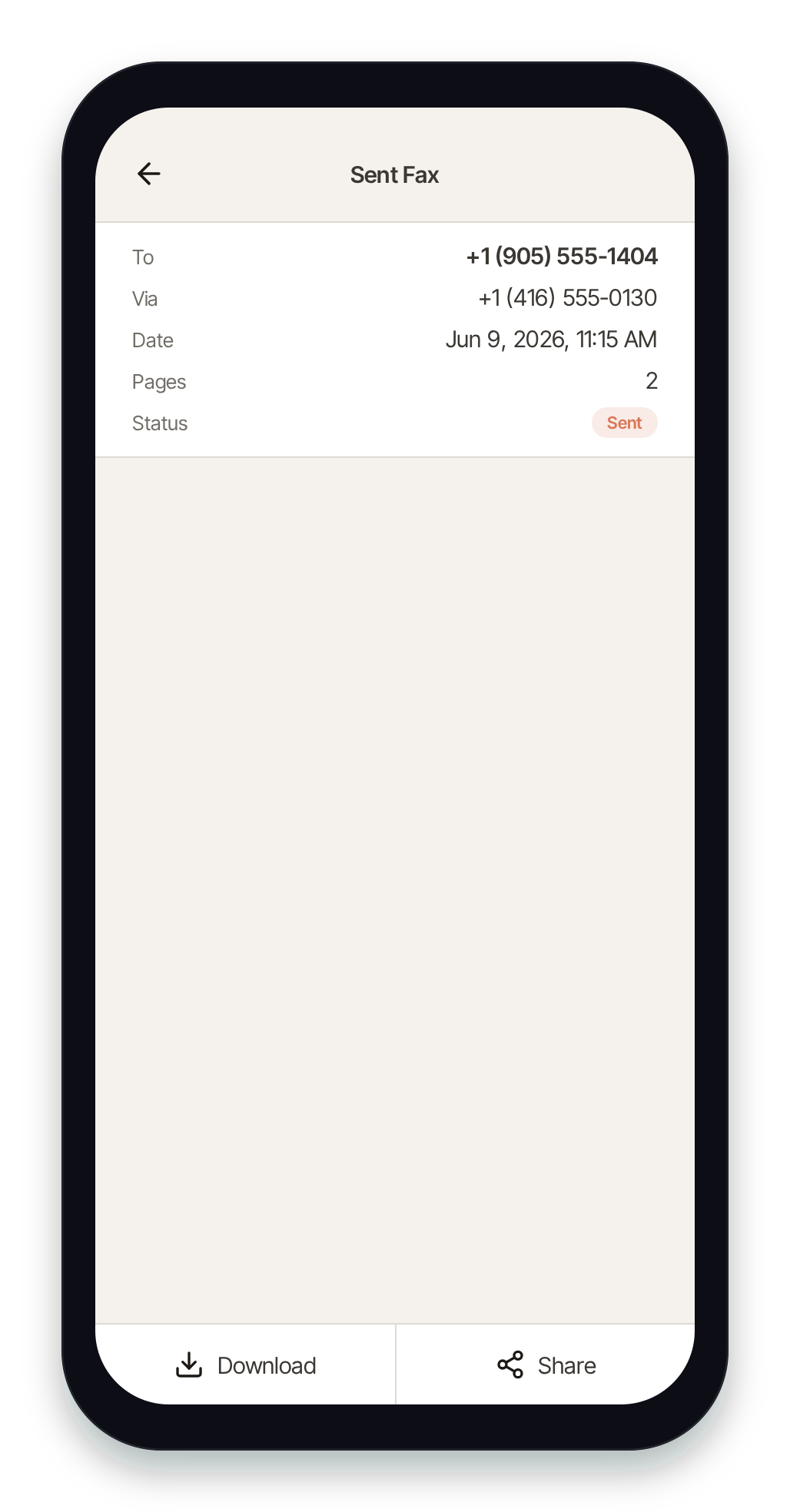
- On iOS, the PDF renders inline in the viewer.
- On Android, tap Open PDF to view it in your browser (Android can’t render PDFs inline).
- Use Download to save the PDF to your device, or Share to send it to another app.
A document is only available once a fax reaches a final state (received, sent, or partial). Faxes still in progress, or outbound faxes that failed, show no document.
Sending a fax
Section titled “Sending a fax”Tap the send button in the bottom-right of the Fax tab to open the send-fax form.
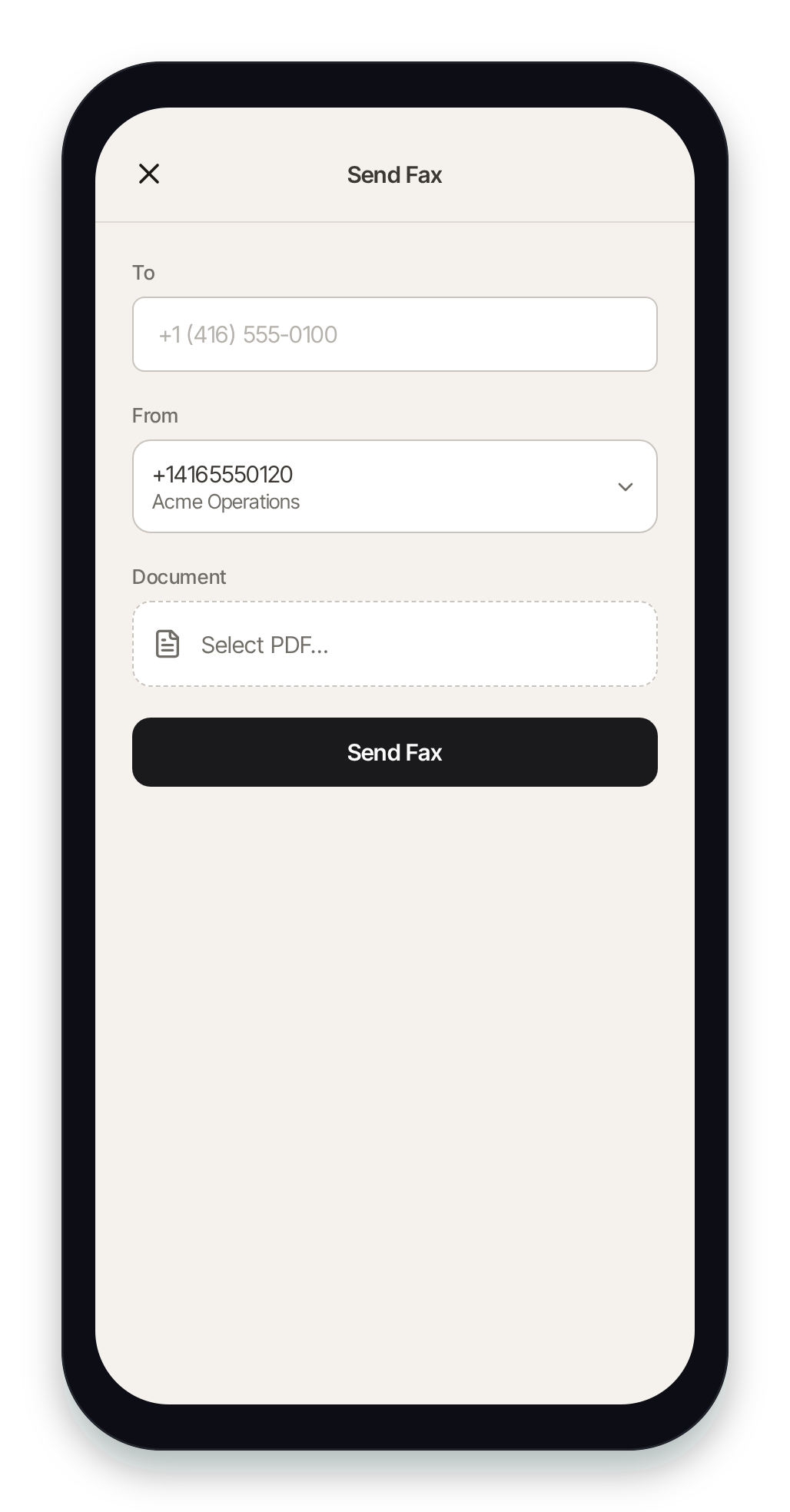
- To — enter the destination fax number. US/Canada numbers and international numbers are accepted (at least 7 digits, optionally with a leading
+). - From — choose which of your SIPSTACK fax-capable numbers to send from. If you have only one it’s selected automatically; if you have several, tap the From row to pick. If the account has no fax-capable number, Pulse tells you here.
- Document — tap Select PDF… to choose a PDF from your device. Only PDF files are accepted, up to 15 MB.
- Tap Send Fax.
After you send, Pulse takes you back to the fax inbox, where the new fax appears immediately as Queued and flips to Sent (or Failed) in real time as the fax completes. If a fax can’t be sent, Pulse shows the reason with an error code — see Fax Error Codes for what each one means.
Related (Switchboard)
Section titled “Related (Switchboard)”Fax numbers are managed alongside your other SIPSTACK numbers in the web portal:
- Managing Phone Numbers — see and manage your fax-capable numbers.
- Nova Overview — the SIPSTACK phone system that provisions your numbers.