

Conversations
Conversations
Section titled “Conversations”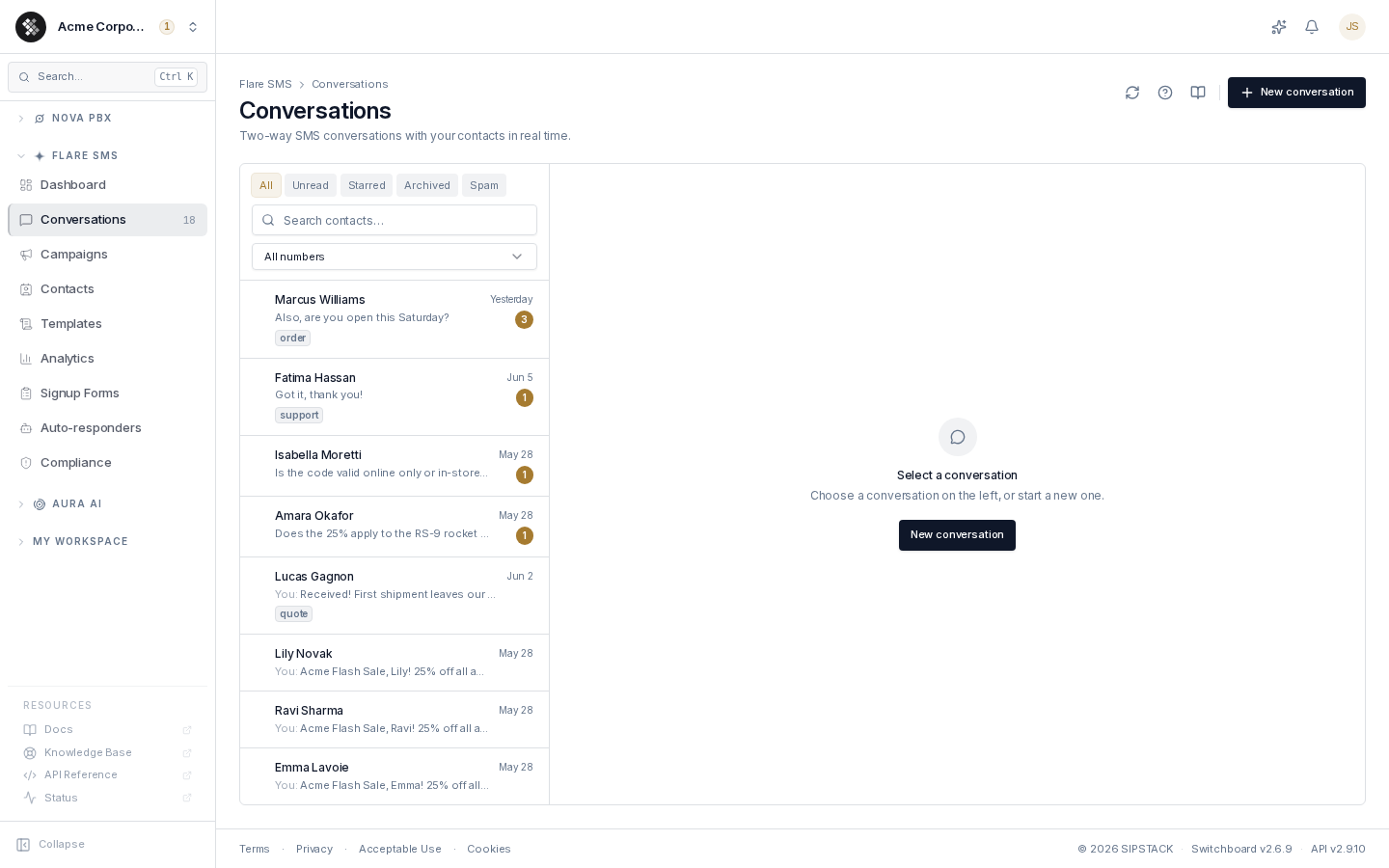
Conversations is the two-way SMS inbox. Every thread pairs one contact with one of your business numbers; inbound messages arrive in real time while the page is open. Navigate to Flare SMS → Conversations.
Finding a Thread
Section titled “Finding a Thread”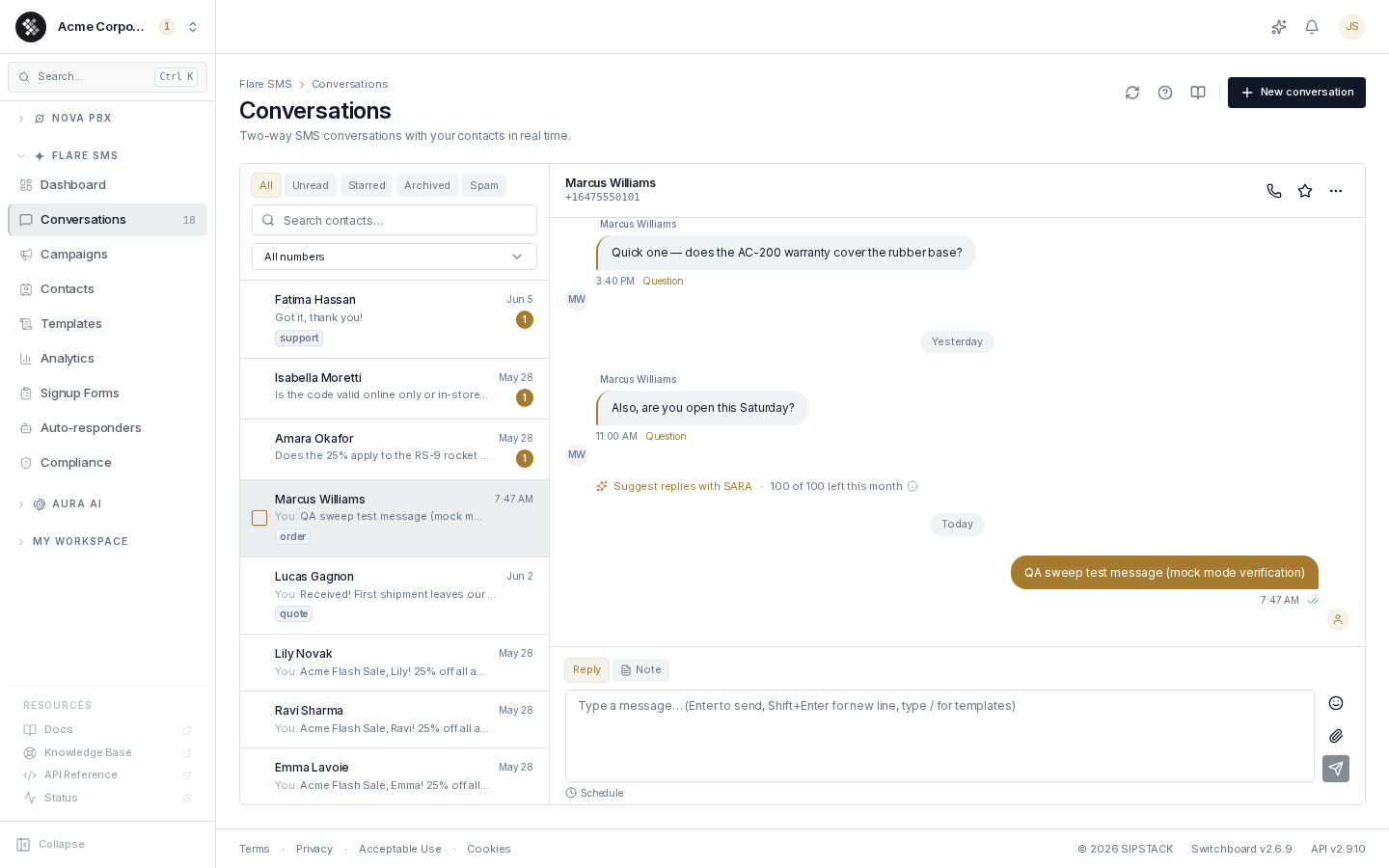
The left panel lists unread threads first, then everything else by most recent conversation activity; threads with opted-out contacts sit at the bottom. Unread threads carry a count badge, and the time on each row is the thread’s last activity. Campaign, drip and auto-responder sends are not conversation activity: they do not move a thread up the list and do not clear its unread badge. When a contact replies to a Resolved or Snoozed thread, the thread reopens. The list loads more threads as you scroll, so every thread in a filter can be reached.
- Filter chips — All (default; hides archived and spam), Assigned to me, Unassigned, Unread, Needs reply, Starred, Snoozed, Resolved, Archived, Spam, Opted out. Needs reply shows threads whose last message came from the contact, even if someone has read it. Opted out lists only threads with contacts who opted out of SMS, for compliance review.
- Search — matches contact name and phone number.
- Number dropdown — if your organization has more than one business number, filter the list to threads on a specific number.
Click a thread to open it. The page title shows your total unread count, so you can see new activity from another browser tab.
Replying
Section titled “Replying”- Open the thread and type in the composer. Enter sends; Shift+Enter adds a line break.
- Type
/to search your saved templates inline — arrow keys to pick, Enter to insert. - Attach up to 5 images or videos (5 MB each) with the paperclip, or drag files onto the thread.
- A segment counter under the composer shows how many SMS segments your message will bill as.
Scheduling a Reply
Section titled “Scheduling a Reply”Click Schedule under the composer, pick a date and time (at least one minute ahead), then hit the send button — it queues instead of sending and dispatches automatically at the chosen time.
Internal Notes
Section titled “Internal Notes”Switch the composer from Reply to Note to record a team-only whisper inside the thread. Notes are highlighted in the thread and are never sent to the contact. When a note is the most recent entry in a thread, the conversation list preview labels it Note: so it’s never mistaken for a delivered customer message.
Delivery Status
Section titled “Delivery Status”Outbound messages show a small status icon at the bottom-right of the bubble: Sent once the carrier accepts the message, and Delivered once the carrier confirms delivery to the contact.
If the carrier never confirms delivery, the status changes to Sent — delivery not confirmed (amber check) about 10 minutes after sending. It is informational only — the underlying status stays sent, and the moment a delivery receipt does arrive, the message updates to Delivered on its own.
Failed Sends
Section titled “Failed Sends”When an outbound message fails to deliver, a red status icon appears under the bubble. Click it to open a small panel with a short explanation of what happened and a Retry button. The explanation you see is brief and generic — that your message could not be delivered, and to contact support if it keeps failing. The carrier’s detailed rejection reason is not shown to you; it is available to SIPSTACK staff when they view the conversation, so support can diagnose the problem faster. If a send is blocked by a permanent 10DLC requirement (US-bound messages without an approved 10DLC campaign), the panel offers a link to register one instead of Retry.
Triaging the Inbox
Section titled “Triaging the Inbox”Per-thread actions live in the thread header: star, archive, mark spam, copy phone number, and per-contact Notes.
For bulk triage, select multiple threads with the checkboxes (long-press on mobile) and use the action bar to mark read, archive, or mark spam in one step. Archive and spam only change visibility — nothing is sent to the contacts.
Real-Time Updates and Notifications
Section titled “Real-Time Updates and Notifications”While the page is open, new messages stream in over a websocket — no refresh needed. If the connection drops, a “Reconnecting…” banner appears and the inbox falls back to short-interval polling until the socket recovers.
Desktop notifications can fire when the tab is in the background; the first inbound message prompts once for browser permission.
Mobile
Section titled “Mobile”On phones the layout becomes a native-style chat: full-width thread list, tap to open a full-screen thread, pull down to refresh, and a composer that stays above the keyboard.
Common Questions
Section titled “Common Questions”A reply will not send. Check that the contact is not opted out, the thread is not marked spam, and you have the Send Messages permission.
Does bulk archive or spam send anything to the contacts? No — both only change how threads display in your inbox.
Who sees a thread? Owners and admins see all organization threads. Staff and manager roles see only threads on business numbers assigned to them.
Related Pages
Section titled “Related Pages”- Contacts — manage recipients and opt-outs
- Export Messages — download your texts as a CSV
- Templates — reusable messages for the
/picker - Reply Routing — route inbound replies to specific team members
- Auto-Responders — answer common inbound questions automatically when nobody is at the inbox