

Managing Customers
The Customers page lists every customer organization under your partner relationship. Click Manage on any active customer to scope into their account (Mode B) and administer their Nova / Flare / Aura setup as if you were them.
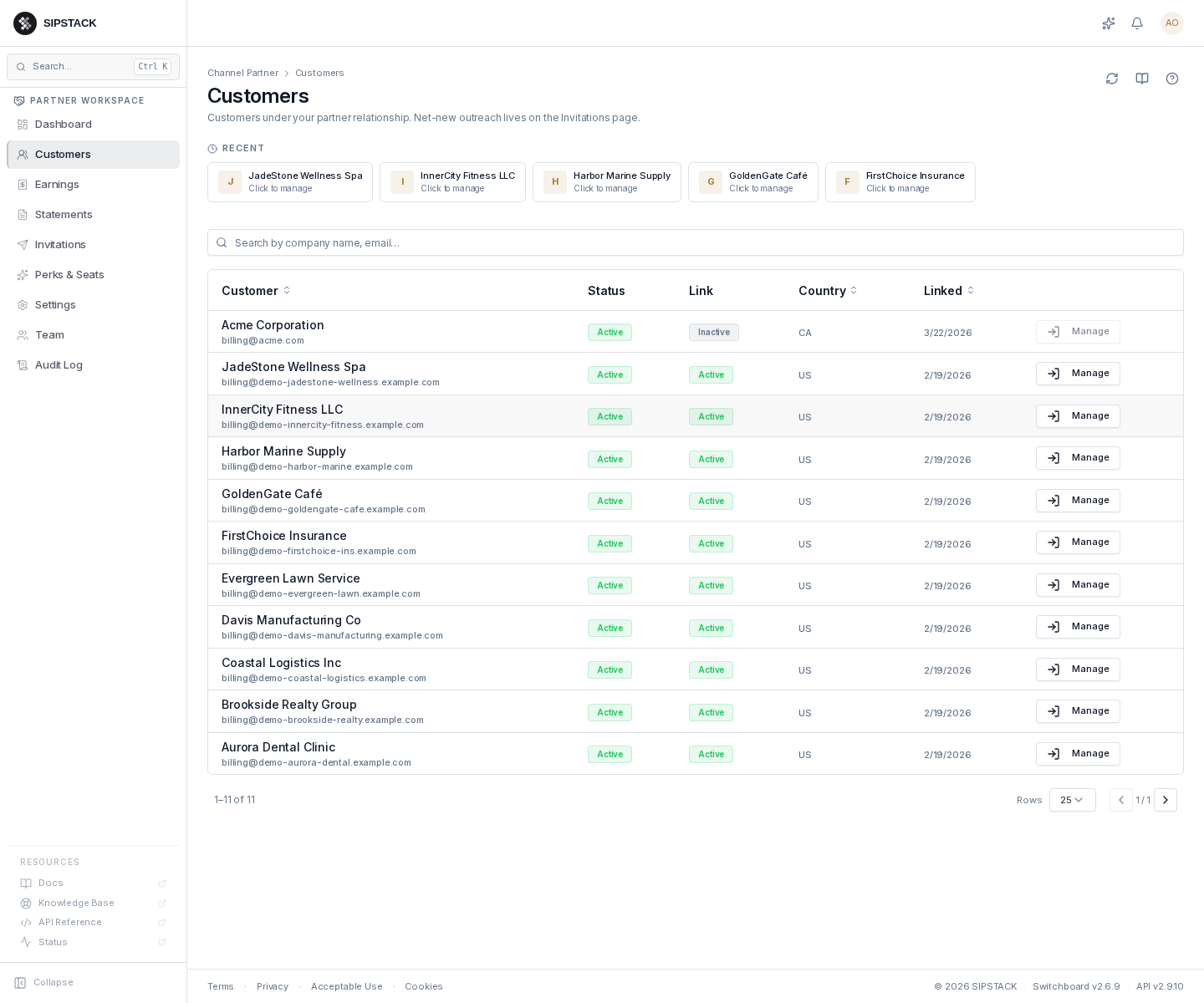
The list
Section titled “The list”Each row shows the customer’s name and billing email, two status badges, their country, and the date they were linked to you:
- Status — the organization’s own account status (active, suspended, etc.).
- Link — the status of your relationship with them. The two can diverge: a customer can be an active SIPSTACK account whose partner link is inactive — in that case the Manage button is disabled and no new commissions accrue to you.
The Recent rail at the top gives one-click re-entry into the customers you scoped into most recently.
Scoping in (Mode B)
Section titled “Scoping in (Mode B)”Clicking Manage navigates to /partner/org/<customer>/... — no
account switching or re-login. While scoped:
- A banner across the top reads “Managing: <customer>” with Back to partner workspace and Exit customer view controls.
- Your own partner brand lockup stays visible in the header, confirming you are acting as yourself on the customer’s behalf.
- The sidebar shows the customer’s Nova / Flare / Aura admin surface.
- Customer billing and subscription pages are not available, and any privacy overrides the customer has set are enforced.
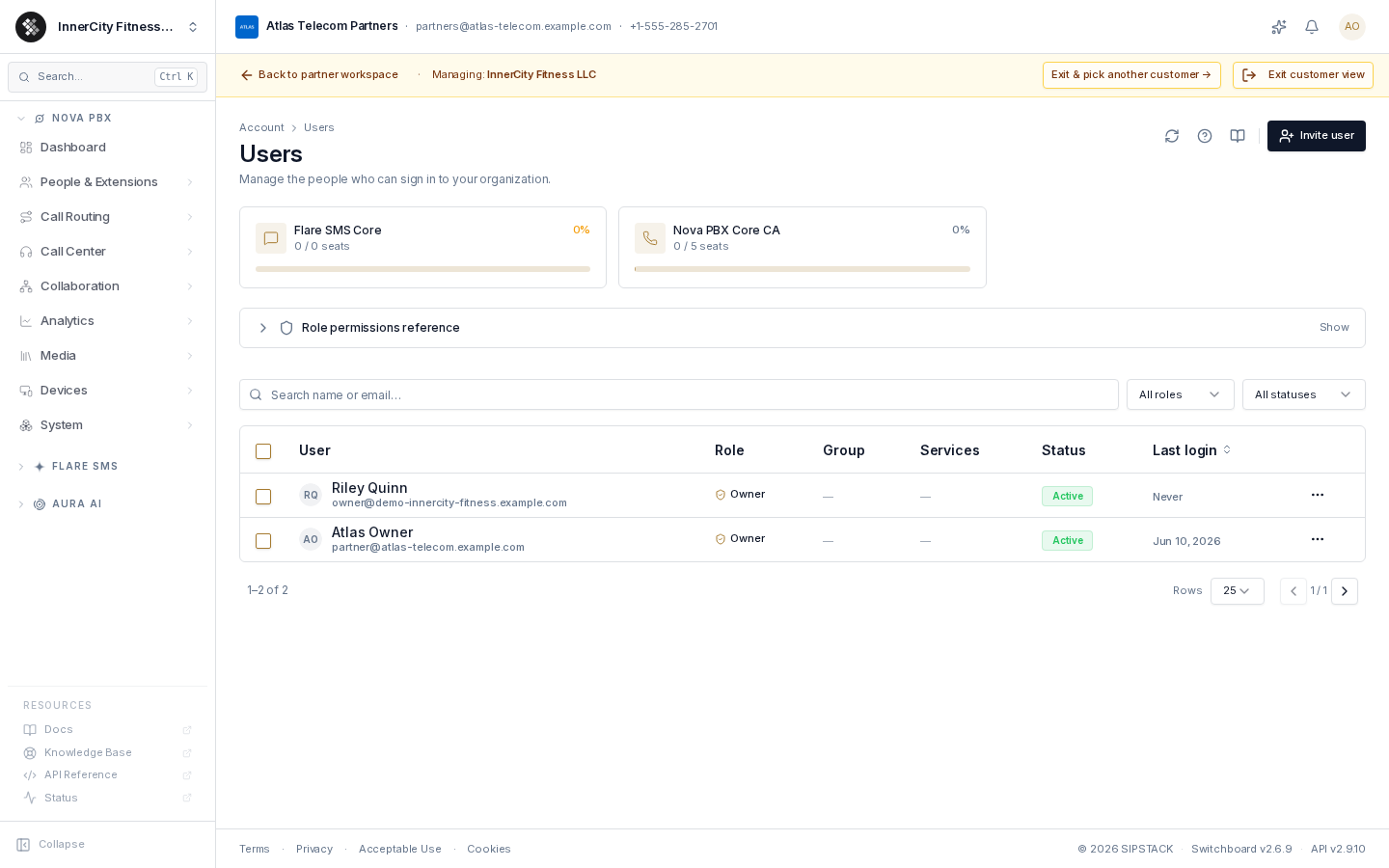
Full walkthrough of the scoped session — what you can reach, what is deliberately withheld, the audit trail and the three exits: Working in a Customer’s Account.
Getting new customers onto the list
Section titled “Getting new customers onto the list”New customers join the list two ways: by accepting an invitation you send, or by signing up through your standing referral link. Both result in the same managed relationship.
Related: Invitations, Earnings. For the customer’s side of the same relationship — how they grant, scope, and revoke your access — see Partner Access (MSP).