

Time Conditions
Time Conditions
Section titled “Time Conditions”A time condition is a reusable time-of-day / day-of-week schedule. Define “Business Hours” once — Mon–Fri 09:00–17:00 in your local timezone — then point any inbound route (or other schedule-aware feature) at it. When the schedule changes, you edit one condition and every route that references it follows.
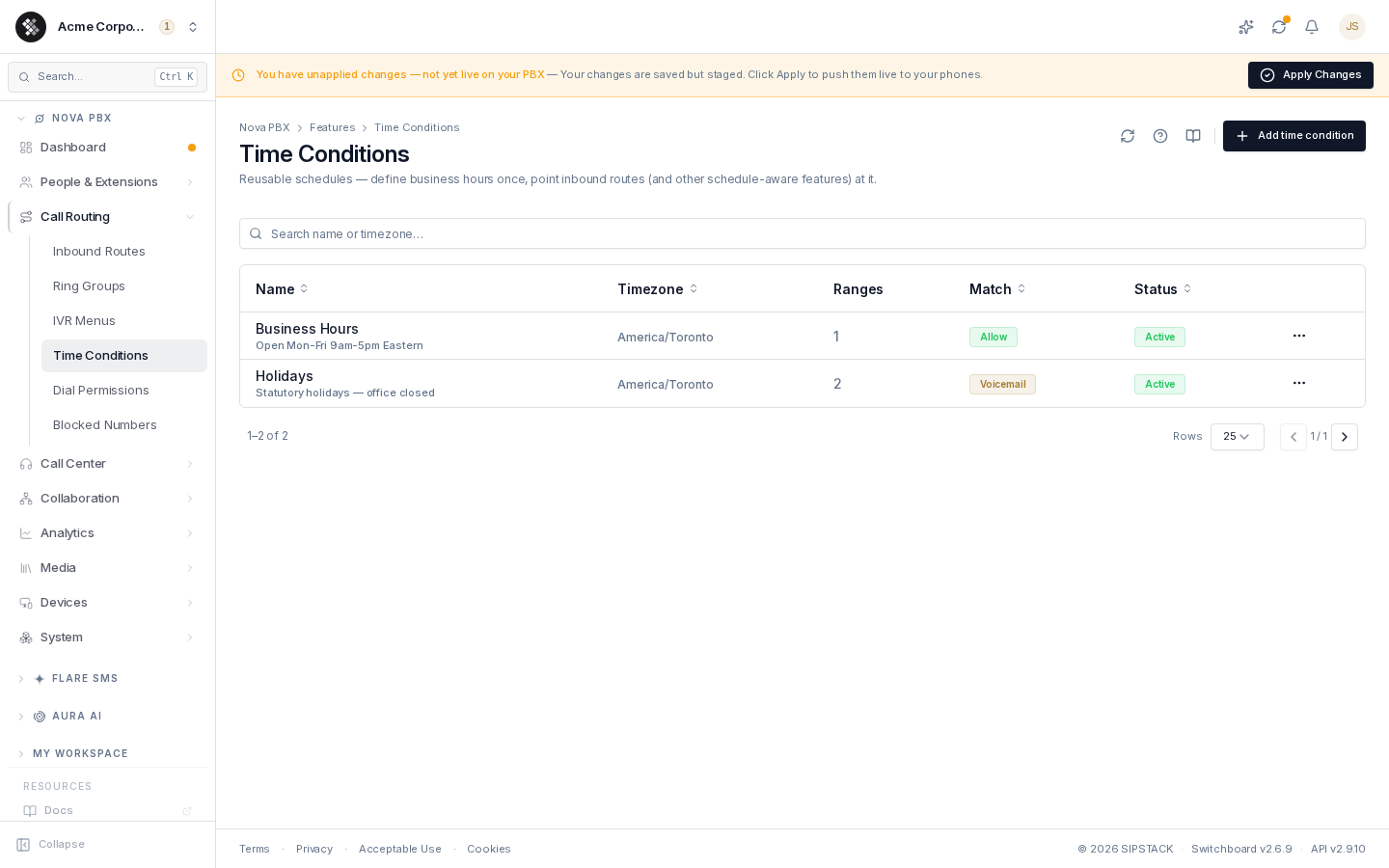
Nova PBX → Call Routing → Time Conditions lists every condition with its timezone, range count, match action, and status. Search filters by name or timezone.
Related pages: Inbound Routes · IVR Menus
Creating a Time Condition
Section titled “Creating a Time Condition”- Click Add time condition (top-right).
- Give it a Name (e.g. “Business Hours”) and an optional Label shown under the name in lists.
- Pick the Timezone — this is the calendar reference for every range. “09:00 Monday” in
America/Torontois a different moment than inAmerica/Los_Angeles. - Add one or more time ranges (below).
- Click Create, then push the change live with Apply Changes in the banner.
Time Ranges
Section titled “Time Ranges”Each range is a start time, an end time, and a set of weekdays:
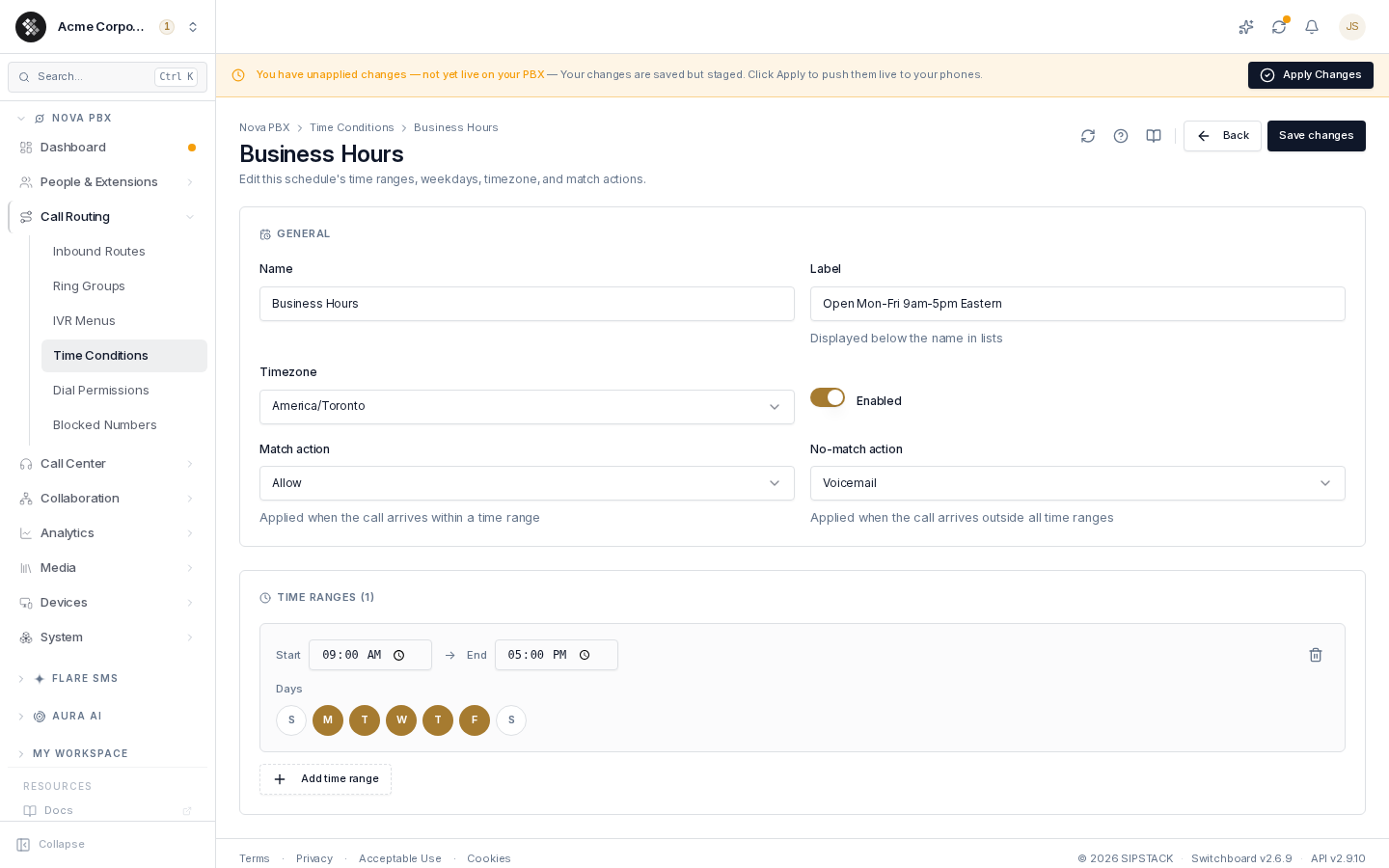
- Start → End — wall-clock times in the condition’s timezone (e.g.
09:00→17:00). - Days — toggle the weekday pills (S M T W T F S). A range only matches on its selected days.
- Add as many ranges as you need — the condition matches when the current time falls inside any range.
A few shapes this supports:
| Goal | Ranges |
|---|---|
| Standard business hours | 09:00–17:00, Mon–Fri |
| Two shifts to different queues | Condition A: 06:00–14:00 Mon–Fri · Condition B: 14:00–22:00 Mon–Fri |
| ”Office closed” (evenings + weekends) | 00:00–23:59 Sat+Sun plus 17:00–23:59 Mon–Fri |
| Saturday half-day | Add 09:00–12:00 Sat as a second range on Business Hours |
Match and No-Match Actions
Section titled “Match and No-Match Actions”Each condition carries a Match action (fires when the current time is inside a range) and a No-match action (outside all ranges): Allow, Reject, Voicemail, or External.
When a time condition is used by an inbound route in Schedule mode, the route’s own rule destinations decide where the call goes — the condition’s actions are not consulted. The actions exist for consumers that read the condition directly; pick sensible defaults and don’t overthink them for inbound-route use.
How Inbound Routes Consume Time Conditions
Section titled “How Inbound Routes Consume Time Conditions”This is the main event. On an inbound route in Schedule mode:
- Each schedule rule pairs a time condition with a destination (queue, ring group, IVR, voicemail…).
- Rules are evaluated in priority order — the first rule whose condition matches the current time wins.
- A rule with no condition always matches — useful as a catch-all.
- The route’s default destination catches calls that match no rule (this is your “after hours” path — you usually don’t need a separate After Hours condition; define Business Hours and let the default catch everything else).
So the standard setup is: one “Business Hours” condition → rule 1 sends matching calls to your day queue → default destination sends everything else to voicemail or an after-hours IVR.
Status
Section titled “Status”Active conditions are evaluated normally. A Disabled condition always reports “no match” — every route rule that references it skips, which makes disabling a quick way to force after-hours routing during an unplanned closure.
Deleting
Section titled “Deleting”Use ⋯ → Delete on the list row. The condition and its ranges are removed permanently; any inbound route rule that referenced it falls back to the route’s no-match/default destination. Review your routes after deleting.
Troubleshooting
Section titled “Troubleshooting”- Not matching when it should — check the timezone first. A condition set to
UTCwith a Toronto office is off by 4–5 hours. - Off by an hour since the clocks changed — use region-aware zones (
America/Toronto), which track DST automatically. - Changes not taking effect on calls — staged config must be pushed: click Apply Changes in the banner at the top of Switchboard.