

Inbound Routes
Inbound Routes
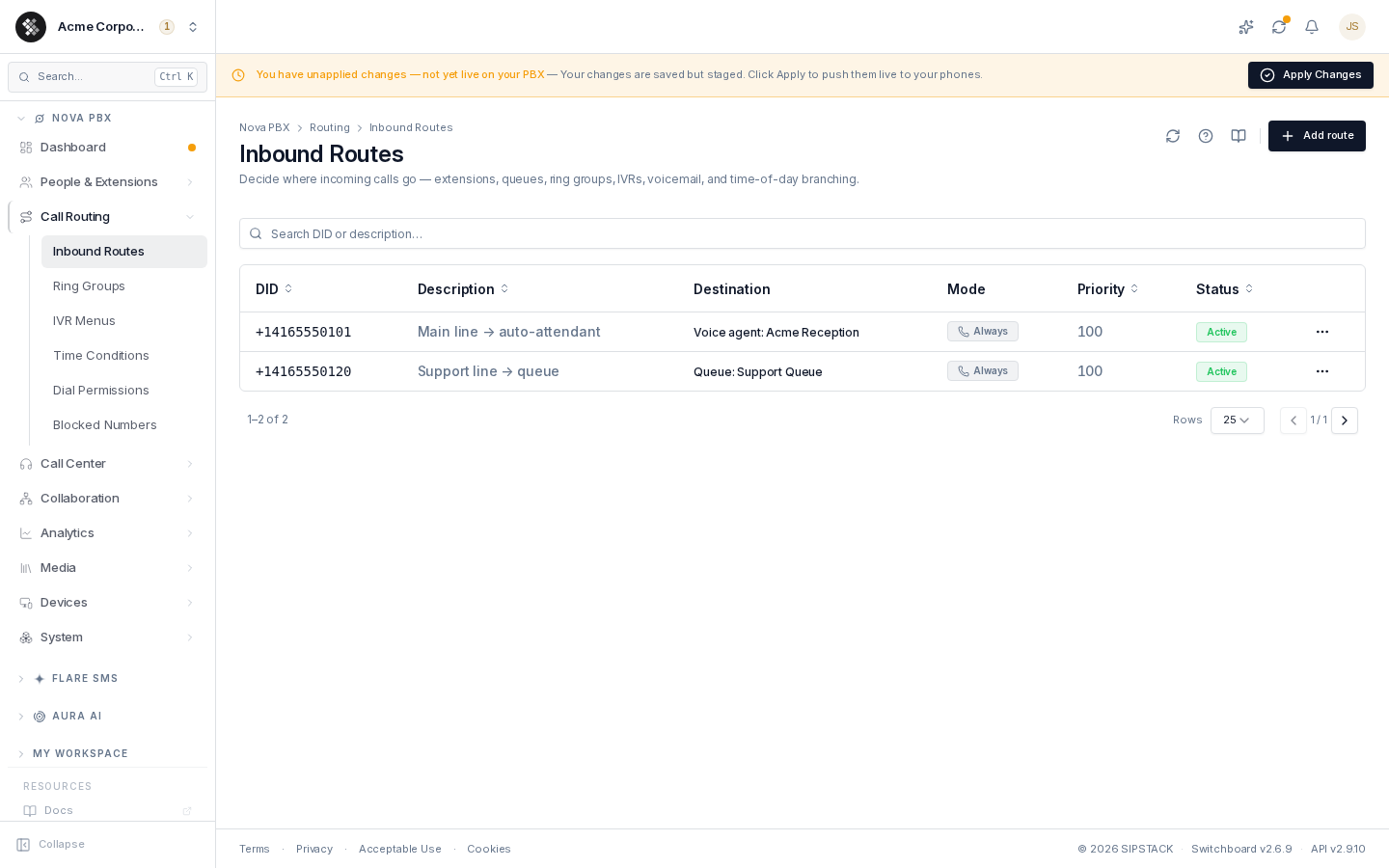
Section titled “Inbound Routes”An inbound route maps a phone number (DID) to a destination inside your PBX: “when somebody dials this number, send the call here.” Navigate via the sidebar: Nova PBX → Call Routing → Inbound Routes.
Every phone number you own should have at least one inbound route — calls to a number without a route have nowhere to land.
Related pages: Ring Groups · IVR Menus · Time Conditions · Dial Permissions · Blocked Numbers
The routes table
Section titled “The routes table”| Column | Meaning |
|---|---|
| DID | The phone number callers dial, in international format (e.g. +14165550101). |
| Description | Free-form label — “Sales line”, “Support hotline”. |
| Destination | Where the call lands when the route fires — “Ext 1001 — Emma Walsh”, “Queue: Support Queue”, “IVR: Main Menu”. |
| Mode | How the destination is chosen: Always, Schedule, or Operator (see below). |
| Priority | When several routes match the same number, the lowest number wins. Default 100. |
| Status | Active (route fires) or Disabled (skipped). |
The search box filters by DID and description as you type. Click any row to edit; the ⋯ menu offers Edit and Delete.
Adding a route
Section titled “Adding a route”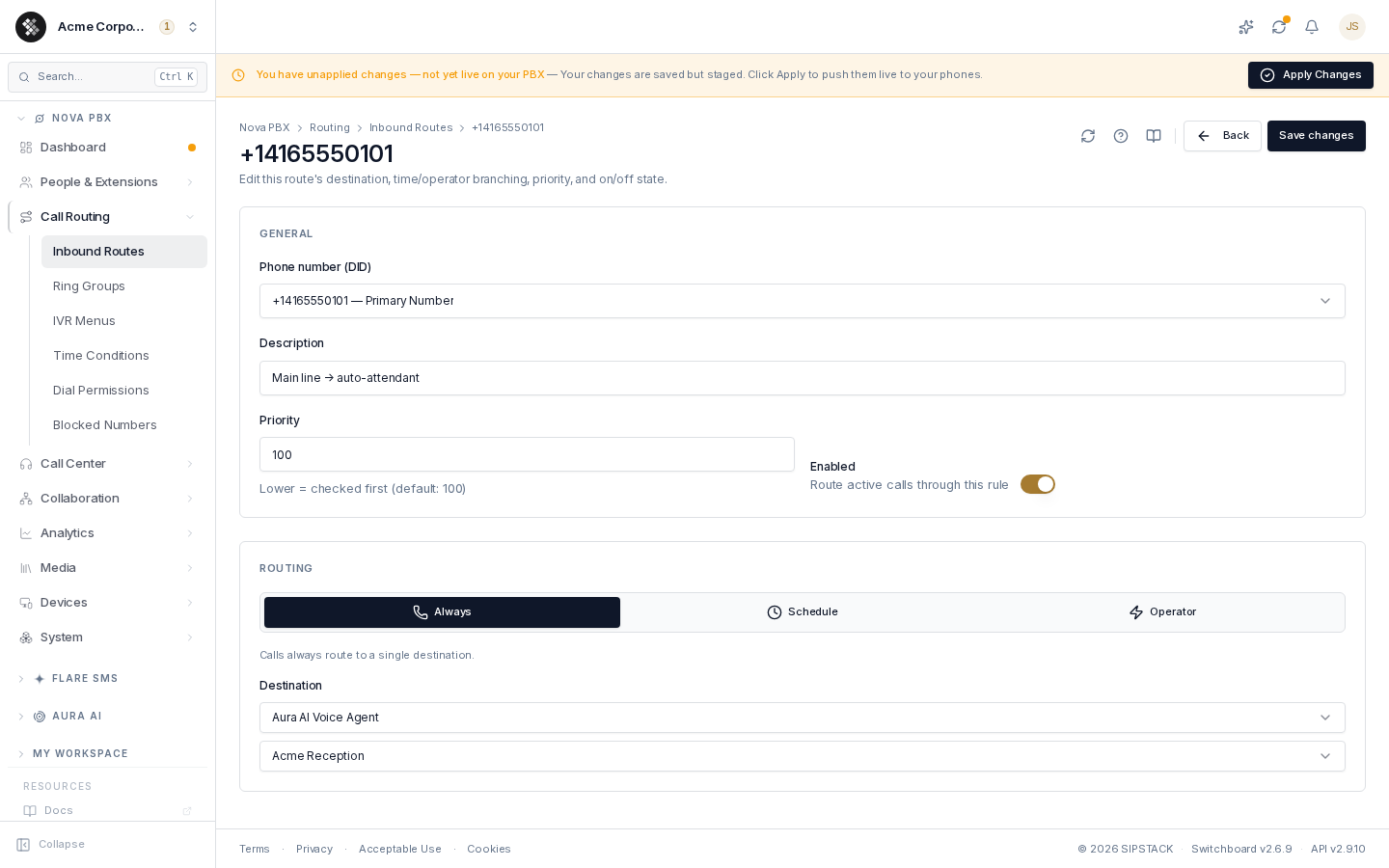
- Click Add route in the top-right.
- Pick the phone number from your inventory, or choose Enter custom DID… to type one manually (international format, e.g.
+14165551234). - Optionally set a description and a priority (lower = checked first).
- Choose a routing mode and destination(s) — see below.
- Click Create route.
Destinations
Section titled “Destinations”Each destination slot in a route accepts:
- Extension — ring a single phone
- Ring Group — ring a set of phones together or in sequence
- Call Queue — hold-music queue answered by agents
- Conference Room — drop the caller into a conference bridge
- IVR Menu — auto-attendant (“press 1 for sales…”); shown when you have at least one IVR menu configured
- Voicemail — straight to an extension’s mailbox
- Aura AI Voice Agent — an AI receptionist answers (shown when your organization has Aura agents; draft agents are listed but can’t be selected until activated)
- External Number — forward to an outside number (mobile, answering service); subject to your outbound dial permissions
- Hangup — drop the call (useful for spam-quarantine numbers)
Routing modes
Section titled “Routing modes”Always
Section titled “Always”One fixed destination. Every call to the number goes to the same place. This is the most common mode.
Schedule (time-based rules)
Section titled “Schedule (time-based rules)”Route by time of day using rules evaluated top-to-bottom — the first matching rule wins:
- Switch the route’s Routing section to Schedule.
- Each rule pairs a time condition (defined under Time Conditions) with a destination. A rule with no condition always matches — useful as a catch-all.
- Reorder rules with the up/down arrows; add more with Add rule.
- Set the default destination — where calls go when no rule matches (commonly voicemail or an after-hours announcement).
Example: rule 1 “Business Hours → Reception ring group”, default destination “Voicemail”. Daytime calls ring the desk; everything else goes to voicemail.
Operator
Section titled “Operator”Manual Day / Night / Temporary switching, controlled from a phone instead of a schedule:
- Configure a destination for each of Day, Night, and Temporary mode.
- Set an operator PIN (4–8 digits) and optionally a feature code (e.g.
*201; auto-assigned if left blank). - An operator dials the feature code, enters the PIN, then presses 1 = Day, 2 = Night, 3 = Temp.
- Default mode is what applies before any toggle has been dialed.
Use this when a human decides when the office “closes” — early closures, storm days, lunch coverage.
Priority and layering
Section titled “Priority and layering”Multiple routes can exist for the same DID. The lowest priority number is checked first; a disabled or non-matching route falls through to the next. A common layering pattern:
- Priority 10 — Schedule mode, business hours → Sales queue
- Priority 20 — Always → Voicemail (catches everything else)
Troubleshooting
Section titled “Troubleshooting”- Caller gets dead air or a busy signal — most likely no route exists for that number, or the route is Disabled.
- Calls go to the wrong place — check Priority; a lower-numbered route may be intercepting.
- My number isn’t in the DID dropdown — numbers come from your Phone Numbers inventory. A route saved with a number that has since left your inventory shows it flagged as “not in your number inventory”.
- Can’t route to a draft Aura agent — activate the agent first; drafts never take calls and the platform rejects routes pointing at them.