

Partner Dashboard
The Partner Dashboard is the landing page of the portal — a single scrollable overview of every metric that defines your partner relationship with SIPSTACK. If you check the portal once a week, this is the page you should be checking.
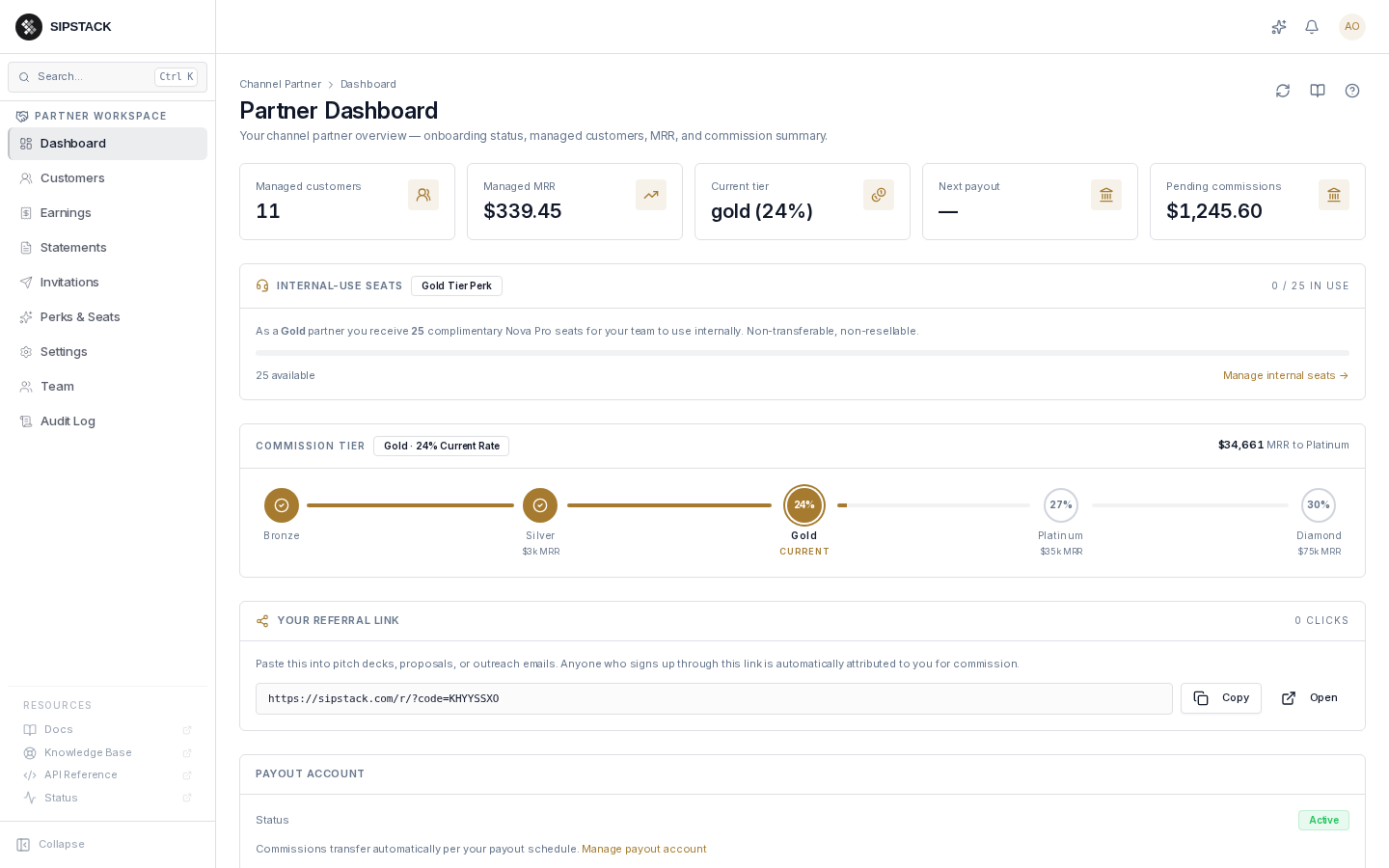
What you see on the dashboard
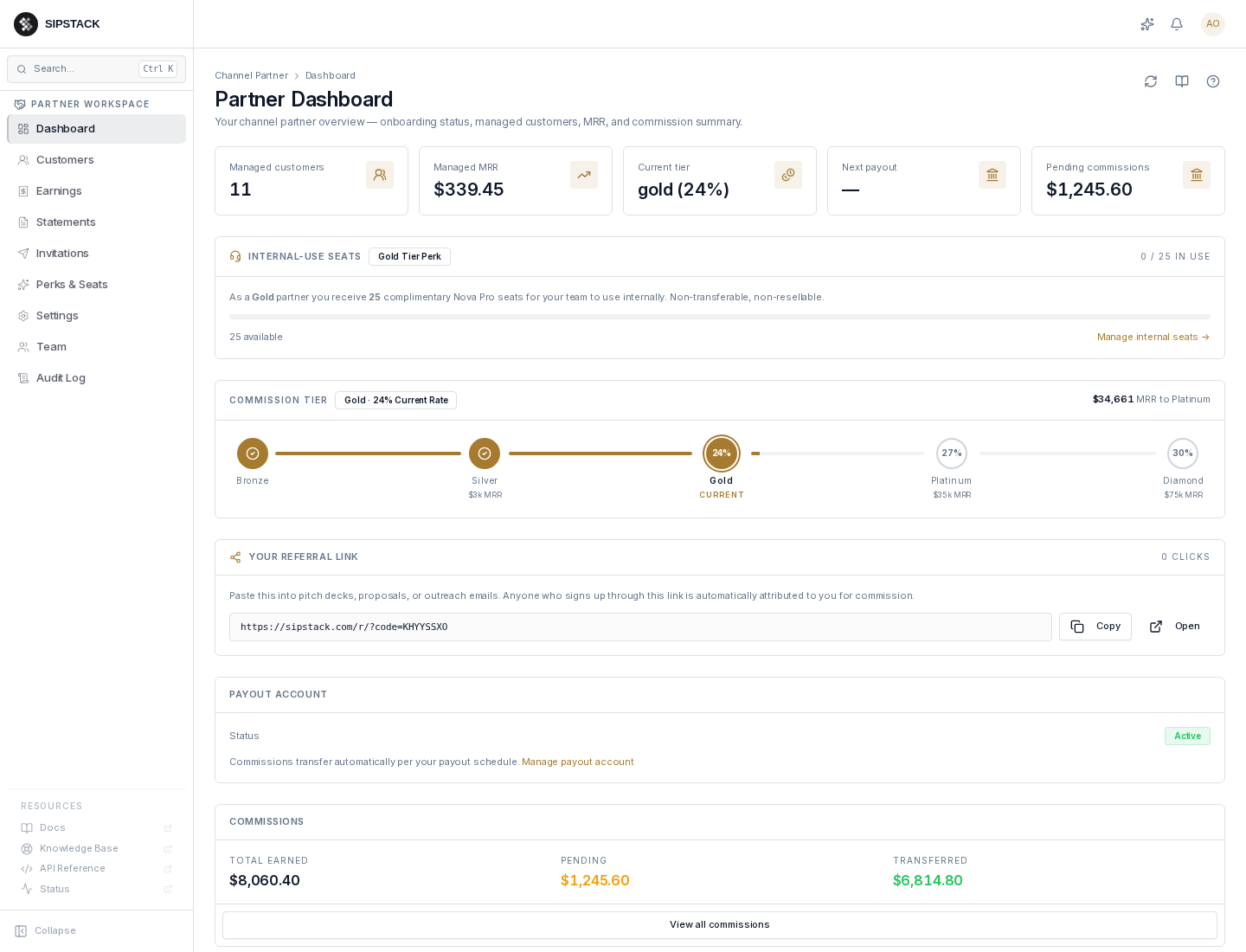
Section titled “What you see on the dashboard”The dashboard is a single scrollable column of cards, top to bottom:
1. KPI tiles
Section titled “1. KPI tiles”A row of summary cards at the top:
- Managed customers — the count of active customer organizations under your partner relationship. Clicking the tile takes you to the Customers page.
- Managed MRR — the sum of monthly recurring revenue across your
managed customers’ active subscriptions, shown in the currency those
customers are billed in. You get one card per currency, so a book billed
entirely in Canadian dollars reads
CA$and is never converted; currencies you have no revenue in are not shown at all. Where a customer has a partner give-back applied, the amount after give-backs appears beneath the total. The headline is the pre-give-back figure, because that is the base your commission and tier are calculated on. - Commission tier — your commission rate band (Bronze, Silver, Gold, Platinum, or Diamond) and the rate it carries. Tier brackets are denominated in USD, so this card also shows the tier basis: your managed MRR converted to USD at our published annual reference rate. That conversion is used only to place you in a bracket — it never touches a commission amount or a payout.
- Next payout — when your next commission transfer is expected (em-dash when nothing is scheduled).
- Pending commissions — commissions earned but not yet transferred to your Stripe payout account, typically because your account is still in onboarding or a charge is under review.
2. Internal-Use Seats
Section titled “2. Internal-Use Seats”A card showing your complimentary Nova PBX seat allocation for your own team — non-transferable, non-resellable. The number of seats scales with your tier (Bronze 1, Silver 5, Gold 25, Platinum 50). The Manage internal seats link takes you to user management for your own organization.
Full detail lives on Perks & Seats.
3. Commission Tier progress
Section titled “3. Commission Tier progress”A horizontal milestone strip showing all five bands (Bronze through Diamond), which one you are in, and the MRR gap to the next band.
Tiers ratchet up only within a calendar quarter — if you cross a threshold mid-month, the higher rate applies immediately and is locked for the remainder of the quarter even if MRR temporarily dips. See Channel Partners → Revenue Share Tiers for the current rate table and exact thresholds.
4. Referral link
Section titled “4. Referral link”A copy-to-clipboard input with your unique partner referral URL. Prospects who sign up through this link are automatically attributed to you for commission tracking, even before you formally invite them. Use it when:
- Linking from your own marketing site or social profiles
- Including in proposals or email signatures
- Sharing in webinars, podcasts, or conference talks
For one-to-one outreach where you want a more controlled flow, prefer Invitations — they create a pending customer record and let you track conversion explicitly.
5. Payout account & commission totals
Section titled “5. Payout account & commission totals”The bottom of the page carries your Payout Account status (Stripe Connect — with a Manage payout account link) and a Commissions summary card with lifetime totals: total earned, pending, and transferred. View all commissions jumps to the Earnings ledger.
If you have funded a give-back for any customer, this card splits the earned figure into three so your payout is derivable at a glance:
| Cell | Meaning |
|---|---|
| Earned | Commission before any give-back — the full amount your tier rate earned on the commissionable base. |
| Given back | The portion you handed to customers as a discount, funded from your own commission. |
| Net earned | What you are actually paid: earned minus given back. |
Without a give-back the card is unchanged and shows a single Total earned. The same breakdown appears on the Earnings page, and per-customer detail is on the customer’s own page.
Common workflows
Section titled “Common workflows”- Daily check-in. Glance at Managed customers + Pending commissions for anomalies (sudden drops usually mean a billing failure on a managed customer — worth a phone call).
- Monthly close. When a new commission statement appears at month-end, reconcile the dashboard’s Pending commissions number against the Statements line items.
- Quarterly tier review. Note where you sit on the tier strip vs. the next threshold; this is the lever to plan customer acquisition against.
Related guides
Section titled “Related guides”- Earnings & Commissions — the full ledger
- Statements — printable monthly summaries
- Perks & Seats — internal-use Nova allocation
- Channel Partners (program details)