

Not Registered / Can't Call
Not Registered / Can’t Call
Section titled “Not Registered / Can’t Call”Before Pulse can place or receive a call, it has to register your line — it opens a secure connection to the SIPSTACK voice network and signs in with your extension. If that registration isn’t up, the dialpad is disabled and inbound calls can’t reach you.
Everything else in Pulse keeps working while you sort this out: you can still send and read SMS, send and receive faxes, and browse call history and voicemail. Only live calling depends on registration.
Where to check your status
Section titled “Where to check your status”Pulse shows your connection status in two places:
- Home tab — a status card near the top shows a coloured dot and a label such as Registered or Not Registered. When everything is healthy it reads Registered · Ready to call with your extension number.
- More tab → SIP Status — the same status as a badge, under the About section.
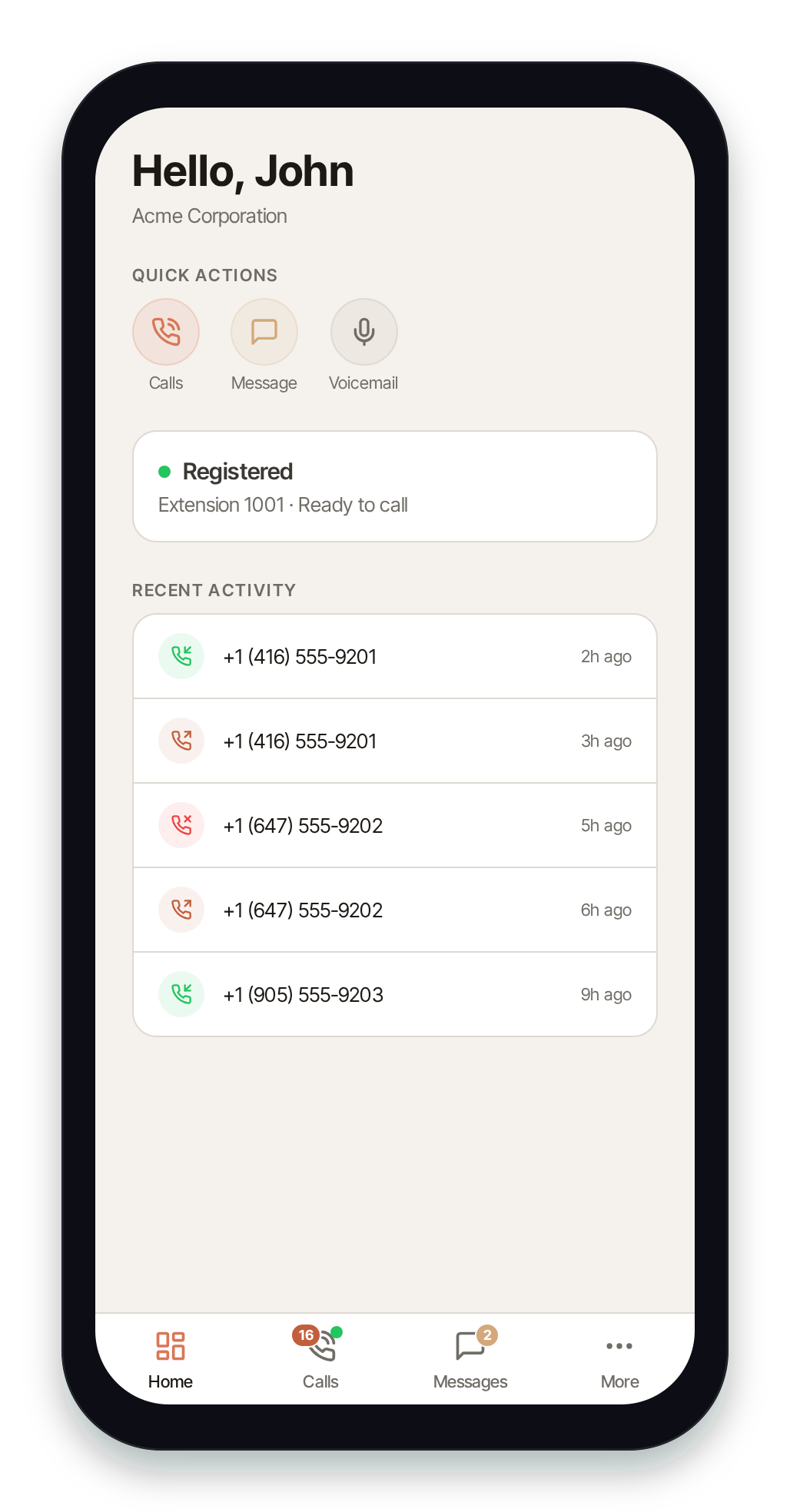
The status card only appears for accounts on a Nova plan with calling enabled. If you don’t see it at all, your account may not include calling — contact your admin.
What each status means
Section titled “What each status means”| Status | What it means | What to do |
|---|---|---|
| Registered | Your line is signed in. You can place and receive calls. | Nothing — you’re ready to call. |
| Connecting… | Pulse is signing in right now. | Wait a few seconds; it should settle on Registered. |
| Not Registered | Your line isn’t signed in (idle). | Usually clears on its own once a network is available, or open the app to the foreground. |
| Reconnecting… | A temporary hiccup; Pulse is retrying automatically. | Wait — it backs off and retries on its own. |
| Server Unavailable | The voice server returned a temporary error. | Wait; Pulse keeps retrying with a backoff. |
| WiFi Required | Wi-Fi-Only Calling is on and you’re on cellular. | Connect to Wi-Fi, or turn off Wi-Fi-Only Calling (see below). |
| Authentication Failed | Your credentials were rejected, or your extension was changed/removed. | Tap Retry. If it persists, contact your admin or support. |
| Connection Failed | Pulse retried several times without success. | Tap Retry to start a fresh attempt. |
The same states appear (with slightly shorter labels) on the More → SIP Status badge — for example Reconnecting…, WiFi Only, Failed, or Offline.
Common causes and fixes
Section titled “Common causes and fixes”No network connection
Section titled “No network connection”Cause: Your device has no Wi-Fi or cellular data, or you’re in a dead zone.
Fix: Reconnect to a network. Pulse watches for connectivity and re-registers automatically the moment a usable network returns — you usually don’t have to do anything.
Wi-Fi-Only Calling is on, but you’re on cellular
Section titled “Wi-Fi-Only Calling is on, but you’re on cellular”Cause: The Wi-Fi-Only Calling preference blocks registration over mobile data, so the status shows WiFi Required.
Fix: Either join a Wi-Fi network, or turn the preference off under More → Calling → WiFi-Only Calling. See Calling Preferences.
Your account has no extension
Section titled “Your account has no extension”Cause: Calling requires an assigned extension. Without one, the status card reads No extension assigned — contact your admin and registration never starts.
Fix: Ask your organization’s admin to assign you an extension in Switchboard. SMS, fax, and other features still work in the meantime.
Authentication failure
Section titled “Authentication failure”Cause: Stale or rejected credentials — often because your extension was reprovisioned, or your sign-in needs refreshing. After repeated rejections the status settles on Authentication Failed and stops retrying so it doesn’t lock your account.
Fix: Tap Retry on the status card. If it keeps failing, sign out and back in, confirm with your admin that your extension is still active, or contact support.
The Retry action
Section titled “The Retry action”When the status is Connection Failed or Authentication Failed, a Retry button appears on the Home status card. Tapping it clears the failure count and starts a clean registration attempt from scratch — use it after you’ve fixed the underlying issue (rejoined Wi-Fi, had your extension restored, and so on).
For transient states like Reconnecting… and Server Unavailable, Pulse retries on its own with an increasing delay, so you can simply wait.
Still stuck? Capture diagnostics
Section titled “Still stuck? Capture diagnostics”If calling won’t come up and support asks for details, open More → About Pulse to reach the Diagnostics screen. It shows your exact app version, runtime/OTA build, and device — use Copy all and share those values when you contact support. They identify precisely which build is running on your device.
If your wider network is the problem (one-way audio, calls failing for everyone on your account, SIP ALG, firewall ports), see the Nova Network Requirements.