

Changing Your Password
Changing Your Password
Section titled “Changing Your Password”There are two ways to change your password while you have access to your account: the required change screen (when your administrator has flagged your account) and a voluntary change from your profile’s Security settings.
When a Change Is Required
Section titled “When a Change Is Required”Administrators can require a password change on your account — typically right after they create it or after a security event. When the flag is set:
- Signing in takes you straight to the Change your password screen.
- You cannot reach any other Switchboard page until the change is complete.
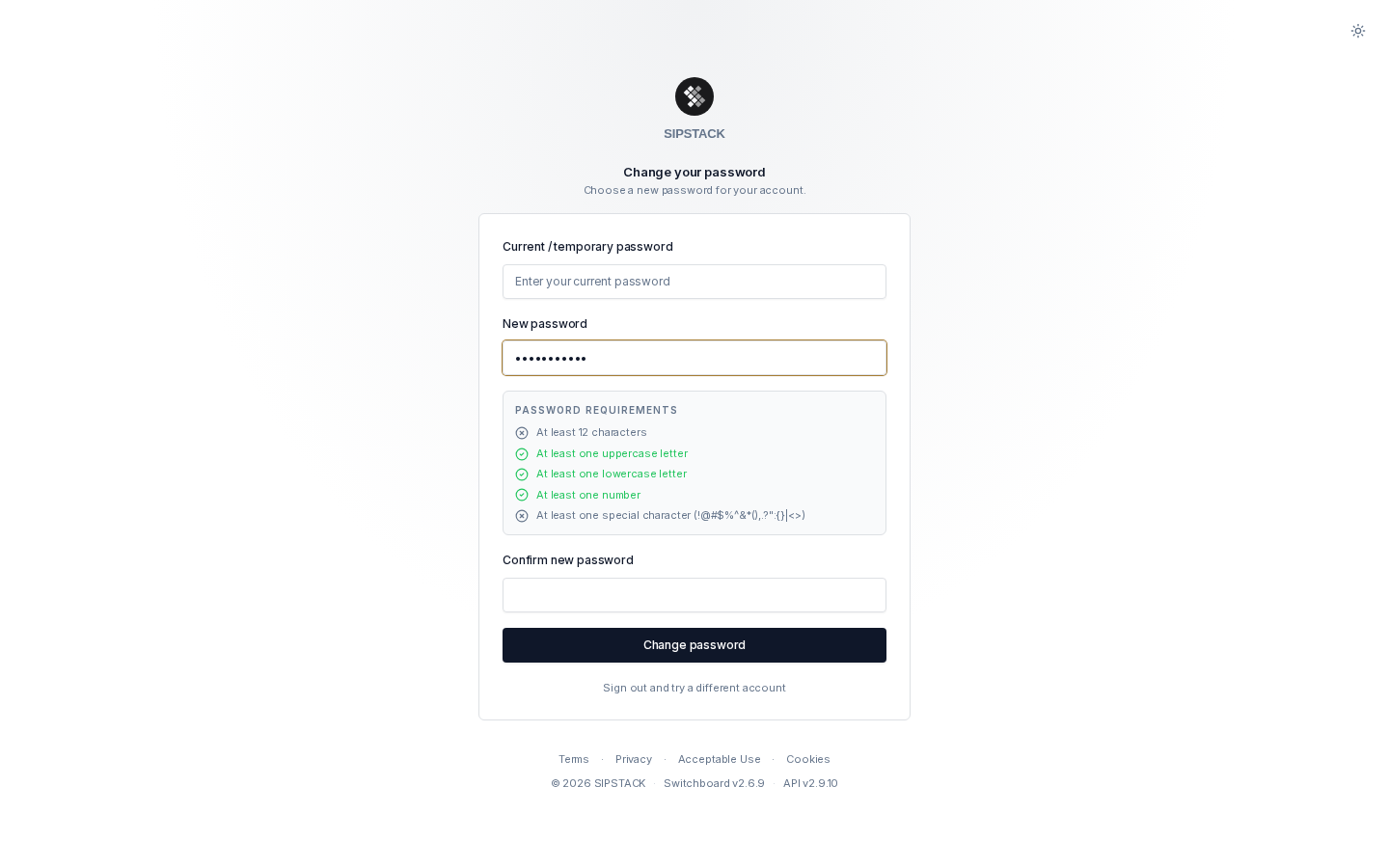
Completing the Required Change
Section titled “Completing the Required Change”- Enter your current (or temporary) password — the one you just signed in with.
- Enter your new password. A live checklist shows the requirements as you type:
- At least 12 characters (128 max)
- At least one uppercase letter
- At least one lowercase letter
- At least one number
- At least one special character from
!@#$%^&*(),.?":{}|<>
- Confirm the new password and click Change password.
You’ll be taken to the page you were headed to, and a confirmation email is sent to your address as a security record.
Changing Your Password Voluntarily
Section titled “Changing Your Password Voluntarily”You don’t need to wait to be asked — you can change your password any time from your profile:
- Click your avatar in the top-right corner of Switchboard.
- Select Profile, then open the Security tab.
- Use Change Password — enter your current password, then your new one.
The same password requirements apply. For more on the Security tab (including two-factor authentication and active sessions), see Security & 2FA.
Troubleshooting
Section titled “Troubleshooting””Current password is incorrect”
Section titled “”Current password is incorrect””The first field must contain the password you used to sign in — including a temporary one your administrator may have communicated to you. If you can’t remember it, sign out and use Resetting Your Password.
A requirement won’t turn green
Section titled “A requirement won’t turn green”Note that the special character must come from the set !@#$%^&*(),.?":{}|<> — characters like - or _ don’t count.
You received a “password changed” email you don’t recognize
Section titled “You received a “password changed” email you don’t recognize”Treat it as a security alert: reset your password immediately and notify your administrator. SIPSTACK sends this confirmation every time your password is changed, by any method.